vikram@gmail.com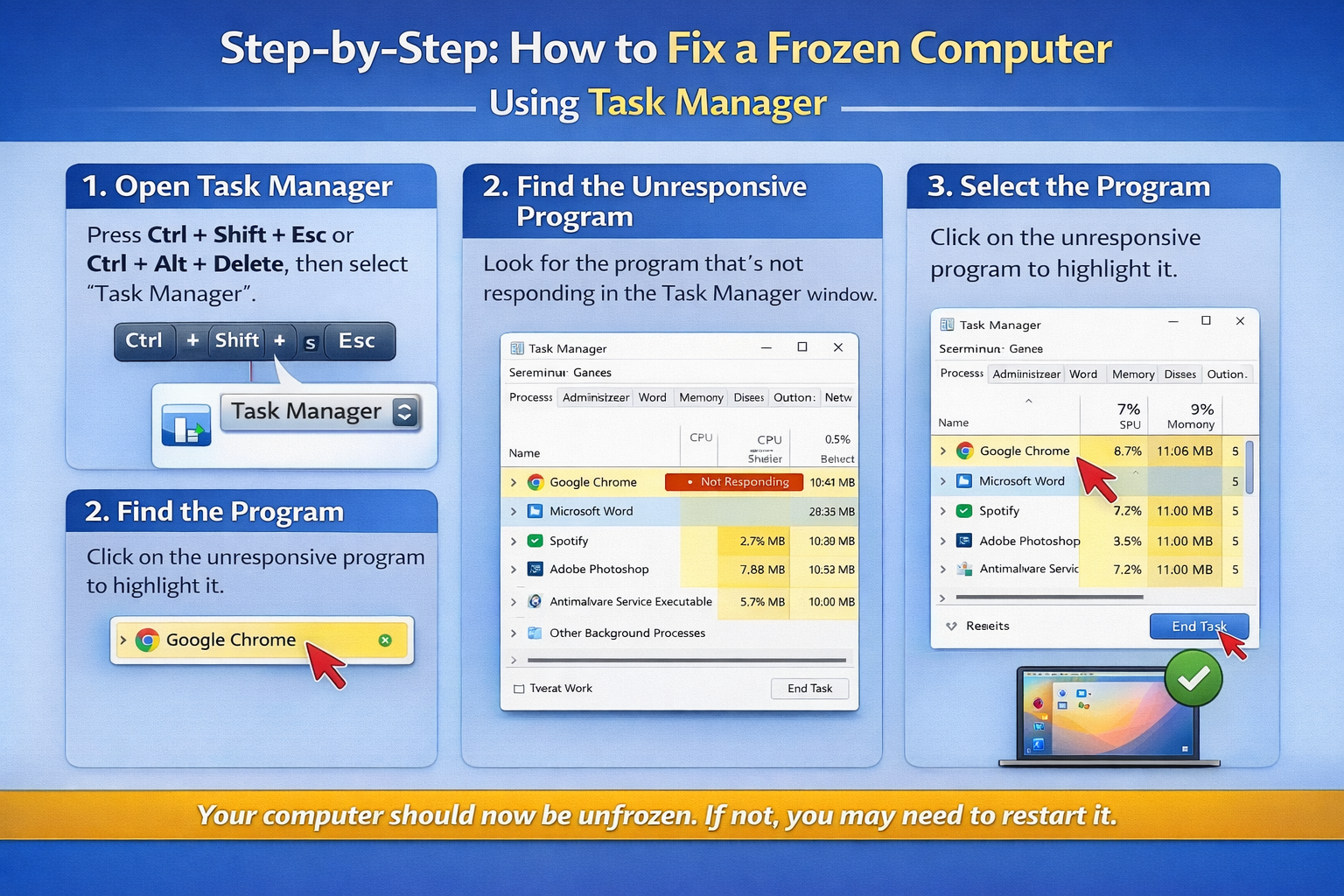
INTRODUCTION:-
When your computer suddenly freezes, panic sets in. The screen is unresponsive, the mouse won’t move, and nothing seems to work. But before you reach for that power button and risk losing all your unsaved work — stop. There’s a smarter, safer solution sitting right inside your Windows operating system. The Task Manager is your most powerful weapon against a frozen computer, and most users barely scratch the surface of what it can do.
In this guide, you’ll learn exactly how to use Task Manager to diagnose, fix, and prevent computer freezes — step by step, with no technical jargon.
What Is Task Manager and Why Does It Matter?
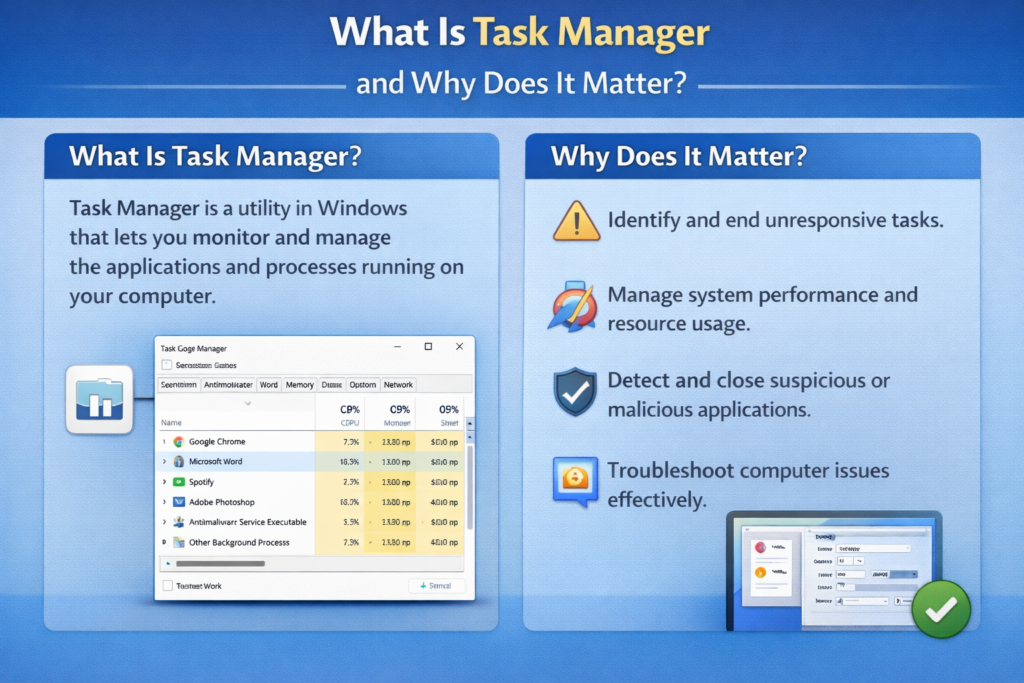
The Task Manager is a built-in Windows utility that shows you everything happening inside your computer in real time. Think of it as the control room of your PC. It displays every program, process, and background service currently running — along with how much CPU, memory, and disk space each one is consuming.
When your computer freezes, it’s almost always because one of these programs or processes has gone rogue — consuming too many resources, crashing, or simply refusing to respond. The Task Manager lets you identify the culprit and shut it down instantly, without restarting your entire system.
This is why every Windows user — from beginners to IT professionals — should know how to use Task Manager effectively.
How to Open Task Manager When Your Computer Is Frozen
Here’s the first challenge: your computer is frozen, so how do you open anything? Fortunately, Windows has built multiple ways to launch Task Manager, and at least one of them almost always works even during a freeze.
Method 1 — The Classic Shortcut: Press Ctrl + Shift + Esc simultaneously. This directly opens Task Manager without going through any menus. This is the fastest method and works in most freeze situations.
Method 2 — The Power User Shortcut: Press Ctrl + Alt + Delete. A blue screen will appear with several options. Click on Task Manager from the list. This method works even when the desktop is completely unresponsive.
Method 3 — Right-Click the Taskbar: If your taskbar is still responding, right-click on any empty space in it and select Task Manager from the context menu.
Method 4 — Run Command: Press Windows Key + R, type taskmgr, and hit Enter. This opens Task Manager directly via the Run dialog box.
Even on a severely frozen system, Ctrl + Alt + Delete almost always bypasses the freeze because Windows gives it special priority — it runs at a system level above regular applications.
Understanding the Task Manager Interface
Once Task Manager opens, you’ll see a clean dashboard with several tabs. Let’s break down what matters most when dealing with a frozen computer.
The Processes Tab — Your Most Important Tool
This is where you’ll spend most of your time during a freeze. The Processes tab shows every application and background process currently running on your system. Each one displays:
- CPU usage — How much processing power it’s using
- Memory usage — How much RAM it’s consuming
- Disk usage — How actively it’s reading or writing to your hard drive
- Network usage — How much internet bandwidth it’s using
When your computer is frozen, look for any process showing extremely high CPU (close to 100%), very high memory usage, or — most tellingly — the status label “Not Responding” highlighted in yellow. That’s your frozen program.
The Performance Tab — The Health Dashboard
The Performance tab inside Task Manager gives you a live graph of your computer’s overall health. You’ll see real-time charts for CPU, Memory, Disk, and Network activity. This tab helps you understand whether the freeze is caused by a single misbehaving app or a deeper hardware/resource issue.
If your CPU graph shows a flat line at 100%, your processor is completely overwhelmed. If Memory shows nearly full usage, your RAM is maxed out. These visual clues are invaluable for diagnosing recurring freezes.
The Startup Tab — Stop Future Freezes Before They Begin
Many users don’t realize that Task Manager also controls which programs launch automatically when Windows starts. The Startup tab shows every program set to auto-launch, along with its “Startup impact” rating (Low, Medium, or High).
Programs with High startup impact are slowing your computer down every single time you turn it on — and they could be contributing to freezes. This tab lets you disable them with a single click.
Step-by-Step: How to Fix a Frozen Computer Using Task Manager
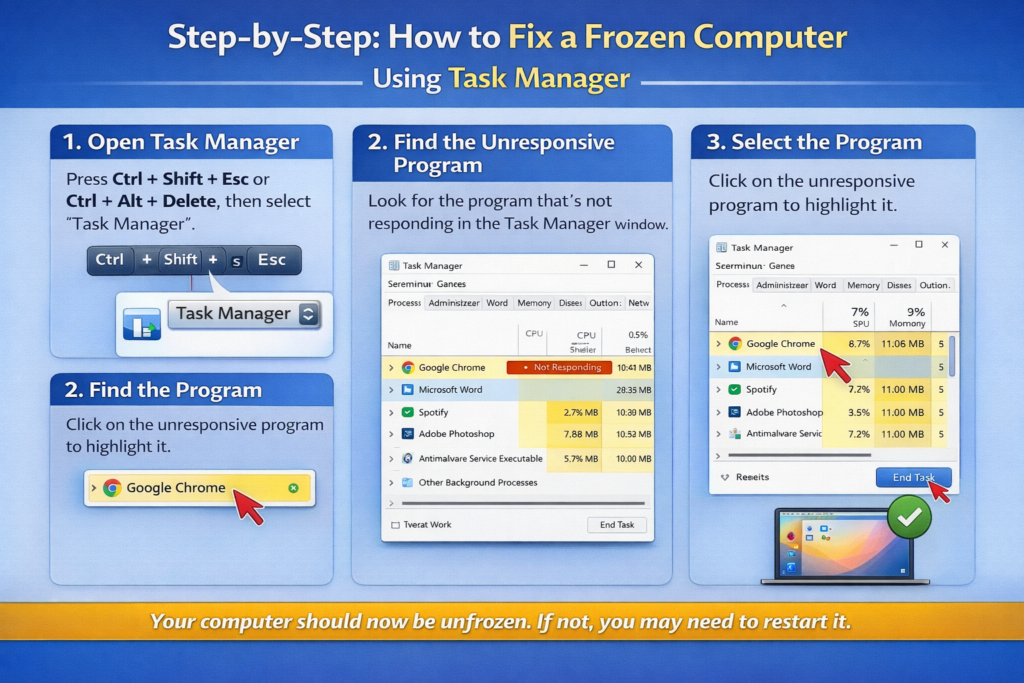
Now let’s walk through the exact process of unfreezing your computer using Task Manager.
Step 1 — Open Task Manager Immediately
As soon as you notice your computer is frozen or severely slowing down, press Ctrl + Shift + Esc. Don’t wait. The sooner you open Task Manager, the more control you have before the situation gets worse.
If that doesn’t work, try Ctrl + Alt + Delete and select Task Manager from the options screen.
Step 2 — Switch to the “More Details” View
When Task Manager opens, it might show a simplified view with just a list of apps. Click “More details” at the bottom to expand the full view with all tabs and columns visible.
Step 3 — Go to the Processes Tab
Click on the Processes tab if it isn’t already selected. You’ll see two sections — Apps (programs you opened yourself) and Background processes (system services running behind the scenes).
Step 4 — Sort by CPU or Memory
Click on the CPU column header to sort all processes by CPU usage, highest first. Then click Memory to sort by RAM usage. This instantly brings the biggest resource hogs to the top.
Step 5 — Find the Frozen or Overloaded Program
Look for any process showing:
- “Not Responding” in the Status column (highlighted in yellow)
- CPU usage of 50% or higher
- Memory usage that seems unusually large
Common culprits include web browsers with too many tabs open, antivirus scans running in the background, Windows Update downloading files, or poorly optimized software.
Step 6 — End the Task
Right-click on the offending process and select “End Task.” Alternatively, click on the process once to highlight it, then click the “End Task” button in the bottom-right corner of Task Manager.
Windows will immediately terminate that program. Within seconds, your computer should become responsive again.
Important note: Ending a task forcefully means any unsaved work in that program will be lost. However, this is far preferable to a hard shutdown, which can corrupt files and damage your operating system.
Step 7 — Monitor the Result
After ending the task, watch the CPU and Memory columns in Task Manager for a few seconds. If the numbers drop significantly and your computer becomes responsive, you’ve successfully fixed the freeze.
If the system is still struggling, look for additional high-usage processes and end those as well.
Using Task Manager to Prevent Future Freezes
Fixing a freeze is great. Preventing one is even better. The Task Manager gives you powerful tools to stop freezes from happening in the first place.
Disable High-Impact Startup Programs: Open Task Manager, go to the Startup tab, and look at everything marked as “High” impact. Right-click on any program you don’t need launching at startup and select “Disable.” This can dramatically speed up your computer and reduce freezes caused by resource overload during boot.
Monitor Resource Usage Regularly: Make it a habit to open Task Manager once a week and check the Performance tab. If your RAM is consistently above 80% usage even when you’re not doing anything demanding, it’s a sign you need more memory or need to close background applications.
Check for Memory Leaks: Some programs slowly consume more and more RAM over time without releasing it — a problem called a memory leak. If you notice a specific application’s memory usage creeping higher the longer it’s open, that program may have this issue. Restarting it periodically or checking for software updates usually fixes this.
Common Mistakes People Make With Task Manager
Many users accidentally make their frozen computer situation worse. Here’s what to avoid:
Don’t End System Processes: The Processes tab also shows Windows system processes. Ending the wrong one can crash your entire operating system. Stick to ending applications you recognize — your browser, media player, office software, etc. If you’re unsure, don’t end it.
Don’t Spam-Click “End Task”: Clicking End Task multiple times on the same process won’t speed things up. Give Windows 5-10 seconds to terminate the process cleanly before trying again.
Don’t Immediately Hit the Power Button: A hard shutdown should always be your absolute last resort. Using Task Manager to end frozen programs is always safer and preserves your data and system integrity.
When Task Manager Itself Won’t Open
In extreme cases, your computer may be so frozen that even Task Manager won’t respond. Here’s what to do:
- Wait 2-3 minutes: Sometimes Windows is processing a heavy task and will recover on its own. Give it time.
- Try all four opening methods listed earlier in this guide — one of them may break through.
- Safe Mode restart: If nothing works, hold the power button for 5 seconds to force a shutdown, then restart into Safe Mode (press F8 during boot on older systems, or hold Shift while clicking Restart). In Safe Mode, Task Manager and basic system tools almost always work, letting you remove problematic programs.
Conclusion: Master Task Manager, Master Your Computer
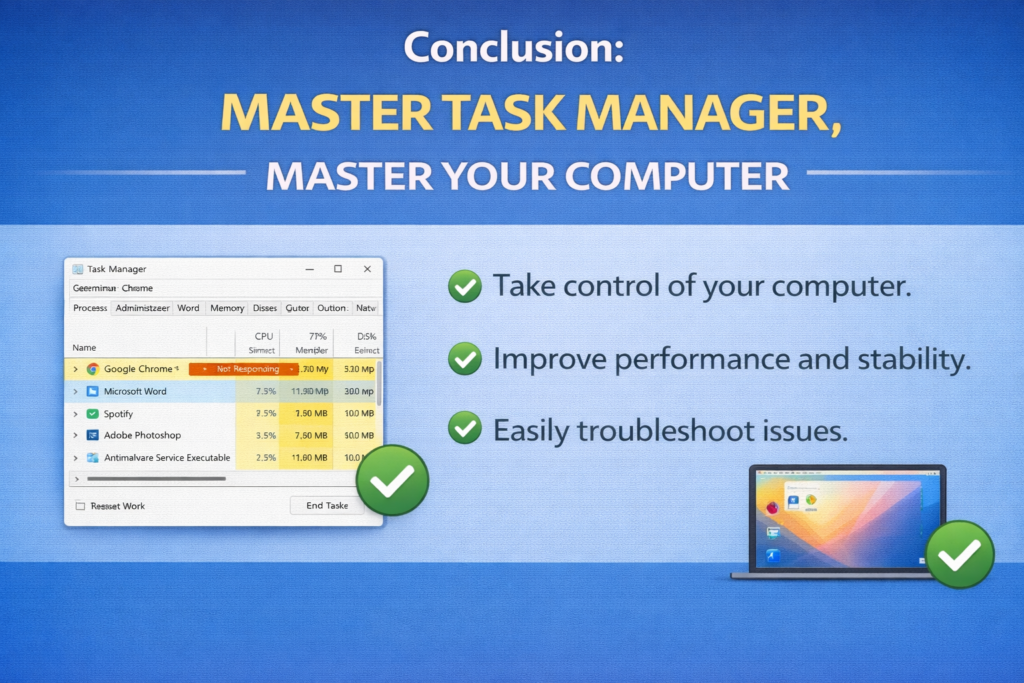
A frozen computer is frustrating, but it doesn’t have to mean lost work or a panicked hard reset. The Task Manager is one of the most underused yet most powerful tools built into Windows — and now you know exactly how to use it.
From instantly identifying frozen applications, to monitoring your system’s health in real time, to preventing future slowdowns through startup management — the Task Manager puts you in full control of your computer’s performance. Open it the next time something slows down, and you’ll be amazed at how much information and power is right at your fingertips.
Bookmark this guide, practice the shortcuts, and the next time your screen freezes — stay calm, press Ctrl + Shift + Esc, and let Task Manager do what it does best.