vikram@gmail.com
INTRODUCTION:–
You know that feeling.
You are sitting at your desk, leaning forward, eyes narrowing, trying desperately to read text so small it feels like the designer personally disliked you. Or you open a webpage and everything is enormous — oversized, clumsy, forcing you to scroll sideways just to finish a single sentence.
Both problems share one solution.
Learning how to properly zoom in and zoom out on any screen or document is one of those skills that sounds almost too basic to deserve serious attention. But here is the truth most people never realize — the majority of computer and smartphone users know only one or two zoom methods when dozens exist, each perfectly suited to a different situation, device, or application.
By the time you finish reading this guide, that changes completely.
Why Zoom Control Is More Important Than You Think
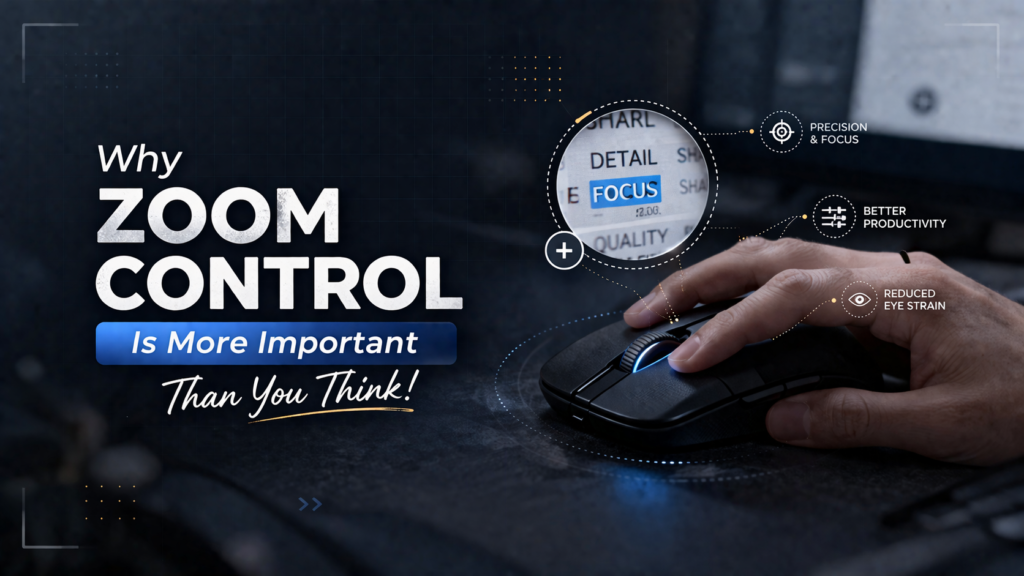
Most people treat zoom as a minor convenience — something you fiddle with occasionally when text is too small. Professionals treat it completely differently.
When you master how to zoom in and zoom out with confidence and speed, several things happen simultaneously. Your eye strain drops dramatically because you stop forcing your eyes to work harder than necessary. Your reading speed increases because comfortable text size allows faster, more natural reading. Your presentations become more professional because your audience can actually see what you are showing them. Your detailed work — document editing, spreadsheet review, image examination — becomes faster and more accurate because you see exactly what you need to see at exactly the right size.
This is not a small quality-of-life improvement. For anyone who spends significant time in front of a screen — which in the modern world means almost everyone — mastering zoom in and zoom out controls genuinely changes how productive and comfortable every single working day feels.
The Universal Keyboard Shortcuts — Start Here
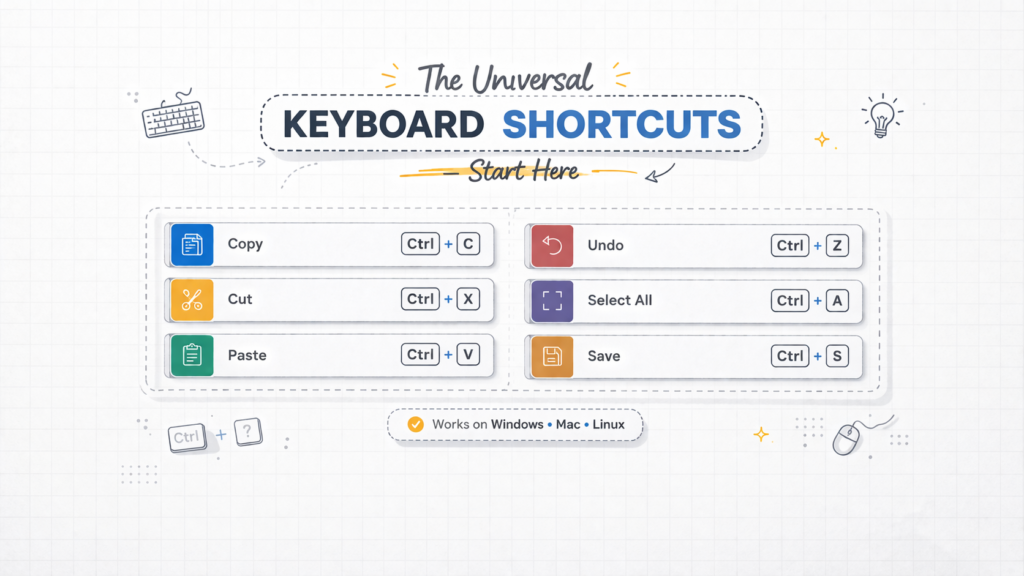
Before anything platform-specific, these keyboard shortcuts deserve your immediate attention and memorization. They represent the closest thing computing has to a universal zoom standard — working reliably across hundreds of different applications on Windows computers.
Zoom In — Ctrl Plus (+)
Hold the Ctrl key and press the Plus sign. Content grows larger with each press, moving through fixed zoom increments — typically ten to twenty-five percent per press depending on the application. Press once for a small increase. Press several times to zoom in significantly. Simple, instant, and reliable in the vast majority of applications you use daily.
Zoom Out — Ctrl Minus (-)
Hold the Ctrl key and press the Minus sign. Content shrinks with each press, pulling back to reveal more of the surrounding page, document, or image. Use this when the goal shifts from reading detail to understanding overall layout and structure.
Reset — Ctrl Zero (0)
Hold the Ctrl key and press zero. This single shortcut has saved more frustrated users than perhaps any other keyboard combination in computing. No matter how far in or out you have traveled — whether you accidentally zoomed to two hundred percent or shrunk everything to fifty — Ctrl plus zero snaps everything back to the standard one hundred percent default instantly. If you only memorize one zoom shortcut from this entire guide, make it this one.
These three shortcuts work across Google Chrome, Mozilla Firefox, Microsoft Edge, Microsoft Word, Microsoft Excel, Microsoft PowerPoint, Adobe Acrobat Reader, most image viewers, and hundreds of additional applications. They are the foundation upon which all other zoom skills build.
The Mouse Wheel Method — Smoother and Faster
For desktop users with a scroll wheel mouse, this method frequently becomes the preferred zoom technique after discovery — because it offers something keyboard shortcuts cannot: fluid, continuous control.
Hold the Ctrl key and scroll the mouse wheel upward to zoom in and zoom out in the upward direction — content grows smoothly as you scroll. Hold Ctrl and scroll downward to zoom out — content shrinks as you scroll back.
The critical advantage here is precision. Keyboard shortcuts jump between fixed percentage increments. The scroll wheel gives you continuous, stepless control — you can stop at exactly the zoom level your eyes find comfortable rather than overshooting to the next preset. For tasks requiring careful zoom calibration — reviewing detailed spreadsheets, examining photographs, reading dense legal documents — the mouse wheel method consistently produces the most comfortable and accurate results.
Browser Zoom Mastery — Chrome, Firefox and Edge

Since most people spend the majority of their screen time inside web browsers, complete browser zoom mastery delivers more daily value than zoom skills in any other single application category.
Google Chrome — Per-Site Memory
Chrome supports all keyboard shortcuts and the mouse wheel method described above. Menu-based controls appear by clicking the three vertical dots in Chrome’s top-right corner — the current zoom percentage sits between plus and minus buttons for point-and-click adjustment.
Chrome’s most powerful zoom feature, however, works silently in the background without announcing itself.
Every time you zoom in and zoom out on any website and leave the page at a non-default zoom level, Chrome automatically saves that preference. The next time you visit that website — today, tomorrow, three months from now — Chrome applies your saved zoom level automatically. A news website with consistently small text, adjusted once to one hundred twenty-five percent, always opens at one hundred twenty-five percent from that point forward. A photography site that displays best at seventy-five percent remembers that setting permanently.
To view and manage every saved site zoom preference, type chrome://settings/content/zoomLevels directly into Chrome’s address bar and press Enter. This page displays every customized website with individual reset options.
Mozilla Firefox — Text Only Zoom
Firefox handles all standard zoom methods identically to Chrome and adds one capability Chrome does not offer — the ability to zoom in and zoom out for text independently from everything else on the page.
Standard zoom scales all page elements proportionally — text, images, spacing, and layout grow or shrink together. Firefox’s Text Only Zoom mode, found under View in the menu bar then Zoom, increases exclusively text size while leaving images and layout at original dimensions. For users who want larger, more comfortable text without disrupting carefully designed page layouts they prefer to keep intact, this text-specific control is genuinely valuable.
Microsoft Edge — Immersive Reader
Edge handles all standard zoom controls identically to Chrome. Its distinctive addition for reading comfort is Immersive Reader, activated by pressing F9 on compatible article pages.
Immersive Reader strips away advertising, navigation menus, sidebars, and every other distraction, reformatting article content into a clean, focused reading environment. Inside this mode, a dedicated preferences panel allows text size adjustment from very small to very large, font selection optimized for readability, line spacing and column width control, and background color theme selection including sepia and dark mode options. For anyone who reads long articles regularly, Immersive Reader combined with its internal text size controls creates a reading experience significantly more comfortable than standard browser zoom.
Microsoft Office — Professional Zoom Control
The Microsoft Office suite offers the most comprehensive and precise zoom controls available in mainstream productivity software — built for professionals who need exact, reliable command over document display in every working situation.
Microsoft Word
Word’s zoom slider occupies the bottom-right corner of every Word window. Drag right to increase zoom, drag left to decrease it, with the current percentage always displayed beside the slider for reference.
The View tab in Word’s ribbon provides more sophisticated options. The Zoom button opens a detailed dialog offering preset percentages, a custom percentage field accepting any value from ten to five hundred percent, and layout display options including One Page, Two Pages, and Multiple Pages views that automatically calculate the appropriate zoom level for your selected layout.
Page Width automatically calculates and applies the exact zoom percentage needed to make the document’s full width fill your screen completely, edge to edge — eliminating the wasted gray margins that appear at lower zoom levels while maximizing the visible content area. For most standard document work, Page Width represents the single best default zoom setting.
Whole Page shows the entire page from top to bottom margin simultaneously — ideal for layout checking, overall formatting review, and understanding document structure before moving into detailed editing work.
Microsoft Excel
Excel inherits all of Word’s zoom controls and adds one uniquely powerful feature — Zoom to Selection — that no other mainstream application offers in quite the same way.
Select any range of cells. Go to the View tab in the ribbon. Click Zoom to Selection. Excel instantly calculates and applies the precise zoom percentage needed to make your selected cell range fill the entire visible screen area perfectly.
For presenting specific data clearly during meetings, for focusing deeply on a particular section of a complex worksheet without distraction from surrounding data, or for capturing clean professional screenshots of specific data ranges, Zoom to Selection delivers perfect results in a single click that manual adjustment would require multiple careful attempts to replicate.
Microsoft PowerPoint
PowerPoint’s editing view zoom functions identically to Word. Its most valuable and least discovered zoom feature activates exclusively during live presentations.
While running a slideshow in full Presentation mode, holding Ctrl and clicking on any area of the current slide creates a smooth animated zoom directly into that specific region — magnifying it for the audience while maintaining presentation context. Clicking again returns smoothly to the full slide view. Most presenters never discover this built-in capability, yet it transforms how effectively specific details, data points, or design elements can be highlighted during live demonstrations without switching to any external tool.
Windows Magnifier — Zoom Everything at Once
Every zoom method covered so far operates within individual applications. Windows Magnifier operates at the operating system level — magnifying everything displayed on screen simultaneously, regardless of which application is running or whether that application supports any zoom controls of its own.
Opening Magnifier requires a single keyboard action: press Windows Key and the Plus sign simultaneously. The entire screen zooms in immediately. Windows Key plus Minus zooms back out. Windows Key plus Escape closes Magnifier completely and restores normal display.
Magnifier offers three operational modes suited to different situations and working styles.
Full Screen mode magnifies the complete display. Moving the mouse cursor toward any screen edge scrolls the magnified view in that direction — like examining a large detailed map through a movable window.
Lens mode creates a rectangular magnified zone that follows the mouse cursor across the screen continuously. Content inside the lens appears magnified while everything outside remains at normal size — precisely like moving a physical magnifying glass across your display. Lens mode works exceptionally well for reading specific document or webpage sections without losing sight of surrounding context and navigation.
Docked mode reserves a fixed panel at the screen’s top edge displaying a continuously updated magnified view of the area surrounding your cursor. The remainder of the screen stays at normal zoom. This suits detailed precision work requiring frequent reference to magnified content alongside normal-sized surrounding information.
All Magnifier configuration options — zoom increment size, startup behavior, mouse tracking speed, and color inversion — are found in Settings, then Ease of Access, then Magnifier.
Mobile Zoom — Smartphones and Tablets
Touch interfaces introduced zoom gestures that rank among the most naturally intuitive controls ever designed for any technology — so natural that children master them within minutes of first contact.
Pinch to Zoom
Place two fingers on your touchscreen and spread them apart — content zooms in as your fingers separate. Bring them back together and content zooms out as your fingers approach each other. This pinch gesture to zoom in and zoom out works across virtually every application on both Android and iOS that displays any kind of visual content — web pages, photographs, maps, documents, PDF files, and images all respond immediately and naturally.
Double Tap Zoom
A quick double tap on any area in most mobile browsers and document applications automatically zooms into that section to a comfortable reading level. A second double tap returns to the full page view. This two-state toggle between zoomed and normal view requires no precision — just a quick double tap wherever you want to focus — making it the fastest option for simple everyday mobile zoom needs.
Android System Magnification
Android includes a system-level magnification feature working across every application simultaneously. Find it in Settings, then Accessibility, then Magnification. Once enabled, triple-tapping anywhere on the screen instantly magnifies that area to your configured level. Drag with two fingers to pan around the magnified view. Triple-tap again to return to normal. This works universally — including in applications offering no native zoom support whatsoever.
iPhone System Zoom
iPhone’s equivalent feature lives in Settings, then Accessibility, then Zoom. Toggle it on, then double-tap with three fingers anywhere on screen to activate magnification. Drag three fingers to move around the zoomed view. Double-tap with three fingers again to return to normal. Like Android’s system magnification, this works across every application on the device without exception.
Zoom for Presentations and Video Calls
When your screen is visible to others — projected in a conference room or shared through video conferencing software — the ability to zoom in and zoom out becomes a direct audience communication tool rather than a personal viewing preference.
Content that appears perfectly comfortable on your personal monitor frequently becomes illegible when projected onto a large screen or compressed into a video call screen share view. Text that you can read comfortably at one hundred percent on your laptop becomes squint-inducing for an audience watching on a projection screen ten feet away.
Three professional habits transform zoom from a personal setting into a genuine presentation skill.
Always set your browser to at least one hundred twenty-five percent before beginning any screen share — without exception, every time.
Use Windows Magnifier in Lens mode during live demonstrations to create a moving magnified spotlight that guides audience attention to specific screen areas dramatically and naturally without requiring any external software.
Practice the Ctrl plus Plus and Ctrl plus Minus shortcuts until they are completely automatic — so zoom adjustments during live presentations happen smoothly and invisibly, without breaking your speaking flow or forcing you to search through menus while an audience watches and waits.
Solving Common Zoom Problems
Everything looks too large and you cannot find the zoom control: Press Ctrl plus zero in any application to reset immediately to one hundred percent. If the entire Windows interface appears oversized rather than just a single application, right-click the desktop, select Display Settings, and reduce the Scale percentage under the Scale and Layout section.
A website always opens at wrong zoom in Chrome: Type chrome://settings/content/zoomLevels in the address bar, locate the website in the saved preferences list, and click the X beside it. Chrome returns to default zoom for that site on next visit.
Keyboard shortcuts produce no result in a specific application: Some applications use different zoom shortcuts or restrict zoom controls to their View menu. Check View in the application’s top menu bar for zoom options whenever standard shortcuts fail.
Mobile text remains too small even after zooming individual apps: Navigate to your phone’s main Settings, find Accessibility or Display settings, and increase the system-wide Font Size or Display Size setting. This adjustment affects text and interface elements across every application simultaneously — providing a permanent solution rather than requiring repeated manual zooming in individual apps.
Conclusion — Zoom Mastery Is Screen Mastery
The real difference between a casual computer user and a genuinely proficient one is rarely about knowing more complex software or understanding deeper technical concepts.
More often, it is about having complete automatic command of fundamental tools — techniques that appear instantly in any situation without conscious deliberate thought, without menu hunting, without hesitation.
The ability to zoom in and zoom out on any screen, in any application, on any device, is exactly this kind of fundamental skill. It touches every application you open, every device you use, every presentation you deliver, and every hour you spend reading, creating, reviewing, or collaborating on any digital content.
The shortcuts are learnable in minutes. The concepts are immediately understandable. But the cumulative benefit — measured daily in reduced eye strain, greater comfort, more professional presentations, and faster more precise work across every task — compounds across every single hour you spend looking at any screen.
Start with the three universal keyboard shortcuts today. Add the mouse wheel method this week. Explore Chrome’s per-site zoom memory. Discover Windows Magnifier when the situation calls for it. Practice the PowerPoint presentation zoom before your next meeting.
Build each technique naturally into your workflow — one at a time, one situation at a time — until controlling exactly what you see on every screen becomes as automatic and effortless as breathing.