vikram@gmail.com
Whether you are a student, a working professional, or someone managing home tasks, knowing how to print a document is one of the most useful computer skills you can have. In today’s digital world, printing might seem old-fashioned — but in reality, millions of people print documents every single day for offices, schools, hospitals, government forms, and personal records. This complete guide will walk you through everything you need to know about how to print a document — from setting up your printer to fixing common printing problems — in a clear, step-by-step way anyone can follow.
1. Why Knowing How to Print a Document Still Matters
Even though we live in a digital age, printing remains an essential skill. Many important tasks still require physical copies — job applications, legal agreements, school assignments, medical prescriptions, bank statements, and official government documents. Knowing how to print a document correctly saves time, prevents errors, and ensures you always have a professional-quality hard copy when needed. Whether you use a Windows PC, a Mac, or a laptop, the process of printing is easy once you understand the basics.
2. What You Need Before You Print a Document
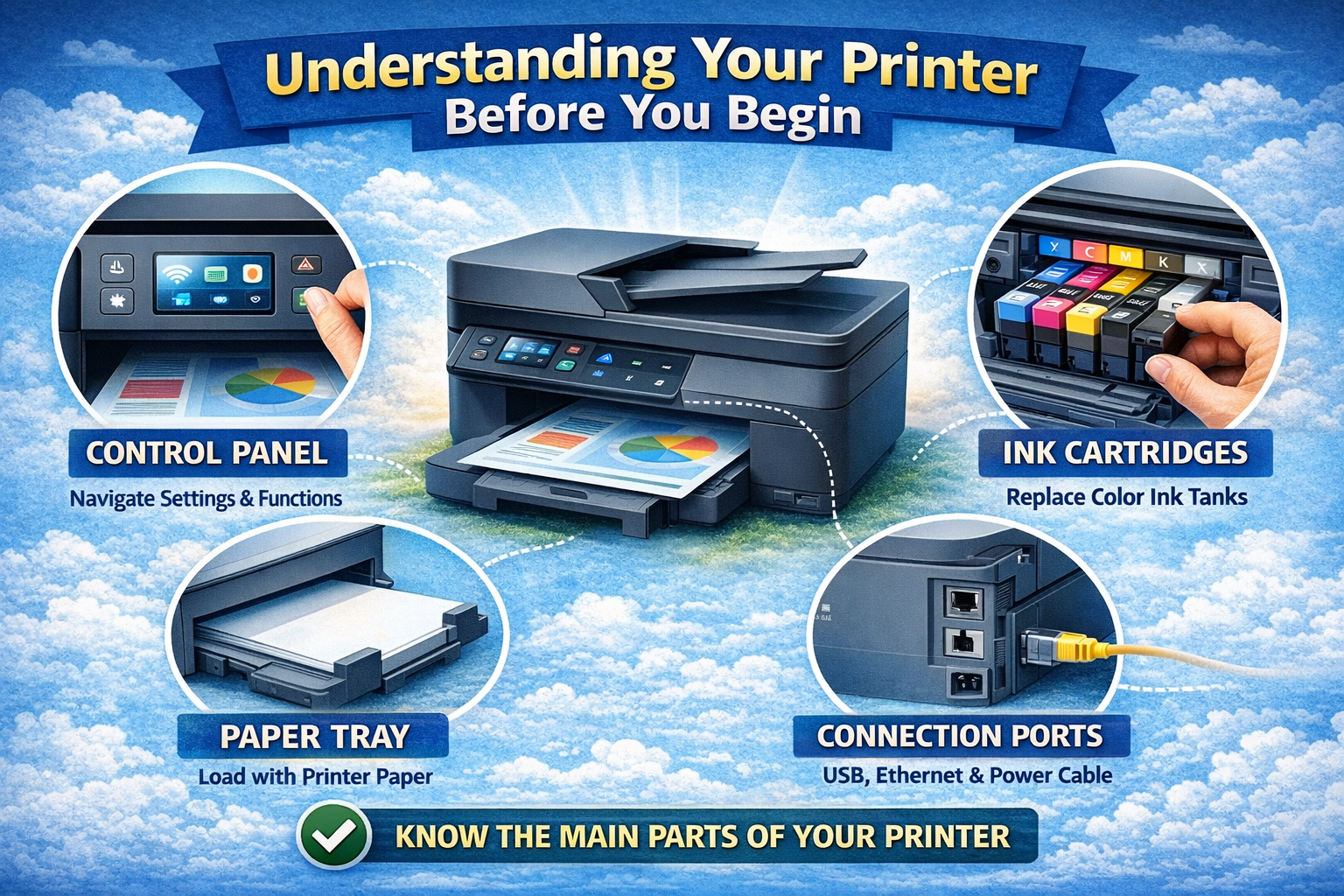
Before you begin, make sure you have the following ready:
- A working printer that is turned ON and connected to your computer (via USB cable or Wi-Fi)
- Enough paper loaded in the paper tray
- Sufficient ink or toner in the printer cartridge
- The correct printer driver installed on your computer
- The document file open and ready on your screen
Once all these are in place, you are fully prepared to print a document without any interruptions.
3. How to Print a Document on Windows (Step-by-Step)
Windows is the most widely used operating system in the world. Here is exactly how to print a document on a Windows computer:
- Open the document you want to print — this could be a Word file, PDF, image, or any file type.
- Press Ctrl + P on your keyboard. This is the universal shortcut to open the Print dialog box.
- The Print window will appear. Here you will see your printer name at the top.
- Select your preferred printer from the dropdown list if it is not already selected.
- Choose the number of copies you need.
- Select which pages to print — All Pages, Current Page, or a Custom Range (e.g., 1-5).
- Click the Print button. Your document will start printing immediately.
Pro Tip: You can also go to File > Print from the top menu of most applications instead of using the keyboard shortcut.
4. How to Print a Document on a Mac (Step-by-Step)
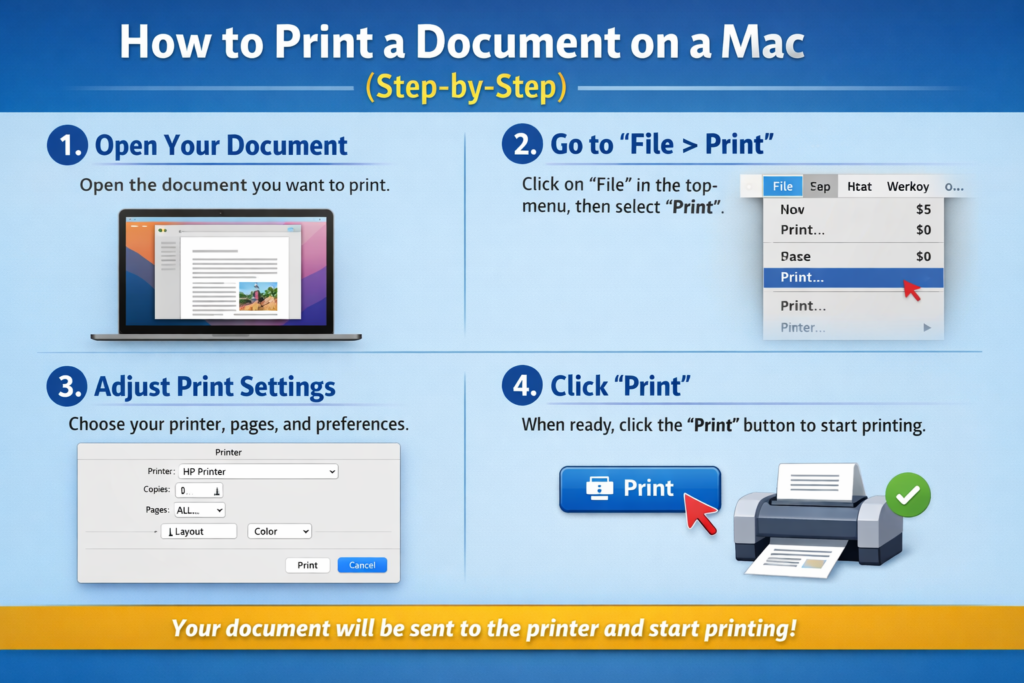
Apple Mac users follow a very similar process when they want to print a document. Here is how to do it:
- Open the document or file you wish to print.
- Press Command + P on your Mac keyboard.
- A print dialog window will open. Make sure your printer is shown correctly.
- Set your printing preferences — number of copies, page range, paper size, and orientation.
- Click Print to send the job to your printer.
On Mac, you can also go to File > Print from the application menu bar. The keyboard shortcut and the menu option both take you to the same print dialog screen.
5. How to Print a Document as PDF (Save Instead of Print)
Sometimes you do not want a physical printout — instead, you want to save your document as a PDF file. Here is how to print a document as a PDF:
- Open the Print dialog (Ctrl + P on Windows, Command + P on Mac).
- In the printer selection dropdown, choose ‘Microsoft Print to PDF’ (Windows) or ‘Save as PDF’ (Mac).
- Click Print and choose where to save your PDF file on your computer.
- Name the file and click Save.
This method is extremely useful when you want to share a document digitally without changing its formatting. Saving to PDF is essentially a virtual way to print a document without using any paper or ink.
6. Print Settings You Should Know About
When you open the print dialog to print a document, you will find several important settings. Understanding these will help you get the best results every time:
- Orientation: Choose Portrait (vertical) or Landscape (horizontal) depending on your document layout.
- Paper Size: Standard options include A4, Letter, and Legal. Always match this to the paper loaded in your printer.
- Print Quality: Choose Draft for speed, Standard for everyday use, or Best for high-quality documents.
- Color vs. Black & White: If you want to save ink, select Grayscale or Black & White printing.
- Double-Sided Printing: Also known as duplex printing — prints on both sides of the paper to save resources.
- Collation: When printing multiple copies, collating keeps pages in correct page order automatically.
7. How to Print a Document Wirelessly (Wi-Fi Printing)
Modern printers support wireless printing, which means you do not need a USB cable to print a document. Here is how wireless printing works:
- Make sure your printer is connected to the same Wi-Fi network as your computer.
- On Windows: Go to Settings > Devices > Printers & Scanners > Add a Printer.
- On Mac: Go to System Preferences > Printers & Scanners > Add Printer.
- Select your wireless printer from the list and click Add.
- Once added, open your document and use Ctrl + P or Command + P to print a document wirelessly.
Wireless printing is incredibly convenient when your printer is in another room or when multiple family members or colleagues need to share the same printer.
8. Common Problems When You Print a Document (And How to Fix Them)
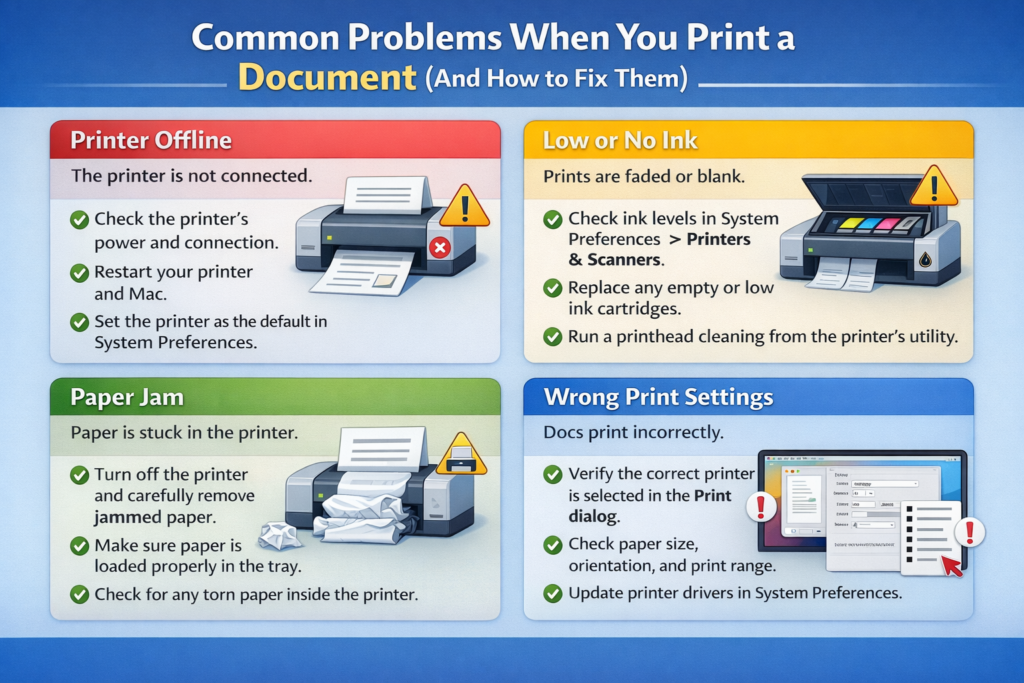
Sometimes things go wrong. Here are the most common issues people face when they try to print a document — and the simple solutions:
Printer Not Responding
Make sure the printer is turned on and connected. Restart both the printer and your computer. Check that the correct printer is selected in the print dialog.
Paper Jam
Turn off the printer. Carefully remove any jammed paper by pulling it gently in the direction of the paper path. Reload fresh paper and try again to print a document.
Low Ink or Toner Warning
Replace the ink cartridge or toner with a new, compatible one. For inkjet printers, run the printer’s built-in head-cleaning cycle to improve quality.
Document Prints Blank Pages
This usually means the ink cartridge is empty or improperly installed. Remove the cartridge, reinstall it properly, and try to print a document again.
Print Quality is Poor
Go into the printer settings and change the quality setting to Best or High. Also run the nozzle check or alignment utility found in your printer software.
9. Tips to Print a Document More Efficiently
Here are some professional tips that will help you save time, money, and resources every time you print a document:
- Always use Print Preview before printing to catch layout errors.
- Print multiple pages per sheet when only rough reading copies are needed.
- Use draft mode for internal documents to save ink.
- Enable double-sided printing to reduce paper use by 50%.
- Only print what you need — choose specific page ranges rather than the entire document.
- Keep your printer drivers updated for the best compatibility and performance.
10. How to Print a Document from Your Phone
In 2024 and beyond, you do not even need a computer to print a document. Many modern printers support mobile printing directly from your smartphone or tablet:
- Android Phones: Use Google Cloud Print or your printer brand’s app (HP Smart, Canon PRINT, Epson iPrint).
- iPhone / iPad: Use AirPrint — Apple’s built-in wireless printing feature. Tap Share > Print > Select Printer.
- Make sure your phone and printer are connected to the same Wi-Fi network.
Mobile printing has made it easier than ever to print a document on the go, without sitting at a desk.
Conclusion: Mastering How to Print a Document
Knowing how to print a document is a fundamental computer skill that every person — student, professional, or home user — should be comfortable with. From choosing the right paper size to troubleshooting printer errors, this guide has covered every aspect of printing in a simple, easy-to-understand way.
Whether you are on Windows, Mac, or using your mobile phone, the steps to print a document are straightforward. The key is understanding your printer settings, keeping your ink levels healthy, and always using Print Preview to catch mistakes before wasting paper.
Now that you know exactly how to print a document from any device, you can handle any printing task with confidence. Bookmark this guide and share it with anyone who needs help with printing — because everyone deserves a smooth, hassle-free printing experience.