vikram@gmail.com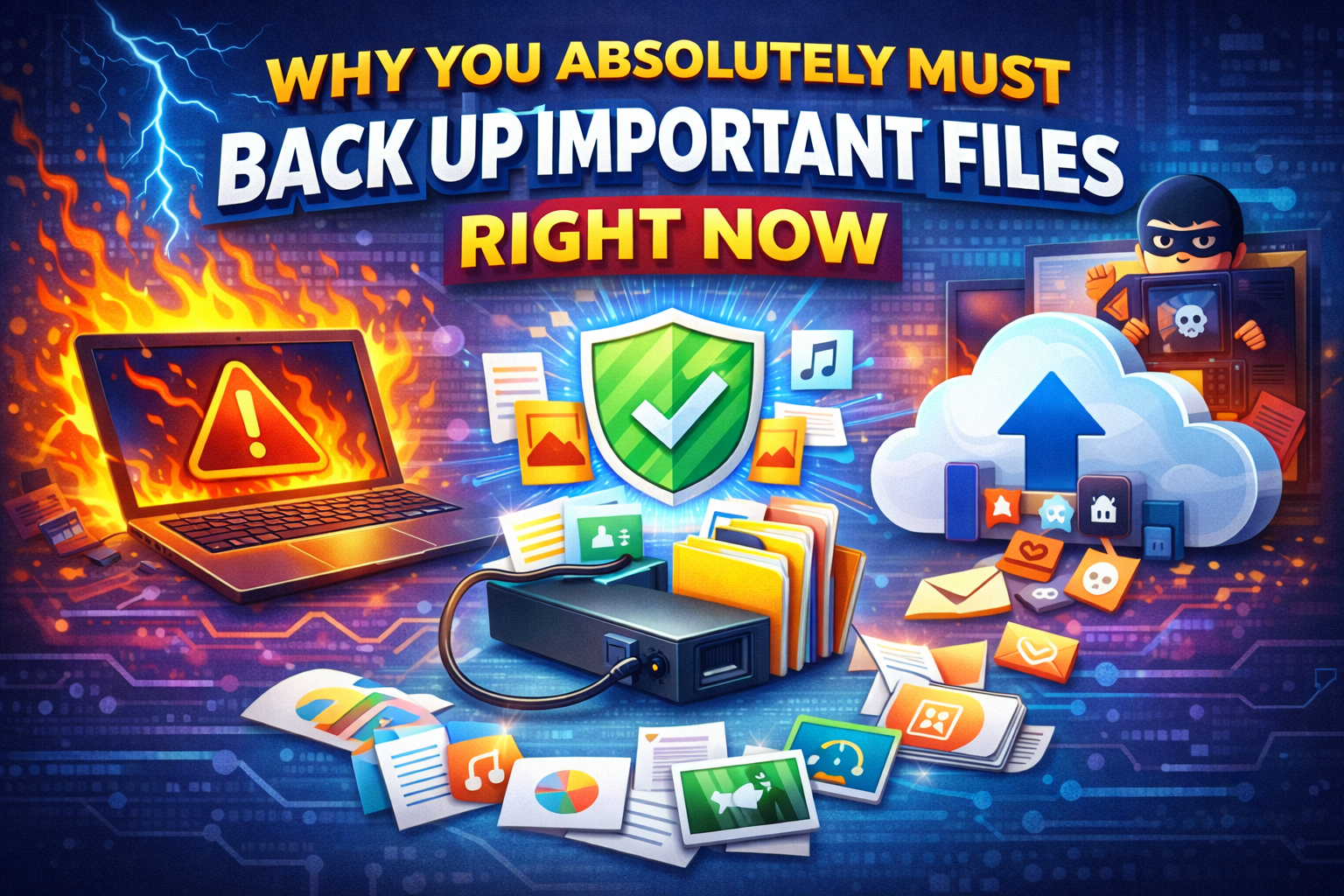
INTRODUCTION:-
Imagine waking up one morning, opening your laptop, and finding everything gone. Your family photos from the last five years. Your work projects. Your financial documents. Your personal videos. All of it — vanished in an instant because of a hard drive failure, a virus attack, or a simple accidental deletion.
This isn’t a rare horror story. It happens to millions of people every single year. And the most heartbreaking part? Every single one of those data losses could have been prevented with one simple habit — learning how to Back Up Important Files properly.
In this complete, step-by-step guide, you’ll learn exactly how to Back Up Important Files using multiple methods, which strategy works best for your situation, and how to build a bulletproof system that ensures you never lose a single file again — no matter what happens to your computer.
Why You Absolutely Must Back Up Important Files Right Now
Most people think data loss is something that happens to other people. Until it happens to them.
The reality is sobering. Hard drives — even brand new ones — can fail without any warning. Solid-state drives, while more reliable than traditional hard disks, are not immune to sudden failure either. Beyond hardware failure, there are countless other threats to your data every single day.
Ransomware attacks encrypt your entire computer and demand payment before allowing you access to your own files — and paying doesn’t always guarantee recovery. Accidental deletion is far more common than people admit. Coffee spilled on a laptop. A house fire or flood. Theft. Any one of these events, happening on a completely ordinary day, can wipe out years of irreplaceable memories and important documents in seconds.
The only protection against all of these threats is to consistently Back Up Important Files to a location that is separate from your main computer. Once you understand this, the question shifts from “Should I back up?” to “How do I back up properly?”
Understanding the 3-2-1 Backup Rule
Before diving into specific methods, every person who wants to truly Back Up Important Files safely should understand the professional standard known as the 3-2-1 Backup Rule. This is the same strategy used by IT professionals, data centers, and major corporations around the world.
The rule is simple:
- 3 — Keep 3 total copies of your data
- 2 — Store them on 2 different types of storage media
- 1 — Keep 1 copy stored off-site (away from your home or office)
In practical terms, this means: your original files on your computer (Copy 1), a backup on an external hard drive at home (Copy 2), and a backup stored in cloud storage online (Copy 3 — the off-site copy).
Following this rule means that no single disaster — fire, theft, hard drive failure, or cyberattack — can destroy all your copies simultaneously. It’s the gold standard for anyone serious about protecting their data when they Back Up Important Files.
Method 1 — External Hard Drive Backup
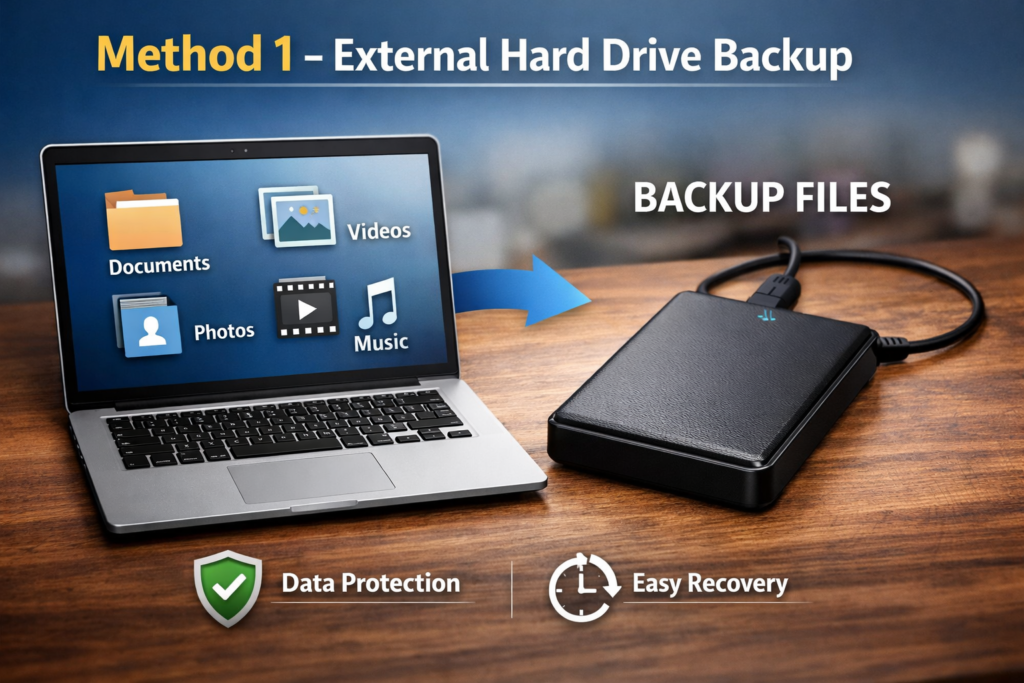
The most straightforward and reliable way to Back Up Important Files is using an external hard drive. This is a physical storage device that plugs into your computer via USB and stores copies of your files separately from your internal drive.
Why External Hard Drives Work So Well
External hard drives are affordable, fast, portable, and require no internet connection. A 1TB external hard drive — which can store hundreds of thousands of documents, photos, and videos — costs very little and lasts for years with proper care. Once you plug it in and copy your files, they’re instantly available even if your internet is down.
How to Back Up to an External Hard Drive on Windows
Windows has a built-in backup tool called File History that makes this process almost completely automatic.
Step 1: Plug your external hard drive into your computer’s USB port.
Step 2: Open Settings (Windows Key + I), then navigate to Update & Security, then click Backup.
Step 3: Under “Back up using File History,” click Add a drive and select your external hard drive.
Step 4: Toggle “Automatically back up my files” to On.
Step 5: Click “More options” to customize how often Windows backs up (every hour, every 30 minutes, etc.) and how long it keeps old versions of files.
Once configured, Windows File History will automatically Back Up Important Files to your external drive on a set schedule, without you having to remember to do anything manually. It quietly runs in the background, continuously protecting your data.
Best Practices for External Drive Backups
Keep your external drive in a different physical location than your laptop when possible — at minimum, don’t store them in the same bag when traveling. Label your backup drives clearly and check them every few months to make sure the backups are running correctly. Consider having two external drives and rotating between them for extra protection.
Method 2 — Cloud Storage Backup
The second essential method to Back Up Important Files is cloud storage — storing copies of your files on remote servers maintained by companies like Google, Microsoft, or Apple. This creates your crucial off-site backup, protecting you even if your home is damaged or your external drive is stolen alongside your laptop.
Top Cloud Storage Options
Google Drive offers 15GB of free storage and seamlessly integrates with Google Docs, Sheets, and Photos. For most casual users, 15GB is enough to back up all their important documents. Google One plans offer additional storage at very reasonable prices.
Microsoft OneDrive is built directly into Windows 10 and Windows 11, making it the most convenient cloud option for Windows users. It integrates with Microsoft Office, automatically syncs your Desktop, Documents, and Pictures folders, and offers 5GB free with generous paid tiers.
Dropbox is one of the most reliable and widely used cloud services, known for its excellent file syncing across multiple devices. It’s particularly useful for people who work across both Windows and Mac computers.
iCloud is Apple’s solution, best suited for users who work primarily within the Apple ecosystem across iPhone, iPad, and Mac.
How to Set Up Automatic Cloud Backup
For most Windows users, OneDrive is the easiest path to automatically Back Up Important Files to the cloud.
Step 1: Click the OneDrive cloud icon in your taskbar (bottom-right corner). If it’s not visible, search “OneDrive” in the Start menu.
Step 2: Sign in with your Microsoft account (or create one for free).
Step 3: Open OneDrive Settings and click the “Backup” tab.
Step 4: Click “Manage backup” and select the folders you want automatically backed up — Desktop, Documents, and Pictures are the most important.
Step 5: Click “Start backup.”
From this point forward, any file you save to these folders will automatically upload to Microsoft’s servers, creating a real-time cloud backup of all your Back Up Important Files activity. Even if your laptop is stolen or destroyed today, you can log into OneDrive from any device and recover everything instantly.
Method 3 — Windows Built-In Backup and Restore
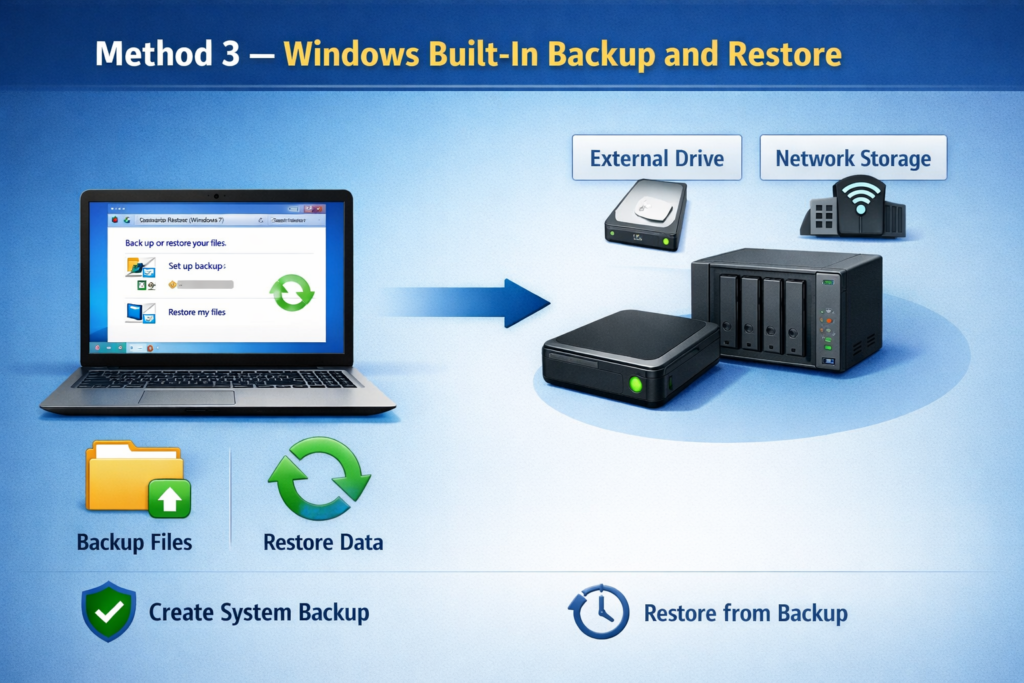
Beyond File History, Windows also includes a more comprehensive backup tool called Backup and Restore (Windows 7) — don’t let the name confuse you, it works perfectly on Windows 10 and 11 as well. This tool creates a complete system image backup, meaning it copies not just your files but your entire operating system, installed programs, and settings.
When to Use System Image Backup
A system image backup is particularly valuable because it allows you to restore your entire computer to its exact previous state after a catastrophic failure. Rather than reinstalling Windows, reinstalling all your software, and reconfiguring all your settings, you simply restore the image and everything returns exactly as it was.
To create one: open Control Panel, go to System and Security, click Backup and Restore (Windows 7), then select “Create a system image” on the left side. Choose your external drive as the destination and follow the prompts.
This type of backup takes longer and requires more storage space than file-only backups, but it provides the most complete protection when you need to Back Up Important Files and your entire system configuration.
Method 4 — Automatic Backup Software
For users who want more control and flexibility than Windows’ built-in tools offer, dedicated backup software provides powerful features for those committed to never losing data.
Acronis True Image is one of the most respected backup applications available, offering full system backups, incremental backups (only backing up files that have changed since the last backup), and even ransomware protection built in.
Macrium Reflect offers a free version that is remarkably capable, creating full disk images and scheduled backups with a professional-grade interface.
EaseUS Todo Backup is popular for its simplicity, making it easy for non-technical users to set up comprehensive automated backups without any complicated configuration.
These tools take the effort out of the decision to Back Up Important Files by automating everything — you configure them once and they work silently in the background, protecting your data around the clock.
What Files Should You Prioritize Backing Up?
Not all files carry equal importance. When setting up your backup system, prioritize these categories above everything else:
Personal Photos and Videos — These are irreplaceable. Family memories, vacations, milestones, and moments that exist nowhere else in the world. Always Back Up Important Files in this category first and to multiple locations.
Work Documents and Projects — Anything related to your career, business, or education. Reports, presentations, spreadsheets, portfolios, contracts, and research that would be devastating or impossible to recreate.
Financial Records — Tax documents, bank statements, invoices, receipts, and financial records that you may need for legal or accounting purposes.
Personal Identity Documents — Scanned copies of passports, birth certificates, insurance policies, and other critical personal documents.
Email Archives — If you use a local email client like Microsoft Outlook, your email database file (.pst) should be backed up regularly.
Creative Projects — Music, artwork, writing, video projects — anything you’ve created that represents significant time and creative effort.
How Often Should You Back Up?
The frequency with which you need to Back Up Important Files depends on how actively you create and modify data.
Daily backup is recommended for anyone who works with files every day — remote workers, students, content creators, small business owners, or anyone whose computer is central to their livelihood.
Weekly backup is appropriate for casual users who primarily use their computer for browsing, communication, and occasional document work.
Monthly backup is the absolute minimum and is only appropriate for people who rarely add new important files to their system.
With automated tools like OneDrive, Google Drive, and Windows File History, there’s really no reason not to have continuous or near-continuous backup running at all times. Set it up once, and let it run automatically forever.
Testing Your Backup — The Step Most People Skip
Here’s a critical point that even experienced users often overlook: setting up a backup is not enough. You must test your backup to confirm it actually works.
A backup that fails silently is worse than no backup at all — it gives you false confidence while providing no real protection. At least once every three months, restore a few sample files from your backup to confirm the recovery process works correctly.
For cloud backups, log into the web interface and verify your files are actually there. For external drive backups, open the drive and browse through the backed-up folders to confirm they’re current and complete.
Testing is the difference between knowing you can Back Up Important Files successfully and merely hoping you can.
Common Backup Mistakes to Avoid
Keeping your backup in the same location as your computer. An external drive sitting next to your laptop on the same desk provides zero protection against theft, fire, or flooding. Physical separation is essential.
Never checking if the backup is working. Automated systems can fail silently. Drives can fill up. Internet connections can interrupt cloud syncing. Regular verification is non-negotiable.
Only backing up once and never updating. A backup from six months ago is better than nothing, but it still means losing six months of work. Keep your backups current.
Backing up to only one location. Single-point backups violate the 3-2-1 rule and leave you vulnerable. Always maintain multiple copies in multiple locations.
Conclusion: Start Today, Not Tomorrow
The single biggest mistake people make with data protection is waiting until it’s too late. Hard drives don’t send warning emails before they fail. Ransomware doesn’t politely announce its arrival. Accidents don’t schedule themselves.
The time to Back Up Important Files is right now — today, before anything goes wrong. Set up OneDrive or Google Drive for automatic cloud backup. Purchase an external hard drive and configure Windows File History. Follow the 3-2-1 rule and sleep soundly knowing your data is protected from every angle.
Your photos, your work, your memories, your documents — they deserve better than sitting unprotected on a single hard drive. It takes less than thirty minutes to set up a comprehensive backup system, and that thirty minutes of effort could save you from years of heartbreak and loss.
Don’t wait for disaster to teach you this lesson. Back Up Important Files today, and never worry about losing them again.