vikram@gmail.com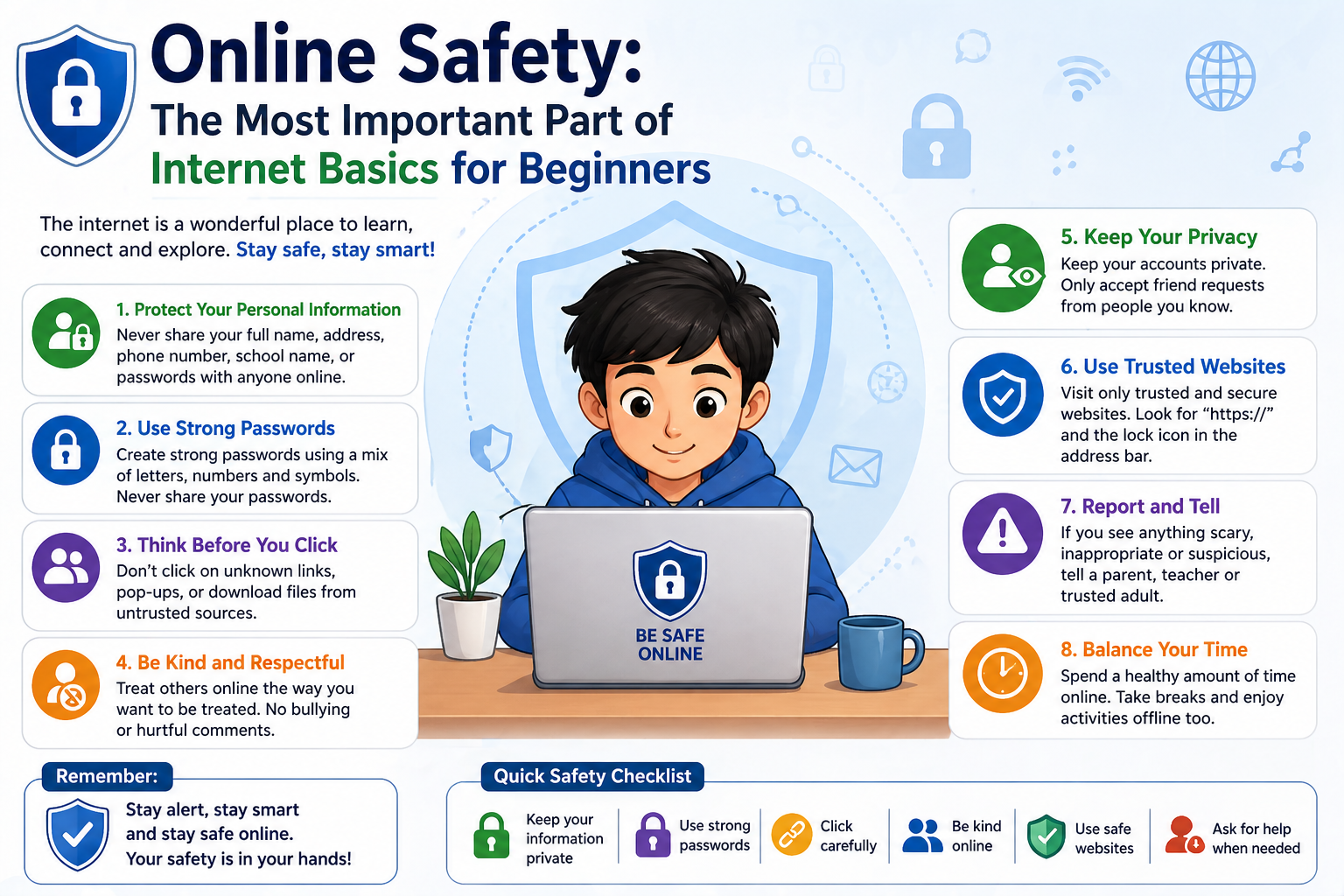
INTERODUCTION:-
The internet is one of the most powerful inventions in human history — and learning to use it confidently can completely transform your daily life. Whether you want to search for information, connect with family and friends, apply for jobs, shop online, or simply watch your favorite videos, understanding the internet basics for beginners is the very first step toward becoming a competent, confident, and safe digital citizen.
But here is the truth: for millions of people who are new to technology, the internet can feel overwhelming, confusing, and even a little scary. Unfamiliar terms, privacy concerns, online scams, and the sheer size of the digital world are all genuine challenges for anyone just starting out. That is exactly why this guide exists.
In the pages that follow, we will cover everything you need to know about internet basics for beginners — from understanding what the internet actually is and how it works, to browsing safely, protecting your personal information, and using the most essential online tools with confidence. By the time you finish reading, you will have a solid foundation to navigate the online world smartly and securely.
What Is the Internet? A Simple Explanation for Beginners
Before diving into internet basics for beginners, it is important to understand what the internet actually is at its core. Simply put, the internet is a massive global network of computers and devices that are all connected to each other. Think of it like an enormous web of roads connecting millions of cities — except instead of roads, the connections are made through cables, satellites, and wireless signals, and instead of cities, the destinations are websites, apps, and online services.
When you open a website on your phone or computer, your device sends a request through your Internet Service Provider (ISP) — a company like Airtel, Jio, AT&T, or BT — which then routes that request to the server (a powerful computer) where that website is stored. The server sends the website’s content back to your device, and within seconds, the page appears on your screen.
Here are a few key terms every beginner should know:
- Website: A collection of pages on the internet with information, images, videos, or services — like an online magazine or store.
- Browser: The software you use to access websites (e.g., Google Chrome, Mozilla Firefox, Microsoft Edge, Safari).
- URL: The web address of a website, like www.google.com — the unique ‘home address’ of every page online.
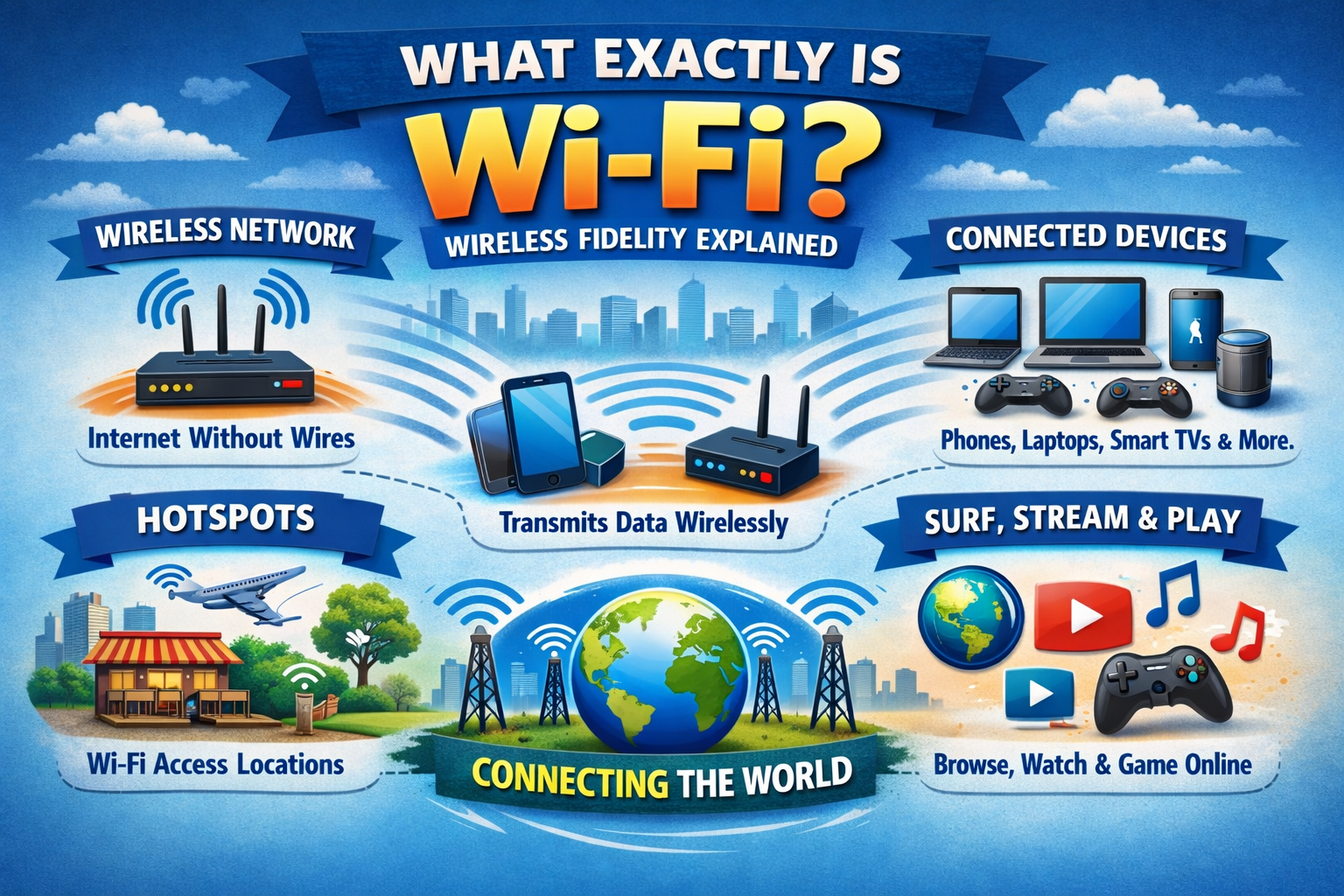
- Wi-Fi: Wireless internet connection that allows devices to connect without cables.
- Search Engine: A tool like Google, Bing, or DuckDuckGo that helps you find websites by typing in keywords.
Getting Connected: How to Access the Internet for the First Time
One of the most fundamental aspects of internet basics for beginners is simply getting connected. Before you can browse websites or send emails, you need an active internet connection. Here are the most common ways to get online:
Option 1: Home Broadband (Wi-Fi Router)
Most households use a router provided by their ISP. The router receives the internet signal through a cable and broadcasts it wirelessly as Wi-Fi throughout your home. To connect, go to your device’s Wi-Fi settings, select your network name, enter the password (usually printed on the router), and you are online.
Option 2: Mobile Data (4G / 5G)
Smartphones use mobile data from your network provider (SIM card) to connect to the internet. Simply enable ‘Mobile Data’ in your phone settings. This works anywhere your mobile network has coverage, making it ideal when you are away from home.
Option 3: Public Wi-Fi (Cafes, Libraries, Airports)
Many public places offer free Wi-Fi. You can connect through your device’s Wi-Fi settings, just as you would at home. However, public networks are less secure, so we will cover important safety tips for using them later in this guide.
How to Use a Web Browser: Internet Basics for Beginners Step by Step
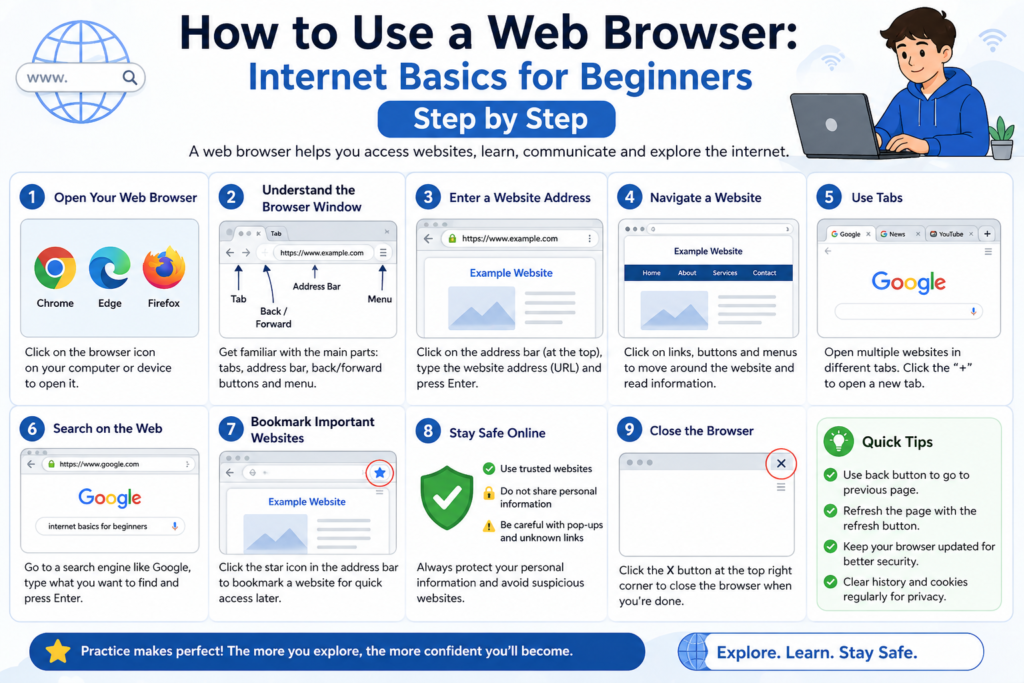
Your web browser is your gateway to everything on the internet. Mastering its basic functions is an essential part of any internet basics for beginners journey. Here is a quick walkthrough of how browsers work and what each feature does:
- Address Bar: The long bar at the top of your browser. Type a website address (like www.youtube.com) here and press Enter to visit it.
- Back and Forward Arrows: Navigate between pages you have already visited. Back takes you to the previous page; Forward brings you back.
- Refresh Button: Reloads the current page. Useful if a page is not loading properly or showing outdated information.
- Bookmarks / Favorites: Save websites you visit often so you can return to them with one click. Look for the star icon in the address bar.
- Tabs: Open multiple websites at the same time without closing the current one. Click the ‘+’ icon near existing tabs to open a new one.
- Incognito / Private Mode: Browse without saving your history or cookies on the device. Access it via the browser menu (three dots or lines).
Pro Tip: Google Chrome is the world’s most popular browser and is a great choice for beginners. It is fast, secure, and available on all devices — phones, tablets, and computers alike.
How to Search the Internet Effectively
Knowing how to search properly is a core skill within internet basics for beginners. Millions of people use Google every day, but very few use it as effectively as they could. Here are practical tips to find exactly what you are looking for:
- Be specific: Instead of searching ‘weather,’ try ‘weather in Mumbai tomorrow.’ The more detail you give, the better the results.
- Use question format: ‘How do I reset my phone password?’ gives better results than just ‘phone password.’
- Use quotes for exact phrases: Searching ‘best biryani recipe’ (with quotes) finds pages with that exact phrase.
- Check the source: Good information comes from reputable websites — government sites (.gov), educational institutions (.edu), established news organizations, and well-known brands.
- Use Google Images for visual searches: Click the ‘Images’ tab to find pictures, diagrams, and illustrations related to your topic.
Online Safety: The Most Important Part of Internet Basics for Beginners
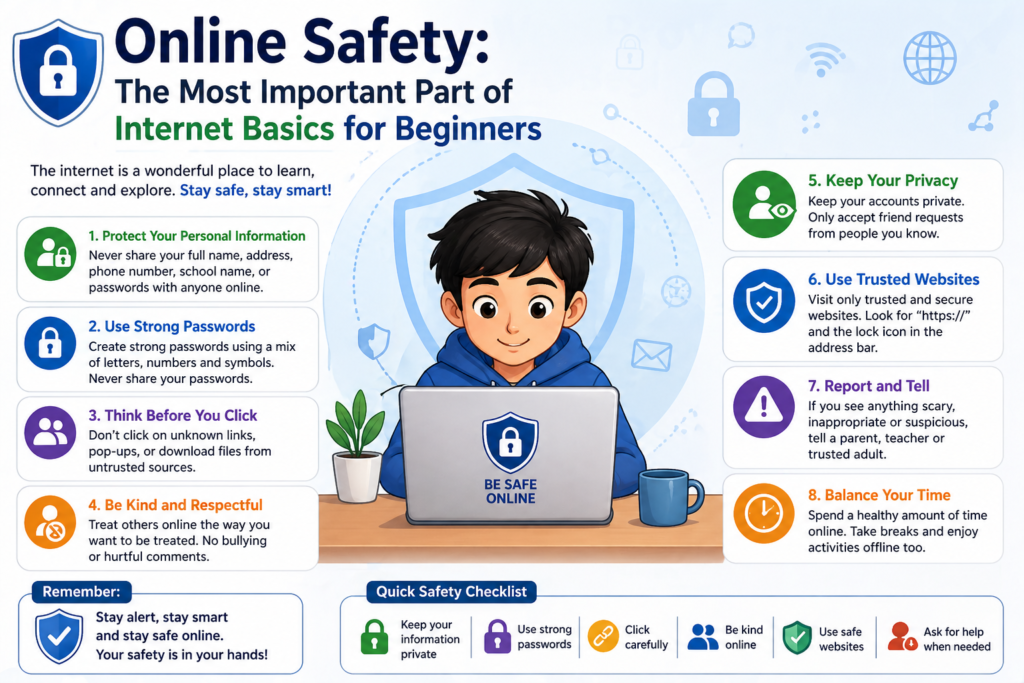
This is arguably the most critical section of this entire guide. As valuable as the internet is, it also comes with real risks — scams, identity theft, malware, phishing attacks, and privacy violations are all genuine threats that every internet user must be aware of. Understanding online safety is an absolutely non-negotiable part of internet basics for beginners.
1. Recognize Phishing Scams
Phishing is when someone pretends to be a trusted organization (like your bank, Google, or a government agency) to trick you into giving away your passwords or personal information. These attempts often arrive as emails, text messages, or pop-up warnings on websites. Warning signs include urgent language (‘Your account will be closed!’), spelling mistakes, suspicious email addresses, and links to unfamiliar websites.
- Never click links in emails asking for your password or payment information.
- Always go directly to the official website by typing the address yourself.
- Call the organization directly if you receive a suspicious message claiming to be from them.
2. Use Strong, Unique Passwords
A weak password is like leaving your front door unlocked. Every online account you create — email, social media, banking, shopping — should have a strong, unique password that is difficult to guess. A strong password is at least 12 characters long and combines uppercase letters, lowercase letters, numbers, and symbols.
- Never use obvious passwords like ‘123456,’ ‘password,’ or your name and birthday.
- Do not use the same password for multiple accounts.
- Use a password manager app (like LastPass or Bitwarden) to store and generate secure passwords safely.
3. Enable Two-Factor Authentication (2FA)
Two-factor authentication adds a second layer of security to your accounts. Even if someone discovers your password, they cannot log in without the second verification step — usually a code sent to your phone via SMS or a special authenticator app. Enable 2FA on every important account: email, banking, and social media especially.
4. Check for HTTPS Before Entering Any Information
Before typing your name, address, password, or payment details into any website, always look for ‘https://’ at the beginning of the URL in your browser’s address bar — and a padlock icon to the left of it. The ‘S’ in HTTPS stands for Secure, meaning your information is encrypted and protected during transmission. If a website only shows ‘http://’ without the ‘S,’ do not enter sensitive information on it.
How to Protect Your Privacy Online
Privacy is one of the most misunderstood topics in internet basics for beginners. Many people do not realize how much information they share online — often without meaning to. Here is what you need to know to protect yourself:
- Be careful what you share on social media: Your full name, home address, phone number, workplace, and daily routine should never be shared publicly online.
- Review app permissions: When you install an app, it may request access to your camera, microphone, location, and contacts. Only grant permissions that are genuinely necessary for the app to function.
- Clear your browsing history and cookies regularly: Browsers store data about your activity. Clearing this periodically protects your privacy — especially on shared computers.
- Use a VPN on public Wi-Fi: A Virtual Private Network (VPN) encrypts your internet traffic and hides your activity from hackers on public networks. Many reliable free and paid VPN apps are available.
- Read privacy policies: Yes, they are long — but the summary section tells you what data a company collects and how it uses it. Look for companies that clearly state they do not sell your data.
Email Basics: Sending, Receiving, and Staying Safe in Your Inbox
Email remains one of the most used communication tools on the internet. As part of understanding internet basics for beginners, learning how to use email confidently and safely is essential for work, study, shopping, and staying in touch with people.
Creating a Professional Email Address:
Use Gmail (Google), Outlook (Microsoft), or Yahoo Mail to create a free email account. Choose an address that is professional — ideally your real name or initials (e.g., john.smith@gmail.com) rather than something informal or difficult to read.
Email Safety Rules:
- Never open email attachments from unknown senders — they may contain viruses or malware.
- Check the sender’s email address carefully. Fake addresses often look similar to real ones (e.g., support@amaz0n.com instead of amazon.com).
- Mark spam emails and report them to help your email service filter future junk mail.
- Never reply to emails that ask for your bank account details, passwords, or personal ID information — legitimate organizations never request these via email.
Social Media Safety for New Internet Users
Social media platforms like Facebook, Instagram, WhatsApp, YouTube, and Twitter/X connect billions of people worldwide. They are fantastic tools for communication, learning, and entertainment — but they also come with their own set of risks that belong to any honest discussion of internet basics for beginners.
- Set your profiles to Private: Most platforms allow you to make your posts and personal information visible only to people you approve. Always review your privacy settings after creating a new account.
- Be selective about friend requests: Only accept connections from people you actually know in real life. Fake accounts (also called ‘bots’ or ‘catfish’) are common on all social platforms.
- Think before you post: Once something is posted online, it can be screenshot and shared — even if you delete it later. Never post anything you would not want a future employer, teacher, or family member to see.
- Verify information before sharing: Social media is filled with false news, manipulated images, and misleading articles. Always check a story from at least two or three credible sources before sharing it with others.
- Report cyberbullying and harassment: Every platform has a report function. Use it without hesitation if you witness or experience online harassment.
Safe Online Shopping: What Every Beginner Must Know
Online shopping is one of the greatest conveniences the internet offers — but it is also an area where beginners are most vulnerable to scams and fraud. Here are the golden rules for shopping safely online:
- Shop only on well-known, established platforms: Amazon, Flipkart, eBay, and official brand websites are far safer than unknown sites offering suspiciously low prices.
- Always verify the HTTPS padlock before entering payment details.
- Use a credit card rather than a debit card online: Credit cards offer better fraud protection and dispute resolution.
- Check seller reviews: Before purchasing from a third-party seller, read recent reviews from verified buyers.
- Keep records: Save order confirmation emails and take screenshots of your order details in case you need to raise a dispute later.
- Be suspicious of deals that seem too good to be true: If a luxury item is being sold at 90% off on an unfamiliar site, it is almost certainly a scam.
Protecting Children Online: A Crucial Part of Internet Basics for Beginners
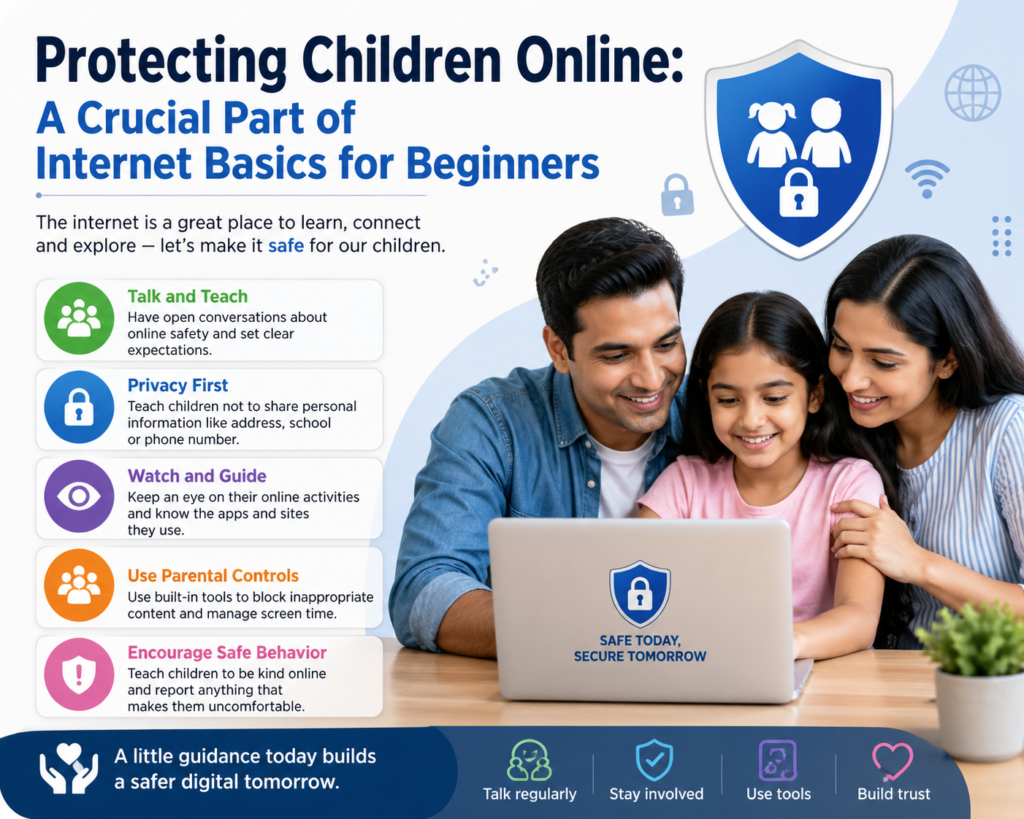
If you have children in your home who use the internet, their online safety deserves special attention. Children are naturally curious and trusting — which can make them vulnerable to inappropriate content, online strangers, and addictive platforms. Here is how to keep them protected:
- Use Parental Controls: Most devices, routers, and browsers have built-in parental control settings. Enable them to restrict access to inappropriate content.
- Keep devices in common areas: Encourage children to use computers and tablets in shared family spaces rather than private rooms.
- Teach them to never share personal information online: Name, school, address, and photos should never be shared with strangers online.
- Have open conversations: Create a family culture where children feel comfortable telling a trusted adult if they see something upsetting or suspicious online.
- Set healthy screen time limits: Excessive internet use can affect sleep, attention, and social development. Use built-in screen time tools on phones and tablets to set daily limits.
Essential Internet Tools Every Beginner Should Discover
As you become more comfortable with internet basics for beginners, you will want to start exploring the powerful tools the internet puts at your fingertips. Here are some essential services that can make your daily life significantly easier:
- Google Maps: Find directions, explore new places, check traffic conditions, and discover businesses near you — all for free.
- YouTube: The world’s largest video platform. Learn virtually any skill, watch tutorials, follow news, enjoy entertainment — all free.
- Google Translate: Instantly translate text, websites, or even spoken words into hundreds of languages. Invaluable for learning or travel.
- WhatsApp / Telegram: Free messaging and calling over the internet. Connect with family and friends anywhere in the world at no cost.
- Google Drive / OneDrive: Store your documents, photos, and files safely online. Access them from any device — phone, tablet, or computer.
- Wikipedia: A free online encyclopedia covering millions of topics in depth. A good starting point for research and general knowledge.
Your Internet Basics for Beginners Safety Checklist
Before you go, use this quick checklist to make sure you are applying the most important lessons from this guide:
- I have a strong, unique password for every important online account. ✅
- I have enabled two-factor authentication on my email and banking accounts. ✅
- I check for HTTPS before entering any personal or payment information on a website. ✅
- I do not click on suspicious links in emails or text messages. ✅
- I keep my device’s operating system and apps updated regularly. ✅
- I have reviewed the privacy settings on my social media accounts. ✅
- I have antivirus software or security protection installed on my computer. ✅
- I know how to recognize a phishing email and what to do if I receive one. ✅
Conclusion: Your Journey Through Internet Basics for Beginners Starts Now
The internet is not something to fear — it is something to master. Every expert user you know started exactly where you are right now: curious, a little uncertain, and eager to learn. The knowledge you have gained from this guide on internet basics for beginners gives you a powerful foundation that most casual internet users never take the time to build properly.
From understanding how browsers and search engines work, to protecting your privacy, recognizing online scams, shopping safely, and keeping your family secure — you are now equipped with the knowledge that transforms a nervous newcomer into a confident, responsible digital citizen.
Take it one step at a time. Practice the safety habits. Explore the tools. Ask questions. And never stop learning — because the internet itself never stops evolving. Bookmark this guide, share it with someone who needs it, and revisit it whenever you need a refresher. Your safe, confident, and enjoyable journey through internet basics for beginners starts today.