vikram@gmail.com
Introduction:
There is a quiet confidence that comes when you sit down at a computer and everything just flows. Your cursor moves exactly where you want it. Your clicks land perfectly. Your wrist does not ache after an hour. That confidence starts with one surprisingly overlooked skill — learning to use a Computer Mouse Correctly.
Most people assume they already know how. They pick up the mouse, move it around, click a few times, and call it a day. But there is a massive difference between using a mouse and mastering it. This guide is built for new users who want to skip the trial-and-error phase and get straight to doing things right from day one.
Why Learning to Use a Computer Mouse Correctly Actually Matters

You might be thinking — it is just a mouse, how complicated can it be?
More than you think.
Poor mouse technique leads to slower productivity, frustrating errors, and in serious cases, repetitive strain injuries like Carpal Tunnel Syndrome. When someone uses a Computer Mouse Correctly, they work faster, make fewer mistakes, and protect their body from long-term damage.
Professional designers, coders, data analysts, and even gamers spend time deliberately refining how they hold and move their mouse. It is not a coincidence — it is the foundation of efficient computer use.
Step 1 — Choose the Right Mouse for You
Before you even think about technique, you need the right tool in your hand.
Wired vs. Wireless
Wired mice have zero input lag and never need charging. They are perfect for beginners, students, and anyone doing precision work. Wireless mice offer a cleaner desk and more freedom of movement — ideal for office environments and casual use.
For a new user learning to use a Computer Mouse Correctly, start with a wired mouse. Fewer variables mean faster learning.
Size Matters More Than You Think
A mouse that is too small forces your hand into an unnatural curl. A mouse that is too large makes precise movement exhausting. As a general rule:
- Small hands → compact or medium mouse
- Large hands → full-size mouse
- Travel use → portable flat mouse
Optical vs. Laser Sensor
Most modern mice use optical sensors, which work brilliantly on cloth mouse pads. Laser mice work on almost any surface but can be overly sensitive. For beginners, an optical mouse with a mouse pad is the ideal combination.
Step 2 — Set Up Your Workspace Before You Begin
The environment around your mouse matters as much as the mouse itself.
Use a Mouse Pad
A quality mouse pad gives your sensor a consistent, clean surface to track on. Glass desks, bare wood, and reflective surfaces confuse optical sensors and cause erratic cursor movement. This single addition dramatically improves how accurately you can use a Computer Mouse Correctly.
Choose a medium-sized cloth mouse pad (around 30cm x 25cm) for everyday use. Larger extended pads are great if you use low sensitivity settings.
Position Your Mouse at Elbow Height
Your desk surface should allow your elbow to rest at roughly 90 degrees. If your desk is too high, your shoulders rise and tense up. If it is too low, your wrist bends upward uncomfortably. Both scenarios create pain over time.
Keep the mouse close to the keyboard so your arm is not reaching outward — that extended reach is one of the most common causes of shoulder strain in office workers.
Step 3 — Master the Three Mouse Grip Styles
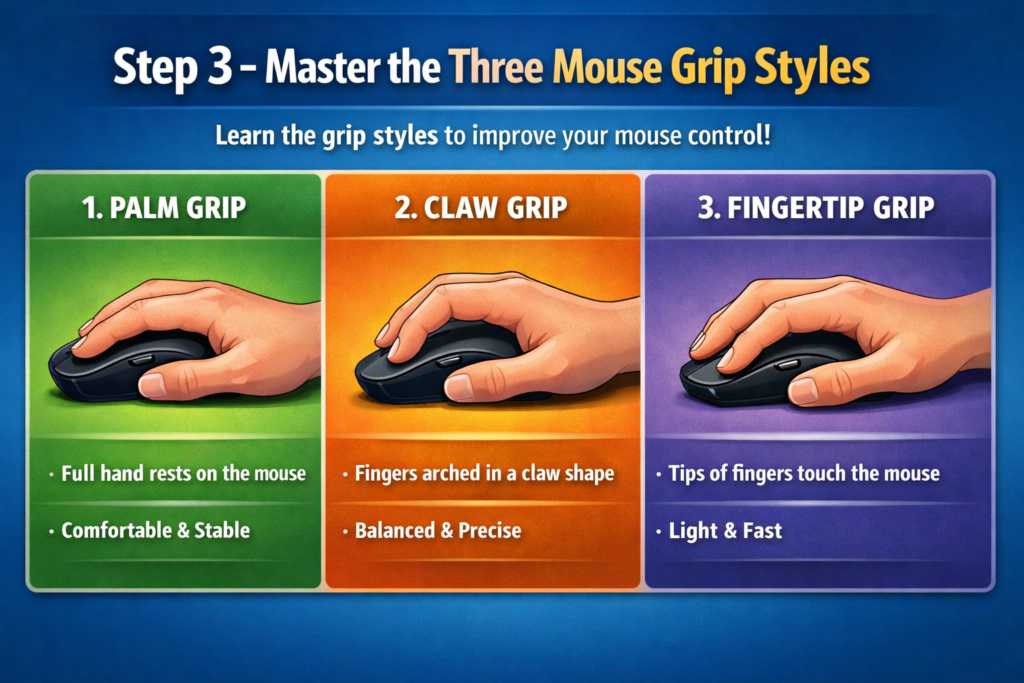
This is where most beginners make their first major mistake. They grip the mouse however feels natural in the moment — which is often wrong.
There are three recognized grip styles, each with its own strengths:
Palm Grip
Your entire palm rests flat on the mouse body. Your fingers lie naturally along the buttons. This grip distributes pressure across your whole hand, making it the most comfortable for long sessions. If you are spending hours browsing, writing documents, or doing data entry, palm grip is your best friend.
Claw Grip
Your palm touches the rear of the mouse, but your fingers arch upward like a claw. The tips of your fingers control the buttons. This grip allows for faster, more explosive clicks and better lateral control. It is popular among gamers and people who do fast-paced clicking tasks.
Fingertip Grip
Only your fingertips touch the mouse — the palm lifts completely off. This is the lightest and most agile grip but also the most tiring over long sessions. It is favored for extremely precise work where tiny micro-adjustments matter.
For a new user trying to use a Computer Mouse Correctly, start with the palm grip. It is forgiving, comfortable, and teaches you proper control before you experiment with the others.
Step 4 — Adjust Your DPI and Sensitivity Settings
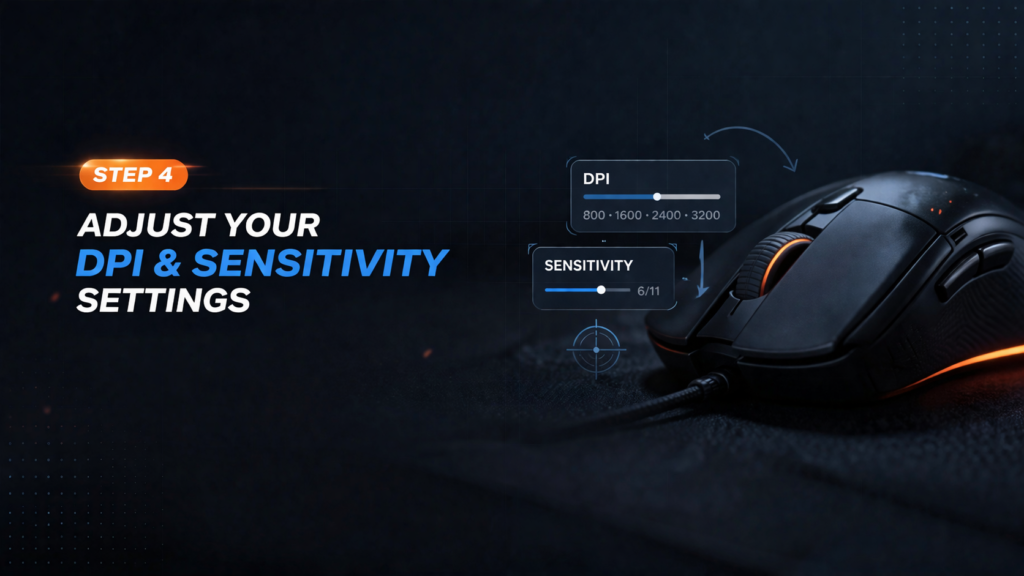
DPI stands for Dots Per Inch. It determines how far your cursor moves on screen relative to how far you physically move the mouse.
- Low DPI (400–800): Cursor moves slowly. Maximum precision. Best for photo editing, illustration, and detailed design work.
- Medium DPI (800–1600): Balanced speed and control. Perfect for everyday use — browsing, documents, general computing.
- High DPI (1600–3200+): Cursor moves fast across large or multi-monitor setups. Common in gaming.
New users often make the mistake of using DPI that is far too high. The cursor flies across the screen and overshoots everything. To use a Computer Mouse Correctly, start at 800–1000 DPI and adjust from there based on your monitor size and how the cursor feels.
How to Adjust Mouse Sensitivity in Windows:
Go to Settings → Bluetooth & Devices → Mouse → Additional Mouse Settings → Pointer Options. You will see a slider for pointer speed. Set it somewhere in the middle and make small adjustments until it feels natural.
Important: Turn off “Enhance Pointer Precision” if you want consistent, predictable cursor movement. This feature adds artificial acceleration that can feel helpful at first but creates inconsistency over time.
Step 5 — Learn Every Button and Scroll Function
A modern mouse is more powerful than most new users realize. Here is a complete breakdown:
Left Click
- Single click: Select an item or place your text cursor
- Double click: Open files, folders, or applications
- Click and drag: Move items, highlight text, resize windows
Right Click This opens the context menu — a hidden menu full of powerful options. Right-clicking on a file shows rename, copy, cut, paste, properties, and share options. Right-clicking on the desktop gives you display settings, personalization options, and more. Mastering right-click is one of the fastest ways to use a Computer Mouse Correctly and work more efficiently.
Scroll Wheel
- Scroll up and down: Navigate pages, documents, and feeds
- Middle click (press the scroll wheel): Opens links in a new tab in browsers
- Ctrl + Scroll: Zoom in and out in browsers, documents, and image editors
Side Buttons (if your mouse has them) Many mid-range and gaming mice have two extra buttons on the side, typically mapped to browser Back and Forward by default. These can be remapped to any function you want using your mouse’s software.
Step 6 — Combine Mouse Skills With Keyboard Shortcuts
One of the most powerful upgrades a new user can make is learning mouse-keyboard combinations. When you use a Computer Mouse Correctly alongside keyboard shortcuts, your speed multiplies dramatically.
| Combination | What It Does |
|---|---|
| Ctrl + Click | Select multiple individual items |
| Shift + Click | Select a continuous range of items |
| Ctrl + Scroll | Zoom in or out |
| Alt + Click | Open properties or alternate actions in many apps |
| Ctrl + Drag | Copy an item instead of moving it |
| Right Click + N | Create a new folder on desktop or in File Explorer |
Spend 15 minutes practicing these combinations and you will immediately feel the difference in your workflow.
Step 7 — Protect Your Wrist With Proper Ergonomics
This is the most ignored section of any mouse tutorial — and the most important for long-term health.
Keep Your Wrist Neutral
A neutral wrist is straight — not bent up, not bent down. When your wrist bends upward to reach the mouse, it compresses the tendons inside your wrist. Do this for years, and the result is chronic pain.
Rest your forearm on the desk, not just your wrist. Let the weight of your arm distribute across a larger area.
Do Not Death-Grip the Mouse
Tension in your grip travels up your forearm and into your shoulder. Hold the mouse firmly enough that it will not slip — but no tighter. Your hand should feel relaxed while maintaining control.
Take Micro-Breaks
Every 30–45 minutes, take your hand off the mouse entirely. Stretch your fingers out wide, make a soft fist, rotate your wrist gently. These micro-breaks prevent cumulative strain.
Anyone who wants to use a Computer Mouse Correctly for years without injury must take ergonomics seriously. Short-term discomfort ignored becomes long-term damage.
Step 8 — Keep Your Mouse Clean for Peak Performance
A dirty mouse is a misbehaving mouse. Dust, skin oils, and debris build up on the sensor, buttons, and feet — causing sticky clicks, jumpy cursor movement, and reduced lifespan.
How to Clean Your Mouse:
- Turn the mouse upside down and use a soft dry cloth to wipe the sensor window gently
- Use a slightly damp cloth to clean the outer shell
- Use a toothpick or compressed air to clear debris from the gaps around the buttons
- Wipe the mouse feet (the small plastic pads on the bottom) to restore smooth gliding
Clean your mouse once every two to four weeks for best results. A clean mouse lets you use a Computer Mouse Correctly without fighting against the hardware itself.
Step 9 — Practice Drills to Build Muscle Memory
Good mouse control is a physical skill. Like typing or driving, it improves with deliberate practice.
Drill 1 — Straight Line Movement
Open Paint or any drawing app. Draw perfectly straight horizontal and vertical lines freehand. This trains your hand to make controlled, precise movements.
Drill 2 — Target Clicking
Visit a free website like aimtrainer.io or similar tools. These give you moving targets to click. Even 10 minutes a day for a week will sharpen your accuracy noticeably.
Drill 3 — Slow-Speed Precision
Lower your DPI temporarily to 400 and try to navigate normally. This forces your hand to make deliberate, controlled movements. After a session at low DPI, your normal sensitivity will feel much easier to control.
Drill 4 — File Management Speed
Open File Explorer and practice selecting, moving, copying, and organizing files using only the mouse. Time yourself. Try to beat your previous time each session.
These small habits build the muscle memory that lets you use a Computer Mouse Correctly without thinking about it — which is exactly the goal.
Step 10 — Common Mistakes New Users Make (And How to Fix Them)
Mistake: Lifting the mouse constantly to recenter it Fix: Lower your sensitivity slightly or use a larger mouse pad.
Mistake: Clicking too hard on buttons Fix: Mouse buttons require almost no pressure. A light, deliberate tap is all you need.
Mistake: Using the mouse on a bare or reflective desk Fix: Always use a cloth mouse pad for consistent sensor tracking.
Mistake: Sitting too far from the desk so the arm extends forward Fix: Pull your chair in so the mouse sits comfortably within your natural arm reach.
Mistake: Ignoring wrist pain and pushing through it Fix: Pain is always a signal. Stop, stretch, adjust your setup, and if pain persists, see a professional.
Final Thoughts
There is real skill hiding inside something as ordinary as a computer mouse. The users who take the time to learn their grip, set their sensitivity correctly, build strong ergonomic habits, and practice consistently are the ones who work faster, feel less fatigue, and enjoy their time at the computer far more.
Everything in this guide points toward one clear goal: use a Computer Mouse Correctly, and every other computer task becomes easier. Start with the basics, be patient with yourself, and let your muscle memory do the rest.
The cursor is already in your hand. Now you know what to do with it.