vikram@gmail.com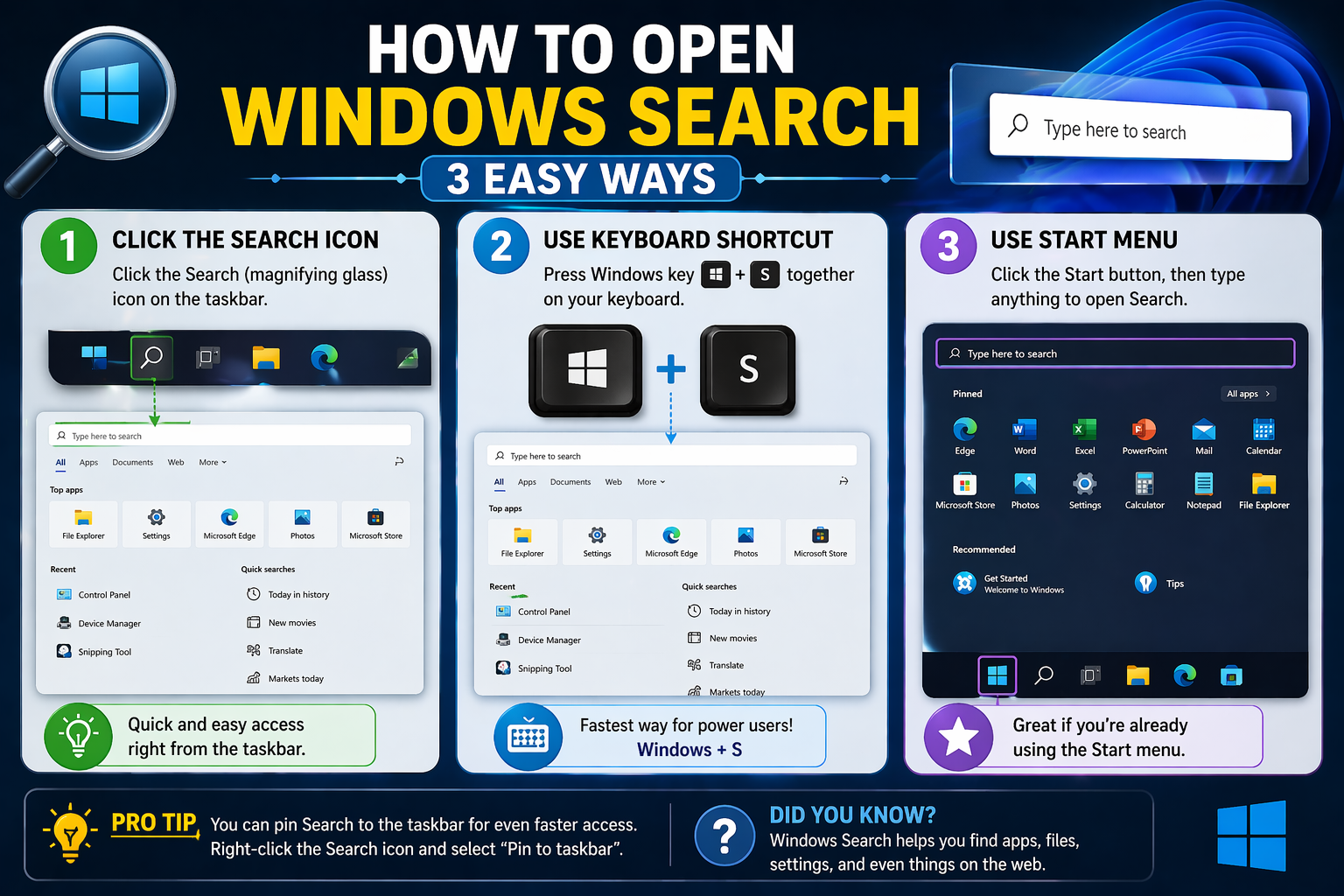
INTERODUCTION:-
Have you ever wasted 10 minutes looking for a file that was right there on your computer? You are not alone. Millions of people lose time every single day searching through folders and menus. The good news is that learning how to use Windows Search can completely change the way you work. It is one of the fastest, most powerful tools built right into your computer — and most people never use it properly.
In this beginner-friendly guide, you will learn exactly how to use Windows Search step by step. No technical knowledge required. By the end of this article, you will be finding any file, app, or setting on your computer in seconds.
What Is Windows Search?
Windows Search is a built-in feature of the Microsoft Windows operating system. It allows you to quickly find files, folders, documents, photos, apps, and even system settings — all from one place.
Think of it like a search engine for your entire computer. Just like you type something into Google to find websites, you type something into Windows Search to find anything stored on your PC.
Whether you are a student, a working professional, or someone who just started using a computer, knowing how to use Windows Search is one of the most valuable basic computer skills you can learn.
How to Open Windows Search (3 Easy Ways)
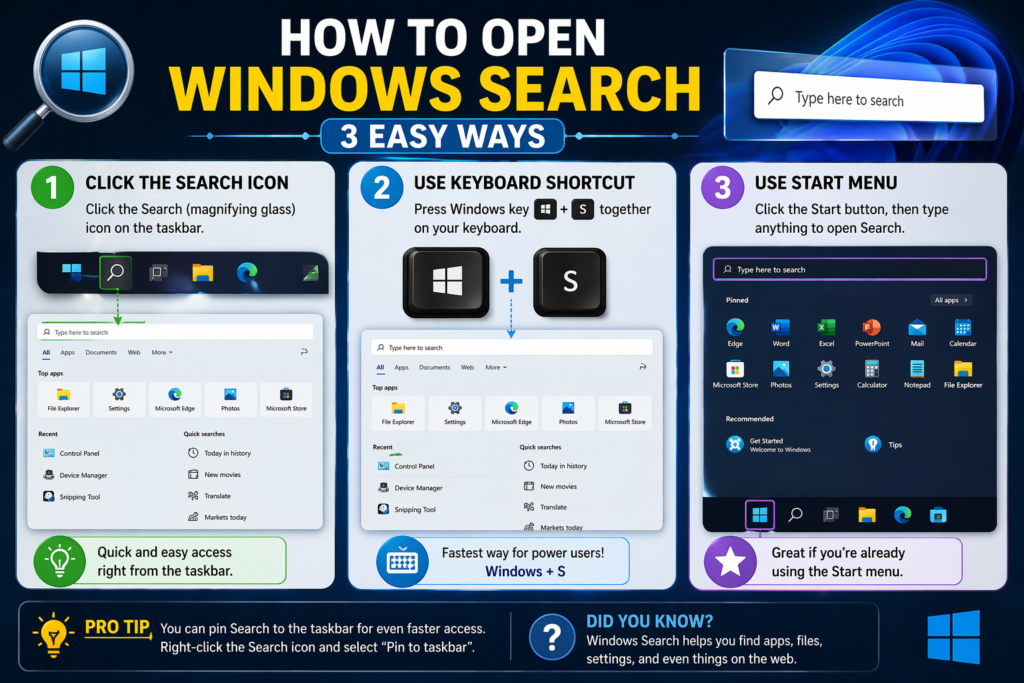
Before you can search for anything, you need to open the search tool. Here are three simple ways to do it:
- Press the Windows Key on your keyboard. It is the key with the Windows logo (four squares). This opens the Start Menu and the search box at the same time.
- Click the Search Bar on your Taskbar. Look at the bottom of your screen. You will see a bar that says “Search” or shows a magnifying glass icon. Click on it.
- Use the Keyboard Shortcut: Windows Key + S. This is the fastest way. Press both keys at the same time and the search box opens instantly.
Pro Tip: Get into the habit of using Windows Key + S every time you need to find something. It will save you hours every week.
How to Use Windows Search to Find Files
Finding a file using how to use Windows Search is incredibly simple. Follow these steps:
- Open Windows Search using any method above.
- Type the name of the file you are looking for. For example, type “resume” or “project report”.
- Look at the results. Windows will show you matching files, folders, and documents within seconds.
- Click on the file you want to open it immediately.
You do not need to remember which folder you saved the file in. Windows Search will find it no matter where it is on your computer. This is one of the biggest time-saving benefits of learning how to use Windows Search properly.
How to Use Windows Search to Open Apps Instantly
Most people click through the Start Menu to open apps. That takes time. A much faster method is to use Windows Search to launch any app in under 3 seconds.
Here is how to do it:
- Press Windows Key + S to open the search box.
- Type the app name. For example, type “Chrome”, “Word”, “Calculator”, or “Paint”.
- Press Enter or click the app name in the results. The app opens instantly.
This works for every app installed on your computer — Microsoft Word, Google Chrome, Spotify, VLC, and everything else. Once you start using this method, you will never go back to clicking through menus again.
How to Search for Settings Using Windows Search
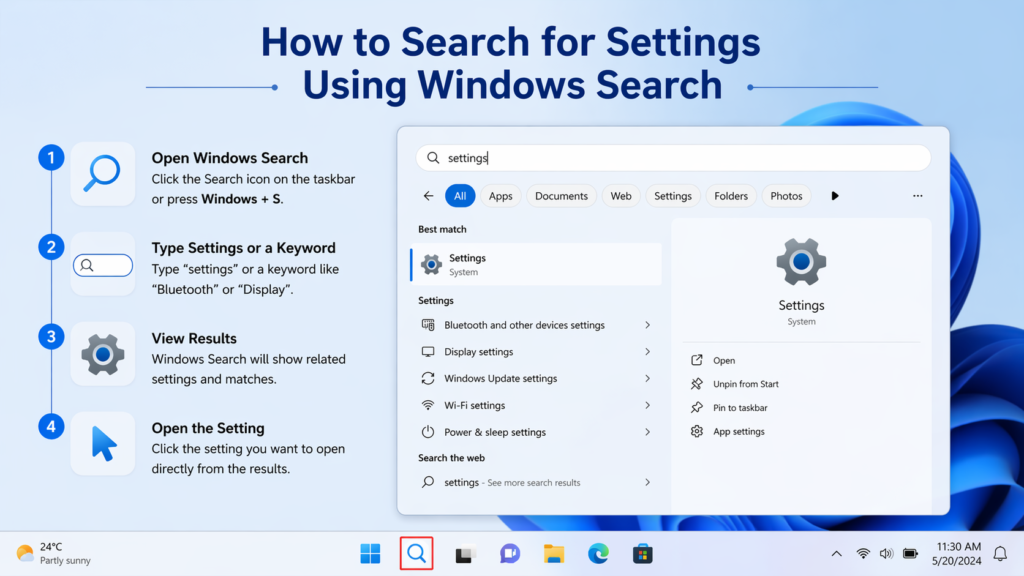
Did you know that you can also find computer settings using Windows Search? Many people do not know this feature exists. It is extremely useful, especially if you do not know where a specific setting is located.
For example, you can type:
- “Brightness” to adjust screen brightness
- “Bluetooth” to connect wireless devices
- “Wifi” to manage internet connections
- “Printer” to manage printer settings
- “Startup Apps” to control which apps open when you turn on your PC
This is the real power of understanding how to use Windows Search. It gives you quick access to everything — files, apps, and settings — without confusion.
5 Smart Tips to Search Even Faster on Windows
Now that you know the basics of how to use Windows Search, here are 5 smart tips that will make you even more efficient:
Tip 1: You Do Not Need to Type the Full Name
You can type just the first few letters and Windows will already show results. For example, typing “wor” will find Microsoft Word. Typing “chr” will find Google Chrome.
Tip 2: Use Filters to Find Specific Types of Files
At the top of the search results, you will see filter tabs like Documents, Photos, Videos, and Apps. Click on the right tab to narrow down your results quickly.
Tip 3: Search Inside File Contents
If you cannot remember the file name but remember a word inside the file, just type that word. Windows Search can search inside document text to help you find the right file.
Tip 4: Run as Administrator Directly from Search
After typing an app name, right-click on the result. You will see an option to “Run as administrator”. This is very useful for installing software or changing system settings.
Tip 5: Pin Your Most-Used Apps from Search Results
Right-click any app in the search results and choose “Pin to Taskbar” or “Pin to Start”. This way, your most-used apps are always one click away.
Common Mistakes Beginners Make with Windows Search
Even though using how to use Windows Search is simple, beginners often make a few mistakes. Here is what to avoid:
- Typing the full sentence instead of keywords: Just type short keywords, not full sentences.
- Not checking the filter tabs: If you do not see your file, click the correct filter tab (Documents, Photos, etc.).
- Searching from File Explorer instead of the taskbar: The taskbar search is faster and covers the entire PC.
- Ignoring the right-click menu: Right-clicking a result gives you extra powerful options like Open file location, Pin to Start, and Run as administrator.
Why Learning How to Use Windows Search Matters for Your Career
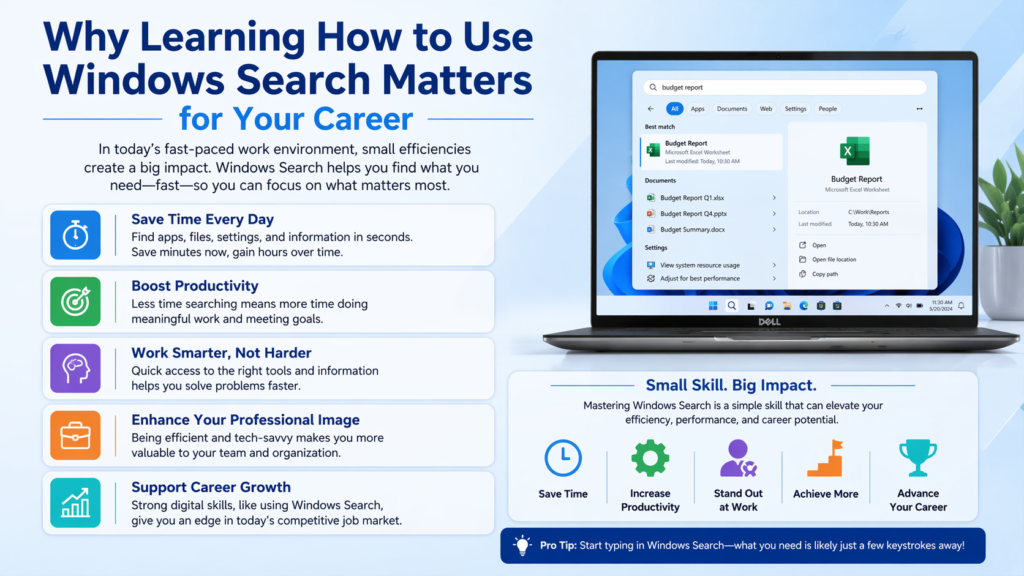
In today’s world, nearly every job requires basic computer skills. Employers look for people who can work quickly and efficiently on a computer. Knowing how to use Windows Search may seem like a small thing — but it shows that you can navigate a computer confidently and save time at work.
Students also benefit greatly. Instead of spending minutes searching for assignments and notes, you can find anything in seconds and focus on what really matters — your studies.
Even at home, using how to use Windows Search makes your daily computer use faster, less frustrating, and much more enjoyable.
Quick Reference: Windows Search Shortcuts
Here is a handy reference table you can bookmark:
| Action | Shortcut / Method | What It Does |
| Open Search | Windows Key + S | Opens the search box instantly |
| Find a File | Type file name | Locates files anywhere on PC |
| Open an App | Type app name + Enter | Launches apps in seconds |
| Find Settings | Type setting name | Opens exact setting page |
| Filter Results | Click filter tabs | Narrows results by type |
| Right-click options | Right-click any result | Pin, run as admin, open location |
Conclusion: Start Using Windows Search Today
Learning how to use Windows Search is one of the best investments you can make in your computer skills. It is completely free, already installed on your PC, and takes less than five minutes to learn.
To quickly recap what you learned in this guide:
- Press Windows Key + S to open search instantly
- Type short keywords to find files, apps, and settings
- Use filter tabs to narrow down your results
- Right-click results for extra powerful options
- Practice daily and it will become second nature
Now you know exactly how to use Windows Search to find files and apps instantly. Go ahead and try it right now — press Windows Key + S and search for something on your computer. You will be amazed at how fast and easy it is!
If this guide helped you, please share it with a friend or family member who is learning basic computer skills. Every person deserves to use their computer with confidence.