vikram@gmail.com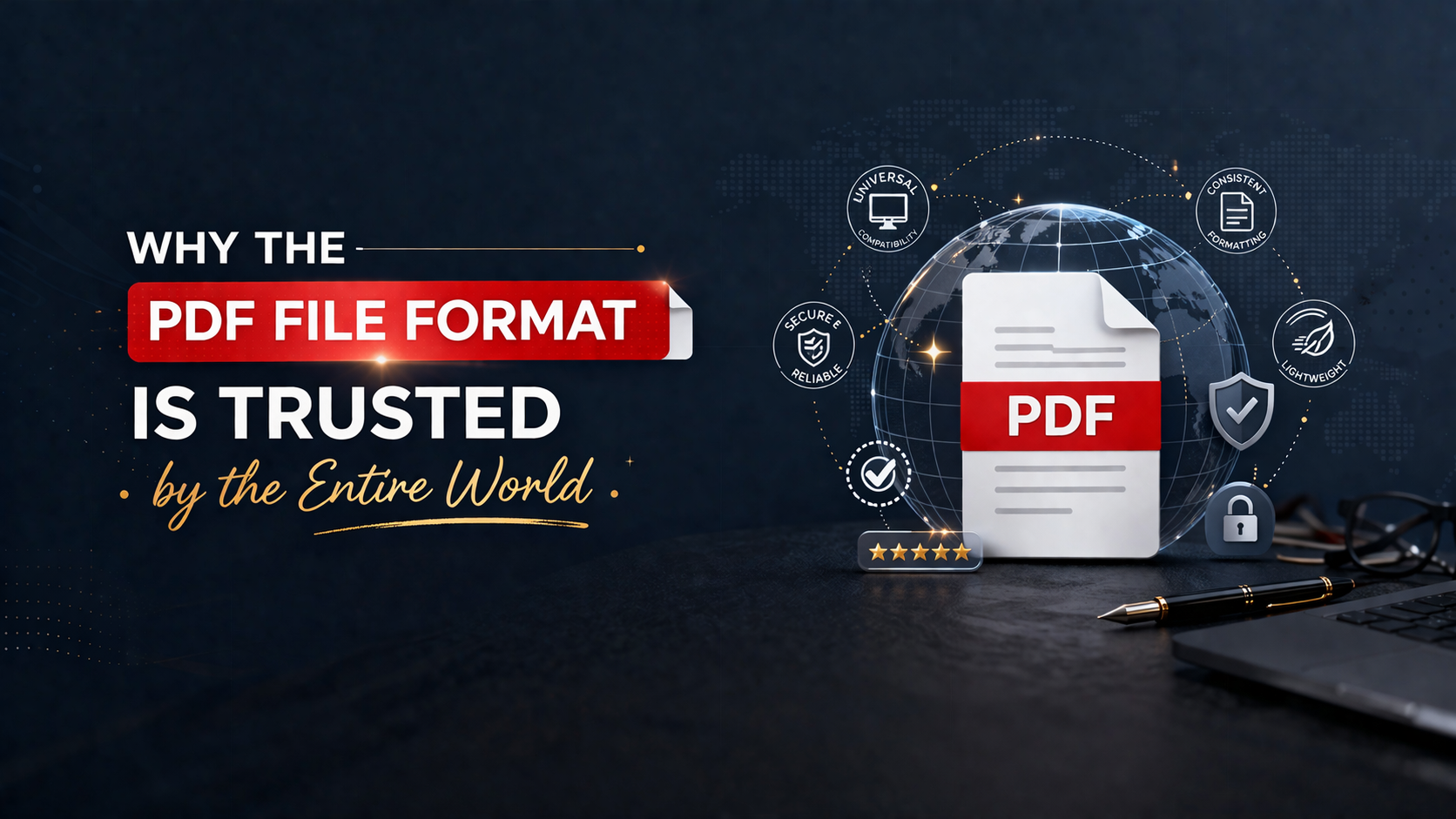
INTRODUCTION;-
Every day, billions of documents travel across the internet — job applications, legal contracts, school assignments, business reports, e-books, invoices, and government forms. And the overwhelming majority of these documents share one thing in common: they are all sent, received, and stored as a PDF file.
Yet despite interacting with PDF files constantly in daily life, most people have only the vaguest understanding of what a PDF actually is, how it works, and — most importantly — how to create one completely free of charge using tools they probably already have on their computer right now.
This changes today. By the time you finish reading this comprehensive guide, you’ll understand everything about the PDF file format — its history, its advantages, exactly how to create one using multiple free methods, how to edit and compress them, and professional tips that will make you look like a document expert to everyone you work with.
What Exactly Is a PDF File?
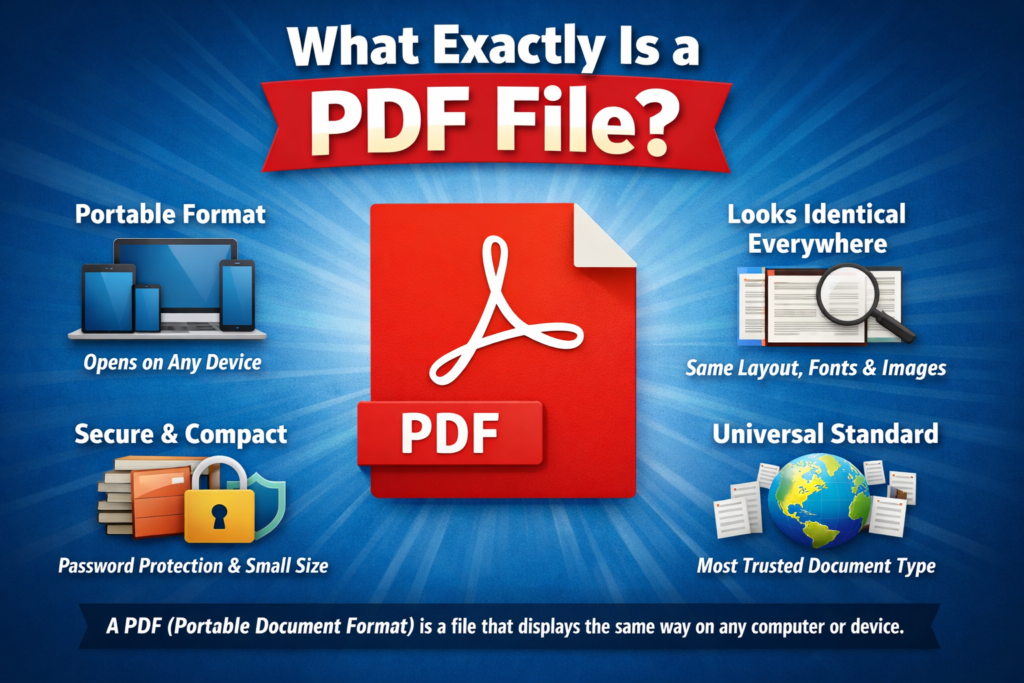
PDF stands for Portable Document Format. It is a file format developed by Adobe Systems in the early 1990s with one specific, revolutionary goal: to create a document that looks exactly the same on every device, every operating system, and every screen — regardless of what software or fonts are installed on the viewer’s computer.
Before the PDF file existed, sharing documents was a nightmare. A Word document formatted beautifully on one computer would appear completely different on another — fonts changing, layouts shifting, images moving out of place. Printing documents from different computers produced wildly inconsistent results. There was no reliable way to share a document and guarantee it would look the same for everyone.
The PDF file solved this problem permanently. When you convert any document into a PDF, it essentially takes a precise “snapshot” of that document — capturing every element exactly as it appears, locking the layout, fonts, images, colors, and formatting into a single, self-contained file. Open that file on a Windows laptop, an Apple Mac, an Android tablet, or a Linux computer — it looks identical every single time.
This “portability” — the ability to display perfectly on any device — is exactly what the name “Portable Document Format” describes, and it’s why the PDF file has become the universal standard for document sharing across the entire world.
The History of PDF: From Adobe to Global Standard
To truly appreciate the PDF file, understanding its remarkable journey helps.
Adobe co-founder John Warnock launched a project in 1991 called “The Camelot Project” with an ambitious vision: to capture documents from any application and send the electronic version to anywhere, viewing and printing it on any machine. This vision became the foundation of the PDF file format.
Adobe released PDF version 1.0 in 1993. In the early years, adoption was slow — creating and viewing PDF files required expensive Adobe software, limiting accessibility. The turning point came when Adobe made the Adobe Reader application completely free to download, allowing anyone to view PDF files at no cost.
By the 2000s, the PDF file had become the dominant document format for government agencies, corporations, legal firms, publishers, and educational institutions worldwide. In 2008, Adobe released the PDF specification as an open standard — meaning any company or developer could create software to read and write PDF files without paying Adobe any licensing fees.
This decision transformed the ecosystem. Today, thousands of applications across every platform can create, edit, and view PDF files — including completely free tools that rival Adobe’s own premium software in capability.
Why the PDF File Format Is Trusted by the Entire World
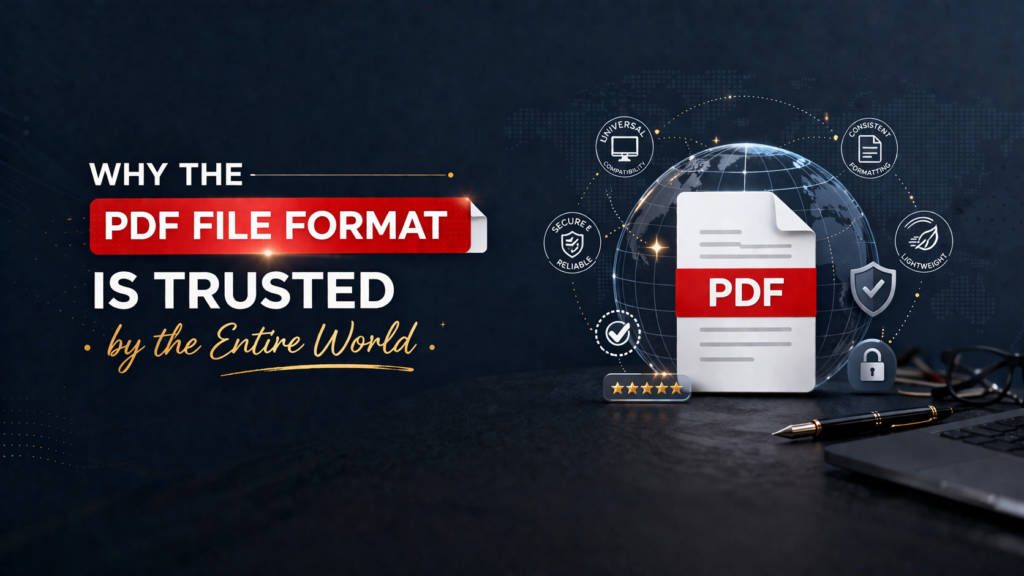
The global dominance of the PDF file isn’t accidental. It has earned its position as the world’s most trusted document format through a combination of genuinely superior qualities that no other format fully replicates.
Universal Compatibility
A PDF file opens correctly on Windows, macOS, Linux, Android, iOS, and ChromeOS — without any special software beyond a basic PDF viewer, which is built into virtually every modern operating system and web browser. Chrome, Firefox, Edge, and Safari can all open PDF files directly without any additional installation.
Perfect Layout Preservation
When you send someone a PDF file, what they see is exactly what you intended. Every font, every margin, every image, every table, every color — preserved exactly as you designed it. This is why legal contracts, academic papers, official certificates, and business proposals are always shared as PDF files rather than editable formats.
Security and Access Control
The PDF file format supports powerful security features unavailable in most other document formats. You can password-protect a PDF to prevent unauthorized opening, restrict printing, prevent copying of text, and block editing — giving document creators precise control over how their content can be used.
Compact File Size
Despite containing rich formatting, fonts, images, and graphics, PDF files are typically significantly smaller than equivalent files in other formats. Compression technology built into the PDF specification reduces file sizes dramatically, making them practical to email, upload, and store.
Digital Signature Support
Legal and business documents increasingly use digital signatures embedded directly in PDF files — allowing contracts and agreements to be signed electronically with full legal validity, eliminating the need for printing, signing, scanning, and mailing physical documents.
How to Create a PDF File for Free — Complete Methods
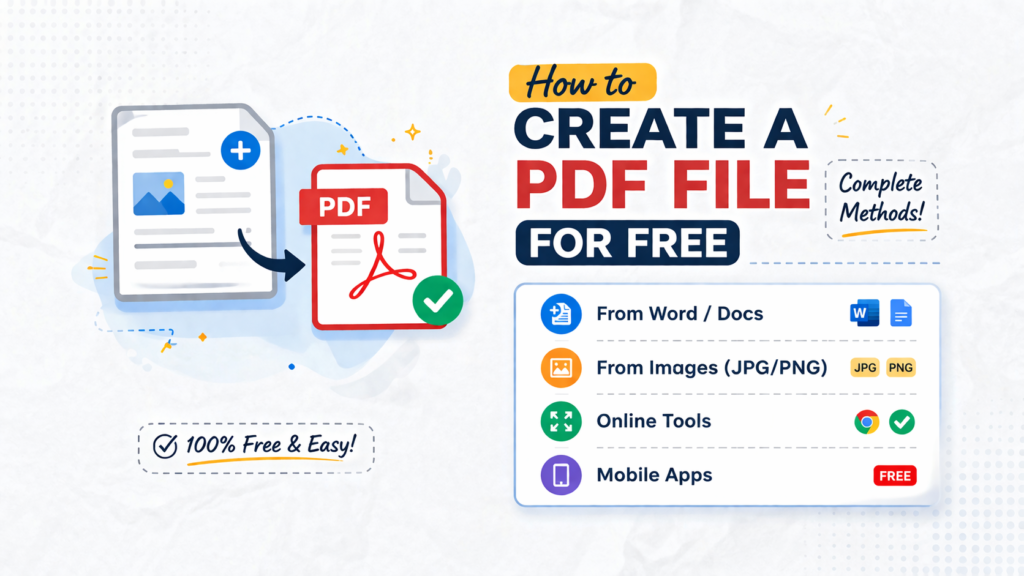
Now let’s get into the practical heart of this guide: exactly how to create a professional PDF file without spending any money, using tools available on every major platform.
Method 1 — Print to PDF (Built Into Windows and Mac)
The simplest and most universally available method to create a PDF file requires no additional software whatsoever. Every modern Windows and Mac computer includes a built-in “Print to PDF” feature that converts any document, webpage, image, or file into a PDF with just a few clicks.
How to use Print to PDF on Windows:
Step 1: Open any document, webpage, image, or file you want to convert to a PDF file — a Word document, a webpage in Chrome, a photo, anything.
Step 2: Press Ctrl + P to open the Print dialog box. Alternatively, go to File in the menu bar and select Print.
Step 3: In the Print dialog, look for the “Printer” or “Destination” dropdown menu. Instead of selecting a physical printer, choose “Microsoft Print to PDF” (Windows) or “Save as PDF” (Mac).
Step 4: Click “Print” (Windows) or “Save” (Mac).
Step 5: A Save dialog box will appear, asking where to save your new PDF file and what to name it. Choose your location, enter a filename, and click “Save.”
Your document has now been converted into a professional PDF file — perfectly formatted, exactly matching the original, ready to share with anyone in the world.
This method works from literally any application that supports printing — Microsoft Word, Excel, PowerPoint, Notepad, Paint, web browsers, photo viewers, and thousands of other programs. If it can print, it can create a PDF.
Method 2 — Microsoft Word’s Built-In PDF Export
If you’re creating documents in Microsoft Word (or Excel, or PowerPoint), these applications include a dedicated, high-quality PDF file export feature that produces superior results compared to the generic Print to PDF method.
Step 1: Create or open your document in Microsoft Word.
Step 2: Click “File” in the top-left menu, then select “Save As” or “Export.”
Step 3: If using Save As: In the Save As dialog, click the “Save as type” dropdown menu and select “PDF (*.pdf)” from the list.
Step 4: Before saving, click “Options” to customize your PDF file — choose whether to include the entire document or specific pages, set the quality level (Standard for sharing, Minimum size for web), and configure other advanced settings.
Step 5: Click “Save” to generate your PDF.
If using Export: Click “File” → “Export” → “Create PDF/XPS Document” → “Create PDF/XPS.” This path gives you the same options with a slightly different interface.
Word’s PDF export is particularly excellent for documents with complex formatting — tables, headers, footnotes, embedded images, and multiple columns all convert cleanly and accurately into the final PDF file.
Method 3 — Google Docs (Free, No Software Required)
Google Docs is a completely free, browser-based word processor that includes built-in PDF file export — making it an excellent option for anyone without Microsoft Office, or for anyone who wants to create PDFs from any computer or device without installing anything.
Step 1: Go to docs.google.com and sign in with your free Google account (or create one).
Step 2: Create your document from scratch using Google Docs’ full suite of formatting tools, or upload an existing Word document by going to File → Open → Upload.
Step 3: When your document is ready, click “File” in the top menu.
Step 4: Hover over “Download” in the dropdown menu.
Step 5: Select “PDF Document (.pdf)” from the submenu.
Step 6: Your browser will automatically download the completed PDF file to your computer’s Downloads folder.
The entire process takes seconds and produces a clean, professional PDF. Google Docs is particularly useful because it works from any device with a web browser — Windows, Mac, Chromebook, Android, or iPhone — with no software installation required.
Method 4 — Free Online PDF Converters
For quick, one-off conversions of files you don’t want to open in specialized software, free online PDF conversion websites offer a simple solution. Websites like Smallpdf.com, ILovePDF.com, and PDF2Go.com allow you to upload virtually any file type and convert it to a PDF file in seconds, directly in your browser.
How to use an online converter:
Step 1: Open your web browser and go to smallpdf.com or ilovepdf.com.
Step 2: Choose the appropriate conversion tool — Word to PDF, JPG to PDF, Excel to PDF, PowerPoint to PDF, etc.
Step 3: Click “Choose File” or drag and drop your file onto the upload area.
Step 4: Wait for the conversion to complete (usually 5-15 seconds depending on file size).
Step 5: Click “Download” to save your completed PDF file to your computer.
These tools are excellent for occasional use. For frequent PDF creation, the built-in methods (Print to PDF or Word Export) are more practical since they don’t require uploading files to third-party servers.
Method 5 — LibreOffice (Free Microsoft Office Alternative)
LibreOffice is a powerful, completely free and open-source office suite that serves as a full alternative to Microsoft Office. It includes a word processor, spreadsheet application, presentation tool, and more — all with excellent built-in PDF file export.
Download LibreOffice for free at libreoffice.org, install it, create your document, then go to File → Export as PDF for detailed PDF creation options including security settings, image compression quality, and page range selection.
LibreOffice’s PDF export is remarkably sophisticated for a free tool, offering professional-grade options that rival Adobe Acrobat’s paid features.
How to Compress a PDF File to Reduce Its Size
After creating a PDF file, you may find it’s larger than expected — particularly if it contains high-resolution images. Large PDFs can be difficult to email (many email providers limit attachments to 10-25MB) and slow to upload. Here’s how to compress them for free.
Using Smallpdf.com: Go to smallpdf.com, click “Compress PDF,” upload your file, choose your compression level (Basic, Strong, or Extreme), and download the compressed result. A 10MB PDF can often be reduced to under 1MB without visible quality loss for text-heavy documents.
Using ILovePDF.com: Similar process — go to ilovepdf.com, select “Compress PDF,” upload, compress, and download.
Using Adobe Acrobat Online (Free tier): Adobe offers limited free PDF compression at acrobat.adobe.com — useful for occasional compression needs.
How to View PDF Files for Free
Reading a PDF file requires zero cost and minimal effort on any modern device.
Windows: Microsoft Edge (built into Windows 10/11) opens PDF files automatically with a built-in reader. Google Chrome and Firefox also open PDFs directly in the browser. For a dedicated app, the free Adobe Acrobat Reader is the gold standard.
Mac: Preview (built into macOS) opens PDF files automatically with excellent quality. Safari also handles PDFs natively.
Android: Google Drive and Google Photos both open PDF files. Adobe Acrobat Reader for Android is free and highly capable.
iPhone/iPad: Files app and Safari both open PDFs natively. Books app also handles PDF viewing beautifully.
Professional Tips for Creating Better PDF Files
These advanced tips separate casual PDF users from true document professionals.
Add bookmarks for long documents: When exporting from Word or Google Docs, apply proper Heading styles (Heading 1, Heading 2, etc.) to your document sections. These automatically become clickable bookmarks in the final PDF file, making navigation effortless for readers.
Embed fonts: When creating PDFs from design software, always embed fonts to ensure your typography displays correctly on systems that don’t have those fonts installed.
Use high resolution for print PDFs: If your PDF file will be professionally printed, export at 300 DPI rather than the standard 72-96 DPI used for screen viewing.
Password protect sensitive PDFs: Both Microsoft Word’s Export and LibreOffice’s Export as PDF options allow you to set open passwords and permission passwords before creating the file — essential for confidential documents.
Optimize for web: If your PDF file will be downloaded from a website, choose “Optimize for web” or “Fast web view” options during export. This enables progressive loading, so users can start reading before the entire file downloads.
Common PDF File Problems and Quick Solutions
Problem: PDF won’t open Solution: Download the free Adobe Acrobat Reader from adobe.com. This resolves 99% of PDF opening issues across all platforms.
Problem: PDF file is too large to email Solution: Use Smallpdf or ILovePDF to compress before sending. Alternatively, upload to Google Drive and share a link instead of an attachment.
Problem: PDF text appears blurry Solution: The source document was exported at low resolution. Re-export choosing “High quality” or “Standard” rather than “Minimum size.”
Problem: PDF fonts look different from the original Solution: Ensure fonts are embedded during export. In Word’s PDF options, check the font embedding setting before saving.
Conclusion: The PDF File Is Your Most Powerful Document Tool
From its invention by Adobe in the early 1990s to its current status as the world’s most trusted document format, the PDF file has earned its universal adoption through genuine, practical superiority. It preserves layouts perfectly, works on every device, supports security features, compresses efficiently, and carries legal weight in professional and governmental contexts worldwide.
And the best news of all — creating professional, high-quality PDF files costs absolutely nothing. Whether you use Windows’ built-in Print to PDF feature, Microsoft Word’s Export function, Google Docs’ free download option, or any of the other free methods covered in this guide, you have everything you need to create perfect PDF documents right now, on the device you’re reading this on.
Master the PDF file format completely. Use it for every important document you create, share, or store. And enjoy the peace of mind that comes with knowing your documents will look exactly as you intended — for every person, on every device, anywhere in the world.