vikram@gmail.com
Introduction: Why Is Your Computer Running So Slow?
Is your computer taking forever to boot up? Does your browser freeze every time you open a new tab? Are you staring at a spinning loading circle more often than your actual work? If any of this sounds familiar, you are in the right place. Today, we are going to talk about How to Speed Up a Slow Computer — a complete, step-by-step guide that anyone can follow, no tech experience required.
Millions of people search for How to Speed Up a Slow Computer every single day. And the reason is simple — a slow computer does not just waste your time, it kills your productivity, ruins your mood, and can cost you money if you depend on it for work. The good news? In most cases, you do not need to buy a new computer or pay a technician. You just need the right knowledge.
In this guide, we will walk you through 12 proven, tested, and completely free methods that will help you understand How to Speed Up a Slow Computer like a pro. Whether you are using Windows 10, Windows 11, or a Mac — whether it is a laptop or a desktop — these tips work for everyone.
Why Is Your Computer Slow? — Know the Root Cause
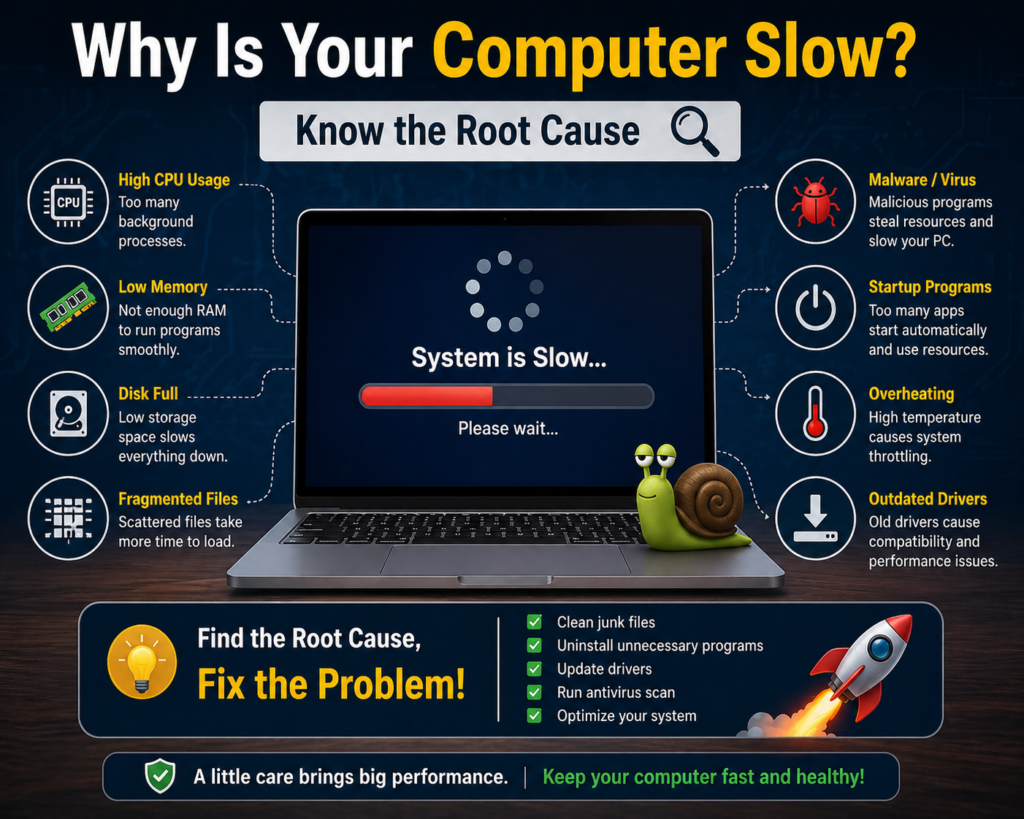
Before we dive into solutions, let us understand why the problem exists in the first place. Knowing How to Speed Up a Slow Computer starts with identifying the real cause:
| Problem | Root Cause | Solution |
| Computer is extremely slow | RAM is full or overloaded | Close unnecessary apps |
| Takes too long to boot | Too many startup programs | Disable startup apps |
| Browser is lagging | Cache and cookies piled up | Clear browser data |
| Hard drive is full | Junk and temp files accumulated | Run Disk Cleanup |
| Computer overheats | Fan blocked or dust buildup | Clean vents and fan |
| Sudden slowdowns | Virus or malware running in background | Run a full antivirus scan |
Tip 1: Disable Startup Programs — The #1 Easiest Fix
This is the very first thing you should try when figuring out How to Speed Up a Slow Computer. When you turn on your computer, dozens of apps automatically launch in the background — Spotify, Discord, Microsoft Teams, Skype, OneDrive, and many more. Each of these quietly eats up your RAM and CPU before you even open a single window.
How to Do It on Windows:
- Press Ctrl + Shift + Esc to open Task Manager
- Click on the ‘Startup’ tab at the top
- Right-click on any app you do not need at startup and select ‘Disable’
- Restart your computer and feel the difference immediately
| Pro Tip Only disable apps you do not use daily. Never disable your Antivirus or Windows Security — those need to run at startup to protect your system. |
Studies show that disabling unnecessary startup programs alone can improve boot speed by up to 40%. This is the single most impactful step in learning How to Speed Up a Slow Computer — and it costs absolutely nothing.
Tip 2: Run Disk Cleanup — Clear Out the Junk
One of the most overlooked answers to How to Speed Up a Slow Computer is simply cleaning up your hard drive. Over months and years, your computer accumulates massive amounts of junk — temporary files, error logs, old Windows update files, leftover installation data, and Recycle Bin clutter. All of this takes up space and slows down your system.
How to Run Disk Cleanup on Windows:
- Type ‘Disk Cleanup’ in the Windows search bar and open it
- Select the drive you want to clean (usually C: drive)
- Click ‘Clean up system files’ to get access to even more space
- Check all the boxes you want to clear and click OK
- Confirm and let the process complete — it only takes a few minutes
| 💡 How Much Space Can You Free Up? The average user can recover 2GB to 10GB of storage just from Disk Cleanup. This is completely free, safe, and takes under 5 minutes. |
Make it a habit to run Disk Cleanup once a month, and How to Speed Up a Slow Computer will rarely come back to haunt you.
Tip 3: Monitor and Free Up RAM Usage
RAM (Random Access Memory) is your computer’s short-term memory. When it gets full, your system slows to a crawl. This is one of the most common reasons people search for How to Speed Up a Slow Computer — they simply have too many things open at once, and the RAM cannot keep up.
How to Check and Fix RAM Usage:
- Open Task Manager with Ctrl + Shift + Esc
- Click on the ‘Processes’ tab and sort by ‘Memory’ column
- Identify which apps are consuming the most RAM
- Close any programs you are not actively using
- Avoid keeping more than 10 browser tabs open simultaneously
| ⚠️ Important Warning Do not end system processes like svchost.exe or explorer.exe — these are essential Windows components. Only close apps that you personally opened. |
Tip 4: Scan for Viruses and Malware — The Hidden Culprit
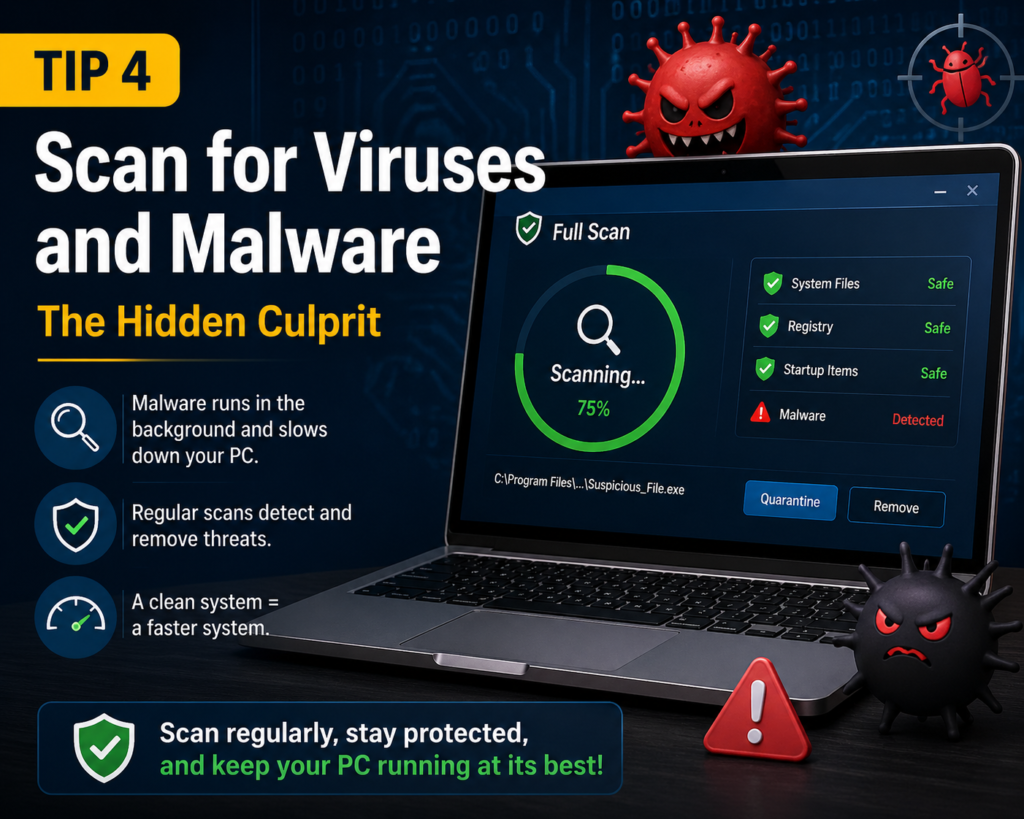
Sometimes the reason you are searching for How to Speed Up a Slow Computer is not your hardware at all — it is a virus or malware running silently in the background, stealing your processing power, sending your data, and making everything sluggish. This is more common than most people realize.
What You Should Do:
- Run a Full Scan using Windows Defender — it is free and already installed
- Download Malwarebytes (free version) for a second layer of protection
- Uninstall any software you do not remember installing
- Remove browser extensions you do not recognize or use
- Avoid downloading pirated software — it is the number one source of malware
| Free Security Tool Malwarebytes Free Edition is one of the most powerful malware scanners available at no cost. It works alongside Windows Defender without conflict — use both for maximum protection. |
Tip 5: Keep Windows Updated — Outdated Systems Run Slower
This is a step that many people ignore, but it directly affects How to Speed Up a Slow Computer. An outdated version of Windows contains unpatched bugs and performance issues that Microsoft has already fixed in newer updates. Running an old version means you are literally choosing to run a slower, buggier system.
How to Update Windows:
- Go to Settings > Windows Update
- Click ‘Check for updates’
- Install all available updates
- Restart your computer once updates are complete
Also update your device drivers — especially your Graphics Driver and Network Adapter Driver. Outdated drivers are a surprisingly common cause of How to Speed Up a Slow Computer problems that most people never think to check.
Tip 6: Optimize Your Browser — Is It Really the Computer?
Many people assume they need to figure out How to Speed Up a Slow Computer when the real issue is actually their web browser. A bloated, outdated browser with too many extensions and gigabytes of cached data will feel as slow as an old computer — even on brand new hardware.
Browser Speed Optimization Tips:
- Clear your cache: Go to Settings > Privacy > Clear Browsing Data
- Never keep more than 10 tabs open — each tab consumes RAM
- Remove browser extensions you do not actively use
- Keep your browser updated to the latest version
- Consider switching from Chrome to Brave or Edge — they are faster and lighter
- Disable autoplay videos — they consume CPU and RAM silently
| Browser Recommendation Brave Browser is up to 3x faster than Chrome and blocks ads automatically — completely free. If Chrome feels slow, switching to Brave can feel like buying a new computer. |
Tip 7: Free Up Storage Space — or Upgrade to an SSD
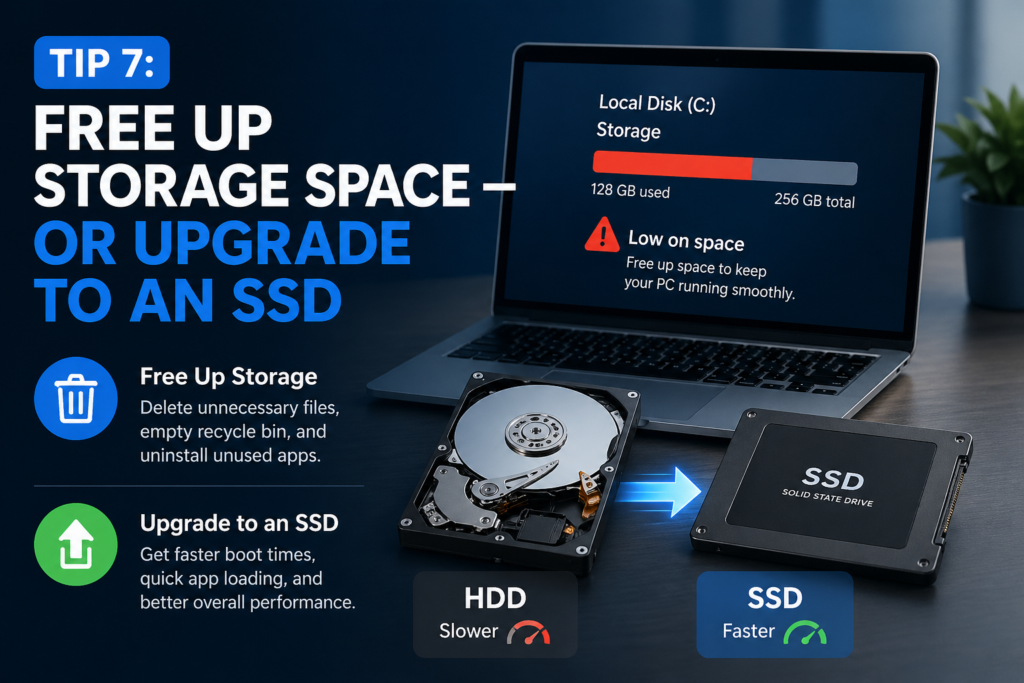
When your hard drive is over 90% full, your computer slows down dramatically. This is one of the most common yet overlooked causes of How to Speed Up a Slow Computer. Windows needs free space to create temporary files, manage virtual memory, and perform basic operations. No free space means no breathing room.
How to Free Up Storage:
- Clean out your Downloads folder — it is often full of forgotten files
- Delete duplicate photos and videos
- Move large files to Google Drive, OneDrive, or an external hard drive
- Uninstall software and games you no longer use
- Empty the Recycle Bin — it still holds deleted files until you do
SSD vs HDD — The Biggest Upgrade You Can Make:
If your computer still runs on an old HDD (Hard Disk Drive), upgrading to an SSD (Solid State Drive) is the single most powerful answer to How to Speed Up a Slow Computer. An SSD makes your computer boot 5 to 10 times faster and dramatically speeds up everything from opening apps to loading files. A 240GB SSD costs as little as $20-$30 and is a one-time investment that transforms an old computer into a fast machine.
Tip 8: Reduce Visual Effects — Make Windows Lighter
Windows is full of decorative animations, shadows, and transitions that look nice but consume significant processing power. For older computers especially, disabling these effects is a smart and completely free way to solve How to Speed Up a Slow Computer.
How to Do It:
- Search for ‘Adjust the appearance and performance of Windows’ in the Start menu
- Select ‘Adjust for best performance’ to disable all effects at once
- Or manually uncheck only the effects you do not care about
- Click Apply and then OK
- You will notice a snappier, more responsive system immediately
| Performance Gain On older laptops with 4GB of RAM, disabling visual effects can deliver a 15 to 20 percent performance improvement — for free, in under two minutes. |
Tip 9: Change Your Power Plan to High Performance
Windows defaults to a ‘Balanced’ power plan, which intentionally limits your CPU speed to conserve battery. While this is useful when you are on the go, it is a common and unnecessary cause of How to Speed Up a Slow Computer when your laptop is plugged in or you are using a desktop.
How to Change Your Power Plan:
- Open Control Panel and go to Power Options
- Select ‘High Performance’ from the list
- If on a laptop, only use this setting when plugged into a power outlet
| ⚠️Battery Alert High Performance mode drains your battery much faster. Only use it when your laptop is plugged in, or when doing CPU-heavy tasks like video editing or gaming. |
Tip 10: Restart Your Computer Regularly — It Actually Works
This sounds almost too simple to be a real solution to How to Speed Up a Slow Computer. But you would be surprised how many people never restart their computers — they just put them to sleep and wake them back up. Over time, RAM fills up with temporary data, background processes pile up, and the system gradually becomes slower and slower.
Make it a rule: shut your computer down properly at the end of every workday. At minimum, do a full restart at least once a week. This one simple habit prevents How to Speed Up a Slow Computer from becoming a recurring problem and keeps your system running fresh and clean.
Tip 11: Upgrade Your RAM — When Software Fixes Are Not Enough
If you have tried every tip above and you are still dealing with How to Speed Up a Slow Computer, it may be time for a hardware upgrade. Upgrading your RAM is the most cost-effective hardware change you can make and delivers an immediate, dramatic improvement in speed.
RAM Upgrade Guide:
- If you have 4GB RAM, upgrading to 8GB will feel like a completely new computer
- If you have 8GB and do video editing or gaming, upgrade to 16GB
- First check what type of RAM your motherboard supports (DDR4 is current standard)
- RAM sticks are widely available online and at local electronics stores
- Installing RAM in a laptop is straightforward — YouTube tutorials make it easy
| Cost vs. Benefit An 8GB DDR4 RAM stick costs between $15 and $30. That one upgrade can extend the useful life of your computer by 3 to 4 years — making it far cheaper than buying a new machine. |
Tip 12: Reset or Reinstall Windows — The Nuclear Option
When everything else has failed and you still cannot solve How to Speed Up a Slow Computer, the most powerful solution is a Windows Reset. This returns your computer to factory-fresh condition, removing years of accumulated junk, broken software, and registry errors. It sounds extreme, but Windows 10 and 11 have made this process remarkably simple and safe.
How to Reset Windows:
- Go to Settings > System > Recovery
- Click ‘Reset this PC’
- Choose ‘Keep my files’ — your personal documents will be preserved
- Allow the process to complete — it takes 30 to 60 minutes
- Reinstall only the apps you truly need — enjoy a like-new computer
| ⚠️ Back Up First! Before resetting, back up all important files to an external drive or cloud storage like Google Drive. Even with ‘Keep my files’ selected, a backup is always the safe move. |
Quick Reference: All 12 Tips at a Glance
How to Speed Up a Slow Computer — here is your complete cheat sheet:
| # | Tip | Difficulty Level |
| 1 | Disable Startup Programs | Easy |
| 2 | Run Disk Cleanup | Easy |
| 3 | Monitor and Free Up RAM | Medium |
| 4 | Scan for Viruses and Malware | Easy |
| 5 | Update Windows and Drivers | Easy |
| 6 | Optimize Your Browser | Easy |
| 7 | Free Up Storage / Upgrade to SSD | Medium |
| 8 | Reduce Visual Effects | Easy |
| 9 | Switch to High Performance Power Plan | Easy |
| 10 | Restart Your Computer Regularly | Easy |
| 11 | Upgrade Your RAM | Technical |
| 12 | Reset or Reinstall Windows | Medium |
How to Keep Your Computer Fast — Long-Term Maintenance
Once you have solved How to Speed Up a Slow Computer, the next goal is to make sure it never becomes a problem again. Follow this simple maintenance routine to keep your system running at peak performance:
- Every week: Restart your computer fully at least once
- Every month: Run Disk Cleanup to remove junk files
- Every month: Run a full antivirus and malware scan
- Every month: Clear your Downloads folder and Desktop clutter
- Every few months: Check for Windows updates and driver updates
- Once a year: Physically clean your laptop vents and fan from dust
These simple habits will ensure that How to Speed Up a Slow Computer remains something you solved once and never have to worry about again. Prevention is always easier than the cure.
Bonus: Signs That Your Computer Needs Hardware Replacement
Knowing How to Speed Up a Slow Computer also means knowing when software fixes are no longer enough. Here are warning signs that your computer may need new hardware or replacement:
- Computer is more than 8 to 10 years old and no longer receives Windows updates
- RAM cannot be upgraded further and is already maxed out
- Hard drive is making clicking or grinding noises — this is a serious warning sign
- Computer crashes, freezes, or shows Blue Screen of Death (BSOD) frequently
- Even after a fresh Windows install, the computer remains extremely slow
| Smart Decision If your computer is older than 7 years and repair costs exceed 50% of a new machine’s price, buying a refurbished laptop or budget new computer is often the smarter investment. |
Conclusion: Start Today — Your Computer Can Be Fast Again
How to Speed Up a Slow Computer is one of the most searched technology topics in the world — and for good reason. A slow computer affects everything: your work, your studies, your entertainment, and your peace of mind. But as this guide has shown, the solution is almost always within your reach.
Start with Tip 1 — disable those startup programs. Then run Disk Cleanup. Then optimize your browser. Take it one step at a time, and you will notice the difference at every stage. The complete answer to How to Speed Up a Slow Computer is not one magic fix — it is a combination of smart habits and simple maintenance.
If this guide helped you, please share it with friends, family, and colleagues who are struggling with a slow machine. Because learning How to Speed Up a Slow Computer is a skill that benefits everyone who uses a computer — and that is pretty much all of us.
Have questions? Drop them in the comments below. Happy computing! 💻🚀