vikram@gmail.com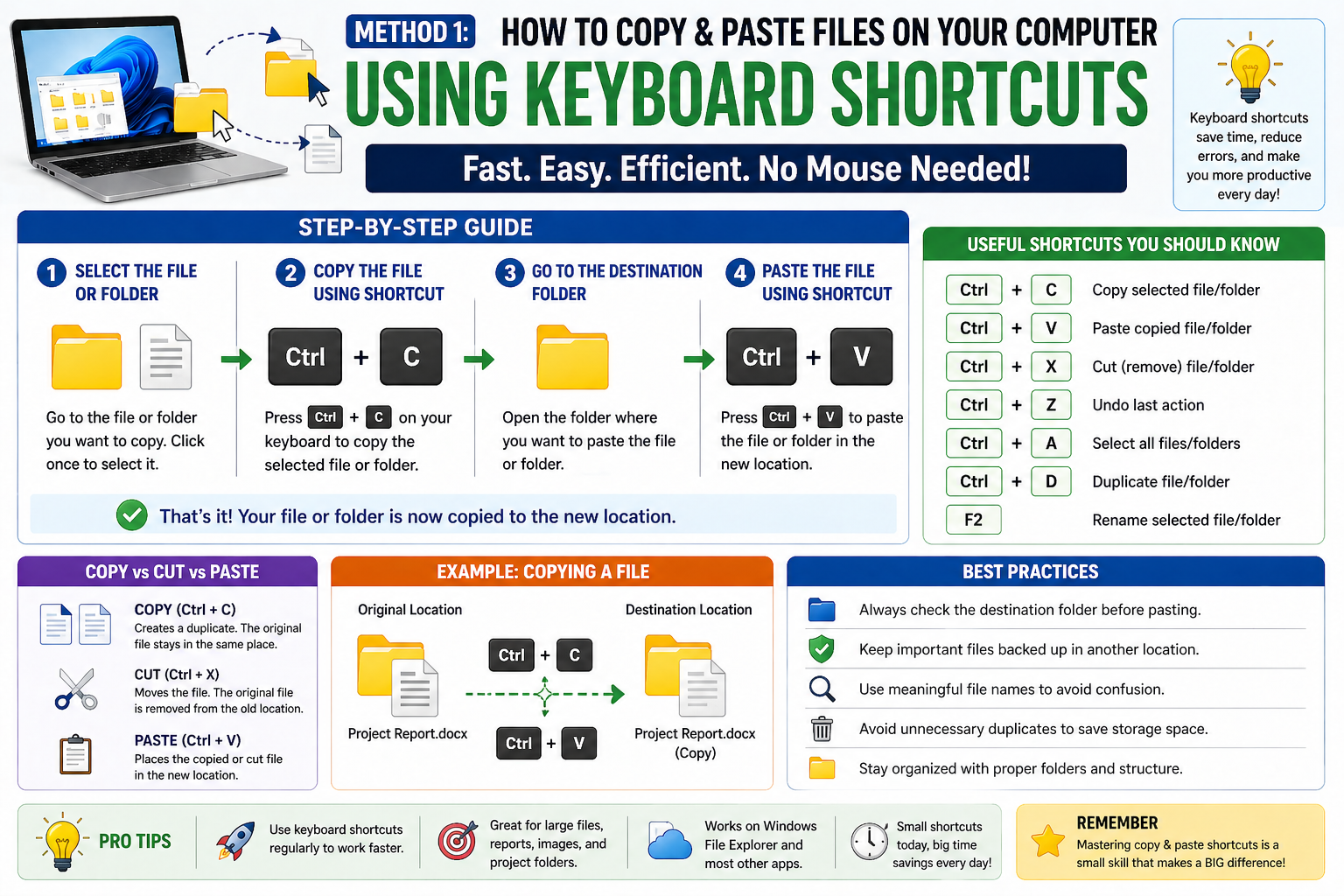
INTERODUCTION:-
Whether you are a complete beginner sitting in front of a computer for the very first time or someone who simply wants to sharpen their basic digital skills, learning how to copy & paste files on your computer is one of the most practical and time-saving abilities you can ever develop. This simple task — which takes only a few seconds — can help you organize your work, create backups of important documents, share files with colleagues, and keep your digital life running smoothly.
In this comprehensive easy guide, we will walk you through every method available — from keyboard shortcuts to right-click menus to drag-and-drop techniques — so you can confidently copy & paste files on your computer regardless of your device, operating system, or technical background. Let us get started.
Why Knowing How to Copy & Paste Files on Your Computer Is So Important
Before we dive into the step-by-step methods, it is worth understanding why this skill matters so much in everyday digital life. The ability to copy & paste files on your computer is foundational — it is used in schools, offices, hospitals, creative studios, and homes around the world every single day.
Here are just a few situations where you will rely on this skill:
- Backing up important documents from your desktop to an external hard drive or USB.
- Sharing a group of photos from one folder to another before uploading them online.
- Copying project files to a shared drive so your team members can access them.
- Duplicating a template document so you can edit the copy without changing the original.
- Moving files from your Downloads folder to organized folders for easy future retrieval.
In short, once you master how to copy & paste files on your computer, you gain full control over your digital workspace. It is a skill that saves time, prevents data loss, and makes you significantly more productive.
Understanding the Difference: Copy vs. Cut vs. Save
Before jumping into the how-to steps, it helps to clearly understand three terms that often confuse beginners:
Copy (Ctrl + C / Cmd + C)
When you copy a file, the original stays exactly where it is, and a duplicate is created wherever you paste it. Think of it like photocopying a document — you still have the original, and you now have an identical copy. This is the safest option when you are not sure whether you want to move the original or not.
Cut (Ctrl + X / Cmd + X)
When you cut a file, the original is removed from its current location and moved to wherever you paste it. This is like physically picking up a document and placing it somewhere new. The file disappears from the old location once you paste it in the new one. Use this when you want to move, not duplicate.
Save (Ctrl + S / Cmd + S)
Saving is different from copying. When you save a file, you are storing the current version of what you are working on — a document, image, or spreadsheet — to a specific location on your computer. You save within a program (like Microsoft Word or Notepad). Copying and pasting, on the other hand, works between locations in your file system.
Method 1: How to Copy & Paste Files on Your Computer Using Keyboard Shortcuts
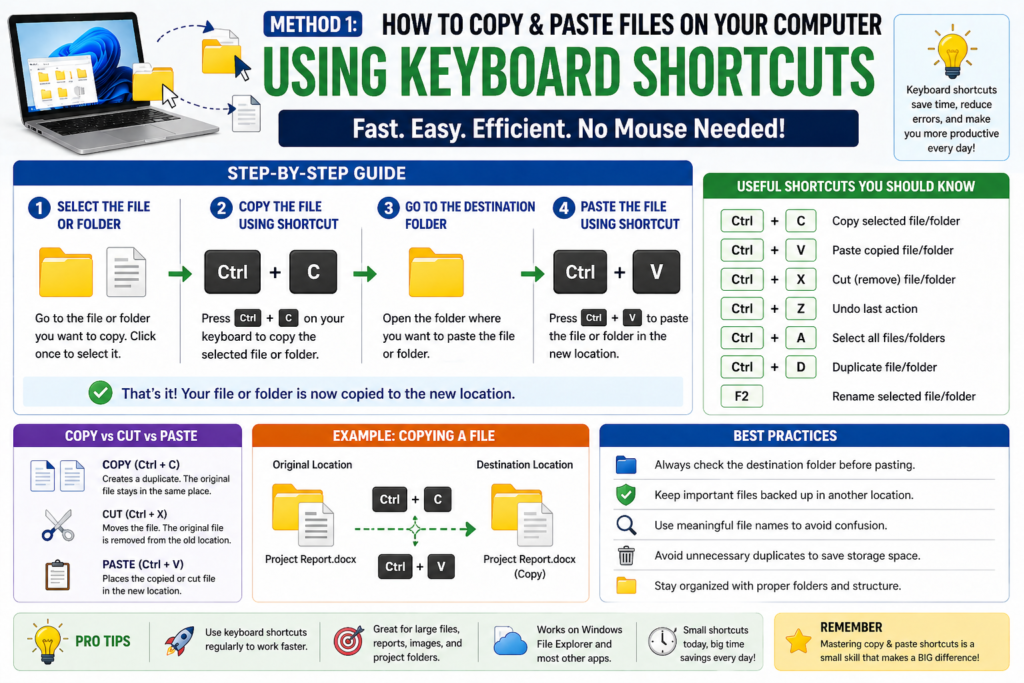
Keyboard shortcuts are the fastest and most efficient way to copy & paste files on your computer. Once you memorize these two or three key combinations, you will use them dozens of times every day.
On Windows PC:
- Open File Explorer (press Windows Key + E on your keyboard).
- Navigate to the file or folder you want to copy.
- Click once on the file to select it (it will become highlighted in blue).
- Press Ctrl + C to copy the file to your clipboard.
- Navigate to the destination folder where you want to paste the file.
- Press Ctrl + V to paste. The file will instantly appear in the new location.
On Mac:
- Open Finder from your Dock.
- Locate the file you want to copy.
- Click on the file to select it.
- Press Cmd + C to copy.
- Go to the destination folder.
- Press Cmd + V to paste the file.
Pro Tip: To select multiple files at once, hold down Ctrl (Windows) or Cmd (Mac) while clicking each file. Then press Ctrl + C or Cmd + C to copy all of them simultaneously. This is a huge time-saver when you need to copy & paste files on your computer in bulk.
Method 2: Using Right-Click Menu to Copy & Paste Files on Your Computer
If you prefer using your mouse over keyboard shortcuts, the right-click context menu is your best friend. This method is ideal for beginners who are just getting comfortable navigating a computer.
Step-by-Step (Windows & Mac):
- Open your file manager (File Explorer on Windows, Finder on Mac).
- Find the file you want to copy.
- Right-click on the file. A dropdown menu will appear.
- Click ‘Copy’ from the menu.
- Navigate to your destination folder.
- Right-click on an empty space inside that folder.
- Click ‘Paste.’ Your file will appear there immediately.
This method works equally well on Windows 10, Windows 11, and all versions of macOS. It is one of the most intuitive ways to copy & paste files on your computer without needing to remember any keyboard shortcuts at all.
Method 3: Drag and Drop to Move or Copy Files
Drag and drop is a visually satisfying method — you literally pick up a file with your mouse cursor and drop it wherever you want it to go. Here is how it works:
- To MOVE a file: Open both the source and destination folders side by side. Click and hold the file, then drag it into the other folder and release.
- To COPY a file using drag: Hold Ctrl (Windows) or Option/Alt (Mac) while dragging. You will see a small plus (+) sign appear, indicating a copy is being made instead of a move.
- Works great with images, documents, music files, and even entire folders.
Drag and drop is particularly popular among creative professionals and students who work visually. However, be careful — if you drag without holding Ctrl or Option, you may accidentally move a file rather than copy it. Always double-check both locations after completing the action.
How to Save Files on Your Computer the Right Way
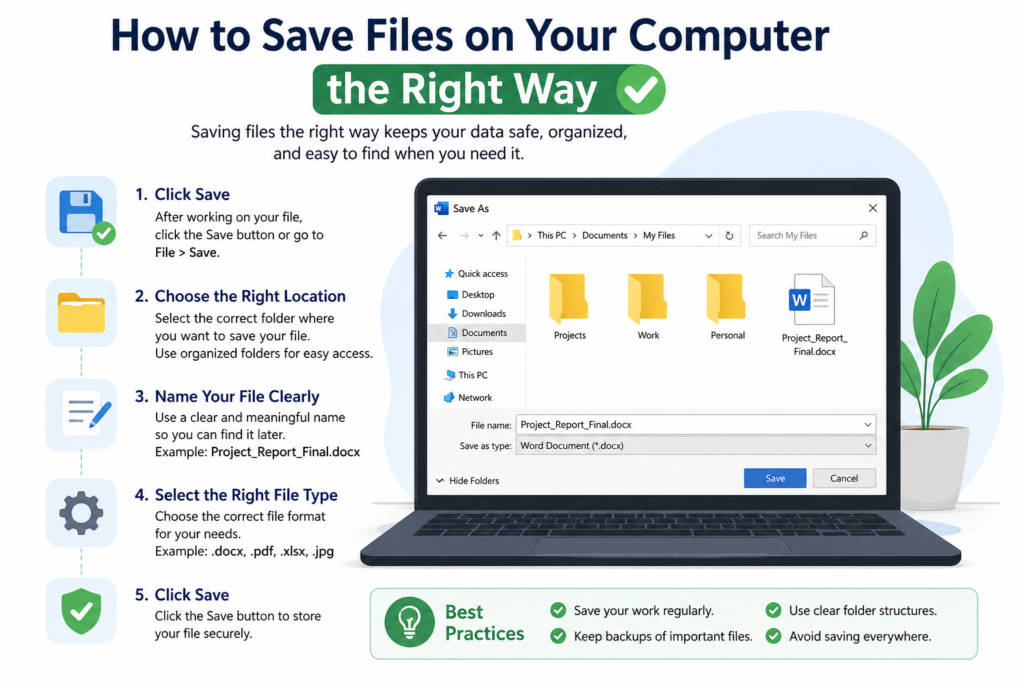
Saving files correctly is just as important as knowing how to copy & paste files on your computer. Many people lose hours of work simply because they forgot to save or saved in the wrong location. Here are the best practices:
Save for the First Time (Save As):
- Open your document or file in any program (Word, Notepad, Paint, etc.).
- Click File in the top menu bar, then click Save As.
- Choose the folder where you want to save the file (Desktop, Documents, a specific project folder).
- Type a clear, descriptive file name in the ‘File Name’ box.
- Choose the file format (e.g., .docx for Word, .pdf for read-only, .jpg for images).
- Click Save. Your file is now stored.
Save an Existing File (Quick Save):
Once a file has been saved once, press Ctrl + S (Windows) or Cmd + S (Mac) at any time to save the latest changes instantly. Make it a habit to save every few minutes — especially for important work. Some programs also have Auto-Save features you can enable in settings.
How to Copy & Paste Files on Your Computer to a USB Drive or External Storage
One of the most common reasons people need to copy & paste files on your computer is to transfer them to an external device — a USB flash drive, external hard drive, SD card, or similar storage. Here is how to do it safely:
- Plug in your USB drive or external storage device into a USB port on your computer.
- Wait a few seconds for your computer to recognize the device. A notification may appear.
- Open File Explorer (Windows) or Finder (Mac). Your device will appear in the left panel.
- Navigate to the files you want to transfer on your computer.
- Select the files, then right-click and choose Copy (or press Ctrl + C).
- Click on your USB drive in the left panel to open it.
- Right-click inside the USB drive window and select Paste (or press Ctrl + V).
- Wait for the transfer to complete. Do NOT unplug the device while files are copying.
Important: Always use ‘Safely Remove Hardware’ (Windows) or ‘Eject’ (Mac) before unplugging your device. Removing a USB while a transfer is in progress can corrupt your files permanently.
How to Copy & Paste Files on Your Computer to Cloud Storage
Cloud storage services like Google Drive, OneDrive, and Dropbox have become essential for modern file management. The process to copy & paste files on your computer to the cloud is just as simple as copying between local folders:
Using Google Drive (Website):
- Open your browser and go to drive.google.com. Sign in to your account.
- Click the ‘+ New’ button and choose ‘File Upload’ or ‘Folder Upload.’
- Select the files from your computer. They will upload and be accessible from any device.
Using Desktop App (OneDrive / Dropbox):
- Install the desktop app. It creates a special folder on your computer that syncs automatically.
- Simply copy & paste any file into that synced folder using the regular methods above.
- The file will automatically upload to the cloud — no extra steps needed.
Selecting Multiple Files Before You Copy & Paste
One of the most powerful techniques when working with files is selecting multiple items at once. Here are three ways to do it efficiently:
- Select All: Press Ctrl + A (Windows) or Cmd + A (Mac) to instantly select every file in the current folder. Then copy or cut them all at once.
- Select a Range: Click the first file, hold Shift, then click the last file. All files between them will be selected.
- Select Specific Files: Hold Ctrl (Windows) or Cmd (Mac) and click each individual file you want to include. Only those files get selected.
- Lasso Select: Click and drag your mouse over a group of files to select them all at once — like drawing a box around them.
Common Problems When You Copy & Paste Files on Your Computer (And How to Fix Them)
Even simple tasks can run into hiccups. Here are the most common issues people face and how to solve them:
Problem 1: ‘Not Enough Space’ Error
Solution: The destination location (USB drive, hard drive, or folder) does not have enough free space. Delete unnecessary files from the destination or choose a location with more storage capacity.
Problem 2: ‘File is in Use’ or ‘Access Denied’ Error
Solution: The file is currently open in another program, or you do not have permission to copy it. Close the file first, then try again. For permission issues, right-click the file and check Properties to see if restrictions are applied.
Problem 3: Copy Paste Shortcut Not Working
Solution: Restart your computer — this clears the clipboard and often resolves frozen shortcuts. If the issue persists, check if another application is overriding your keyboard shortcuts in its settings.
Problem 4: File Pasted in Wrong Location
Solution: Immediately press Ctrl + Z (Windows) or Cmd + Z (Mac) to undo the paste. The file will return to where it was before. Always check the destination folder before pasting.
Smart File Organization Tips After You Copy & Paste Files on Your Computer
Copying and pasting files is only useful if you have a smart organization system to go along with it. Here are professional tips to keep your computer files tidy, searchable, and stress-free:
- Use clear folder names: Create folders like ‘Work Projects 2025,’ ‘Personal Photos,’ ‘Tax Documents’ — names that tell you exactly what is inside.
- Date your files: When saving important files, include the date in the file name (e.g., ‘Report_March2025.docx’) so you can find older versions easily.
- Avoid saving everything to the Desktop: The Desktop is easy to access but slow to search. Use the Documents or Downloads folder with proper subfolders.
- Create a Backup routine: After copying important files, also back them up to an external drive or cloud storage. The 3-2-1 rule: 3 copies, 2 different storage types, 1 offsite.
- Delete duplicates: After you copy & paste files on your computer for backup purposes, periodically review and delete unnecessary duplicate files to free up storage.
Quick Reference: Shortcut Keys to Copy & Paste Files on Your Computer
Here is a handy cheat sheet you can bookmark or print:
- Ctrl + C (Windows) / Cmd + C (Mac) — Copy selected file(s)
- Ctrl + X (Windows) / Cmd + X (Mac) — Cut selected file(s) to move them
- Ctrl + V (Windows) / Cmd + V (Mac) — Paste copied or cut file(s)
- Ctrl + Z (Windows) / Cmd + Z (Mac) — Undo the last action
- Ctrl + A (Windows) / Cmd + A (Mac) — Select all files in current folder
- Ctrl + S (Windows) / Cmd + S (Mac) — Save the current file
- Windows Key + E — Open File Explorer quickly on Windows
Conclusion: You Are Now Ready to Copy & Paste Files on Your Computer Like a Pro
Congratulations — you have just completed one of the most practical digital skills lessons you will ever need. Whether you prefer keyboard shortcuts, right-click menus, or drag and drop, you now have three reliable methods to copy & paste files on your computer whenever the need arises.
Remember, the key to becoming truly comfortable with your computer is practice. Start small — copy one file from your Documents to your Desktop. Then try moving an entire folder to a USB drive. Then explore cloud storage. Each step builds confidence, and before long, these actions will feel completely effortless.Technology should work for you, not the other way around. With the skills you have learned in this guide — how to save, move, organize, and copy & paste files on your computer — you are now equipped to handle your digital files