 vikram@gmail.com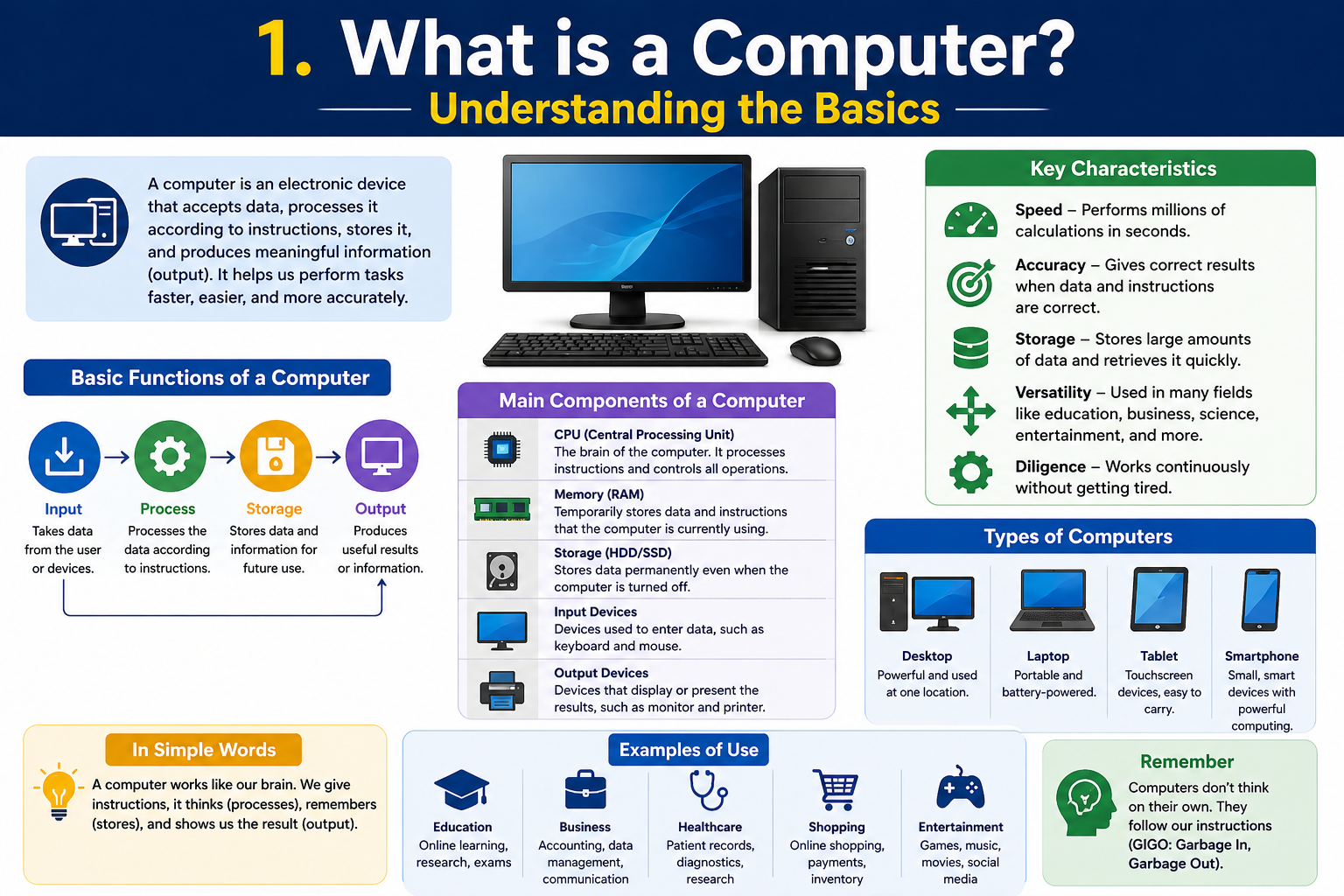
INTERODUCTION:-
If you have ever felt confused sitting in front of a computer, you are not alone. Millions of people around the world are still learning the basics of how computers work. In today’s fast-moving digital world, understanding Computer Basics is no longer optional — it is a necessity. Whether you want to find a job, run a small business, study online, or simply stay connected with family and friends, knowing how to use a computer confidently opens every door.
This complete guide will walk you through everything you need to know about Computer Basics in 2026. From understanding what a computer actually is, to learning about hardware, software, the internet, and staying safe online — we have covered it all in simple, everyday language. No technical degree required. Just keep reading.
1. What is a Computer? Understanding the Basics
Before diving deep, let us start with the most fundamental question: What is a computer? A computer is an electronic machine that receives data (input), processes it, stores it, and gives back results (output). It can perform billions of calculations per second, which is why computers are used in almost every field — from medicine and education to entertainment and business.
Understanding Computer Basics starts with knowing the three core functions every computer performs:
- Input: Receiving data through devices like keyboards, mouse, microphone, or camera.
- Processing: The computer’s brain (CPU) thinks through the data and performs tasks.
- Output: Showing results through a monitor, printer, speakers, or other output devices.
In 2026, computers come in many forms — desktop computers, laptops, tablets, and even smartphones are essentially small computers. Each one follows the same basic principles that have been at the heart of computing for decades.
2. Types of Computers: Which One is Right for You?
One of the first things beginners ask when they start learning Computer Basics is: “Which type of computer should I use?” The answer depends on your needs and lifestyle. Here is a simple breakdown of the most common types:
Desktop Computer
A desktop computer sits on a desk and consists of separate parts — a tower (CPU unit), monitor, keyboard, and mouse. Desktops are powerful, affordable, and easy to upgrade. They are perfect for homes, offices, and anyone who needs high performance for tasks like video editing, gaming, or data management.
Laptop Computer
A laptop is a portable, all-in-one computer with a built-in screen, keyboard, and battery. It is great for students, travelers, and professionals who need to work from different locations. Modern laptops in 2026 are slim, lightweight, and incredibly powerful.
Tablet and Smartphone
Tablets and smartphones are compact, touch-screen computers. While they are not ideal for heavy tasks like programming or video editing, they are perfect for browsing the internet, reading, watching videos, and casual communication. Many people use them as their primary device for everyday Computer Basics tasks.
3. Hardware vs. Software: The Two Pillars of Every Computer
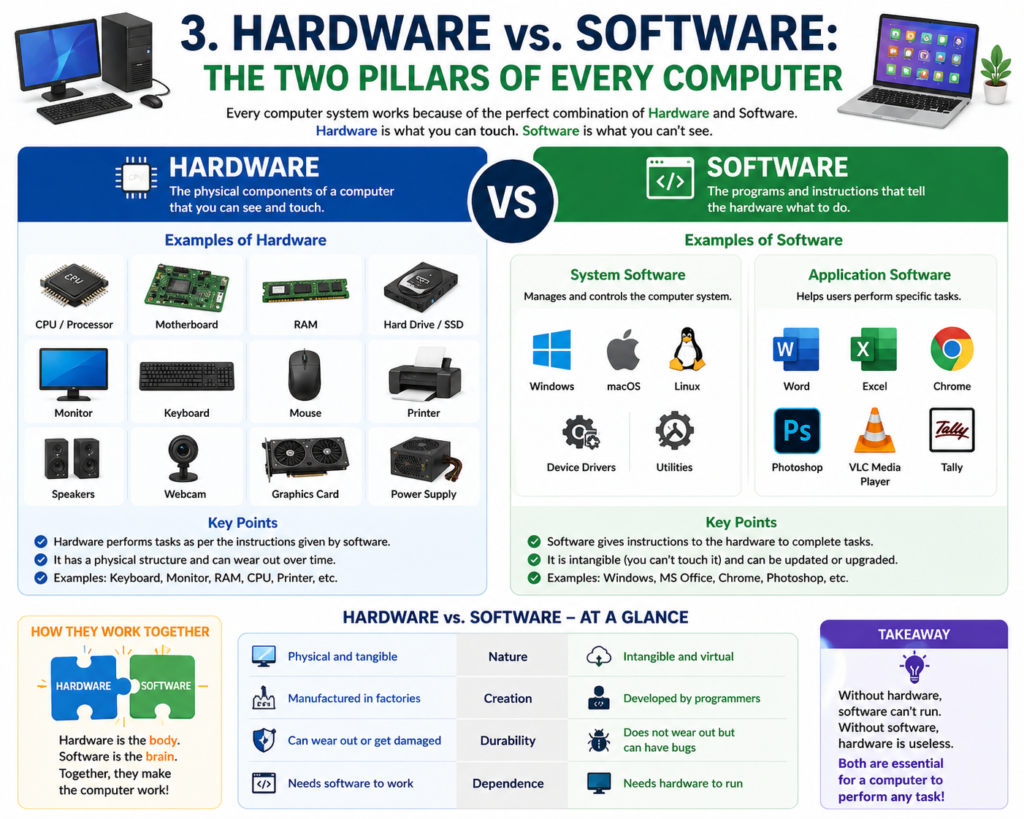
When learning Computer Basics, one of the most important distinctions to understand is the difference between hardware and software. These two elements work together to make everything possible.
What is Hardware?
Hardware refers to the physical parts of a computer — things you can actually touch and see. Think of it as the body of the computer. Key hardware components include:
- CPU (Central Processing Unit): The brain of the computer. It processes all instructions and handles every task.
- RAM (Random Access Memory): Temporary memory that stores data while the computer is running. More RAM means faster performance.
- Hard Drive / SSD: Permanent storage for all your files, photos, documents, and software.
- Motherboard: The main circuit board that connects all the hardware components together.
- Monitor, Keyboard, Mouse: The input and output devices you interact with daily.
What is Software?
Software is the set of instructions that tells the hardware what to do. You cannot touch software, but you can see it and interact with it on your screen. Software is divided into two main categories:
- System Software: This is the operating system (OS) — like Windows 11, macOS, or Linux — that manages all the hardware and allows other programs to run.
- Application Software: These are programs you use for specific tasks — like Microsoft Word for writing, Chrome for browsing, or Excel for data management.
4. Operating Systems Explained: The Foundation of Computer Basics
The operating system (OS) is one of the most important concepts in Computer Basics. It is the master software that runs in the background, managing everything from memory and files to user accounts and security.
In 2026, the most widely used operating systems are:
- Windows 11/12: The most popular OS for personal computers worldwide. Known for ease of use and compatibility with most software.
- macOS (Apple): Used on Apple Mac computers. Known for its clean design, stability, and creative tools.
- Linux: A free, open-source OS preferred by developers, programmers, and tech professionals.
- Android / iOS: Operating systems for smartphones and tablets — Android by Google and iOS by Apple.
For most beginners, Windows is the easiest starting point because of its wide availability, user-friendly interface, and large community support.
5. How to Use a Computer: Essential Skills for Daily Life
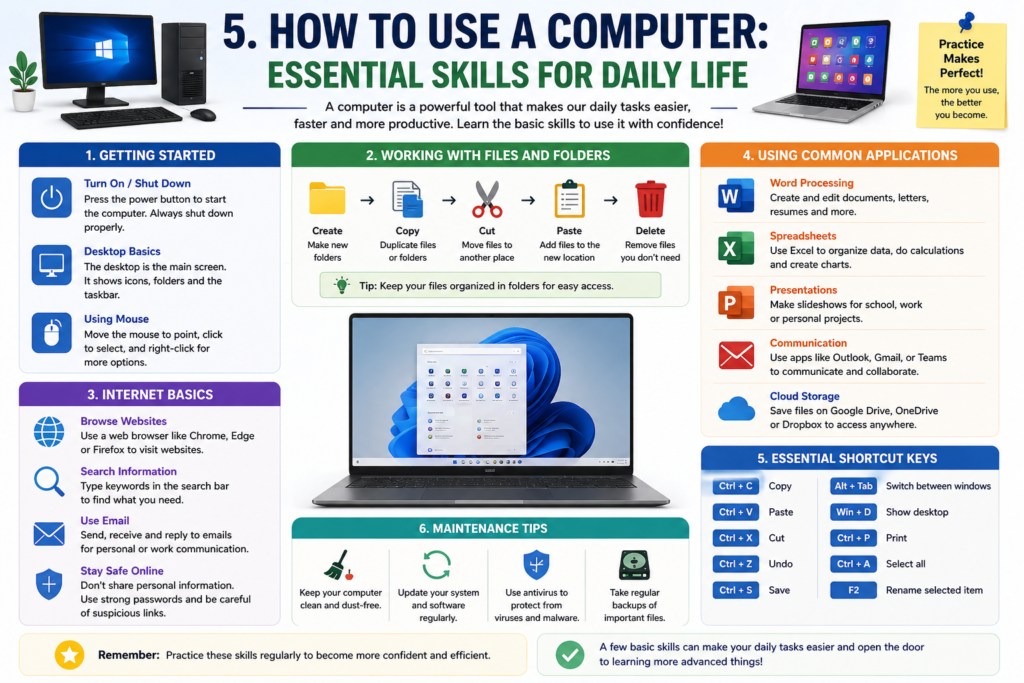
Now that you understand the components, let us talk about practical Computer Basics that you will use every single day. These are the foundational skills that every beginner must build first.
Starting and Shutting Down the Computer
Always start your computer using the power button and wait for it to fully load before using it. To shut it down, always use the proper shutdown option from the Start menu. Never just hold the power button to turn it off unless it is frozen — this can cause data loss or file corruption.
Using the Mouse and Keyboard
- Left-click to select items. Double-click to open files or programs.
- Right-click to open a context menu with more options.
- Scroll wheel to move up and down on a page.
- Use Ctrl+C to copy, Ctrl+V to paste, and Ctrl+Z to undo — these shortcuts work in almost every program.
Managing Files and Folders
Organizing your files is a crucial part of Computer Basics. Create folders to group related files together. Name your folders clearly so you can find things easily later. Use the “Documents,” “Downloads,” and “Desktop” folders to organize your work. Regularly delete files you no longer need to keep your computer running smoothly.
6. Understanding the Internet: Your Gateway to the Digital World
No guide on Computer Basics would be complete without talking about the internet. The internet is a massive global network that connects billions of computers and devices around the world. It allows you to access information, communicate, shop, learn, and work from anywhere.
Web Browsers
A web browser is the program you use to access websites on the internet. Popular browsers in 2026 include Google Chrome, Microsoft Edge, Mozilla Firefox, and Safari (for Apple devices). To visit a website, simply type its address (URL) into the address bar at the top of the browser and press Enter.
Search Engines
A search engine helps you find information on the internet. Google is the most popular search engine in the world. Just type what you are looking for and press Enter. You will see a list of relevant websites, articles, and answers within seconds.
Email (electronic mail) is a digital way to send and receive messages instantly. Gmail (by Google) and Outlook (by Microsoft) are the most widely used email services. Creating a free email account is one of the first things every beginner should do when starting their digital journey.
7. Computer Storage: Local vs. Cloud — What You Need to Know in 2026
Storage is another fundamental topic in Computer Basics. In 2026, you have two main options for storing your files and data:
Local Storage
Local storage means saving your files directly on your computer’s hard drive or SSD. The advantage is that you can access your files even without an internet connection. However, if your computer crashes or is stolen, you could lose everything. This is why regular backups are so important.
Cloud Storage
Cloud storage means saving your files on online servers that you can access from any device with an internet connection. Services like Google Drive, OneDrive, and Dropbox offer free cloud storage. In 2026, cloud storage has become a standard practice for both personal users and businesses because it is safe, accessible, and automatically backed up.
8. Computer Security and Online Safety: Protect Yourself in 2026
Learning Computer Basics in 2026 also means learning how to stay safe online. Cyber threats are more common than ever, and even beginners need to know how to protect themselves. Here are the most important safety practices:
- Use Strong Passwords: Create passwords that are at least 12 characters long and include a mix of letters, numbers, and symbols. Never use “12345” or your name as a password.
- Keep Software Updated: Always update your operating system and apps when updates are available. Updates fix security holes that hackers can exploit.
- Use Antivirus Software: Install a reliable antivirus program to protect against viruses, malware, and ransomware.
- Avoid Suspicious Links: Never click on unknown links in emails or messages. This is called phishing — a common trick used by hackers to steal personal information.
- Use Two-Factor Authentication (2FA): This adds an extra layer of security to your accounts by requiring a second verification step — like a code sent to your phone.
- Back Up Your Data: Regularly save copies of your important files to an external hard drive or cloud storage. If something goes wrong, you will never lose your data.
9. Essential Software Every Computer Beginner Should Know in 2026
Once you have a handle on Computer Basics hardware and security, it is time to get familiar with the essential software tools that make computers useful in everyday life:
- Microsoft Word / Google Docs: For writing documents, letters, reports, and assignments.
- Microsoft Excel / Google Sheets: For organizing data, budgets, and doing calculations.
- Microsoft PowerPoint / Google Slides: For creating presentations and slideshows.
- Zoom / Google Meet: For video calls, online meetings, and virtual classes.
- VLC Media Player: For playing videos and audio files.
- PDF Reader (Adobe Acrobat): For opening and reading PDF documents — one of the most common file formats used worldwide.
10. Troubleshooting Common Computer Problems: A Beginner’s Guide
Every computer user, beginner or expert, faces technical problems from time to time. Knowing how to handle basic issues is an important part of Computer Basics. Here are the most common problems and their simple solutions:
Computer is Running Slow
Close unnecessary programs and browser tabs. Restart the computer to clear temporary files. Run a disk cleanup and check for viruses. If the problem persists, consider upgrading your RAM or switching from a hard drive to a faster SSD.
Computer Won’t Turn On
Check if the power cable is properly connected. Make sure the power outlet is working. For laptops, check if the battery is charged. If it still does not start, the issue may be hardware-related and may require professional repair.
Internet Not Working
First, restart your Wi-Fi router by unplugging it and plugging it back in after 30 seconds. Check if other devices can connect to the internet. If only your computer has the problem, try restarting it or reconnecting to the Wi-Fi network.
Screen is Frozen
Press Ctrl + Alt + Delete to open the Task Manager (on Windows). From there, you can end any program that is not responding. If the whole screen is frozen, hold the power button for 5-10 seconds to force a shutdown, then restart the computer.
11. Computer Basics in the Workplace: Why Employers Demand These Skills
In 2026, understanding Computer Basics is not just useful — it is expected. Virtually every job in every industry requires some level of computer knowledge. Whether you work in healthcare, banking, retail, education, or logistics, computers are central to how work gets done.
Here is what most employers expect from job applicants in terms of Computer Basics:
- Ability to use email professionally and communicate online.
- Basic knowledge of Microsoft Office tools (Word, Excel, PowerPoint).
- Ability to search for information online efficiently.
- Comfort with video conferencing tools like Zoom or Teams.
- Basic understanding of file management and data organization.
Investing time in building your Computer Basics skills today can directly improve your career opportunities and earning potential tomorrow. Many online platforms offer free computer courses that you can complete at your own pace from home.
12. Top Tips to Keep Learning Computer Basics Every Day
Learning Computer Basics is a journey, not a one-time event. Technology keeps changing, and the best learners are the ones who stay curious and keep practicing. Here are some practical tips to continue growing your computer skills in 2026:
- Practice daily: Even 20-30 minutes of hands-on practice each day will build your confidence rapidly.
- Use YouTube: There are thousands of free tutorial videos on YouTube for every computer skill you want to learn.
- Take free online courses: Platforms like Google Digital Garage, Coursera, and Khan Academy offer free Computer Basics courses with certificates.
- Do not fear mistakes: Making mistakes is how you learn. You cannot permanently break a computer by clicking the wrong button.
- Join online communities: Facebook groups, Reddit forums, and Quora communities are great places to ask questions and learn from others.
- Teach others: One of the best ways to solidify your knowledge of Computer Basics is to explain what you have learned to someone else.
Final Thoughts: Your Computer Journey Starts Now
We have covered a lot of ground in this guide — from understanding what a computer is and how it works, to hardware, software, the internet, security, troubleshooting, and career benefits. All of this is the foundation of Computer Basics, and it is everything a beginner needs to start their digital journey with confidence.
Remember, no one is born knowing how to use a computer. Every expert was once a beginner who simply chose to keep learning. In 2026, the digital world is more accessible than ever before. Resources are free, devices are affordable, and the knowledge you need is just a search away.
So do not wait. Switch on your computer today. Explore, practice, and make mistakes. Every small step you take in learning Computer Basics will open new opportunities, expand your skills, and make your life easier in ways you cannot yet imagine. The best time to start was yesterday — the second best time is right now.