vikram@gmail.com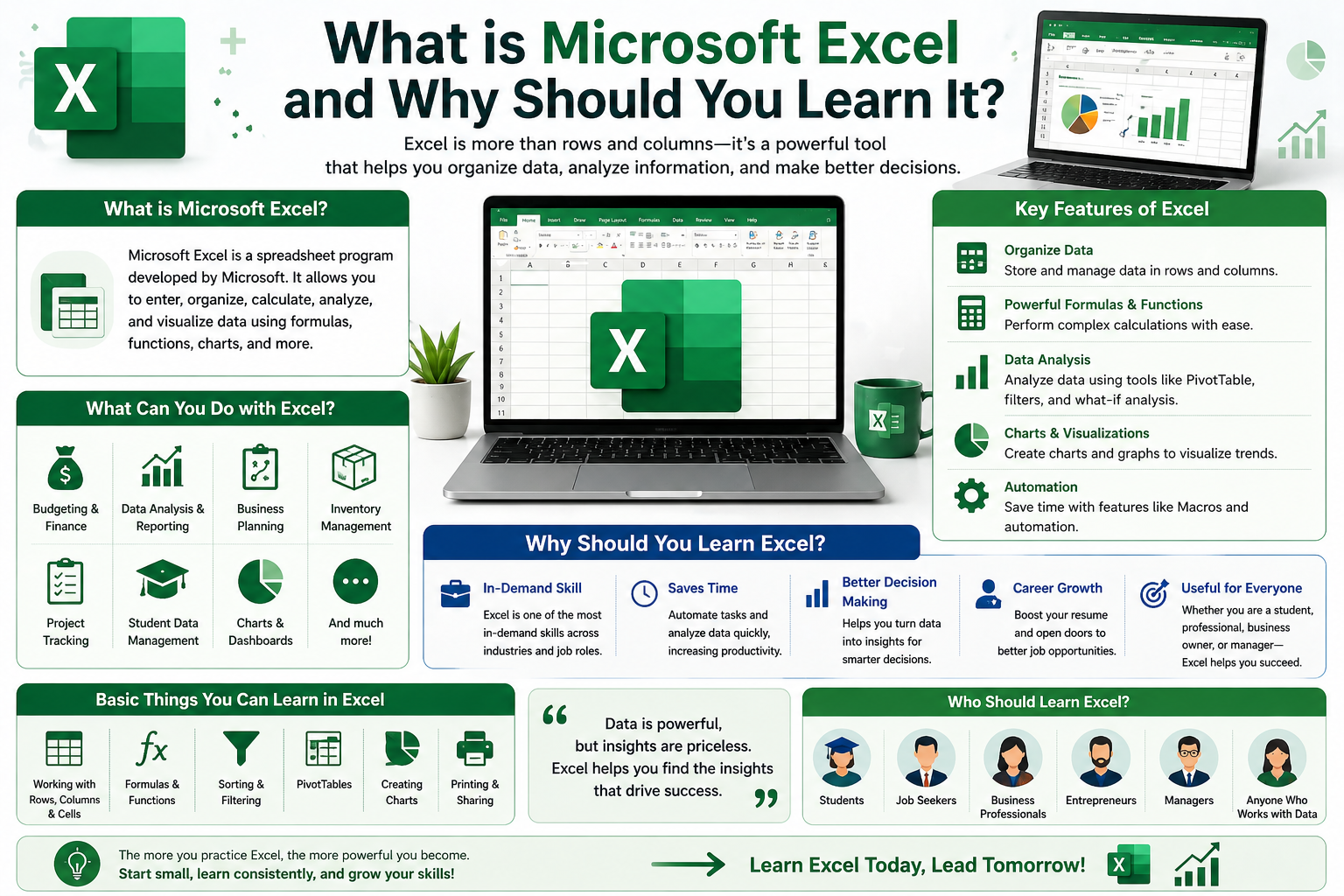
Introduction
Whether you are a student, job seeker, or working professional — knowing Microsoft Excel is one of the most valuable skills you can have today. In this complete beginner’s guide, you will learn Basic Excel Skills step-by-step, in simple language, with real-life examples that make sense. No technical background needed. Just start reading and start learning.
What is Microsoft Excel and Why Should You Learn It?
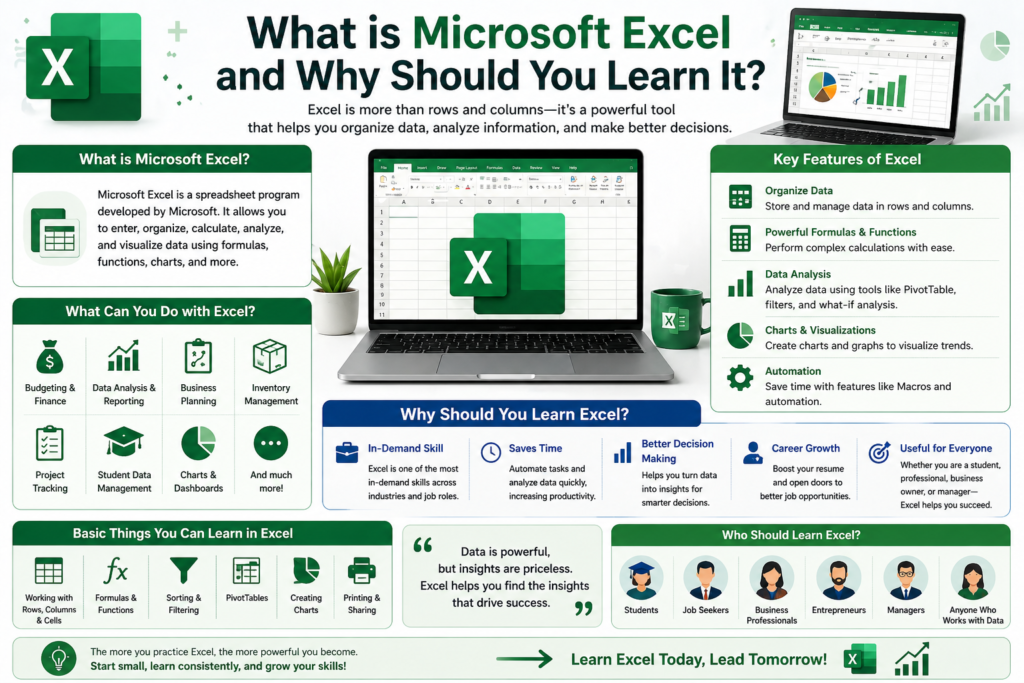
Microsoft Excel is a powerful spreadsheet program developed by Microsoft. It is used by millions of people around the world — from students doing school projects to big companies managing billions of dollars in data. Excel helps you organize, calculate, and analyze data in a clean grid format made of rows and columns.
Here are just a few reasons why learning Basic Excel Skills for Beginners is a smart move:
- Almost every office job requires some level of Excel knowledge.
- Freelancers use it to track income and expenses.
- Students use it for assignments, data analysis, and projects.
- Business owners use it to manage budgets, inventory, and reports.
- It is completely free to use on Microsoft 365 (with a subscription) or use the free browser version online.
Understanding the Excel Interface: A Beginner’s Overview
When you open Excel for the first time, it might look a little confusing. But once you understand the basic layout, everything becomes easy. Let’s break it down:
1. Workbook and Worksheets
An Excel file is called a Workbook. Inside each workbook, you can have multiple Worksheets (also called sheets). Think of a workbook as a notebook and sheets as pages inside it. By default, Excel opens with one sheet named “Sheet1” at the bottom.
2. Rows, Columns, and Cells
- Rows run horizontally and are numbered (1, 2, 3…).
- Columns run vertically and are labeled with letters (A, B, C…).
- A Cell is the small box where a row and column meet. For example, cell A1 is the first cell at the top-left corner.
3. The Ribbon Toolbar
The Ribbon is the menu at the top of the screen. It has different tabs like Home, Insert, Formulas, Data, and more. Each tab contains tools and options you will use regularly. As a beginner, you will mostly use the Home tab for formatting and the Formulas tab for calculations.
How to Enter Data in Excel: The First Basic Skill
Entering data in Excel is very simple. Just click on any cell, type your data, and press Enter or Tab to move to the next cell.
- Press Enter to move down to the next row.
- Press Tab to move right to the next column.
- Use arrow keys to navigate between cells.
- Press Delete or Backspace to remove data from a cell.
Pro Tip: Excel automatically detects whether you are entering text, a number, or a date. Numbers are right-aligned by default, and text is left-aligned. This small detail can help you spot data entry errors quickly.
Basic Excel Formulas Every Beginner Must Know
Formulas are the heart of Excel. They allow you to do calculations automatically without using a calculator. Every formula in Excel starts with an equal sign (=).
1. SUM Formula
The SUM formula adds numbers together. Example: =SUM(A1:A10) — This adds all numbers from cell A1 to A10. You can also write =A1+A2+A3 for smaller ranges.
2. AVERAGE Formula
This calculates the average of a range of numbers. Example: =AVERAGE(B1:B10) — This gives the average of numbers in cells B1 through B10.
3. MAX and MIN Formula
MAX finds the highest value in a range. Example: =MAX(C1:C20). MIN finds the lowest value. Example: =MIN(C1:C20).
4. COUNT Formula
The COUNT formula counts how many cells contain numbers. Example: =COUNT(D1:D50). For counting text entries, use =COUNTA(D1:D50).
5. IF Formula
The IF formula is a decision-making formula. Example: =IF(A1>50, “Pass”, “Fail”) — If the value in A1 is greater than 50, it shows “Pass”, otherwise “Fail”. This is very useful for grading, performance tracking, and business reports.
Formatting Cells: Make Your Spreadsheet Look Professional
Formatting makes your data easy to read and understand. Here are the basic formatting skills every beginner should learn:
- Bold, Italic, Underline: Select the cell and press Ctrl+B (Bold), Ctrl+I (Italic), or Ctrl+U (Underline).
- Font Size and Color: Change from the Home tab for better visual appeal.
- Cell Background Color: Use the “Fill Color” button to highlight important data.
- Borders: Add borders to cells from Home > Borders to create clean table layouts.
- Number Formatting: Format numbers as Currency, Percentage, or Date from the Number group in the Home tab.
- Wrap Text: If your text is too long for a cell, use “Wrap Text” from Home tab so it fits nicely inside the cell.
Basic Excel Skills for Beginners: How to Sort and Filter Data in Excel
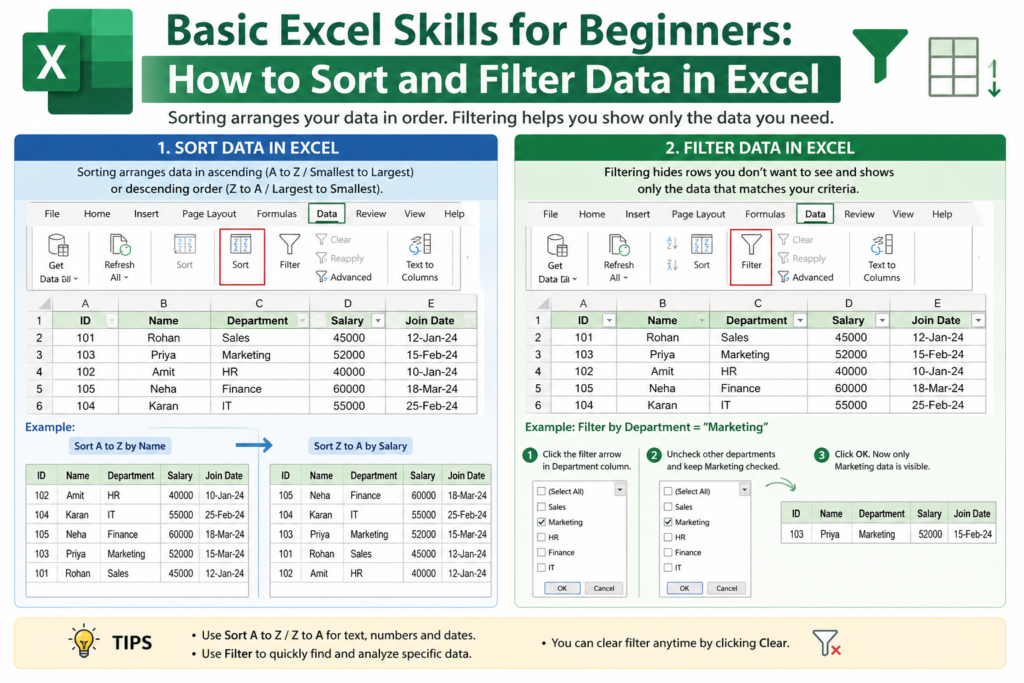
Sorting and filtering are among the most used Basic Excel Skills for Beginners. They help you organize and find data quickly, especially when you are working with long lists.
How to Sort Data:
- Click on any cell in the column you want to sort.
- Go to the Data tab.
- Click “Sort A to Z” (ascending) or “Sort Z to A” (descending).
How to Filter Data:
- Click on the header row of your data.
- Go to Data tab and click “Filter”.
- Small dropdown arrows will appear in each header cell.
- Click the arrow and choose what data you want to see.
Creating Charts and Graphs in Excel: Visual Data Made Easy
Charts help you turn boring numbers into visual stories that everyone can understand. Excel makes it very easy to create professional charts.
- Select the data you want to include in the chart (including headers).
- Click on the Insert tab.
- Choose the type of chart — Bar, Line, Pie, Column, etc.
- Excel will automatically create the chart for you. You can then customize the title, colors, and labels.
Common Chart Types to Know: Bar Chart (comparison), Line Chart (trends over time), Pie Chart (percentages/parts of a whole), and Column Chart (similar to bar but vertical).
Useful Excel Keyboard Shortcuts Every Beginner Should Memorize
Using keyboard shortcuts in Excel will save you a huge amount of time. Here are the most important ones for beginners:
- Ctrl + C = Copy | Ctrl + V = Paste | Ctrl + X = Cut
- Ctrl + Z = Undo | Ctrl + Y = Redo
- Ctrl + S = Save your file (do this often!)
- Ctrl + F = Find and Replace
- Ctrl + Home = Go to cell A1 | Ctrl + End = Go to last used cell
- Ctrl + Arrow Key = Jump to the edge of your data range
- Alt + Enter = Add a new line inside a cell
How to Save and Share Your Excel File
Saving your work is very important. Here is how to do it properly:
- Press Ctrl + S to save the file quickly.
- Use File > Save As to save a copy with a new name.
- Save as .xlsx format (default) for modern Excel.
- To share with others, you can email the file, upload it to Google Drive, or use OneDrive.
- If someone doesn’t have Excel, save as PDF using File > Export > Create PDF.
5 Common Excel Mistakes Beginners Make (And How to Avoid Them)
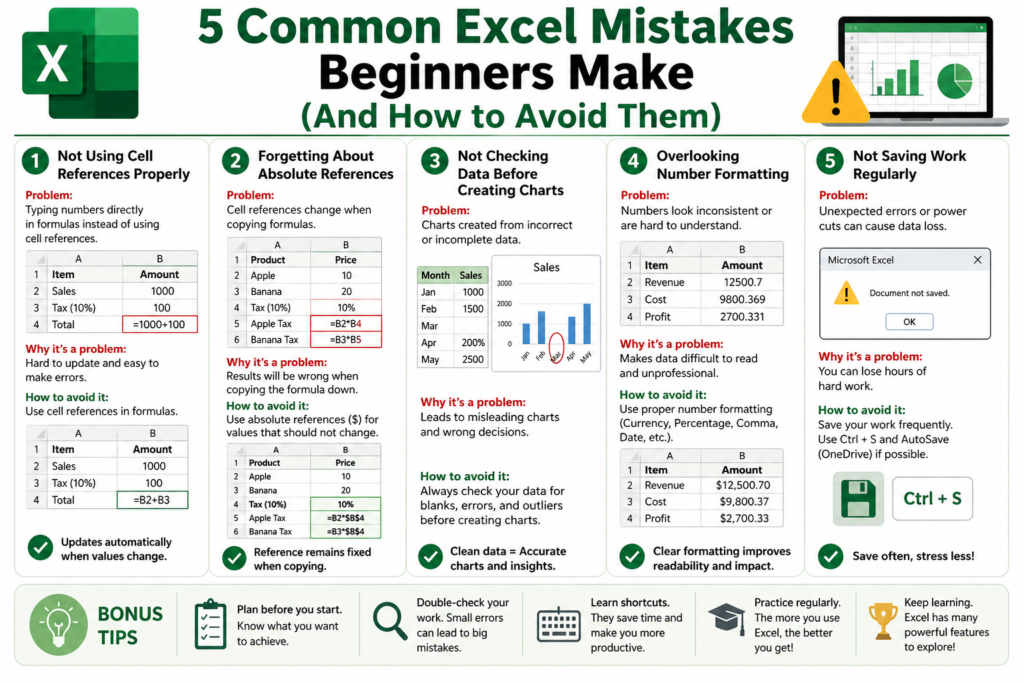
- Not saving the file regularly — Use Ctrl+S often or enable AutoSave.
- Mixing text and numbers in one column — This confuses formulas. Keep data types consistent.
- Forgetting the equal sign (=) before a formula — Without “=”, Excel treats your formula as plain text.
- Leaving blank rows in your data — This can break sorting, filtering, and charts. Keep your data continuous.
- Merging too many cells — Merged cells look nice but can cause problems with sorting and formulas. Use them sparingly.
Basic Excel Skills for Beginners; Final Thoughts: Start Learning Excel Today
Mastering Basic Excel Skills for Beginners does not happen overnight, but it does not take years either. With consistent practice — even 15 to 30 minutes a day — you can become confident with Excel within a few weeks.
Start small. Practice entering data. Try out the SUM and AVERAGE formulas. Create a simple chart. Every small step builds your confidence and skill. The more you use Excel, the more natural it becomes.
Remember: Excel is not just a program — it is a life skill. Whether you are managing your household budget, tracking fitness goals, or handling work reports, Excel will make your life easier, faster, and more organized. So open Excel right now and take that first step!