vikram@gmail.com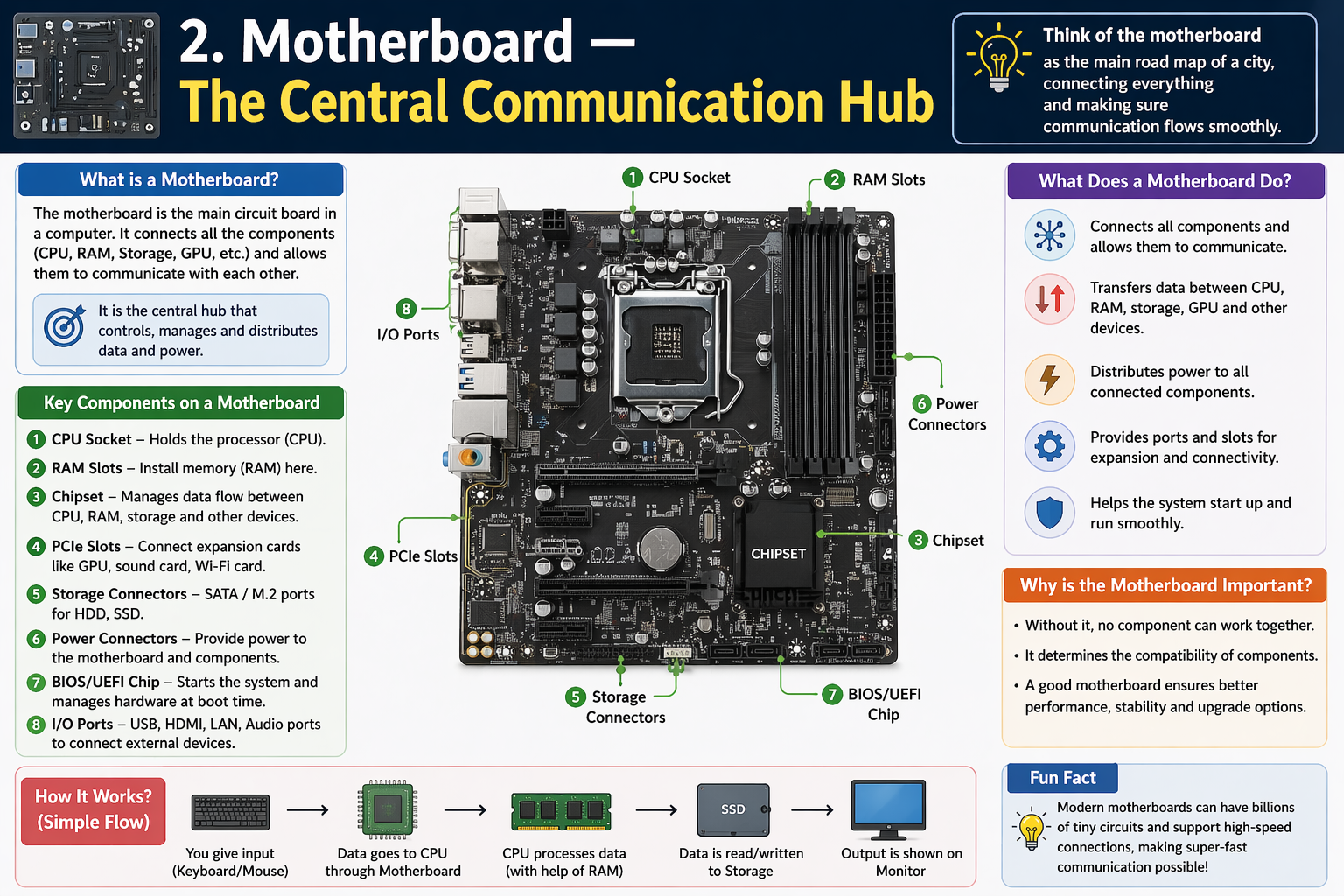
Introduction: Why You Should Understand Computer Parts Functions
We are living in a world that runs entirely on digital technology. From smartphones in our pockets to massive servers powering the internet, computers are everywhere. Yet most people who use computers every day have never taken the time to understand what is actually happening inside the machine. Learning about Computer Parts Functions is not just for engineers or tech professionals — it is valuable knowledge for every student, job seeker, teacher, and working adult in the modern era.
When you understand how each component of a computer works, you become a smarter user. You can make better buying decisions, troubleshoot problems on your own, communicate with IT support more effectively, and appreciate why some computers perform better than others. This complete guide walks you through every major component, explains what it does, and shows how all the parts work together as one powerful system.
Whether you are a complete beginner or someone who wants to refresh their knowledge, this article covers everything you need to know about Computer Parts Functions in clear, simple language.
What is a Computer?
A computer is an electronic device designed to receive input, process it based on a set of instructions, store data, and produce meaningful output. It is a programmable machine, meaning it can perform different tasks depending on the software installed and the instructions given by the user.
Understanding Computer Parts Functions begins with recognizing that a computer is not a single object — it is a carefully assembled system of multiple components, each playing a specific role. These components are divided into two broad categories: hardware and software. Hardware refers to all the physical components you can see and touch. Software refers to the programs, operating systems, and instructions that make the hardware perform useful tasks.
Together, hardware and software form a complete computing system. No matter how advanced a computer becomes, it always follows the same fundamental cycle: Input → Processing → Storage → Output. Every action you take on a computer, from clicking a link to rendering a video, follows this cycle millions of times per second.
Hardware vs. Software: The Two Pillars of Computer Parts Functions
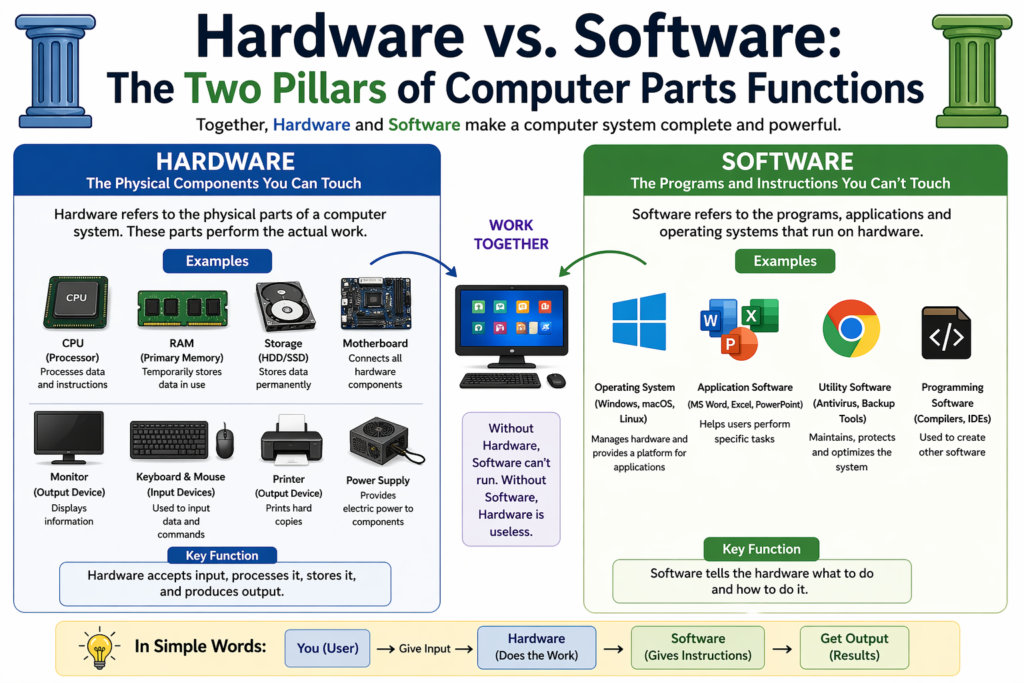
Before diving into individual components, it is important to understand the distinction between hardware and software, as both are central to understanding Computer Parts Functions holistically.
- Hardware: These are the tangible, physical parts of a computer — the CPU, RAM, storage drives, motherboard, monitor, keyboard, and more. You can physically hold, install, and replace hardware components.
- Software: This includes the operating system (such as Windows, macOS, or Linux), applications like Microsoft Word and Chrome, and the drivers that help hardware communicate with the operating system.
- Firmware: A special type of software permanently stored in hardware chips. The BIOS/UEFI is an example of firmware that runs the moment you turn on a computer.
The relationship between hardware and software is interdependent. Without software, hardware is a collection of inactive components. Without hardware, software has no platform to run on. Mastering Computer Parts Functions means understanding how these two categories interact seamlessly.
The Main Computer Parts Functions Explained in Detail
Now let us explore each major hardware component in depth. Understanding each part individually is the foundation of complete Computer Parts Functions knowledge.
1. CPU — Central Processing Unit
The CPU is the most critical of all Computer Parts Functions. Often called the brain of the computer, the CPU is responsible for executing every instruction given to the system. Whether you are opening a file, running a calculation, or streaming a video, the CPU is working behind the scenes to make it happen.
The CPU is made up of three key internal units. The Control Unit (CU) manages and coordinates all operations inside the processor. The Arithmetic Logic Unit (ALU) handles all mathematical calculations and logical comparisons. Registers are ultra-fast, tiny memory areas inside the CPU that hold data currently being processed.
CPU performance is measured in GHz (gigahertz), which represents clock speed, and by the number of cores. A dual-core processor can handle two tasks simultaneously, while an eight-core processor handles eight. Popular CPU manufacturers include Intel (Core i3, i5, i7, i9 series) and AMD (Ryzen series). For everyday tasks, a mid-range CPU is more than sufficient.
2. Motherboard — The Central Communication Hub
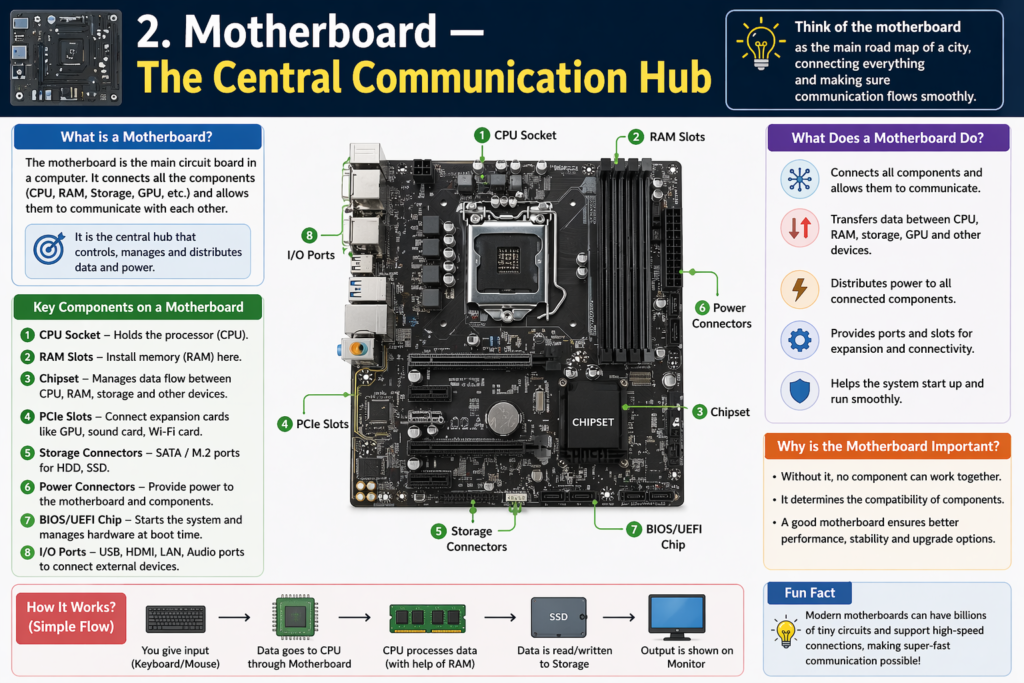
The motherboard is a large printed circuit board that physically connects and allows communication between all components of a computer. It is the backbone of the entire system. Every other component — the CPU, RAM, GPU, storage drives, and expansion cards — plugs into or connects through the motherboard.
The motherboard contains slots, ports, and connectors for each component. It also houses the BIOS/UEFI chip, which contains the firmware that initializes all hardware during startup. The quality of the motherboard determines the maximum amount of RAM the system can support, the number of storage drives that can be connected, and the overall expansion capabilities of the computer.
3. RAM — Random Access Memory
RAM is the short-term, temporary memory of a computer. When you open any program or file, it is loaded from the storage drive into RAM so the CPU can access it rapidly. RAM is one of the most directly impactful Computer Parts Functions for day-to-day performance — more RAM allows the system to run more applications simultaneously without slowing down.
RAM is volatile memory, meaning all its contents are erased the moment the computer is powered off. Common RAM sizes for modern computers range from 8 GB for basic use to 16 GB or 32 GB for demanding workloads like video editing, programming, and gaming. RAM speed is measured in MHz — higher MHz means faster data transfer between RAM and the CPU.
4. Storage Drive — HDD and SSD
While RAM stores data temporarily, storage drives hold data permanently — even after the computer is switched off. Your operating system, all installed software, photos, videos, documents, and downloads are saved on the storage drive.
There are two primary types of storage drives. Hard Disk Drives (HDDs) use spinning magnetic disks to read and write data. They are cost-effective for large storage capacities but are slower compared to modern alternatives. Solid State Drives (SSDs) use flash memory chips with no moving parts, making them significantly faster, quieter, more durable, and more energy-efficient. Most modern computers and laptops use SSDs as their primary storage drive for faster boot times and application loading speeds.
5. GPU — Graphics Processing Unit
The GPU handles all graphical rendering tasks — displaying images, playing videos, running 3D games, and processing visual effects. While the CPU processes tasks sequentially, the GPU is designed for massive parallel processing, handling thousands of smaller operations simultaneously to produce smooth, high-quality visuals.
Some systems use integrated GPUs, which are built directly into the CPU chip and share system memory. These are suitable for everyday computing tasks like web browsing and document editing. Dedicated GPUs have their own video memory (VRAM) and are designed for gaming, 3D modeling, video editing, and machine learning. NVIDIA and AMD are the leading dedicated GPU manufacturers in the market.
6. Power Supply Unit (PSU)
The PSU converts the alternating current (AC) from your wall socket into the direct current (DC) that computer components require. It distributes the precise voltage needed by each component — the CPU, motherboard, GPU, and storage drives all operate at different voltage levels.
A stable and adequately rated PSU is essential for system reliability. An underpowered PSU can cause random shutdowns, system instability, and even permanent hardware damage. PSU capacity is measured in watts. A basic office computer requires around 300 to 400 watts, while a high-performance gaming system may require 600 to 850 watts or more.
7. Input Devices — How You Communicate With the Computer
Input devices are the hardware tools through which users send data and commands to the computer. They are an essential category of Computer Parts Functions that bridges human intent and machine execution.
- Keyboard: The primary input device for typing text, numbers, and executing keyboard shortcuts.
- Mouse: A pointing device for navigating the screen, selecting items, and interacting with graphical user interfaces.
- Microphone: Captures audio input for voice commands, calls, and recordings.
- Webcam: Captures video input for video calls, streaming, and recordings.
- Scanner: Converts physical documents and images into digital files.
- Touchscreen: Allows direct interaction with the display using finger gestures.
Each input device converts a different form of human interaction into digital signals that the CPU can understand and process.
8. Output Devices — How the Computer Communicates Back to You
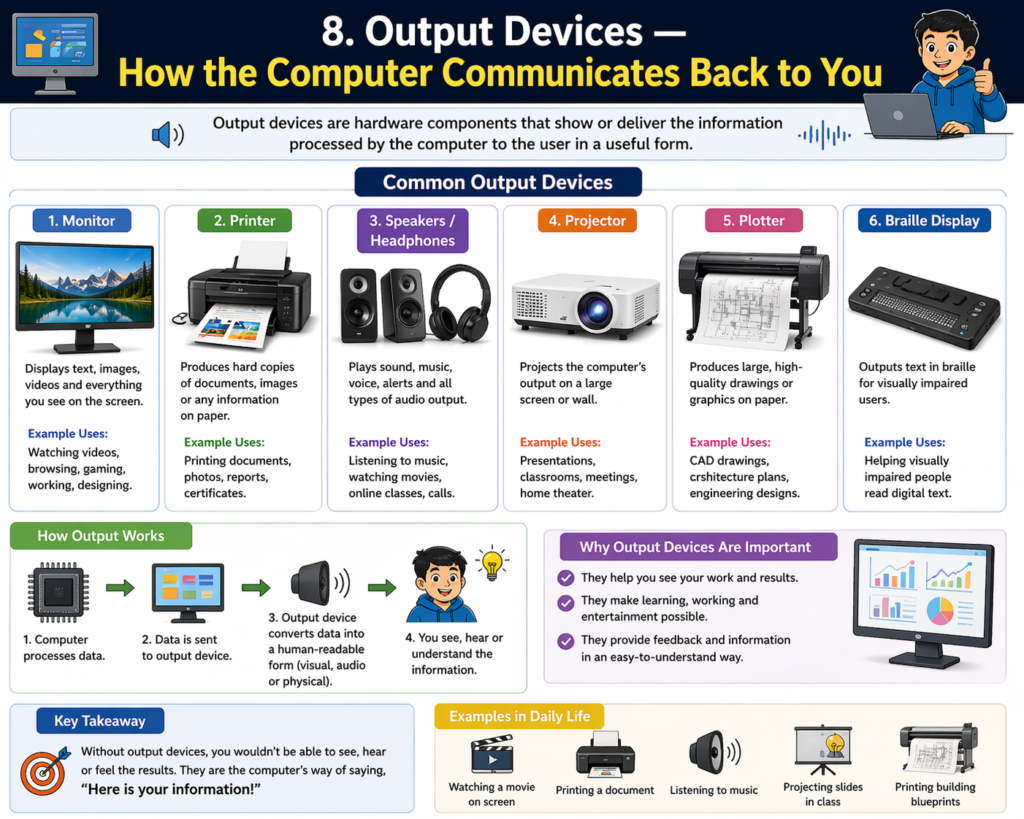
Output devices present the results of processed data in a format that humans can perceive and use. They complete the final stage of Computer Parts Functions — delivering the result after input and processing are done.
- Monitor: Displays visual output — text, images, videos, and graphical interfaces. Available in LCD, LED, and OLED technologies.
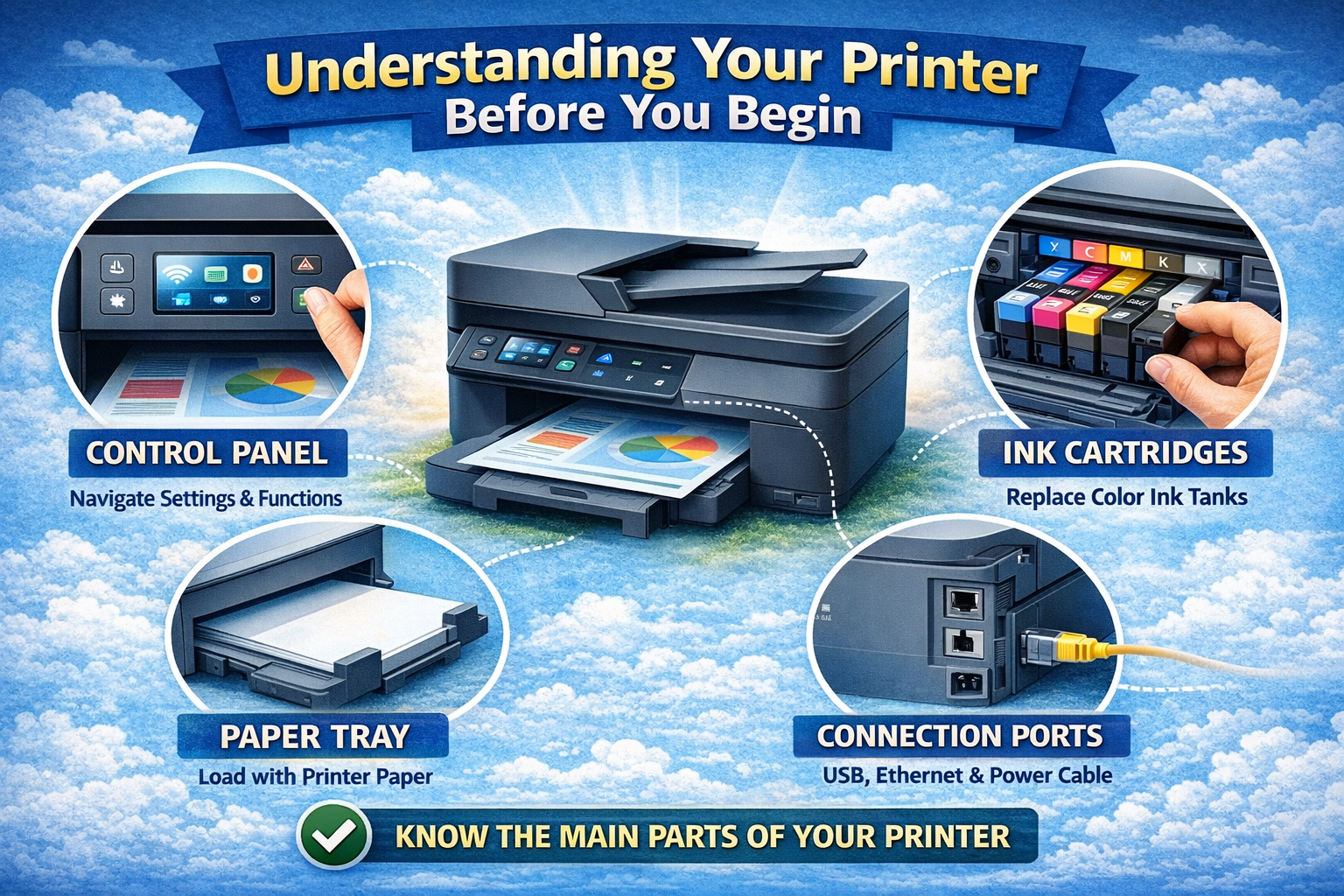
- Printer: Produces physical, printed copies of digital documents and images on paper.
- Speakers: Convert digital audio signals into sound that users can hear.
- Projector: Displays screen output on a large surface for presentations and group viewing.
The monitor is the most essential output device for everyday computing. Without it, users would have no way to visually interact with the system.
9. Cooling System — Keeping Everything Running Safely
Processors and graphics cards generate substantial heat during operation. Without an effective cooling system, these components would overheat, causing performance throttling, sudden shutdowns, and permanent damage. Cooling systems are a vital but often overlooked aspect of Computer Parts Functions.
- Air Cooling: Uses aluminum or copper heat sinks to absorb heat and fans to expel it out of the case. This is the most common and affordable cooling solution.
- Liquid Cooling: Uses water or specialized coolant fluid circulated through tubes to absorb and dissipate heat. More effective than air cooling for high-performance systems.
- Case Airflow: The placement of intake and exhaust fans inside the computer case creates a consistent flow of cool air across all components.
10. Ports and Connectivity Components
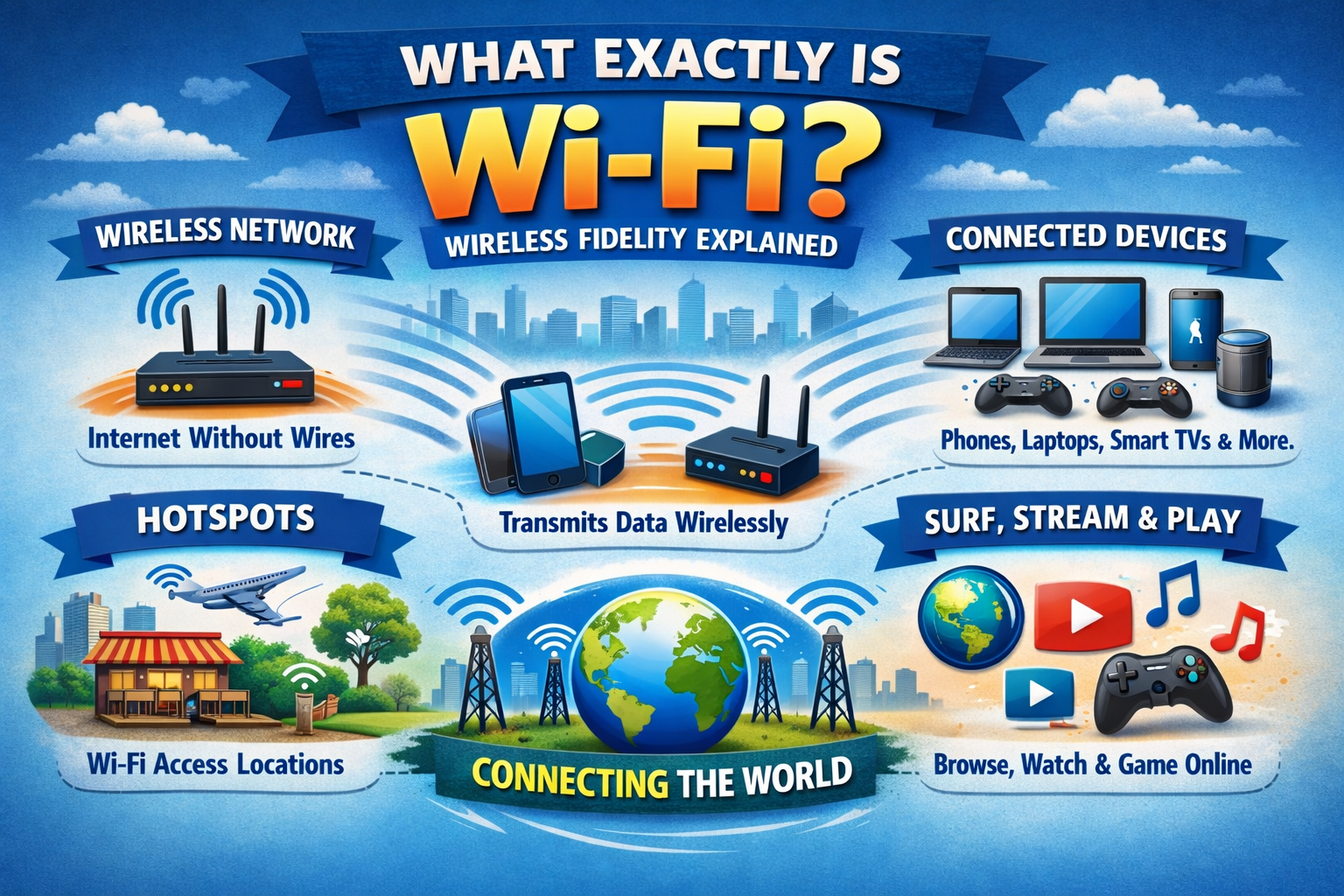
Ports and connectivity hardware allow the computer to communicate with external devices and networks. Common ports include USB (for connecting peripherals), HDMI and DisplayPort (for monitors and TVs), audio jacks, Ethernet ports for wired internet, and SD card slots. Wi-Fi and Bluetooth modules enable wireless connectivity. These components, while small, are essential parts of a complete and functional computer system.
How Computer Parts Functions Work Together: Step-by-Step
Understanding individual components is only part of the picture. The real power of Computer Parts Functions comes from how seamlessly all these components work together as one unified system. Here is what happens from the moment you press the power button:
- Step 1 — Power On: The PSU converts AC power to DC and supplies electricity to the motherboard and all connected components.
- Step 2 — POST (Power-On Self Test): The CPU runs the BIOS/UEFI firmware to check that all hardware is connected and functioning correctly.
- Step 3 — Operating System Boot: The BIOS locates the storage drive and loads the operating system (Windows, macOS, Linux) into RAM.
- Step 4 — User Input: The user provides a command through an input device — for example, double-clicking a video file using the mouse.
- Step 5 — Processing: The CPU fetches the relevant data from RAM, processes the instructions, and coordinates with the GPU to prepare the visual output.
- Step 6 — Output Delivery: The processed result is sent to an output device — the monitor displays the video, the speakers play the audio.
- Step 7 — Storage: Any data that needs to be saved is written back to the storage drive for permanent retention.
This complete cycle — from power-on to output — demonstrates how every single component plays its role. Remove any one part, and the entire system either fails or underperforms. The harmony between Computer Parts Functions is what makes modern computing possible.
Why Knowing Computer Parts Functions Matters in Real Life
Knowledge of Computer Parts Functions has practical value in everyday life far beyond academic interest. When your computer runs slowly, understanding that adding more RAM or replacing an HDD with an SSD can significantly improve performance saves you money that would otherwise be spent on a completely new machine.
When shopping for a new computer, knowing what specifications to look for — the number of CPU cores, RAM capacity, SSD speed, and GPU power — allows you to make an informed decision rather than being misled by marketing claims or sales pressure.
For students and job seekers, having foundational knowledge of Computer Parts Functions gives you an edge in technology-related interviews and academic examinations. For small business owners, it helps you choose the right equipment for your workload and budget without overspending or underinvesting.
Best Free Resources to Learn More About Computer Parts Functions
If this article has sparked your curiosity and you want to explore Computer Parts Functions in even greater depth, here are some excellent free resources to continue your learning:
- Professor Messer’s CompTIA A+ Course (YouTube) — Free, detailed, and industry-recognized hardware training.
- Khan Academy Computing — Free beginner to intermediate lessons on how computers work.
- Coursera: Google IT Support Certificate — A beginner-friendly course covering hardware, networking, and troubleshooting.
- GCFGlobal.org — Simple, visual explanations of basic and intermediate computer skills.
- HowStuffWorks.com — Excellent articles explaining computer components in non-technical language.
Each of these resources is completely free or low-cost, and together they provide a comprehensive education in the fundamentals of computing hardware.
Conclusion: Build Your Foundation With Computer Parts Functions
A computer is one of the most powerful tools ever created by human beings. But like any tool, it becomes far more useful when you understand how it works. We have now walked through every major component — from the CPU and motherboard to RAM, storage, GPU, PSU, input and output devices, and the cooling system — and explained the precise role each one plays in making the machine function.
Understanding Computer Parts Functions is not about memorizing technical specifications. It is about developing a mental model of how information flows through a machine — from the moment you type a key to the moment you see the result on your screen. That understanding empowers you to make smarter decisions, solve problems independently, and approach technology with genuine confidence.
The digital world is not going anywhere. In fact, it is growing faster than ever. Every career, every industry, and every area of daily life is becoming more dependent on computers with each passing year. Building a solid foundation in Computer Parts Functions today means you will always have the knowledge to adapt, troubleshoot, and thrive — no matter how much technology changes in the future. Start learning, stay curious, and let this knowledge take you further than you ever imagined.