
 vikram@gmail.com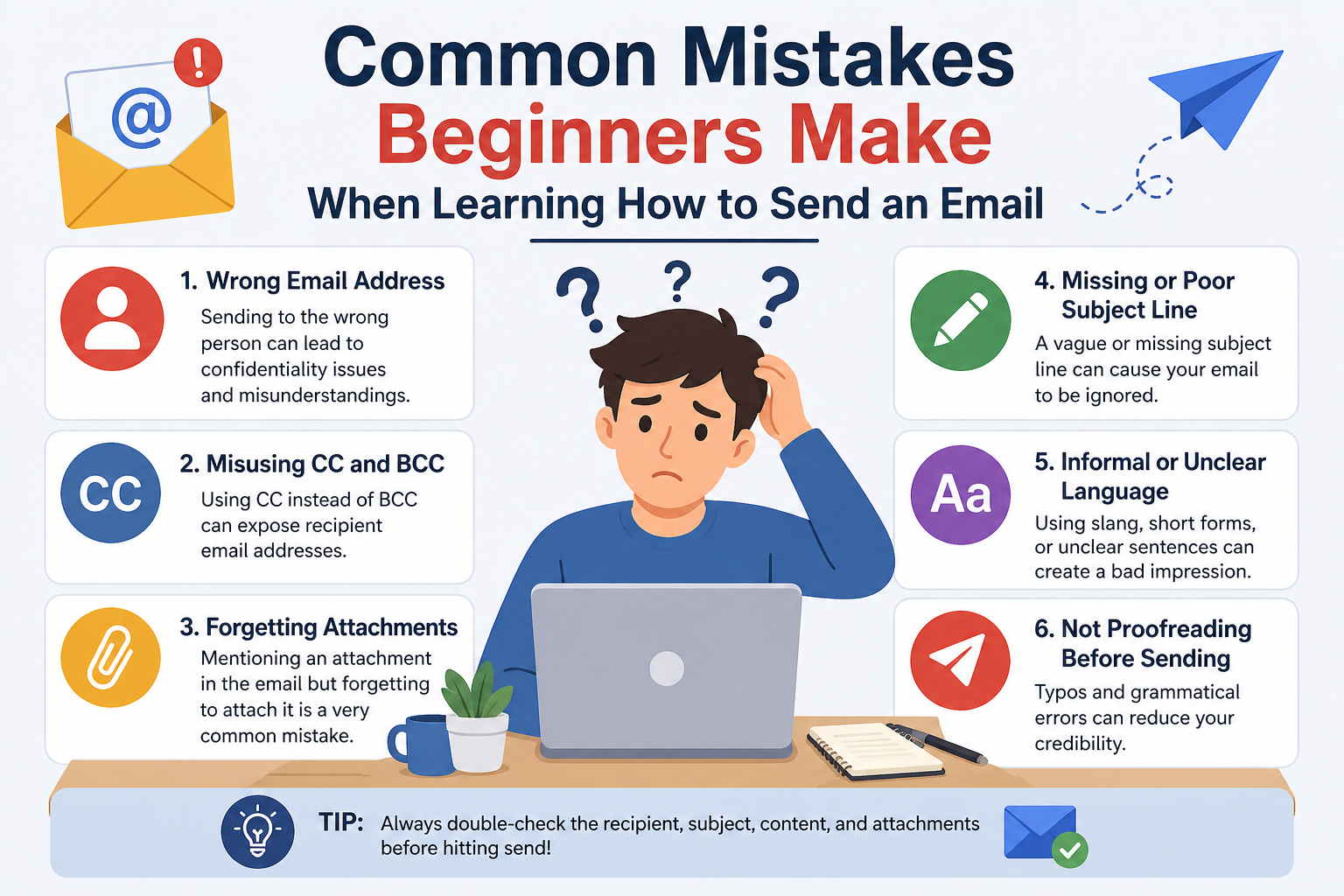
Introduction: You Are Not Alone
If you have never written or sent an email before, you are not alone. Millions of people around the world are learning how to send an email for the very first time every single day. Whether you are a student, a job seeker, a senior citizen, or someone completely new to technology, this complete step-by-step guide will walk you through everything you need to know. From creating your first email account to pressing that final Send button with full confidence — we have you covered.
Learning how to send an email is one of the most important digital skills you can develop in today’s world. Email is used for job applications, business communication, school assignments, online shopping confirmations, and staying in touch with family and friends across the globe. Once you learn how to send an email properly, you will unlock a powerful communication tool that will serve you for the rest of your life.
What Is an Email and Why Does It Matter?
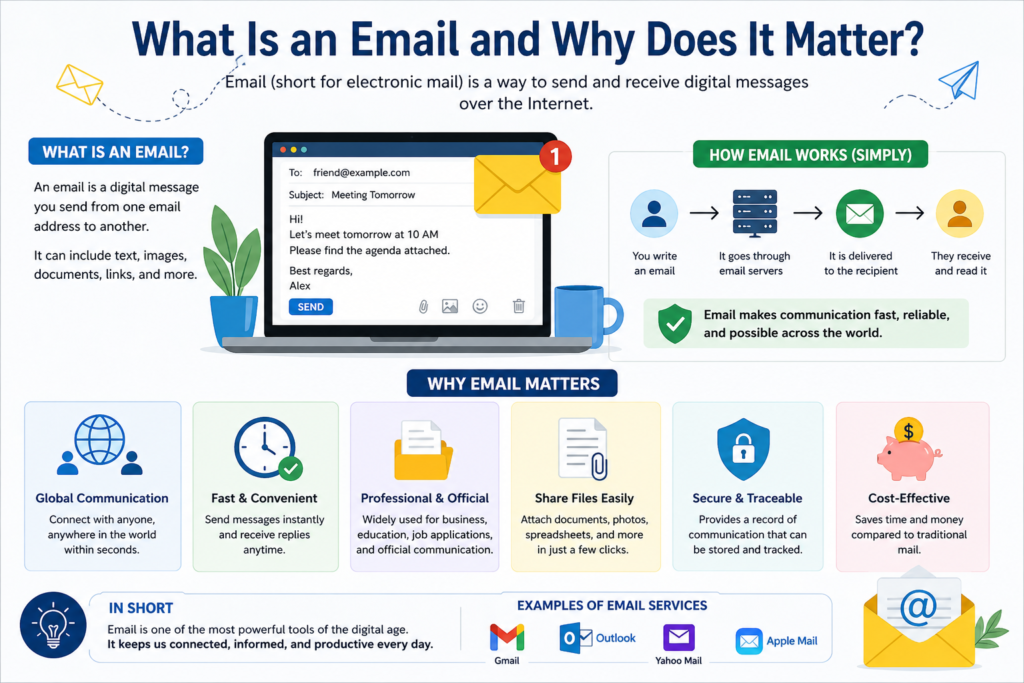
An email (short for electronic mail) is a digital message sent from one person to another over the internet. Just like a traditional letter, an email has a sender, a recipient, a subject, and a body — the main message. However, unlike a postal letter, an email arrives instantly — no stamps, no envelopes, no waiting days for delivery.
Before you learn how to send an email, it helps to understand the basic structure of an email address. An email address looks like this: yourname@gmail.com. It has three parts: the username (yourname), the @ symbol, and the domain name (gmail.com). Every email address in the world is unique, just like a home mailing address.
Step 1: Choose the Right Email Service Provider
The first step to learning how to send an email is choosing an email service provider. This is the platform that will host your account and let you send and receive messages. Here are the three most popular free options used worldwide:
- Gmail (by Google) — The most widely used email service in the world. It is free, reliable, and packed with useful features.
- Outlook (by Microsoft) — Perfect for professional use, especially if you work with Microsoft Office tools.
- Yahoo Mail — Another solid free option with generous storage and a clean interface.
For most beginners, Gmail is the best starting point because it is easy to use, works on any device, and integrates seamlessly with other Google services like Google Drive and YouTube.
Pro Tip: If you plan to use email for job applications or professional communication, use your real name in your email address. Avoid funny or casual usernames — they can hurt your professional image.
Step 2: Create Your Email Account
Before you learn how to send an email, you need a valid email account. Follow these steps to create a free Gmail account right now:
- Open your internet browser such as Chrome, Firefox, Safari, or Edge on your device.
- Type www.gmail.com in the address bar and press Enter to go to the Gmail website.
- Click on the Create account button below the sign-in form.
- Enter your first name, last name, and choose a unique username that will become your email address.
- Create a strong password using at least 8 characters, including numbers and special symbols.
- Provide your date of birth and a recovery phone number to protect your account.
- Agree to Google’s Terms of Service and click Next to complete the setup.
Congratulations — you now have a Gmail account and are one step closer to knowing exactly how to send an email like a professional.
Step 3: Understanding the Gmail Interface
When you log in to Gmail for the first time, you will see several key areas on the screen. Understanding this layout will make the process of learning how to send an email much easier and faster:
- Compose Button — The large blue button on the left side that you click to start writing a new email.
- Inbox — The main area where all your received emails appear and are stored.
- Sent — A folder that automatically stores all the emails you have already sent.
- Drafts — If you write an email but do not send it immediately, Gmail saves it here automatically.
- Spam — Unwanted, suspicious, or junk emails are automatically filtered and placed here.
- Trash — Emails you delete are moved here before being permanently removed after 30 days.
Pro Tip: Spend five to ten minutes clicking around the Gmail interface before you write your first email. Getting familiar with the layout will make the entire process of how to send an email feel much more natural.
Step 4: How to Send an Email — The Full Step-by-Step Process
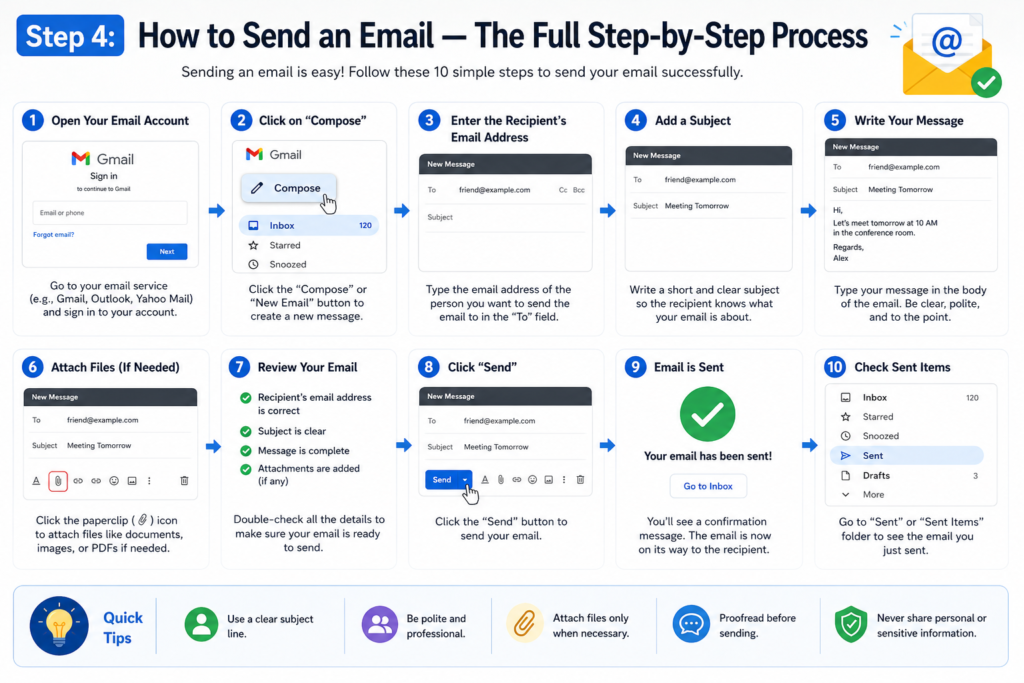
This is the core of our guide — the exact process of how to send an email from start to finish. Follow each step carefully and you will have your first email sent within just a few minutes.
4.1 Click the Compose Button
On the left side of your Gmail screen, you will see a large button that says Compose with a pencil icon next to it. Click it. A new small window will appear at the bottom right corner of your screen. This is your email composition window — the space where you will write, format, and send your email.
4.2 Enter the Recipient’s Email Address
The first field at the top of the composition window is labeled To. This is where you type the email address of the person you want to send the message to. Type it carefully and double-check it — even a single wrong character will cause the email to bounce back or be delivered to the wrong person entirely.
If you want to send the same email to multiple people, type each email address separated by a comma. You can also use the CC field to include additional recipients who should see the email, or BCC if you want to include someone without the other recipients knowing.
4.3 Write a Clear and Compelling Subject Line
The subject line is a short one-line description of what your email is about. It is the very first thing the recipient sees before opening the message, so make it clear, specific, and relevant. Understanding how to send an email with a great subject line dramatically increases the chance that your message will be opened and read quickly.
Here are examples of strong subject lines:
- Job Application — Marketing Assistant Position
- Question About My Order Number 12345
- Meeting Request — Thursday at 3 PM
- Introduction from Rohan — New Business Inquiry
4.4 Write the Email Body
The body is the main content of your email — your actual message. This is where you write everything you want to communicate. Here are the best practices every beginner should follow when writing an email body:
- Start with a polite greeting such as Dear Mr. Sharma, Hello Sarah, or simply Hi John.
- If the person does not know you, briefly introduce yourself in the first line.
- State the purpose of your email clearly and directly in the opening paragraph.
- Keep your message short and focused — most people prefer concise, easy-to-read emails.
- End with a polite closing such as Best regards, Sincerely, or Thank you, followed by your full name.
4.5 Add Attachments If Needed
Sometimes you need to send a document, photo, or file along with your email. To add an attachment, click the paperclip icon at the bottom of the composition window. Browse your device’s folders for the file you want to attach and click Open. The file will upload automatically and appear as an attachment in your email.
Pro Tip: Always mention in the email body that you have attached a file. For example, write: Please find my resume attached below. This way the recipient knows exactly what to look for and will not miss it.
4.6 Proofread Before You Press Send
Before you click Send, always take a moment to re-read your entire email. Check carefully for spelling mistakes, verify that the recipient’s email address is correct, confirm the subject line is accurate, and make sure any attachments have been successfully uploaded. This habit of proofreading before sending is something every professional does — and it can save you from many embarrassing or costly mistakes.
4.7 Click the Send Button
Once you are completely satisfied with your email, click the blue Send button at the bottom left corner of the composition window. Your email will be delivered to the recipient’s inbox almost instantly. To confirm it was sent successfully, check your Sent folder in the left sidebar — you will find a copy of every email you have sent stored there.
You have now officially completed the process of how to send an email! But there is still important knowledge to gain if you want to communicate like a true digital professional.
Common Mistakes Beginners Make When Learning How to Send an Email
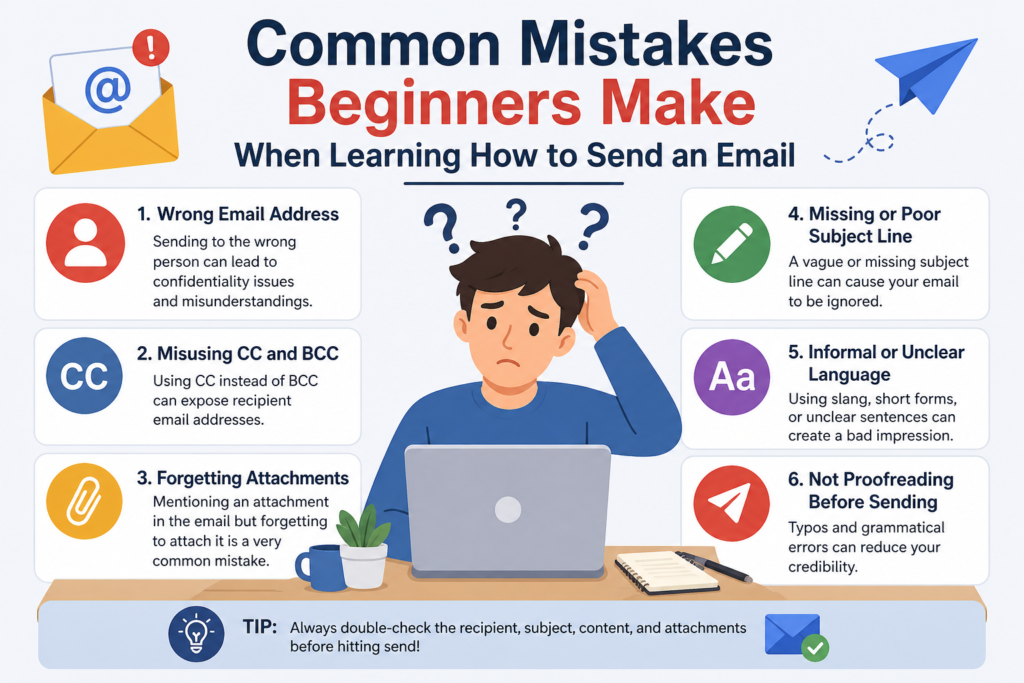
Even after understanding how to send an email, beginners often make a few common mistakes. Being aware of these errors will help you avoid them from day one:
Mistake 1: Leaving the Subject Line Blank
An email without a subject line looks careless and unprofessional. Many recipients will ignore it or send it directly to spam. Always write a clear, relevant subject line for every email.
Mistake 2: Typing the Wrong Email Address
Always double-check the recipient’s email address before clicking Send. A single typo can accidentally send your private message to a complete stranger, which can be embarrassing or even dangerous.
Mistake 3: Forgetting Attachments
Many people write please find the attached document but forget to actually attach the file. Make a habit of uploading the attachment first, before writing the email body.
Mistake 4: Using an Unprofessional Tone
Even in casual emails, avoid excessive slang, ALL CAPS writing (it reads as shouting), and too many exclamation marks. Write in a way that reflects respect and professionalism.
Mistake 5: Not Setting Up an Email Signature
A professional email should always close with your name and contact details. Set up an automatic email signature in Gmail by going to Settings, then See All Settings, then the Signature section.
How to Send an Email on a Smartphone
Most people today prefer using their smartphones for daily tasks. Knowing how to send an email on a mobile device is just as important as knowing how to do it on a computer. Here is how to do it using the Gmail mobile app:
- Download the Gmail app from the Google Play Store on Android or the App Store on iPhone.
- Open the app and sign in with your Gmail account email address and password.
- Tap the red Compose button, which is the pencil icon usually found at the bottom right corner.
- Fill in the To, Subject, and body fields exactly as you would on a desktop computer.
- Tap the Send icon, which looks like a paper plane, located at the top right corner of the screen.
The mobile experience of how to send an email is nearly identical to the desktop version — just a little smaller on screen. Most email apps are designed to be beginner-friendly, so do not be afraid to explore and experiment with the interface.
Email Etiquette: The Unwritten Rules Every Sender Must Know
Now that you understand the technical side of how to send an email, it is time to learn about email etiquette — the unspoken professional rules that separate a good communicator from a great one:
- Reply Promptly: Try to respond to emails within 24 to 48 hours on working days to show professionalism and respect.
- Use Reply All Carefully: Only click Reply All if your response is genuinely relevant to every person copied on the email.
- Keep It Concise: Respect the recipient’s time by saying what needs to be said in as few well-chosen words as possible.
- Be Polite and Respectful: Always maintain a courteous, professional tone, especially in formal or work-related emails.
- Never Send Sensitive Data: Do not send passwords, bank account numbers, or personal identification details through email.
- Proofread Every Time: Scan for grammar and spelling errors before sending every single email, no matter how short.
Pro Tip: When sending a formal email to someone you do not know personally — such as a potential employer or a government official — always address them with their proper title such as Mr., Ms., or Dr. until they invite you to use their first name.
Email Security: Stay Safe While You Learn How to Send an Email
Mastering how to send an email also means learning how to stay safe online. Email is one of the most common targets for scammers, hackers, and cybercriminals. Follow these essential safety rules to protect yourself:
- Never click on links inside emails from unknown senders — these could be phishing attacks designed to steal your passwords or personal information.
- Do not open suspicious email attachments. They may contain harmful malware or viruses that can damage your device.
- Always log out of your email account when using a shared, public, or office computer that others also use.
- Use a strong, unique password for your email account and enable two-factor authentication for an extra layer of security.
- If an email promises something that sounds too good to be true — like winning a lottery you never entered — it is almost certainly a scam. Delete it immediately.
Your email account is the gateway to your entire digital life. Keeping it safe and secure is just as critical as knowing how to send an email in the first place.
Conclusion: Your Email Journey Has Just Begun
You have now learned exactly how to send an email — from choosing an email service provider and creating your first account, to composing a professional message, attaching important files, and hitting that final Send button. Along the way, you also discovered email etiquette, the most common beginner mistakes, mobile email tips, and essential online safety practices.
Knowing how to send an email is a fundamental life skill in the 21st century. Whether you use it to apply for your dream job, communicate with a teacher or professor, track an online order, coordinate a business meeting, or simply stay connected with loved ones across the world — email will always be one of the most reliable tools at your disposal.
Start practicing today. Write a short test email to a friend, family member, or even to yourself. The more you practice how to send an email, the more natural, quick, and effortless the process will become. Before long, you will be the confident one teaching someone else this essential skill.
