vikram@gmail.com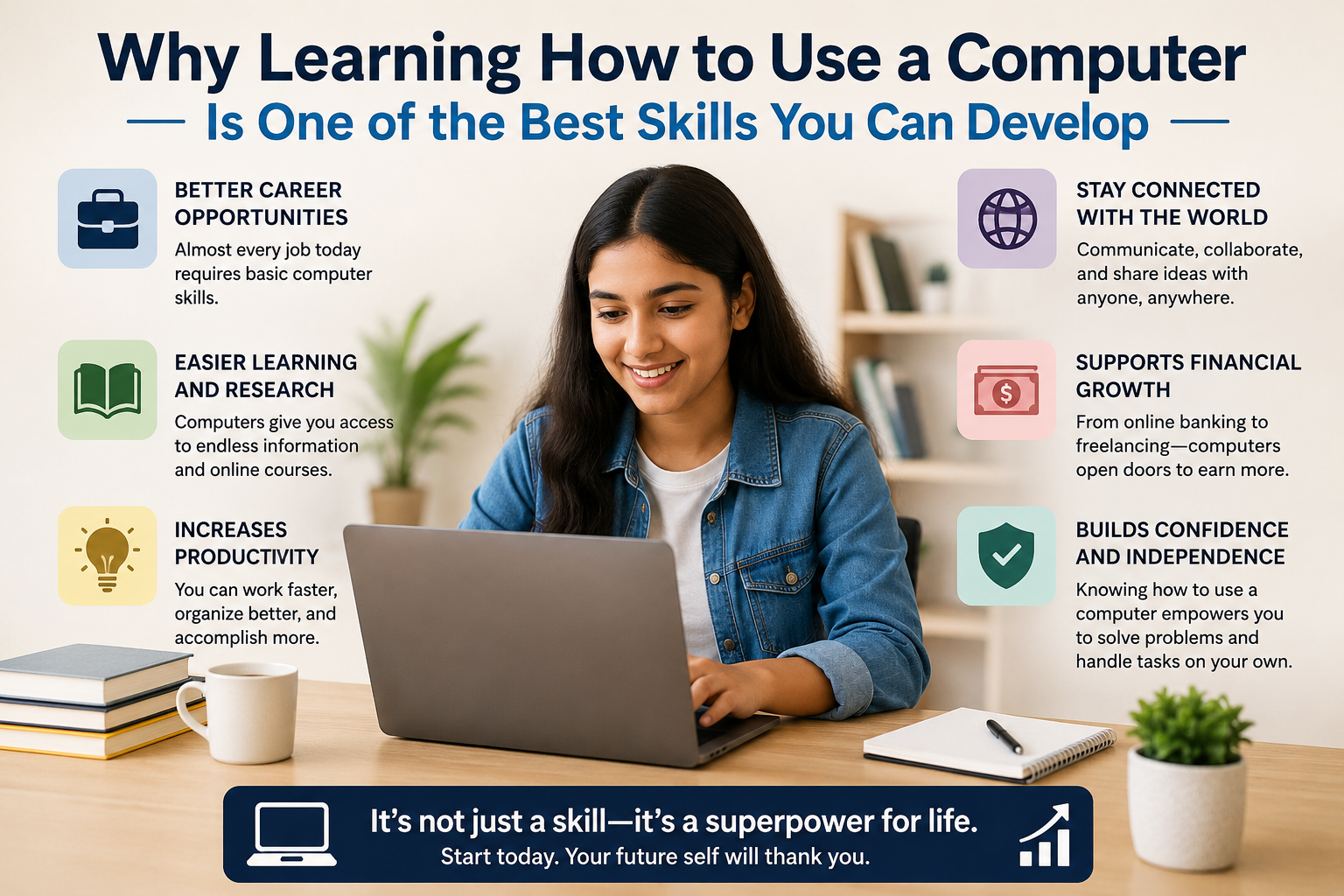
INTERODUCTION:-
Are you sitting in front of a screen and wondering where to even begin? Do not worry — millions of people feel the same way when they first sit down at a computer. The truth is, learning how to use a computer is not as difficult as it looks. With the right guidance and a little patience, you can go from complete beginner to confident user in just a few weeks.
This easy beginner tutorial, How to Use a Computer for the First Time – Easy Beginner Tutorial, will walk you through every single step — from turning on your PC for the very first time to browsing the internet, typing documents, sending emails, and keeping your system safe. Everything is explained in simple, everyday language. No complicated words. No confusion. Just clear, practical steps you can follow right now.
If you have ever searched for How to Use a Computer for the First Time – Easy Beginner Tutorial, this guide is designed to make your learning journey simple, comfortable, and stress-free.
Why Learning How to Use a Computer Is One of the Best Skills You Can Develop
Before we dive into the technical side, let us talk about why this skill matters so much in today’s world.
We live in a digital world. Almost everything — from paying bills and booking appointments to applying for jobs and staying connected with loved ones — happens on a computer or smartphone. People who know how to use a computer have a huge advantage over those who do not.
Here is what you gain when you learn this skill:
- Better employment opportunities across every industry
- The ability to work remotely from home
- Access to free education and online courses
- Easy communication through email, video calls, and social media
- The confidence to handle digital tasks completely on your own
Whether you are a student, a homemaker, a retired professional, or someone entering a new career — this guide is written for you.
Part 1 — Understanding the Parts of a Computer
The very first step in learning how to use a computer is getting familiar with its components. A computer has several parts and each one has a specific job.
The Monitor
The monitor is the screen you look at. It displays everything — text, images, videos, and your entire working environment. Think of it as a window into the digital world. Monitors come in various sizes. Bigger screens make reading and working much more comfortable.
The CPU (Central Processing Unit)
The CPU is the main box that powers everything. All the processing, computing, and data storage happens inside it. Without the CPU, the computer simply cannot function. On a desktop, it usually sits on or under the desk. On a laptop, everything is built into one compact device.
The Keyboard
The keyboard is your primary input device. You use it to type text, enter commands, and navigate your computer. It has letters, numbers, symbols, and special function keys that make many tasks much faster.
The Mouse
The mouse controls the pointer on your screen. Moving the mouse moves the cursor, and clicking its buttons lets you interact with programs, files, and menus. For most beginners, the mouse feels a little awkward at first — but within days, it becomes completely natural.
Speakers and Microphone
Speakers let you hear audio from your computer — music, videos, notifications, and voice calls. A microphone allows you to speak into the computer for voice calls, recordings, or voice commands.
Laptop vs Desktop
A desktop computer has separate components — a tower, monitor, keyboard, and mouse. A laptop combines all of these into one portable unit. Both work exactly the same way. Everything in this guide applies to both.
Part 2 — Turning On Your Computer for the Very First Time
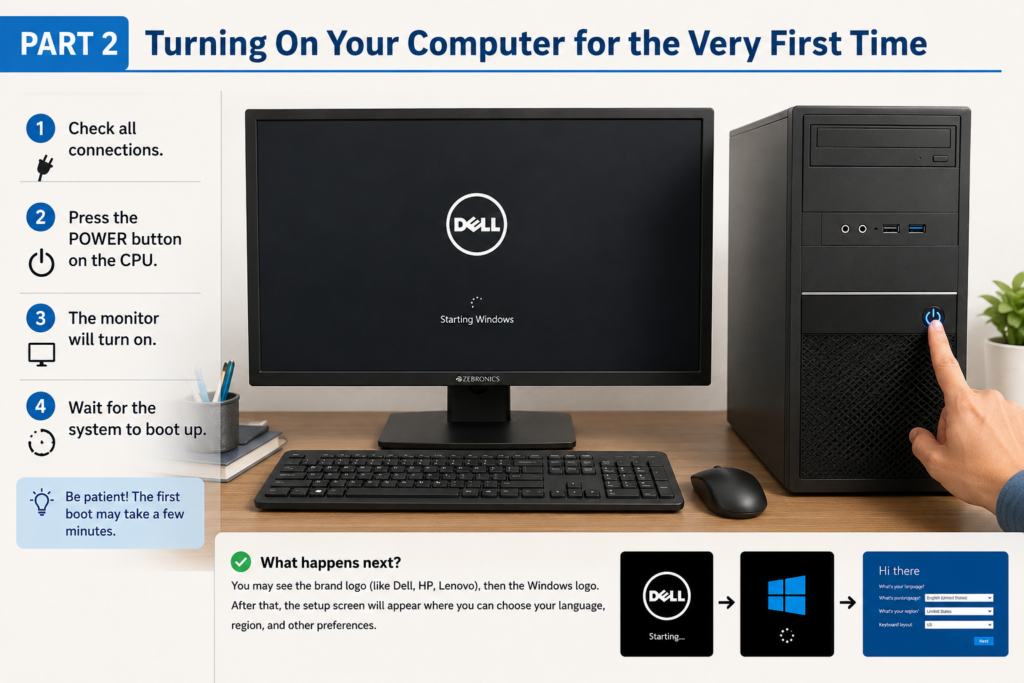
Now that you know the parts, it is time to power it on. Here is the exact step-by-step process:
Step 1: Make sure the power cable is firmly connected to the computer and the wall socket.
Step 2: Press the power button. On a desktop, it is on the front of the CPU tower. On a laptop, it is usually above the keyboard in the corner.
Step 3: Wait for the computer to start. This takes between 30 seconds and 2 minutes depending on the system.
Step 4: A login screen will appear. If a password has been set, type it carefully and press Enter. If no password is required, the Desktop will appear directly.
Step 5: Your Desktop is now visible. Congratulations — your computer is on and ready!
Important — Shutting Down the Right Way: Always shut down through the Start Menu. Click the Start button, select the Power icon, and choose Shut Down. Never pull the power plug while the computer is running. Doing so can damage your files and corrupt the operating system.
Part 3 — Getting Comfortable with the Desktop
The Desktop is your home base. It is the first screen you see after logging in and it is where all your work begins. Understanding the Desktop is a core part of knowing how to use a computer confidently.
Desktop Icons
Icons are small images that represent programs, files, and folders. Double-clicking an icon opens whatever it represents. You can add, remove, and rearrange icons to suit your personal preference.
The Taskbar
The Taskbar runs along the bottom of the screen. It shows all currently open programs and lets you switch between them with one click. It also holds quick-launch shortcuts to your most-used programs.
The Start Menu
The Start button is at the bottom left of the Taskbar. Clicking it opens the Start Menu, which gives you access to all installed programs, system settings, documents, and the shutdown option. This is the most important button on the entire computer.
The Recycle Bin
The Recycle Bin is a special folder where deleted files are sent temporarily. If you accidentally delete something important, open the Recycle Bin and restore it. To permanently delete files, right-click the Recycle Bin and select Empty Recycle Bin.
The System Tray
Located at the bottom right corner, the System Tray shows the time, date, Wi-Fi status, volume level, and battery percentage on laptops.
Part 4 — How to Use the Mouse Properly
The mouse might feel unfamiliar at first, but it is one of the most essential tools. Here are all the mouse actions every beginner must master:
Single Left Click — Selects an item, clicks a button, or activates a link. This is the most common mouse action you will use every day.
Double Left Click — Opens a file or program. Click twice quickly without moving the mouse between clicks.
Right Click — Opens a context menu showing additional options for the item you clicked. Try right-clicking on the Desktop to see a live example.
Click and Drag — Hold the left button down, move the mouse, then release. Used to move files, resize windows, or highlight text.
Scroll Wheel — Roll it forward to scroll up and backward to scroll down. Extremely useful when reading long web pages or documents.
Practice these five actions every single day. Within one week, your mouse control will improve dramatically.
Part 5 — Using the Keyboard Like a Pro
When you are learning how to use a computer, the keyboard is your most powerful tool. Here is a complete breakdown of the most important keys:
Key Functions
Enter — Confirms an action or starts a new line when typing.
Backspace — Deletes the character to the left of your cursor. Your best friend when correcting mistakes.
Delete — Deletes the character to the right of your cursor or removes a selected item.
Shift — Hold it and press a letter to type a capital. Hold it with a number to type the symbol above that key.
Caps Lock — Press once to type all capitals. Press again to turn it off.
Tab — Moves the cursor to the next input field. Very useful when filling out online forms.
Escape (Esc) — Cancels the current action or closes pop-up windows.
Spacebar — Adds a space between words while typing.
Arrow Keys — Move the cursor up, down, left, and right inside documents and text fields.
Must-Know Keyboard Shortcuts
| Shortcut | Action |
|---|---|
| Ctrl + C | Copy selected text or file |
| Ctrl + V | Paste copied content |
| Ctrl + X | Cut selected content |
| Ctrl + Z | Undo last action |
| Ctrl + Y | Redo undone action |
| Ctrl + S | Save current file |
| Ctrl + A | Select all |
| Ctrl + P | Print document |
| Ctrl + F | Find a word on the page |
| Alt + F4 | Close current window |
| Win + D | Show Desktop |
| Win + L | Lock your screen |
Memorize these shortcuts one at a time. They will make you work twice as fast.
Part 6 — Creating, Saving, and Managing Files
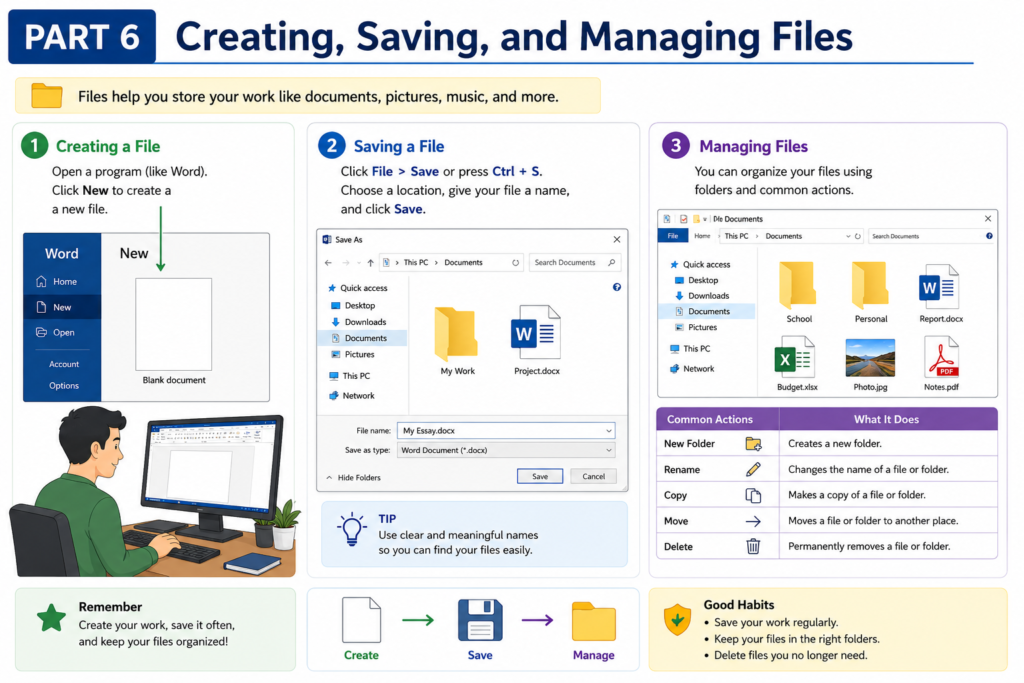
A big part of knowing how to use a computer is understanding how to manage your files. Files are your digital documents — and folders are the digital cabinets that hold them neatly organized.
How to Create a New Folder
- Right-click on the Desktop or inside any folder.
- Hover over New and click Folder.
- Type a name for the folder and press Enter.
How to Save a File
- Open a program like Notepad or Microsoft Word.
- Type your content.
- Press Ctrl + S.
- Choose a save location, type a file name, and click Save.
How to Open a Saved File
Navigate to the folder where the file is stored and double-click it.
How to Copy and Move Files
- Copy: Right-click → Copy → navigate to destination → right-click → Paste.
- Move: Click and drag to the new location, or right-click → Cut → navigate → right-click → Paste.
How to Delete Files
Right-click the file and select Delete. The file moves to the Recycle Bin. Empty the Recycle Bin to permanently remove files.
Smart Folder Organization
Start with these five folders from day one:
- Documents — notes, reports, and work files
- Photos — personal and downloaded images
- Downloads — files from the internet
- Projects — ongoing work and school assignments
- Videos — recordings, movies, tutorials
Part 7 — Connecting to the Internet
No beginner’s guide on how to use a computer would be complete without covering the internet. Getting online turns your computer into an incredibly powerful tool.
What You Need
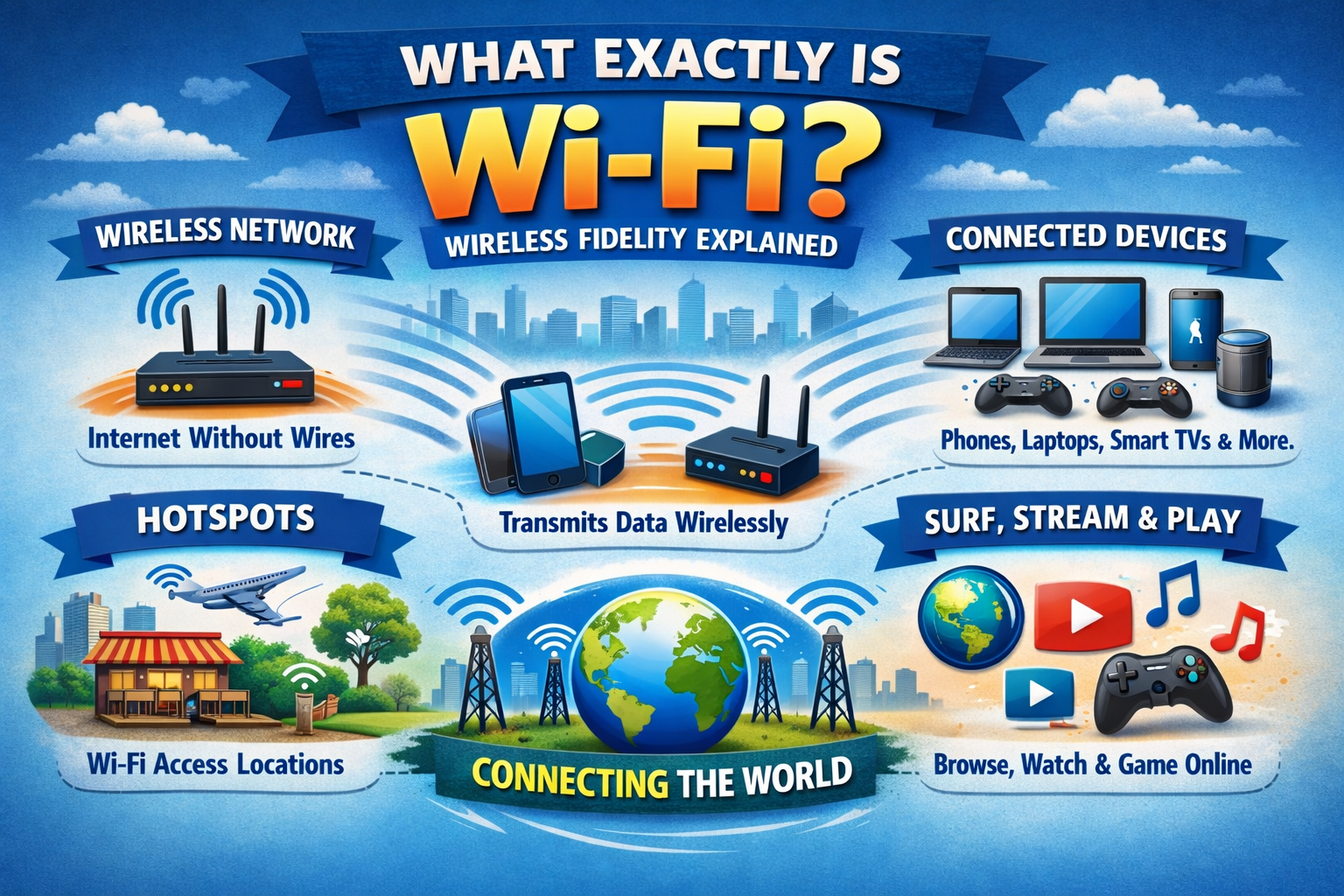
- A Wi-Fi router from your internet provider
- Your Wi-Fi network name and password
How to Connect to Wi-Fi on Windows
- Click the Wi-Fi icon in the System Tray (bottom right corner).
- A list of available networks appears.
- Click on your home network name.
- Click Connect.
- Enter your Wi-Fi password and press Enter.
Your computer is now connected to the internet!
What Is a Web Browser?
A web browser is the program you use to access websites online. The most popular browsers are Google Chrome, Mozilla Firefox, Microsoft Edge, and Opera — all free to download.
How to Open a Website
- Open your browser by double-clicking its icon.
- Click the address bar at the top.
- Type a web address — for example, www.google.com — and press Enter.
Part 8 — Searching the Internet Effectively
One of the most exciting things about knowing how to use a computer is being able to search for anything in seconds. Google is the world’s most powerful search engine. Here is how beginners can use it like a pro:
- Open your browser and go to www.google.com.
- Click the search box.
- Type what you want to find — for example, “easy cooking recipes for beginners.”
- Press Enter.
- Browse the results and click any link that looks helpful.
Internet Safety Rules Every Beginner Must Follow
- Never share your password online — not with anyone.
- Do not click on pop-up ads promising free prizes or rewards.
- Only download files from trusted, well-known websites.
- Look for the padlock icon next to the website address — it means the site is secure.
- Always log out of websites when you are finished, especially on public computers.
- Use a strong password that combines letters, numbers, and symbols.
Part 9 — Sending and Receiving Emails
Email is one of the most important skills tied to knowing how to use a computer. Every professional communication, job application, and official notification travels through email.
Creating a Free Gmail Account
- Go to www.gmail.com in your browser.
- Click Create Account and select For Myself.
- Enter your name and choose a unique username — this will be your email address.
- Create a strong password and confirm it.
- Add your phone number for security.
- Complete the remaining steps — your account is ready!
Sending Your First Email
- Log in to Gmail.
- Click the Compose button on the left side.
- Enter the recipient’s email address in the To field.
- Write a short, clear subject in the Subject field.
- Type your message in the large box.
- Click Send.
Email Tips for Beginners
- Always include a clear subject line.
- Keep messages short and easy to read.
- Read your email once before sending to catch any errors.
- Never open attachments from people you do not know.
Part 10 — Keeping Your Computer Safe and Fast
Part of knowing how to use a computer properly is knowing how to maintain it. A well-maintained computer runs faster, lasts longer, and stays fully protected.
Use Windows Defender
Windows 10 and 11 include a built-in antivirus called Windows Defender. Go to Settings → Windows Security → Virus and Threat Protection and make sure all protections are active.
Install Windows Updates
Go to Settings → Windows Update and install all available updates. Updates fix security problems and improve system performance. Enable automatic updates so you never miss one.
Restart Your Computer Weekly
Restarting clears temporary files and refreshes system memory. A quick restart every week keeps things running smoothly.
Run Disk Cleanup Monthly
Search for Disk Cleanup in the Start Menu, select your drive, and remove junk files. This frees up storage and speeds up your system noticeably.
Back Up Your Files
Use Google Drive, OneDrive, or an external hard drive to regularly back up your important files. If your computer is ever lost or damaged, your data will still be safe.
Part 11 — Free Resources to Keep Learning
Once you feel comfortable with the basics, here are the best free resources to help you go further:
YouTube — Search any skill and find thousands of free step-by-step video tutorials. Perfect for visual learners.
GCFGlobal.org — One of the best beginner-friendly websites specifically designed for computer and internet learning. Completely free.
Khan Academy (khanacademy.org) — Free structured courses on computing, digital literacy, and technology for all skill levels.
Microsoft Learn (learn.microsoft.com) — Free official Microsoft tutorials for Windows, Word, Excel, PowerPoint, and more.
Coursera and edX — Free online courses from top universities. Many include certificates for your resume or professional profile.
Typing.com — A free website that improves your typing speed and accuracy through fun, structured practice sessions.
Bonus — 8 Daily Habits to Speed Up Your Learning
These small habits will make a huge difference in how fast you improve:
- Practice 20 to 30 minutes every day — Daily consistency beats long but irregular sessions.
- Use keyboard shortcuts whenever possible — The more you use them, the faster they become automatic.
- Explore menus and buttons freely — You can always undo any action with Ctrl + Z.
- Write down new things you learn — A small notebook for computer tips is incredibly valuable.
- Teach someone else what you know — Explaining a skill is one of the fastest ways to master it.
- Watch one tutorial video daily — Even 10 minutes of video learning every day adds up fast.
- Do not fear mistakes — Every error is a learning opportunity. All skills are built through making and fixing mistakes.
- Celebrate small wins — Every new skill you gain is a real and meaningful achievement.
Frequently Asked Questions
Q: How long will it take to learn how to use a computer from scratch? A: With 30 minutes of daily practice, most complete beginners feel comfortable with essential tasks within 3 to 4 weeks.
Q: Is it too late to learn if I am older? A: Absolutely not. People in their 60s, 70s, and beyond learn computer skills every day. Age is no barrier whatsoever.
Q: What computer is best for beginners? A: Any modern Windows laptop or desktop works perfectly. Look for at least 8GB RAM, 256GB storage, and Windows 11.
Q: Can I learn completely for free? A: Yes! YouTube, GCFGlobal.org, Khan Academy, and Microsoft Learn all offer outstanding free resources for beginners.
Final Thoughts
You now have a complete, step-by-step understanding of how to use a computer — from the very basics all the way through internet safety, email, file management, and system maintenance. That is an enormous amount of knowledge, and you should feel genuinely proud of how far you have come in just one reading session.
But reading is only the beginning. The real growth happens when you sit down and start practicing. Begin with the mouse and keyboard. Then move to files and folders. Then the internet and email. Take it one simple step at a time, and never rush yourself.
Every confident computer user in the world was once exactly where you are right now — at the very start. They kept going, one day at a time. You can do exactly the same.
Start today. Practice tomorrow. Improve every single day.
You have got this!