vikram@gmail.com
Introduction: The Biggest Threat to Your Digital Life
In today’s digital world, we spend a massive part of our lives online — banking, shopping, social media, emails, and much more. The one thing that stands between your personal data and a cybercriminal is a Strong Password. Yet, most people treat this like an afterthought. They use “123456” or their own name and assume nobody will ever target them.
That assumption is dangerous.
Hackers today are more advanced than ever. Cracking a weak password takes them only a few seconds using automated tools. In this article, we will walk you through exactly how to create a Strong Password, how to remember it without stress, and how to keep all your online accounts completely secure. Every tip here is practical and actionable — you can start using them today.
What Exactly Is a Strong Password?
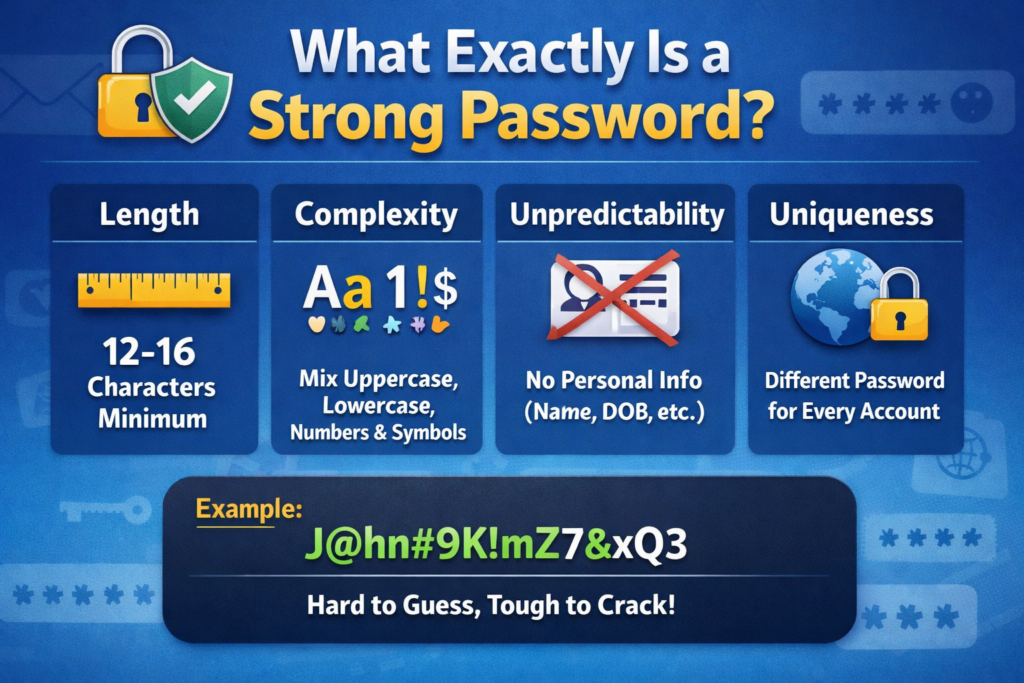
Before learning how to create one, you need to understand what makes a Strong Password different from a weak one. Many people think length is everything — but that is only part of the picture.
A truly Strong Password must have all of the following qualities:
Length: It should be at least 12 to 16 characters long. The longer it is, the harder it is to crack.
Complexity: It must combine uppercase letters (A, B, C), lowercase letters (a, b, c), numbers (1, 2, 3), and special characters (!@#$%).
Unpredictability: It should never include personal details like your name, birthday, phone number, or pet’s name.
Uniqueness: Every single account you own must have a different Strong Password. Reusing one password across multiple sites is one of the most dangerous habits in cybersecurity.
Here is a quick comparison:
- ❌ Weak Password:
john1990 - ❌ Weak Password:
password123 - ✅ Strong Password:
J@hn#9K!mZ7&xQ3
The difference is clear. One can be cracked in seconds. The other could take centuries.
7 Proven Methods to Create a Strong Password
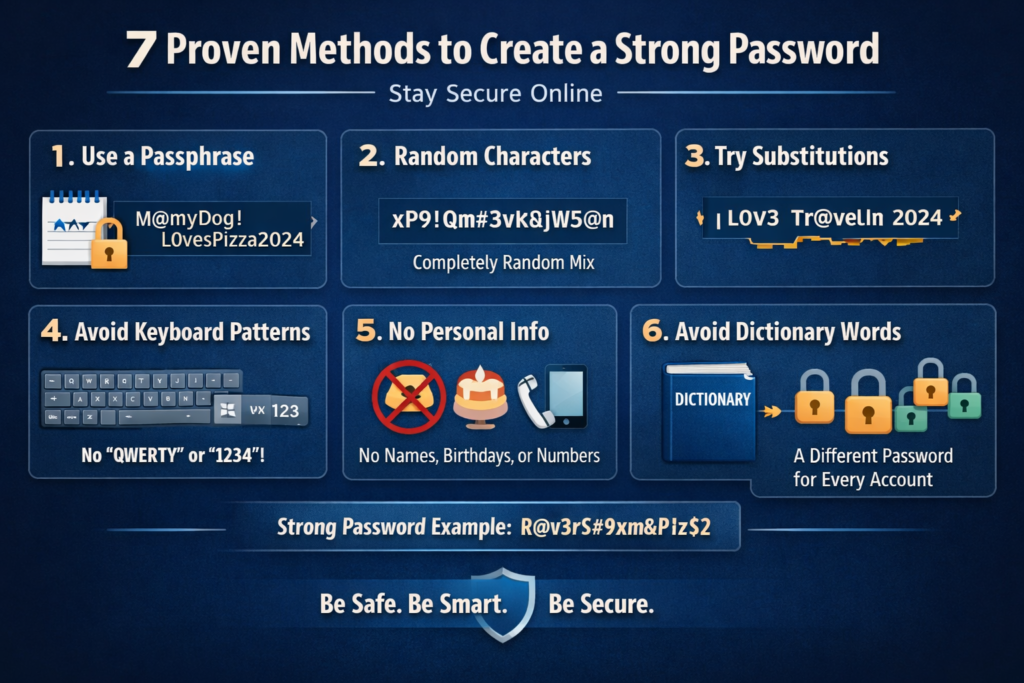
1. The Passphrase Method
One of the best and most memorable approaches is to use a full phrase that means something to you but is impossible for anyone else to guess.
For example: MyDog@Loves!Pizza2024
This is an excellent Strong Password because it is long, contains mixed characters, and uses real words in an unpredictable combination. It is easy for you to remember and nearly impossible for hackers to crack.
2. The Random Character Method
This method involves generating a completely random string of characters:
xP9!qM#3vK&jW5@n
This is the most secure type of Strong Password you can have. However, it is very difficult to memorize. This is exactly why a Password Manager (explained later in this article) is essential when using this method.
3. The Substitution Method
Take a familiar phrase or sentence and replace letters with numbers and symbols:
- “I love traveling in 2024” →
!L0v3Tr@v3l!n2024
This approach gives you a Strong Password that is both secure and memorable, because your brain can reconstruct the original phrase.
4. Avoid Keyboard Patterns
Millions of people use patterns like qwerty, asdfgh, or 1qaz2wsx thinking they look complex. They do not. These are among the very first combinations that hackers try when attacking accounts. Never use keyboard patterns as part of your Strong Password.
5. Never Use Personal Information
Your name, spouse’s name, anniversary date, vehicle number, or favorite sports team — none of this should ever appear in a Strong Password. Cybercriminals regularly browse social media profiles to gather personal details before attempting a targeted attack.
6. Avoid Dictionary Words
Single dictionary words like sunshine, dragon, or freedom are extremely vulnerable. Hackers use a technique called a “dictionary attack” where automated software tries millions of common words and phrases within minutes. A real Strong Password does not contain any standalone dictionary word.
7. Use a Different Password for Every Account
This is the golden rule. No matter how good your Strong Password is, if you use it everywhere, one data breach puts every single account you own at risk. A hacker who cracks your email password should never be able to use the same password to access your bank account.
Password Managers: Your Personal Digital Vault
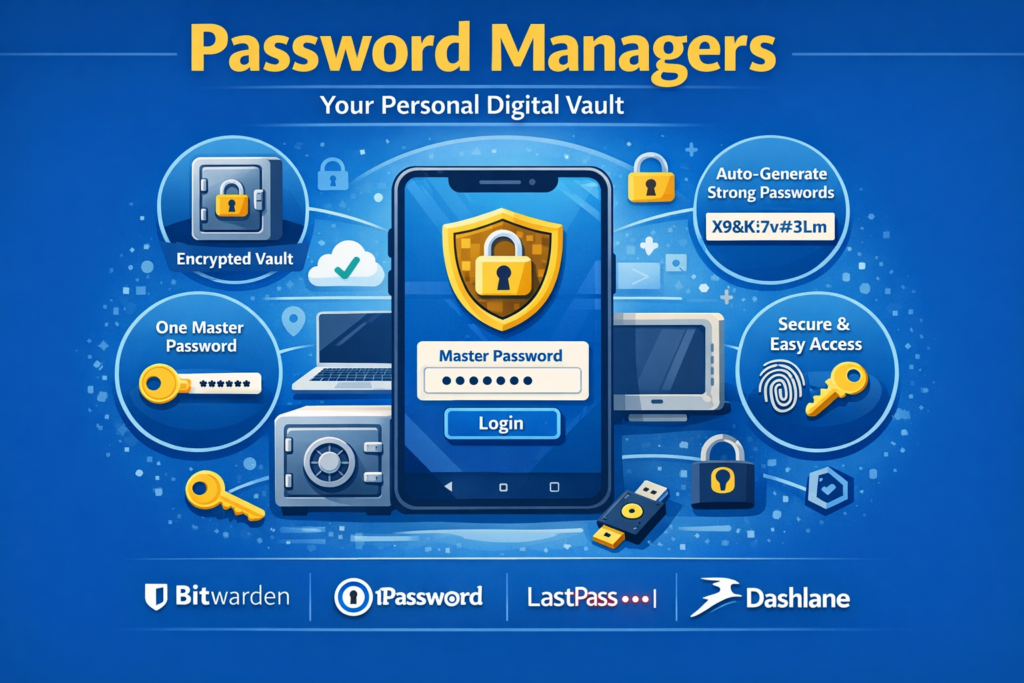
By now you might be thinking — how is anyone supposed to remember dozens of different Strong Password combinations? The answer is simple: you are not supposed to. That is what Password Managers are for.
A Password Manager is a secure application that stores all your passwords in an encrypted vault. You only need to remember one Master Password to access everything.
Top Password Managers to Consider:
- Bitwarden — Free, open-source, and highly trusted by security experts
- 1Password — Premium service with excellent features and family plans
- LastPass — User-friendly with a solid free tier
- Dashlane — Comes with a built-in VPN for added security
Beyond just storing passwords, these apps also automatically generate a new Strong Password for every account you create. You click one button, and a perfectly random, highly secure password is created and saved instantly. No more guessing. No more reusing old passwords.
Two-Factor Authentication: Your Second Line of Defense
Even the most perfect Strong Password can sometimes be stolen through phishing, data breaches, or malware. This is why Two-Factor Authentication (2FA) has become one of the most important security tools available today.
Two-Factor Authentication means that logging into an account requires two separate verifications:
- Something you know — your password
- Something you have — a code sent to your phone or generated by an app
Even if someone somehow gets your Strong Password, they still cannot log into your account without the second factor. Here are the most common types of 2FA:
SMS OTP: A one-time code is sent to your registered phone number. Simple but slightly less secure than app-based methods.
Authenticator App: Apps like Google Authenticator or Authy generate time-based codes that refresh every 30 seconds. This is the recommended method.
Biometric Verification: Fingerprint or face recognition, commonly used on mobile apps.
Hardware Security Key: A physical device like a YubiKey that plugs into your computer. Used mainly by high-security professionals.
To enable 2FA, go to Settings → Security → Two-Factor Authentication on platforms like Gmail, Facebook, Instagram, Twitter, and Amazon. It takes less than two minutes and adds enormous protection.
Common Password Mistakes You Might Still Be Making
Even security-conscious people sometimes fall into bad habits. Check whether you are guilty of any of these:
Using the Same Password Everywhere: The single most dangerous mistake. One compromised site puts all your accounts at risk.
Sharing Your Password: No matter how much you trust someone, sharing your Strong Password creates unnecessary risk. Their device or account could be compromised without them even knowing.
Writing Passwords Down: Sticky notes on your monitor or a plain text file on your desktop are serious security risks.
Over-relying on Browser-Saved Passwords: Browser password saving is convenient but risky if your device is ever stolen or compromised.
Never Changing Passwords: If you suspect any suspicious activity, change your Strong Password immediately. High-value accounts like email and banking should be updated every few months.
Weak Security Questions: “What is your mother’s maiden name?” or “What is your pet’s name?” are questions whose answers are often visible on social media. Use false or randomized answers and store them in your Password Manager.
How to Check If Your Password Has Already Been Leaked
This is something most people never think to check — but it is critically important. There is a free and trusted tool called HaveIBeenPwned.com. Simply enter your email address and the site will tell you whether your credentials appeared in any known data breach.
If your email shows up in a breach, change your Strong Password on that account immediately, along with any other accounts where you used the same password.
Google Chrome also does this automatically in the background and will alert you if a saved password appears in a known data breach. Pay attention to these warnings.
Keeping Mobile Devices Secure
Since most people now manage everything from their smartphones, mobile security deserves special attention alongside your Strong Password habits.
Always Use Screen Lock: Whether it is a PIN, pattern, or biometric lock, your phone should never be left without a screen lock enabled.
Be Careful With App Permissions: Do not give apps access to more information than they actually need. Password and banking apps especially deserve careful review.
Avoid Public Wi-Fi Without a VPN: Never log into sensitive accounts on public Wi-Fi networks. Hackers can intercept traffic on these networks with basic tools. Use a reliable VPN if you must connect.
Keep Everything Updated: Software updates contain critical security patches. Enable automatic updates on your phone and apps.
Watch Out for Phishing: No legitimate bank, government agency, or tech company will ever ask for your Strong Password via email or SMS. If you receive such a request, it is a scam — ignore and report it.
Password Security for Work and Business Accounts
If you use accounts for professional purposes, the stakes are even higher. A single compromised work account can expose an entire company’s data.
Separate Work and Personal Accounts: Never use your personal email or passwords for work systems, and vice versa.
Follow Company Password Policy: Most organizations have a cybersecurity policy. Take it seriously — it exists for good reason.
Change Passwords Regularly: For sensitive systems, update your Strong Password every 60 to 90 days.
Always Log Out on Shared Devices: If you ever use a shared or public computer, always log out completely when done.
Report Suspicious Activity Immediately: If you notice anything unusual — unexpected login alerts, strange emails, or unusual account activity — report it to your IT team without delay.
Protecting Children and Elderly Family Members
Younger children and older adults are frequently targeted by cybercriminals because they are less likely to recognize warning signs.
For Children: Teach them from an early age never to share passwords — not even with close friends. Show them what a Strong Password looks like and explain why weak ones are dangerous. Consider using a family Password Manager so you can manage their credentials safely.
For Elderly Family Members: Help them set up a Password Manager so they do not have to rely on memory or paper notes. Teach them to recognize phishing emails and suspicious phone calls. Set up 2FA on their accounts and make sure they understand never to give their Strong Password to anyone who calls or emails asking for it.
Your Action Checklist: Start Today
Here is everything you should do right now to secure your digital life:
✅ Review all your current passwords — replace any weak ones immediately
✅ Create a unique Strong Password for every account you own
✅ Download and set up a trusted Password Manager
✅ Enable Two-Factor Authentication on Gmail, Facebook, Instagram, and your bank
✅ Visit HaveIBeenPwned.com and check if your email has been compromised
✅ Enable screen lock on your phone and all devices
✅ Install a VPN for use on public networks
✅ Stay alert for phishing emails, calls, and fake websites
Conclusion: Your Security Is Your Responsibility
Staying safe online is not a one-time task — it is an ongoing commitment. The more aware and proactive you are, the better protected you and your family will be against the growing threat of cybercrime.
Creating a Strong Password is not complicated. It does not require any technical expertise. It just requires a few minutes of your time and the willingness to take your digital security seriously. That small investment can protect you from identity theft, financial fraud, and irreversible data loss.
Take action today. Build your first Strong Password, set up a Password Manager, and turn on Two-Factor Authentication. Your online accounts hold some of the most sensitive information in your life — they deserve the best possible protection.
Remember this: Hackers work hard to break into your accounts. A Strong Password makes sure all that effort leads them absolutely nowhere.