 vikram@gmail.com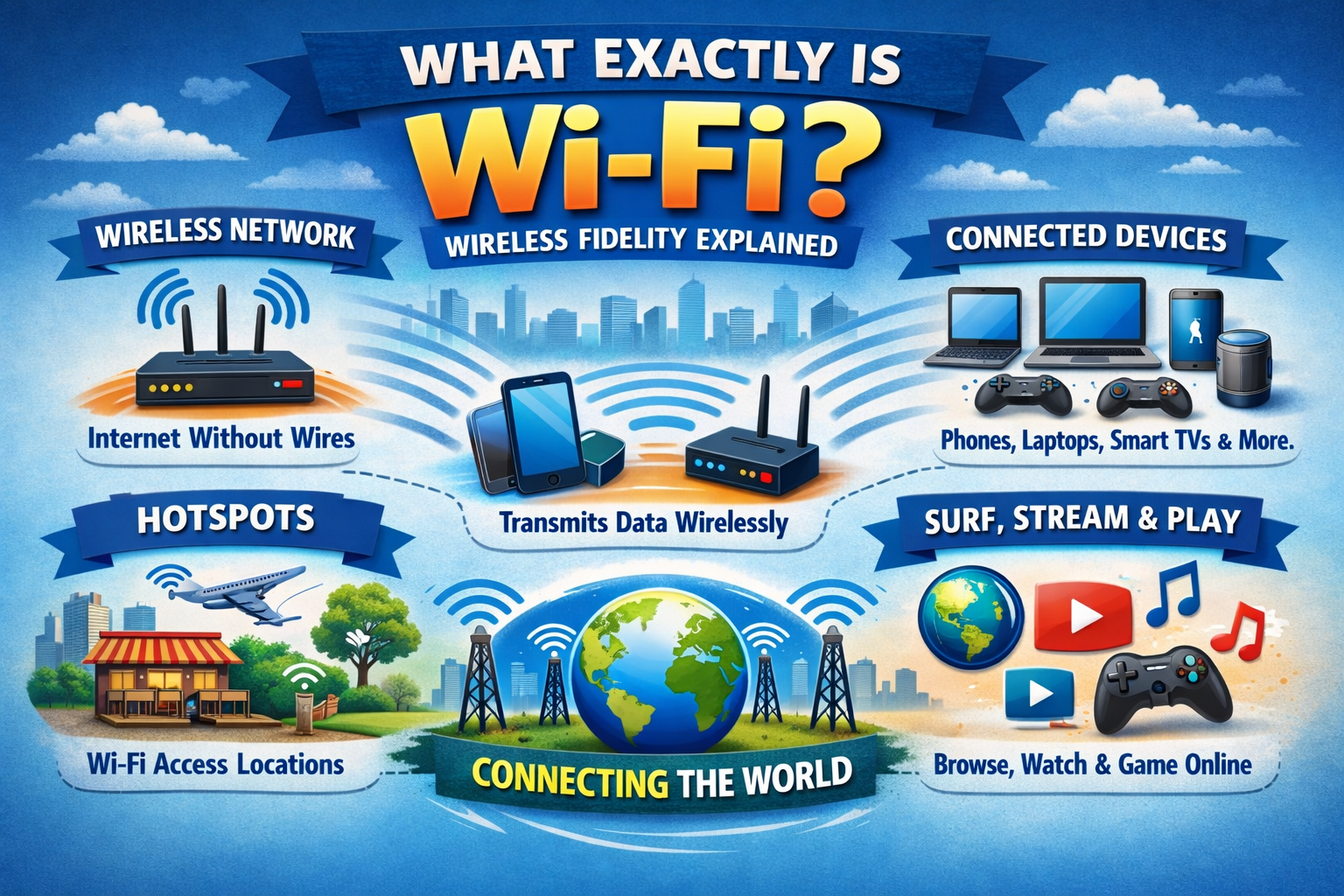
INTRODUCTION:-
Wi-Fi has completely changed the way we live, work, and communicate. From watching videos on your phone to attending online classes, from working from home to running an online business — everything depends on your ability to connect your device to a wireless network. Yet millions of people still struggle with this basic task because nobody ever explained it clearly.
This article changes that. Whether you want to connect your device for the very first time or you keep facing problems with your existing connection, this complete step-by-step guide covers everything you need to know — in plain, simple language that anyone can follow.
No technical background required. No jargon. Just clear, honest, practical guidance that actually works.
What Exactly Is Wi-Fi?
Before you learn how to connect your device, it helps to understand what Wi-Fi actually is.
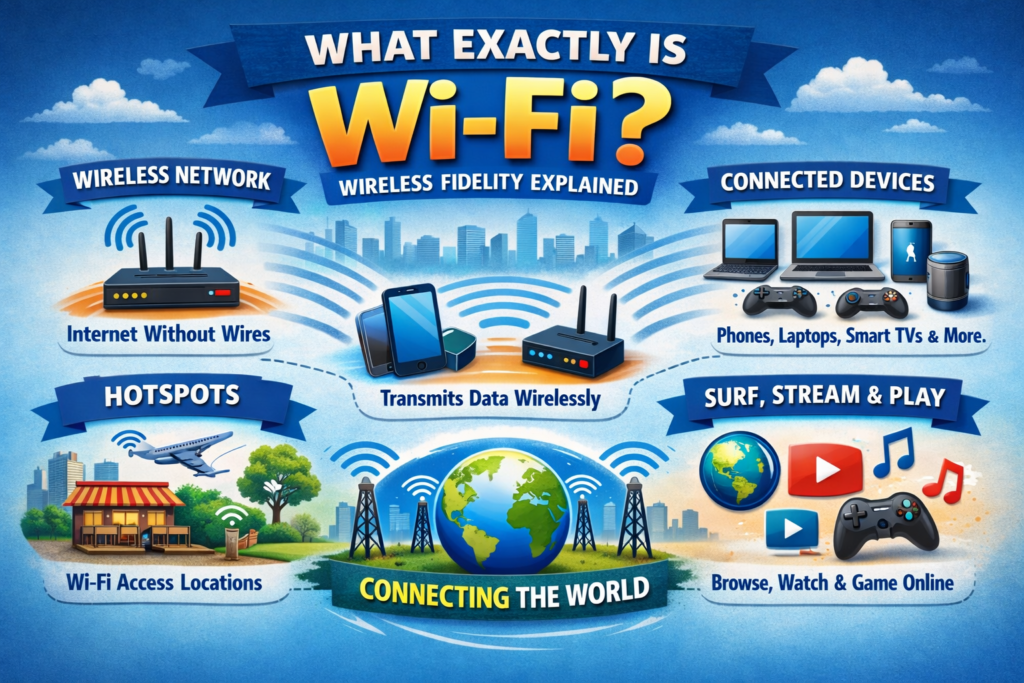
Wi-Fi is a wireless technology that allows electronic devices — your smartphone, laptop, tablet, smart TV, and more — to connect to the internet without using any cables or wires. It uses radio waves to transmit data between your device and a router. That router is connected to your internet service provider, which is what gives you access to the internet.
The term “Wi-Fi” does not stand for anything. It is simply a brand name created by a marketing company in 1999 to make the technical term “IEEE 802.11” easier to say and remember. Today, Wi-Fi has become so universal that most people consider it a basic human necessity — right alongside electricity and running water.
Wi-Fi signals are broadcast from a router in all directions, creating what is called a wireless network. Any device within range of that signal can request to join that network — which is exactly what happens when you connect your device to Wi-Fi.
How Does Wi-Fi Work? Simple Explanation
Understanding how Wi-Fi works makes it much easier to fix problems when they arise.
Your internet service provider — Jio, Airtel, BSNL, or any other company — brings the internet into your home through a cable or a fiber optic line. That cable connects to your router. The router then converts that internet signal into radio waves and broadcasts them throughout your home.
When you connect your device to Wi-Fi, your phone or laptop sends a request to join that network. The router checks if the password is correct, grants access, and your device starts communicating with the internet through that wireless connection.
Everything you do online — loading a webpage, sending a message, watching a video — is data traveling back and forth between your device and the router through these invisible radio waves. The speed and strength of this connection depend on how close you are to the router, how many walls are between you and it, and how many other devices are connected at the same time.
Types of Wi-Fi Networks You Will Encounter
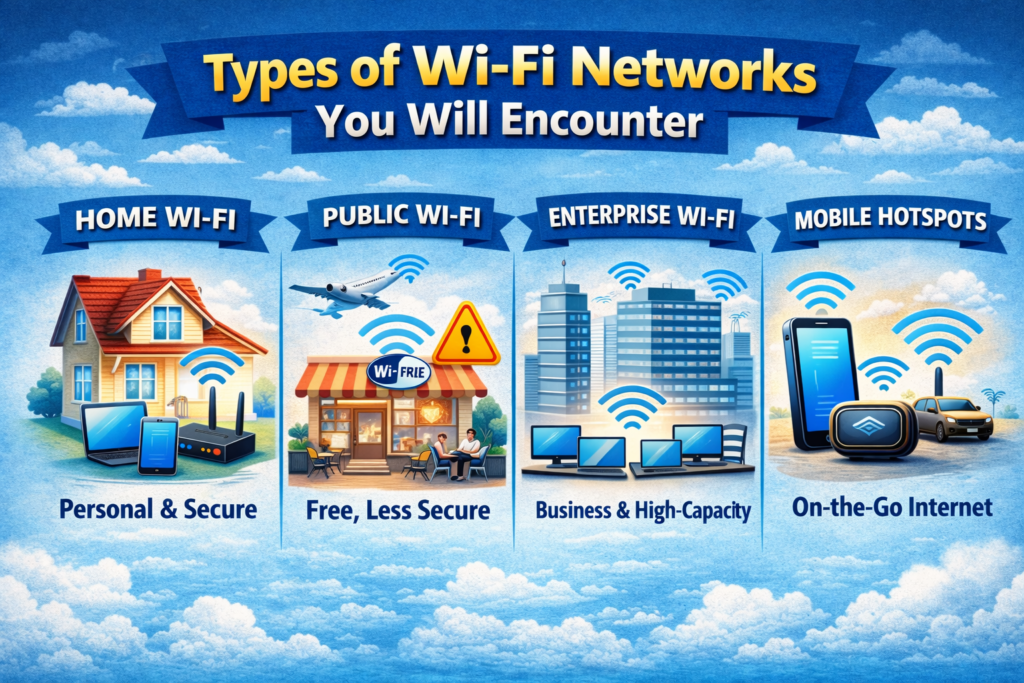
When you go to connect your device, you will typically see three types of networks listed on your screen.
Home Networks are private networks set up in your house. They are password protected and only people you share the password with can join. This is the most common network you will connect to daily.
Public Networks are open or semi-open networks available in cafes, airports, hotels, hospitals, and shopping malls. They are convenient but require extra caution because other people on the same network can potentially intercept your data.
Mobile Hotspots are networks created by another smartphone sharing its mobile data. Many people connect their device to a friend’s hotspot when they do not have their own internet connection available.
Knowing the type of network you are joining helps you make smarter decisions about what activities are safe to perform on each one.
What You Need Before You Connect Your Device
Before you attempt to connect your device to any wireless network, make sure you have these three things ready.
A Wi-Fi enabled device. Every modern smartphone, laptop, and tablet has Wi-Fi capability built in. Older desktop computers may need a Wi-Fi adapter, which plugs into a USB port and adds wireless capability instantly.
A working router broadcasting a network. Your router must be turned on and broadcasting a signal. The Wi-Fi indicator light on your router should be solid or blinking — check your router’s manual to confirm what the lights mean.
The correct Wi-Fi password. For home networks, the default password is usually printed on a sticker on the back or bottom of your router. It is usually labeled “WPA Key,” “Wi-Fi Password,” or “Network Key.” If someone changed it, you will need to ask them for the new one.
With these three things ready, you are fully prepared to connect your device in just a few steps.
How to Connect Your Device on Android Phone
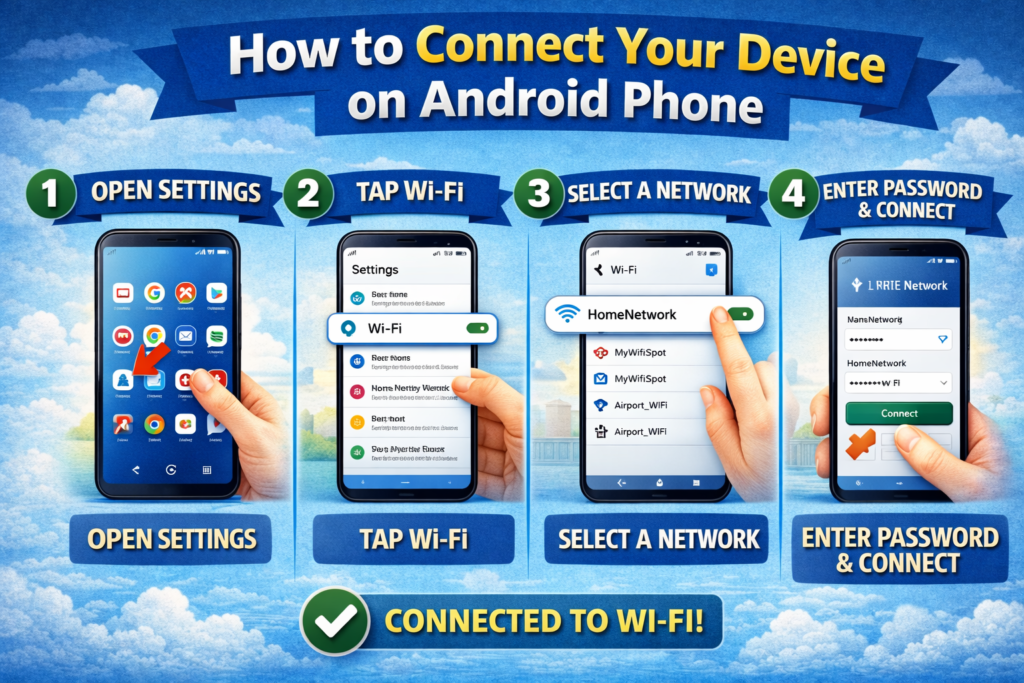
Connecting on Android is simple and takes less than one minute once you know the steps.
Step 1 — Unlock your Android phone and open the Settings app. It looks like a gear icon and is usually on your home screen or in your app drawer.
Step 2 — Tap on Wi-Fi or Network and Internet, depending on your Android version. On most phones, Wi-Fi appears near the top of the Settings menu.
Step 3 — Make sure the Wi-Fi toggle is switched ON. When it is on, your phone will automatically scan for available networks and display a list.
Step 4 — Find your network name in the list. Network names are also called SSIDs. Tap on the name of the network you want to join.
Step 5 — A password box will appear. Type the Wi-Fi password carefully — passwords are case sensitive, meaning capital letters and small letters are different. Then tap Connect.
Step 6 — Your phone will show “Connecting” for a few seconds, then display “Connected” below the network name. A Wi-Fi icon will also appear in the top bar of your screen.
You have successfully managed to connect your device. Your Android phone is now online.
How to Connect Your Device on iPhone or iPad
Apple devices follow a slightly different path but are equally straightforward.
Step 1 — Open the Settings app on your iPhone. It has a grey icon with silver gears.
Step 2 — Tap Wi-Fi near the top of the Settings screen.
Step 3 — Ensure the Wi-Fi switch at the top is turned ON (it should be green). Your iPhone will immediately begin scanning for nearby networks.
Step 4 — Under “Other Networks,” you will see a list of available Wi-Fi networks. Tap the name of the network you want to connect your device to.
Step 5 — Enter the password when prompted. Double check every character — a single wrong letter will prevent the connection. Tap Join when done.
Step 6 — A blue checkmark will appear next to the network name, and a Wi-Fi symbol will appear in the top right corner of your screen. Connection successful.
From this point forward, your iPhone will automatically connect your device to this network whenever it is within range — no need to enter the password again.
How to Connect Your Device on Windows Laptop
Connecting a Windows laptop is just as easy, whether you are using Windows 10 or Windows 11.
Step 1 — Look at the bottom right corner of your screen, on the taskbar. You will see a Wi-Fi icon — it looks like a small signal symbol. Click on it.
Step 2 — A panel will open showing available networks. If you do not see it, click the arrow next to the network icon to expand the list.
Step 3 — Click on the name of the Wi-Fi network you want to use. Then click Connect.
Step 4 — A password field will appear. Type the network password and press Enter or click Next.
Step 5 — Windows will ask if you want your PC to be discoverable on this network. For home networks, click Yes. For public networks, always click No to protect your privacy.
Step 6 — The word “Connected” will appear below the network name within a few seconds. The Wi-Fi icon in your taskbar will also fill in, showing signal strength.
Your laptop is now online. Every time you return to this location, Windows will automatically connect your device to the same network without asking for the password again.
How to Connect Your Device on a Smart TV
Smart TVs have made it much easier to connect wirelessly, and the process is similar across most brands including Samsung, LG, Sony, and Xiaomi.
Step 1 — Press the Home or Menu button on your TV remote to open the main menu.
Step 2 — Navigate to Settings, then look for Network or Wi-Fi Settings.
Step 3 — Select Wireless or Wi-Fi as your connection type.
Step 4 — Your TV will scan for available networks and display a list. Select your network name.
Step 5 — Use the on-screen keyboard to enter your Wi-Fi password. Take your time — entering passwords on a TV remote is slow but important to get right.
Step 6 — Press Connect or OK. The TV will confirm the connection and show a success message.
Once done, your Smart TV will connect your device automatically every time it powers on, giving you seamless access to Netflix, YouTube, and other streaming services without any wires.
How to Connect Your Device to a Mobile Hotspot
Sometimes you are away from home and need internet access. Connecting to a mobile hotspot is the perfect solution.
Step 1 — On the phone that will share its data, go to Settings → Hotspot and Tethering → Mobile Hotspot and turn it on. Set a name and password for the hotspot.
Step 2 — On your device that needs internet, follow the same Wi-Fi connection steps described above. The hotspot will appear in the list of available networks.
Step 3 — Tap on the hotspot name and enter the password set by the host phone.
Step 4 — Your device will connect your device to the hotspot within seconds and begin using the host phone’s mobile data for internet access.
Remember that using a hotspot consumes the data of the phone sharing it. Use it responsibly, especially on limited data plans.
Common Wi-Fi Problems and How to Fix Them
Even after you know how to connect your device, problems sometimes occur. Here are the most common issues and their solutions.
Wrong Password Error This is the most common problem. Check that Caps Lock is not accidentally on. Re-read the password from the router sticker very carefully. Some passwords contain the number zero and the letter O, or the number one and the letter l — easy to confuse. Delete what you typed and enter it again from scratch.
Connected But No Internet Your device shows it is connected to Wi-Fi but webpages will not load. First, restart your router by unplugging it, waiting 30 seconds, and plugging it back in. Then connect your device again. This fixes the problem 80 percent of the time.
Network Not Appearing in the List If you cannot see your Wi-Fi network, first check that your router is turned on. Move closer to the router. Restart the Wi-Fi on your device by turning it off and back on. If the network still does not appear, restart both your device and your router.
Keeps Disconnecting If your connection keeps dropping, your device may be too far from the router. Walls, microwaves, and other electronic devices can interfere with the signal. Move closer to the router or consider a Wi-Fi range extender to boost the signal throughout your home.
Forgot Wi-Fi Password If you need the password but cannot find the sticker, open a browser on any device already connected to the network. Go to your router’s settings page, usually at address 192.168.1.1 or 192.168.0.1. Log in and look for the Wi-Fi settings section where the password is displayed.
How to Stay Safe When You Connect Your Device to Public Wi-Fi
Public Wi-Fi networks in cafes, airports, and hotels are convenient but carry real security risks. When you connect your device to a public network, follow these important safety rules.
Never access your bank account or enter credit card details on public Wi-Fi. The network may not be secure and other users could potentially intercept this sensitive information.
Always look for the padlock symbol in your browser’s address bar when visiting websites. This confirms the connection is encrypted and much safer.
Avoid clicking on unknown links or downloading files while on public networks. These are common methods used to install harmful software on connected devices.
Consider using a VPN — a Virtual Private Network — when you connect your device to public Wi-Fi. A VPN encrypts all your internet traffic, making it much harder for anyone to intercept your data.
Turn off the “Auto-Connect” or “Connect Automatically” option for public networks. You do not want your phone secretly joining unknown networks without your knowledge.
Wi-Fi Frequency Bands Explained Simply
Modern routers broadcast on two different frequency bands and you will often see both when you go to connect your device.
2.4 GHz is the older, slower band. It travels farther and passes through walls more easily, making it better for devices that are far from the router. However, it is also more crowded because most home electronics — microwaves, baby monitors, older routers — use this same frequency, which causes interference and slower speeds.
5 GHz is the newer, faster band. It delivers significantly faster speeds but does not travel as far and struggles more with walls and obstacles. Use this band when you connect your device if you are sitting close to your router and want the best possible speed for streaming or video calls.
Many modern routers also offer 6 GHz through the Wi-Fi 6E standard, which is even faster and less congested. If your router and device both support it, always choose the highest frequency band available when you connect.
Frequently Asked Questions
What is the difference between Wi-Fi and the internet? Wi-Fi is the wireless technology that connects your device to your router. The internet is the global network of information that your router connects to. You need both to browse the web, but they are not the same thing. You can have Wi-Fi without internet if your router is not connected to a service provider.
Why does my Wi-Fi work on some devices but not others? Each device has its own Wi-Fi settings and saved passwords. A device that has never connected before will need the password entered manually. Older devices may not support newer Wi-Fi standards — check your device specifications if this keeps happening.
How many devices can connect to one Wi-Fi router at once? Most home routers support between 20 and 50 simultaneous connections. However, the more devices connected and actively using the internet at the same time, the slower the speed will be for everyone.
Is it safe to leave Wi-Fi always on? Yes, it is generally safe. However, turning off Wi-Fi on your phone when you are not using it saves battery life. Also, keeping Wi-Fi on in unfamiliar places may cause your device to automatically connect your device to unknown networks, which is a security risk.
How do I change my Wi-Fi password? Open a browser on any connected device and type 192.168.1.1 or 192.168.0.1 in the address bar. Log in to your router settings using the admin username and password printed on the router. Find the Wi-Fi settings section and update your password there.
Conclusion — Now You Know Exactly How to Connect Your Device
Wi-Fi has made the internet truly wireless and truly accessible. Understanding what it is and knowing exactly how to connect your device — whether you are using an Android phone, an iPhone, a Windows laptop, or a Smart TV — gives you the confidence to stay connected in every situation.
We covered everything in this guide: what Wi-Fi is, how it works, how to connect on every major device, how to fix common problems, how to stay safe on public networks, and how to choose the right frequency band for the best speed.
There is nothing complicated about Wi-Fi once it is explained clearly. The next time someone asks you how to connect your device to a wireless network, you will not just know how to do it — you will be able to teach someone else as well.
Stay connected, stay safe, and keep learning.