vikram@gmail.com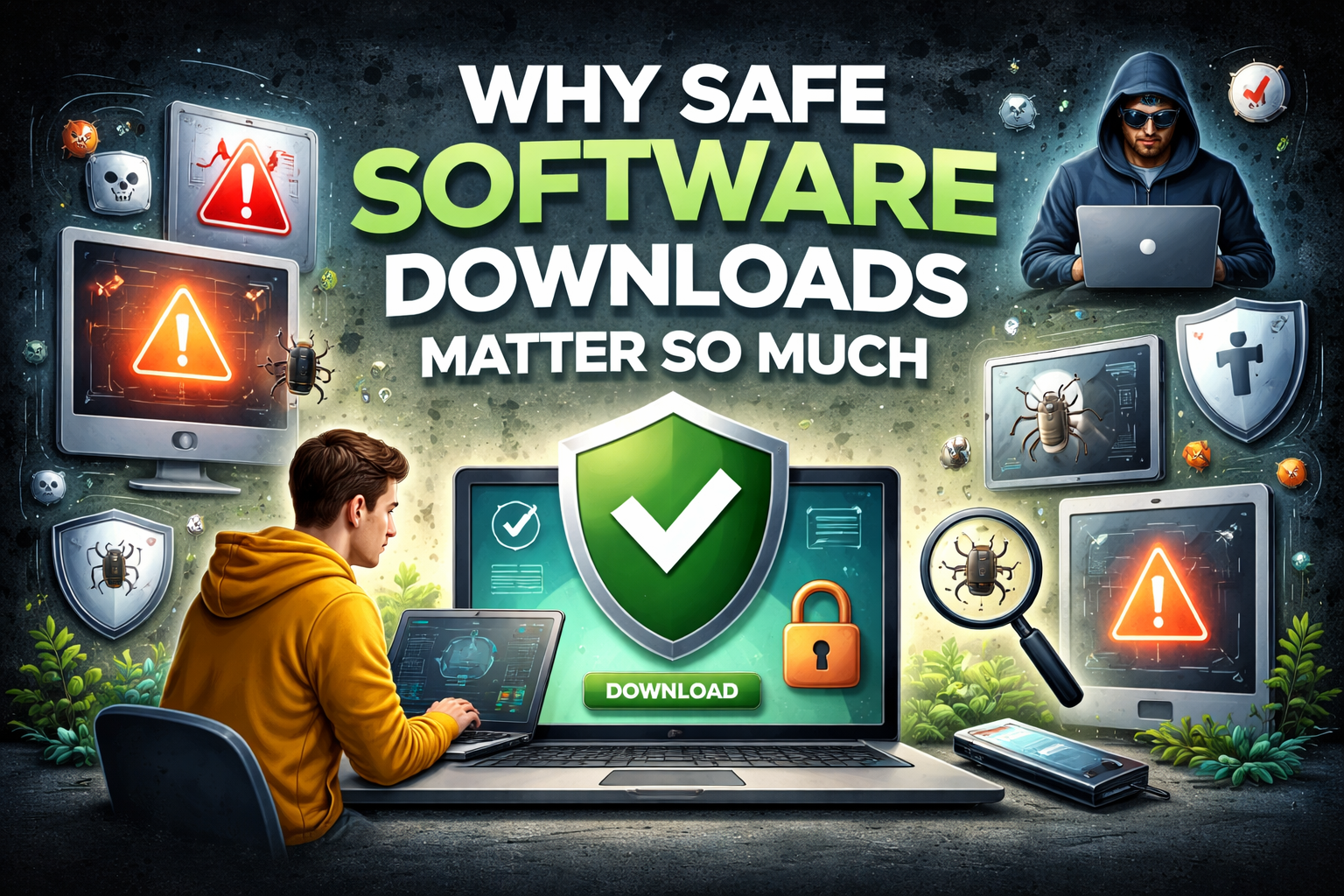
INTERODUCTION:-
Every day, millions of people download software from the internet. Some of them get exactly what they were looking for — a useful program that works perfectly and causes zero problems. Others end up with something far more dangerous than they bargained for — malware, viruses, spyware, or ransomware hidden inside a file that looked completely legitimate.
The difference between these two outcomes is not luck. It is knowledge.
If you are new to downloading programs or you have never really thought about the risks involved, this guide is for you. Learning how to download and install software safely is one of the most important digital skills you can have in today’s world. It protects your device, your personal data, your passwords, and your financial information from threats that are very real and very common.
This complete beginner’s guide covers everything — from where to download, what to avoid, how to verify files, and how to install programs without putting your computer at risk.
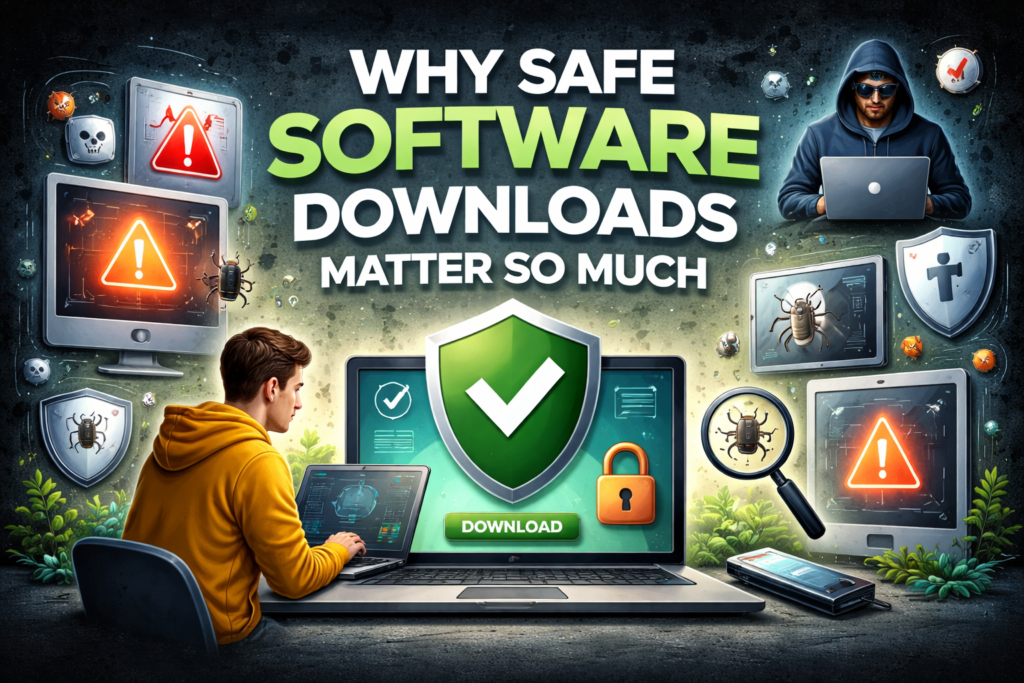
Why Safe Software Downloads Matter So Much
Before jumping into the tips, it helps to understand exactly what is at stake.
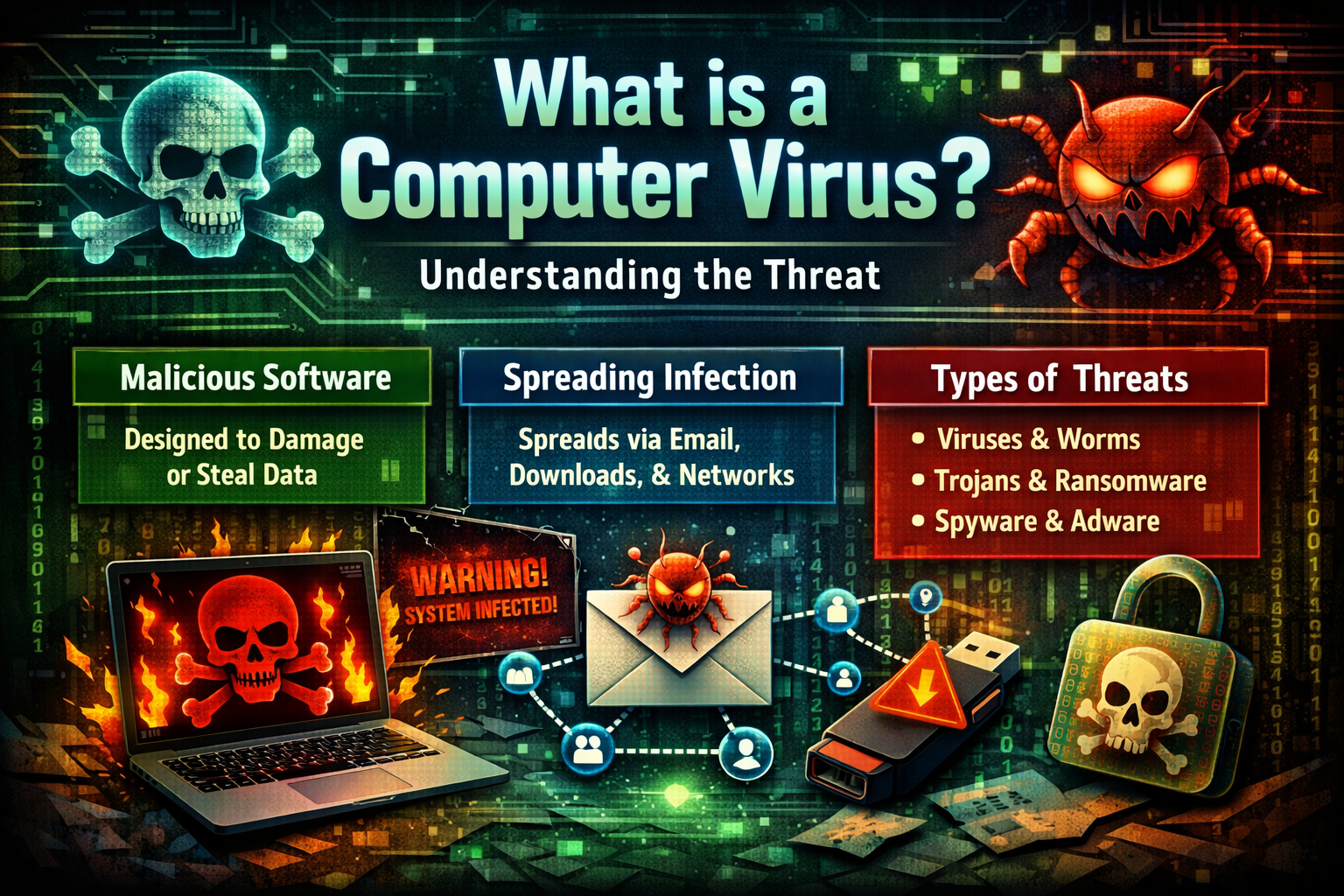
When you download software from an untrusted source, you are not just risking a slow or buggy program. You are potentially opening the door to:
- Trojans — malicious programs disguised as legitimate software
- Spyware — software that secretly monitors your activity and sends data to criminals
- Adware — programs that flood your screen with aggressive, unwanted advertisements
- Ransomware — software that locks your files and demands payment to restore access
- Keyloggers — programs that record every keystroke you make, including passwords and banking details
- Cryptominers — hidden programs that use your computer’s power to mine cryptocurrency for someone else
None of these announce themselves. They install quietly, run in the background, and do their damage over days, weeks, or even months before you notice anything wrong.
This is why understanding how to download and install software safely is not just good advice — it is essential protection for anyone who uses a computer.
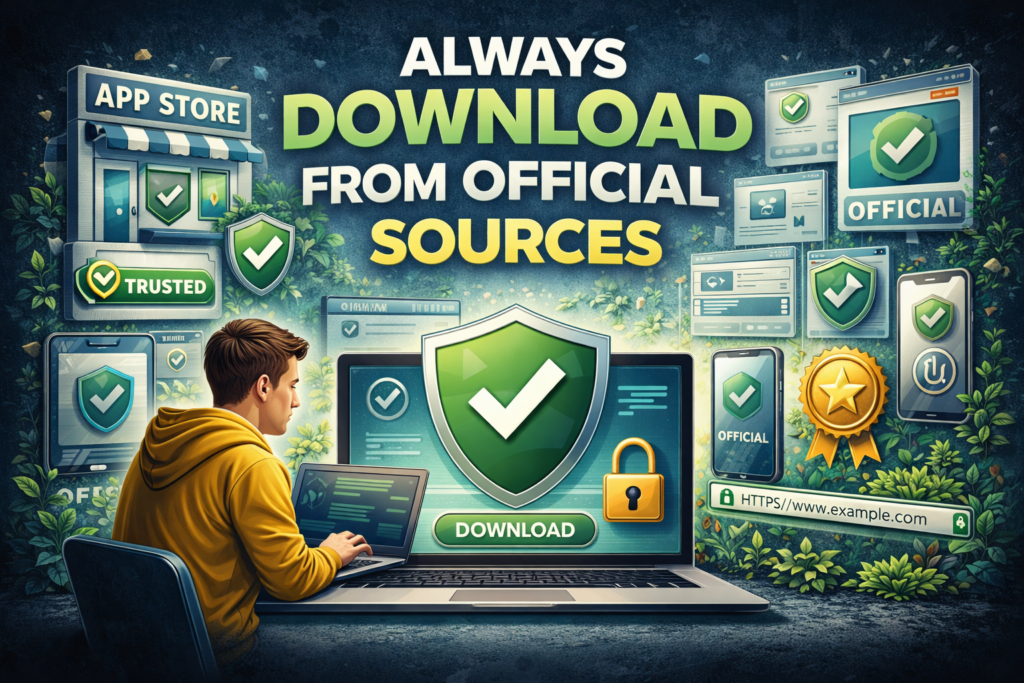
Tip 1 – Always Download From Official Sources
This is the single most important rule of how to download and install software safely and it is non-negotiable.
The official source for any software is either the developer’s own website or a trusted, well-known platform. These are the only two places you should ever download programs from.
Official developer websites: Every legitimate software developer has an official website. Google the name of the software you want and look for the result that goes to the actual company’s domain. For example, if you want VLC Media Player, the official site is videolan.org. If you want Notepad++, it is notepad-plus-plus.org.
Trusted download platforms: Some reliable third-party platforms carefully vet the software they host:
- Microsoft Store — for Windows apps
- Apple App Store — for Mac apps
- Google Play Store — for Android apps
- GitHub — for open source software from verified developers
Avoid downloading from random websites that appear in ads, pop-ups, or that you have never heard of before. Many of these sites bundle legitimate software with hidden malware or replace the installer entirely with a malicious version.
Tip 2 – Never Trust Random Download Buttons
Here is something that catches beginners off guard constantly.
On many websites — especially free software download sites — there are multiple download buttons on the same page. Some of them are real. Many of them are fake advertisements designed to trick you into downloading something completely different from what you came for.
These fake buttons are often larger and more colorful than the real one. They say things like “Download Now,” “Free Download,” or “Start Download.” They look completely official. They are not.
When learning how to download and install software safely, train yourself to do this every time you are on a download page:
- Slow down and look at the entire page carefully before clicking anything
- Hover your mouse over each button and check the URL shown at the bottom of your browser — does it match the official website?
- Look for the smallest, least flashy button on the page — that is often the real download link
- Use an ad blocker like uBlock Origin to hide most of these fake buttons automatically
Taking ten extra seconds to identify the correct download button can save you hours of trying to remove unwanted software later.
Tip 3 – Check the File Before You Open It
You clicked the right button and the file downloaded. Before you open it — stop. Check it first.
Here is what to look at:
File name: Does it match what you expected? If you downloaded a photo editor and the file is called “PhotoEditor_setup.exe” — that looks right. If it is called “PhotoEditor_FREE_CRACK_v2.exe” or has a random string of characters — that is a red flag.
File extension: Software installers for Windows typically end in .exe or .msi. For Mac they end in .dmg or .pkg. If you downloaded what you thought was an image or document but it has an .exe extension — do not open it.
File size: If you know the software is normally around 50MB but the file you downloaded is only 2MB or is mysteriously 500MB — something is wrong. Check the official website to see what the expected file size should be.
Virus scan: Before opening any downloaded file, right-click it and scan it with your antivirus software. You can also upload it to VirusTotal.com — a free online tool that scans files against over 70 antivirus engines simultaneously. This is one of the smartest habits in how to download and install software safely.
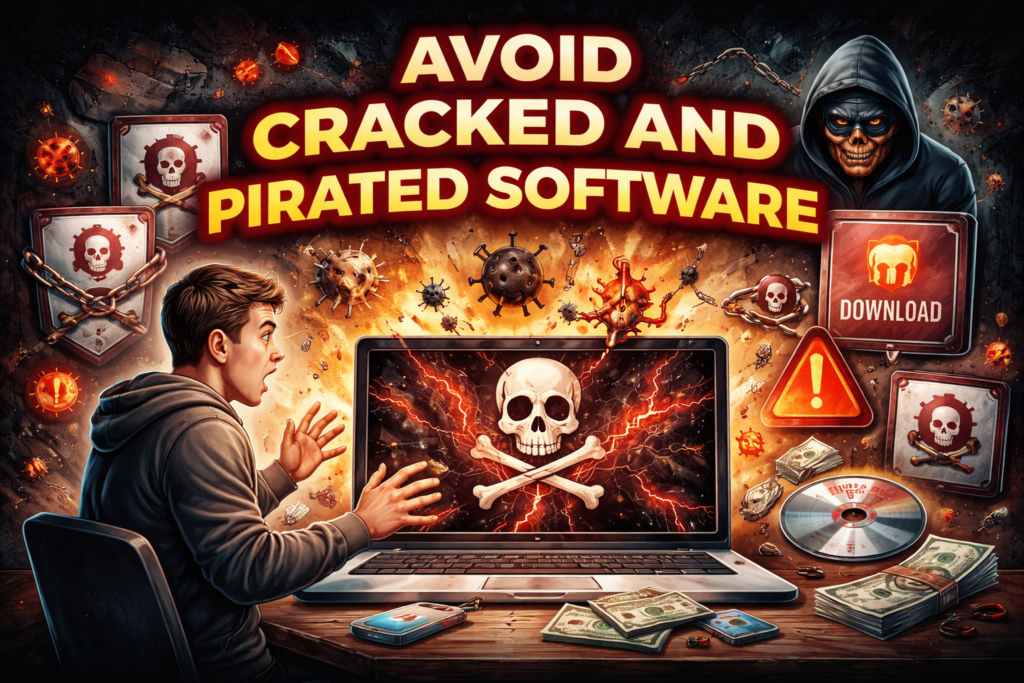
Tip 4 – Avoid Cracked and Pirated Software
This tip needs to be stated clearly and honestly.
Pirated software — cracked programs, keygens, serial number generators, and “full version free download” files — is one of the most common delivery methods for malware in the world. It is not a small risk. It is an enormous one.
Here is why: the people who crack and distribute paid software illegally are often the same people who bundle it with malware. They have access to your device the moment you run their file. And because you are already doing something you know is not quite right, you are less likely to question what the installer is doing.
The damage from a single infected pirated software download can include stolen banking passwords, locked files held for ransom, and complete loss of personal data. No free version of any software is worth that risk.
This is one of the most critical points in any guide on how to download and install software safely — stay away from pirated software completely. If you cannot afford a paid program, look for a legitimate free alternative. For almost every paid program out there, a safe free option exists.
Tip 5 – Read the Installation Steps Carefully
Most people click “Next, Next, Next, Finish” when installing software without reading a single word. This habit is exactly how unwanted programs end up on your computer.
Many software installers — even legitimate ones — include optional extras bundled in. These might be browser toolbars, alternative search engines set as your default, additional programs from partner companies, or changes to your homepage. They are almost always pre-checked, meaning they install automatically unless you specifically uncheck them.
Here is how to install software properly as part of how to download and install software safely:
- Read every screen during installation — do not just click next
- Choose “Custom” or “Advanced” installation when given the option — this shows you everything that will be installed
- Uncheck any boxes for additional software, toolbars, or browser changes you did not ask for
- Read the license agreement — at minimum, skim it for anything that mentions data collection or third-party software
- Pay attention to what the installer is asking permission to do — if it asks for unusual access, that is a warning sign
Taking two extra minutes to read the installation process carefully is a simple but powerful habit in how to download and install software safely.
Tip 6 – Keep a Trusted Antivirus Program Running
A good antivirus program is your last line of defense when everything else fails.
Even if you follow every tip in this guide perfectly, there will be moments when something slips through. A website you trusted turns out to be compromised. A file looked clean but was not. An update came from a source that was hijacked. These things happen even to experienced users.
A reliable, actively running antivirus program catches these threats in real time — before they can do damage. For most beginners, these free options provide strong protection:
- Windows Defender — already built into Windows 10 and 11, and genuinely effective
- Malwarebytes Free — excellent for scanning and removing existing threats
- Avast Free Antivirus — strong real-time protection with a clean interface
- Bitdefender Free Edition — lightweight and highly rated
As part of your approach to how to download and install software safely, make sure your antivirus is always active, always updated, and set to scan new downloads automatically.
Tip 7 – Use a Standard User Account, Not an Administrator Account
This is a technical tip that most beginners have never heard of — and it is surprisingly effective.
On Windows and Mac computers, there are two types of accounts: administrator accounts and standard user accounts. Administrator accounts have full permission to install software, change system settings, and modify core files. Standard accounts have limited permissions and require administrator approval for major changes.
When you use a standard account for everyday tasks, malware that manages to run on your computer has significantly less power to do damage. It cannot install itself deeply into your system without triggering a permission request, which gives you a chance to stop it.
For anyone learning how to download and install software safely, the recommendation is:
- Create a separate standard user account for daily use
- Keep your administrator account for installing trusted software only
- Switch to the admin account only when you need to install something you have already verified
This one change reduces the potential damage of any malware that does get through.
Tip 8 – Verify Software With Digital Signatures and Checksums
This tip is slightly more advanced but worth knowing as you become more comfortable with how to download and install software safely.
Legitimate software developers often provide a checksum — a unique string of characters that acts as a fingerprint for their file. If you download the file and generate its checksum using a free tool, it should match the one published on the developer’s website exactly. If even one character is different, the file has been tampered with.
On Windows, you can check a file’s checksum by opening PowerShell and typing:
Compare the result to the SHA256 hash listed on the official download page. If they match — the file is authentic. If they do not — delete the file immediately.
Many official software pages also show a digital signature embedded in the installer. Right-click the downloaded file, go to Properties, and check the Digital Signatures tab. A valid signature from the actual developer is a strong indicator of a safe file.
Tip 9 – Keep All Installed Software Updated
Downloading and installing software safely does not end once the program is on your computer. Keeping it updated is equally important.
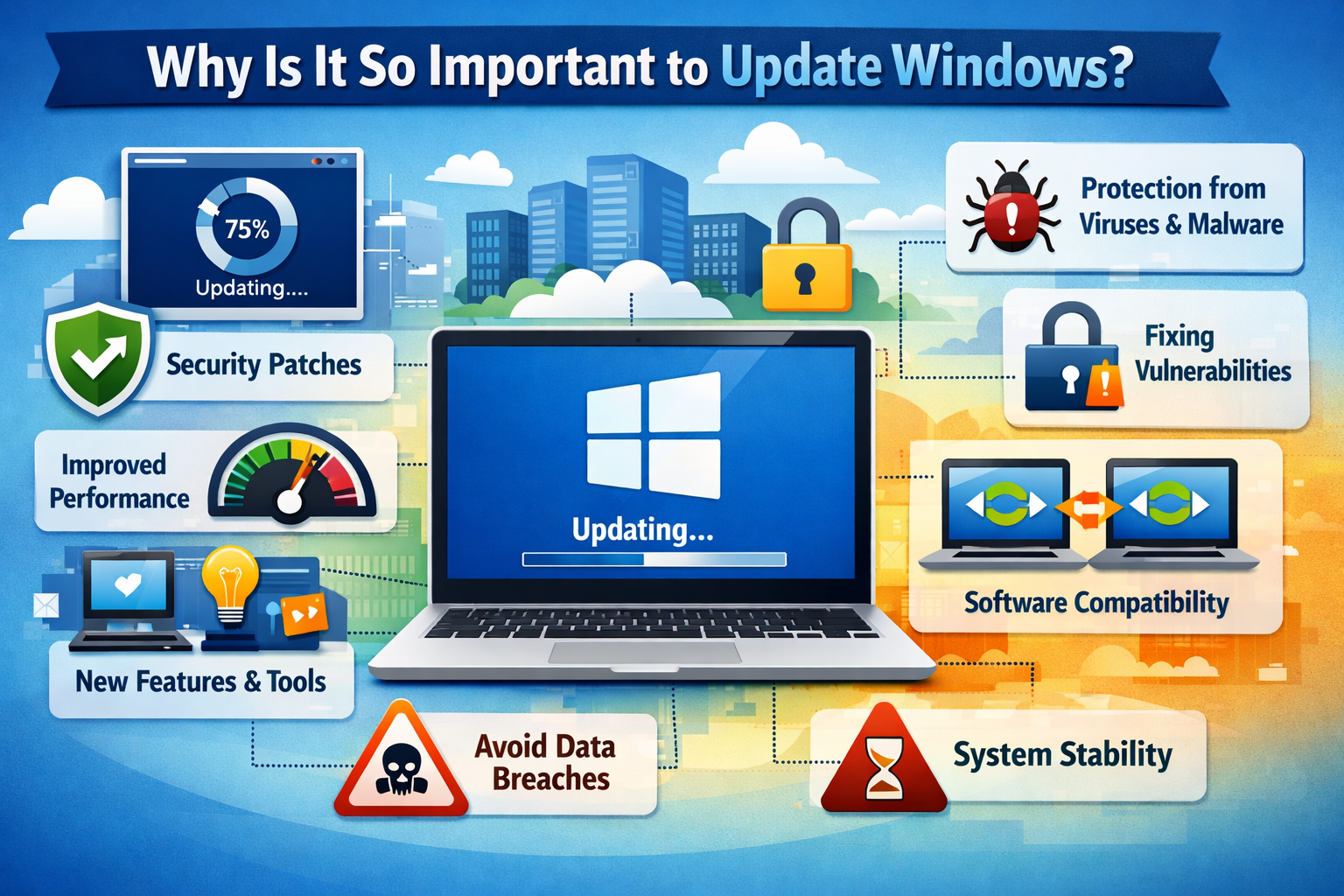
Software updates frequently include security patches that fix vulnerabilities discovered after the original release. Outdated software — even software you downloaded from a completely legitimate source — becomes a security risk over time as those vulnerabilities are discovered and exploited by attackers.
Make it a habit to:
- Enable automatic updates for all software whenever possible
- Regularly check for updates in programs that do not update automatically
- Uninstall software you no longer use — old unused programs are a security risk with zero benefit
- Pay special attention to keeping your browser, PDF reader, and media players updated — these are frequent targets
Staying current with updates is a core part of how to download and install software safely that extends the safety of every download you ever make.
Tip 10 – Back Up Your System Before Installing New Software
Even when you do everything right, installing new software can sometimes cause unexpected problems. A program might conflict with something already on your system, cause crashes, or make changes that are difficult to reverse.
Creating a backup or restore point before installing new software gives you a safety net.
On Windows:
- Search for “Create a restore point” in the Start menu
- Click “Create” to make a snapshot of your current system state
- If the new software causes problems, you can roll back to this point
On Mac:
- Use Time Machine with an external drive for full system backups
- Or use the built-in backup features in iCloud
This step takes less than two minutes and can save you hours of troubleshooting. It is the final layer of protection in a complete approach to how to download and install software safely.
Red Flags to Watch For — Quick Reference
Here is a quick list of warning signs that should make you stop and reconsider before downloading anything:
- The website appeared in a pop-up or advertisement
- The URL looks slightly wrong or unfamiliar
- Multiple confusing download buttons on the same page
- The file name includes words like “crack,” “keygen,” “patch,” or “free full version”
- The file size is much smaller or larger than expected
- Your browser or antivirus warns you about the file
- The installer asks for unusual permissions
- The website has no contact information, privacy policy, or about page
- Reviews of the software cannot be found anywhere reliable
Any one of these signs is reason enough to stop, research further, and find a more trustworthy source before proceeding. Staying alert to these signals is a key part of how to download and install software safely.
Safe Alternatives to Paid Software
One of the most common reasons people download from unsafe sources is because they cannot afford or do not want to pay for premium software. Here are trusted free alternatives to common paid programs:
| Paid Software | Safe Free Alternative |
|---|---|
| Microsoft Office | LibreOffice, Google Docs |
| Adobe Photoshop | GIMP, Canva |
| Adobe Acrobat | Foxit PDF Reader, Smallpdf |
| WinRAR | 7-Zip |
| Antivirus paid | Windows Defender, Malwarebytes Free |
| Video editing | DaVinci Resolve, Shotcut |
| Note taking | Notion Free, Obsidian |
There is almost always a legitimate, free, safe alternative to any software you want. Finding and using these alternatives is far smarter than risking your computer’s security for a cracked version of a paid program.
Final Thoughts
Downloading and installing software is something most computer users do regularly. It is a normal, necessary part of using a computer in the modern world. But it carries real risks that catch unprepared users off guard every single day.
The good news is that protecting yourself does not require advanced technical knowledge. It requires awareness, a few smart habits, and the discipline to slow down and verify before you click.
To summarize everything covered in this guide on how to download and install software safely:
- Only download from official websites and trusted platforms
- Identify and avoid fake download buttons
- Check file names, extensions, sizes, and scan with antivirus before opening
- Never download cracked or pirated software
- Read every step of the installation process carefully
- Keep antivirus software active and updated
- Use a standard user account for daily tasks
- Verify files with checksums when available
- Keep all installed software updated
- Create a restore point before installing new programs
Follow these steps every time and you will dramatically reduce your risk of ever encountering malware through a software download. Your computer, your data, and your peace of mind are worth the extra two minutes it takes to do this properly.
Stay safe, stay smart, and always verify before you click.
If you are new to using a computer, you should also read our complete guide on basic computer skills to understand the fundamentals better.
For more information, you can visit Google’s official website for detailed guidance.