vikram@gmail.com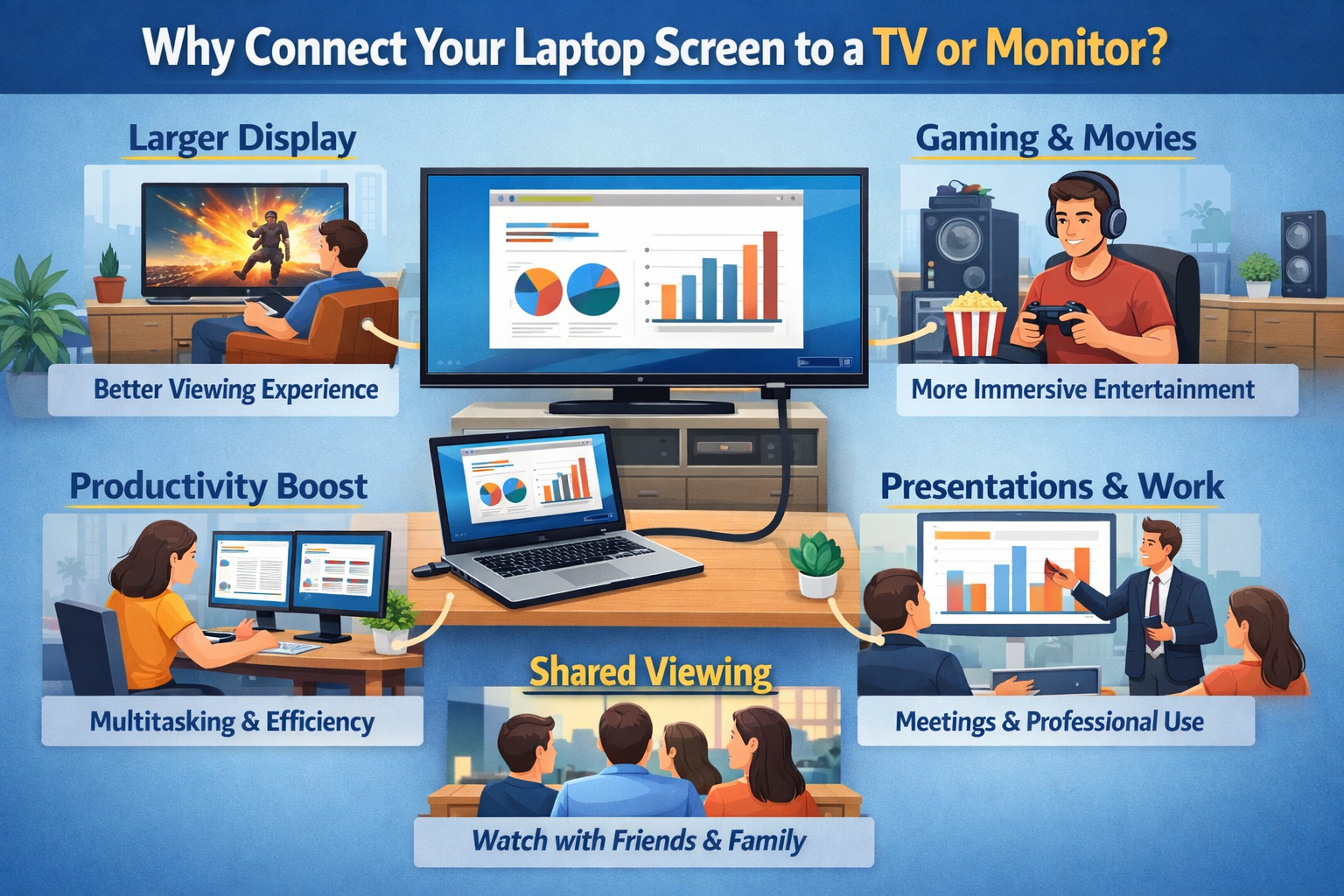
Are you struggling to display your laptop on a bigger screen? Whether you want to enjoy movies on a large TV, give a professional presentation, or boost your productivity with a dual-screen setup, learning how to connect your laptop screen to a TV or monitor is one of the most valuable tech skills you can have. In this detailed guide, we will walk you through every method, every cable, and every setting — so you never feel confused again.
Thousands of users search every day for how to connect your laptop screen to a TV or monitor, and yet most guides are either too technical or too vague. This article gives you the clearest, most practical explanation possible.
Why Connect Your Laptop Screen to a TV or Monitor?
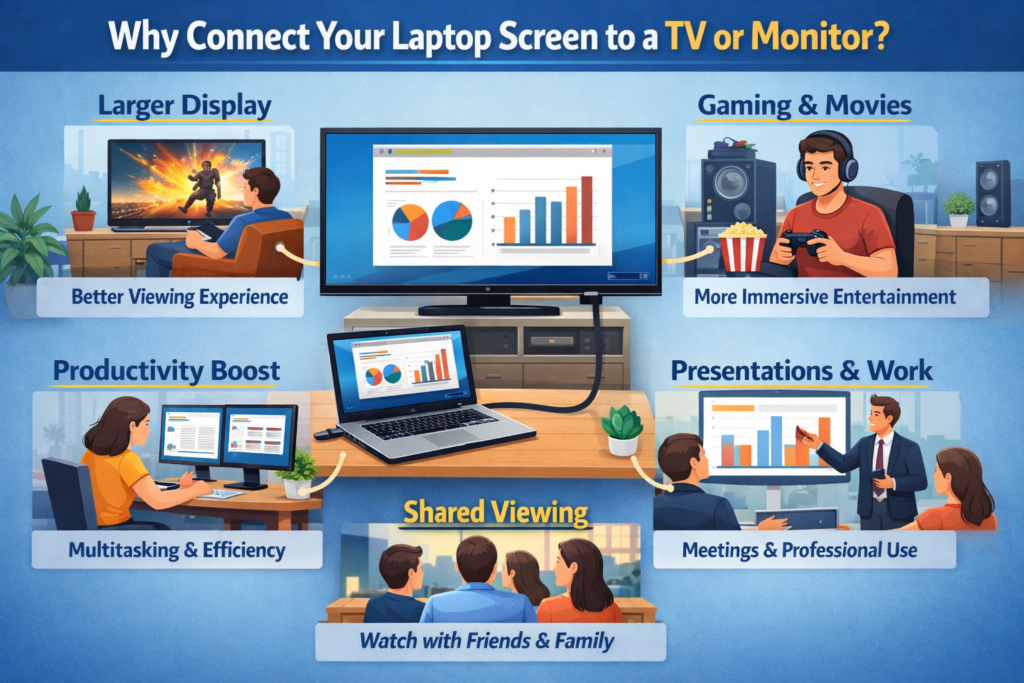
Before we dive into the technical side of how to connect your laptop screen to a TV or monitor, let’s understand why so many people want to do this:
- Larger Display: A bigger screen means less eye strain and more comfortable viewing.
- Better Productivity: Dual monitors allow you to multitask efficiently — work on one screen, reference on another.
- Home Entertainment: Stream Netflix, YouTube, or gaming directly on your TV.
- Professional Presentations: Show slides, demos, or reports to a room full of people.
- Gaming Experience: Enjoy games on a high-refresh-rate monitor for smoother gameplay.
What You Need Before You Start
To successfully connect your laptop screen to a TV or monitor, you need to check a few things first:
- Your laptop’s output port (HDMI, DisplayPort, USB-C, VGA, Thunderbolt)
- Your TV or monitor’s input port (HDMI, VGA, DisplayPort, DVI)
- The correct cable or adapter
- Updated display drivers on your laptop
- A working TV or external monitor
Tip: Always check both devices before buying a cable. Buying the wrong adapter is a very common mistake.
Method 1: Using an HDMI Cable (Most Popular)
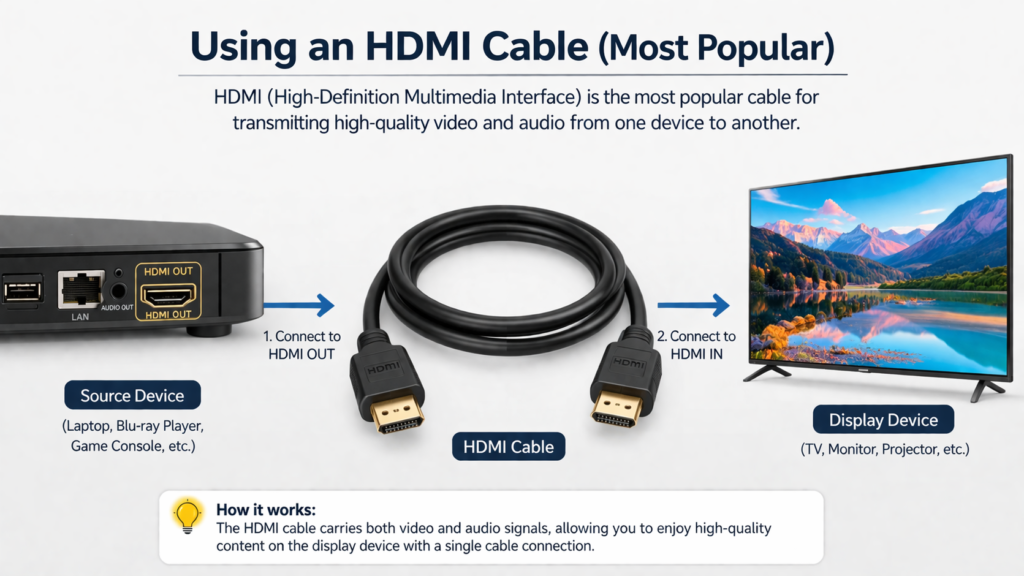
The easiest and most reliable way to connect your laptop screen to a TV or monitor is by using an HDMI cable. HDMI (High-Definition Multimedia Interface) carries both audio and video in a single cable, making it the go-to choice for most users.
Steps to Connect via HDMI:
- Step 1: Locate the HDMI port on your laptop (usually on the side).
- Step 2: Plug one end of the HDMI cable into your laptop.
- Step 3: Plug the other end into the HDMI port on your TV or monitor.
- Step 4: On your TV, use the remote to switch input to the correct HDMI port (e.g., HDMI 1).
- Step 5: On Windows, press Windows + P to choose your display mode. On Mac, go to System Settings > Displays.
HDMI supports resolutions up to 4K and is available on most modern laptops and TVs. This is the fastest, most straightforward method to connect your laptop screen to a TV or monitor without any technical hassle.
Method 2: Using USB-C or Thunderbolt
Modern laptops — especially MacBooks, Dell XPS, and HP Spectre models — often have only USB-C or Thunderbolt ports. You can still connect your laptop screen to a TV or monitor using a USB-C to HDMI adapter or a USB-C hub.
- Buy a USB-C to HDMI cable or adapter.
- Plug the USB-C end into your laptop.
- Connect the HDMI end to your TV or monitor.
- Select the correct input on your TV or monitor.
- Configure display settings on your laptop as needed.
Not every USB-C port supports video output. Make sure your laptop’s USB-C port supports DisplayPort Alt Mode or Thunderbolt before purchasing an adapter.
Method 3: Using VGA Cable (Older Laptops and Monitors)
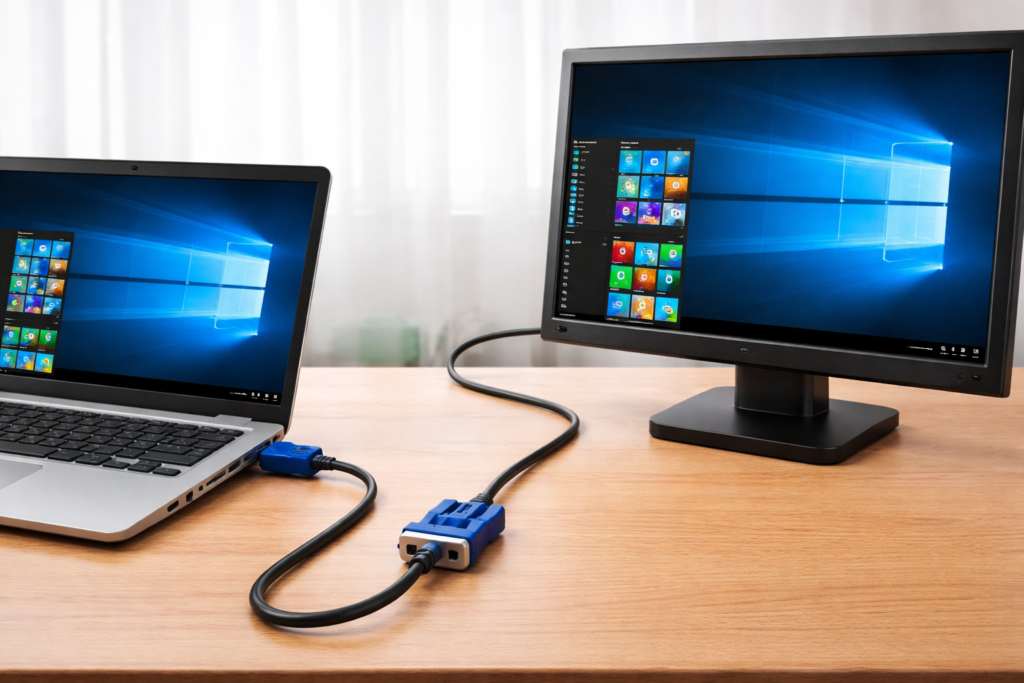
If you own an older laptop or monitor, a VGA connection might be your only option. VGA only carries video (no audio), so you’ll need a separate audio cable if sound is needed. Even though VGA is outdated, it still works perfectly fine to connect your laptop screen to a TV or monitor for basic tasks like presentations or document viewing.
Method 4: Wireless Connection Using Miracast or AirPlay
Who says you need a cable? You can wirelessly connect your laptop screen to a TV or monitor using built-in wireless technologies:
- Miracast (Windows): Press Windows + K to open the Cast menu, then select your TV or wireless display.
- AirPlay (Mac): Click the AirPlay icon in the menu bar and select your Apple TV or AirPlay-compatible TV.
- Chromecast: Use Google Chrome browser and click the Cast icon to mirror or extend your display.
- Smart TV Apps: Some Smart TVs support direct screen mirroring via their built-in apps.
Wireless methods are convenient but can experience slight lag. For gaming or video editing, a wired connection is always better.
How to Configure Display Settings After You Connect
Once you connect your laptop screen to a TV or monitor, Windows and Mac both give you multiple display modes to choose from:
On Windows:
- PC screen only – Only your laptop screen is active.
- Duplicate – Both screens show the same content (best for presentations).
- Extend – Two separate screens for multitasking.
- Second screen only – Only the TV or monitor is active, laptop screen off.
On Mac:
Go to Apple Menu > System Settings > Displays. You can choose Mirror Displays to duplicate, or use the Arrangement tab to set up extended displays by dragging the screen icons.
Troubleshooting: Common Problems When You Connect Your Laptop Screen
Sometimes things don’t go as planned when you try to connect your laptop screen to a TV or monitor. Here are the most common problems and quick fixes:
- No Signal on TV: Check that you selected the correct input channel on your TV. Try replugging the cable.
- Wrong Resolution: Go to Display Settings and manually set the resolution to match your TV (e.g., 1920×1080).
- Audio Not Working: Set your TV or monitor as the default audio output device in Sound Settings.
- Screen Flickering: Replace the cable — a damaged or low-quality HDMI cable is the most common cause.
- Laptop Not Detecting Monitor: Update your graphics drivers from Device Manager (Windows) or Software Update (Mac).
- Black Bars on Screen: Change the Aspect Ratio setting on your TV to ‘Full’ or ‘Just Scan’.
Best Cables and Adapters to Connect Your Laptop Screen to a TV or Monitor
Not all cables are created equal. When you want to connect your laptop screen to a TV or monitor at the highest quality, choosing the right cable matters a lot. Here are our top recommendations:
- Anker HDMI Cable (4K, 6 ft) – Reliable, affordable, supports 4K@60Hz.
- Cable Matters USB-C to HDMI Adapter – Perfect for MacBooks and modern ultrabooks.
- Belkin USB-C Hub – Adds HDMI, USB-A, and SD card slots in one device.
- UGREEN VGA to HDMI Adapter – Converts your old VGA laptop output to HDMI.
- Amazon Basics DisplayPort to HDMI Cable – Great for gaming monitors.
How to Connect Your Laptop Screen to a TV for Gaming
Gamers have special needs. When you want to connect your laptop screen to a TV or monitor for gaming, you need low input lag and high refresh rate support. Always use a high-speed HDMI 2.0 or 2.1 cable, enable Game Mode on your TV, and set your laptop’s refresh rate to match the monitor (60Hz, 120Hz, or 144Hz). Avoid wireless connections for gaming as they add latency that can ruin your gaming experience.
How to Connect Your Laptop Screen to a TV Without HDMI
If your laptop doesn’t have an HDMI port and your TV only has HDMI, don’t panic. You have several options. A VGA to HDMI converter will do the job for older laptops. Alternatively, a USB to HDMI adapter works on most modern laptops. Wireless casting via Miracast or Chromecast is another way to connect your laptop screen to a TV or monitor without any physical cable at all.
Pro Tips to Get the Best Display Quality
- Always use the highest resolution your TV or monitor supports.
- Set the refresh rate to at least 60Hz for smooth video and browsing.
- Calibrate brightness and contrast on your monitor for accurate colors.
- Use DisplayPort instead of HDMI if your monitor supports it — it often carries higher bandwidth.
- Keep your graphics drivers updated — outdated drivers cause most display problems.
- For presentations, always test your connection before the meeting starts.
How to Connect Your Laptop Screen: Conclusion
Now you know exactly how to connect your laptop screen to a TV or monitor using every available method — from HDMI and USB-C to wireless Miracast and AirPlay. No matter what laptop you have, what TV or monitor you own, or what your budget is, there is always a solution that works for you.
The most important thing is to check your ports first, choose the right cable or adapter, and configure your display settings properly. Once you understand how to connect your laptop screen to a TV or monitor, you will wonder how you ever managed with just one small laptop screen.
If this guide helped you, share it with a friend who is also struggling to connect their laptop screen to a TV or monitor. Bookmark this page — it covers everything you will ever need on this topic! Article