vikram@gmail.com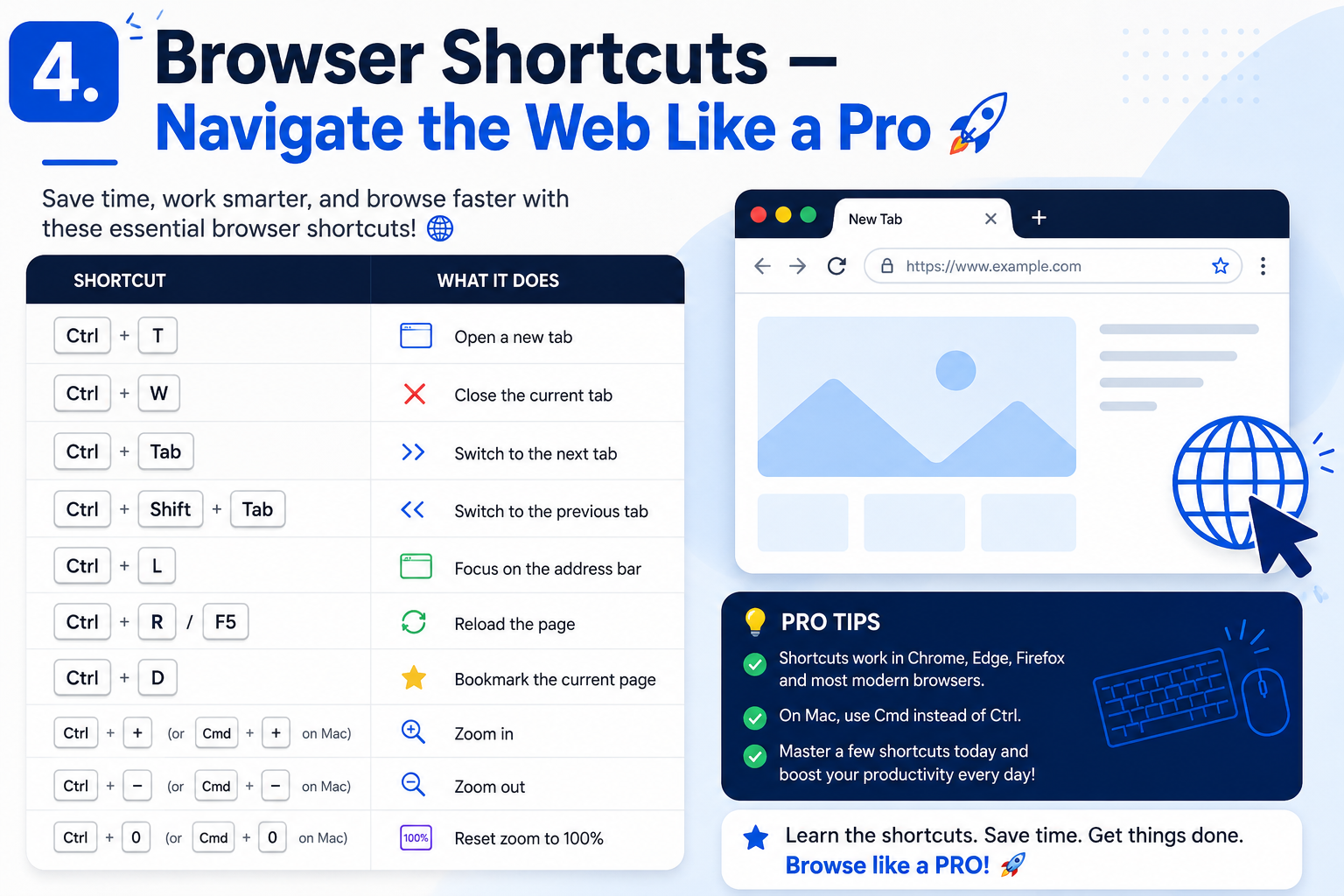
INTERODUCTION:-
If you spend several hours a day on your computer, you already know how much time gets wasted moving the mouse back and forth, clicking through menus, and navigating options one by one. The truth is, learning Computer Keyboard Shortcuts Everyone Should Know is one of the single best investments you can make in your digital productivity. Whether you are a student typing assignments, a professional managing spreadsheets, a designer working in creative software, or simply someone who browses the internet every day — keyboard shortcuts can transform the way you work.
Studies suggest that power users who rely on Computer Keyboard Shortcuts Everyone Should Know save an average of eight or more hours every year compared to those who rely entirely on the mouse. That might not sound like a lot at first, but those saved minutes add up fast across a full work week. In this comprehensive guide, we will walk you through every essential shortcut category — from basic Windows commands to browser navigation, file management, Microsoft Excel, Mac-specific keys, and advanced system controls. By the end, you will have a complete reference sheet that covers all the Computer Keyboard Shortcuts Everyone Should Know to work smarter, not harder.
1. Basic Windows Shortcuts — The Foundation
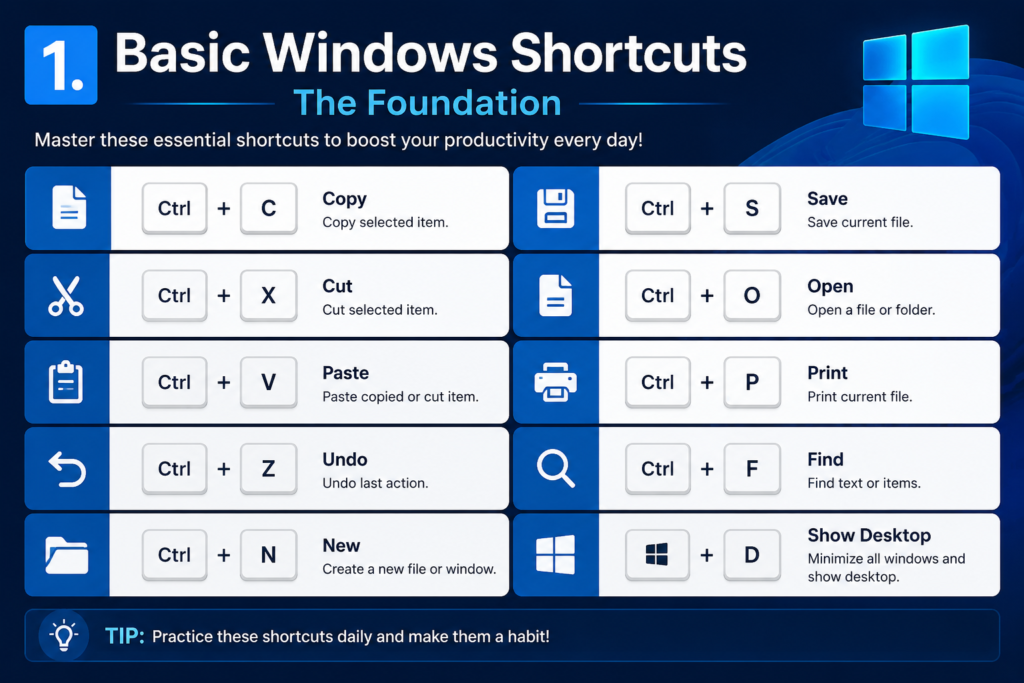
When people talk about Computer Keyboard Shortcuts Everyone Should Know, they almost always start here — with the fundamental Windows shortcuts that work across virtually every application. These are the building blocks, and mastering them first will make learning all the others significantly easier.
| Shortcut Key | Function |
| Ctrl + C | Copy selected text, file, or object |
| Ctrl + V | Paste the copied or cut content |
| Ctrl + X | Cut selected content (copy and delete) |
| Ctrl + Z | Undo the last action |
| Ctrl + Y | Redo the last undone action |
| Ctrl + S | Save the current file or document |
| Ctrl + A | Select all content in the active window |
| Ctrl + P | Open the Print dialog |
| Alt + F4 | Close the active window or application |
| Windows + D | Show or hide the Desktop instantly |
Pro Tip: Always keep Ctrl + Z and Ctrl + Y in mind together. Undo and Redo are your safety net — they can rescue you from almost any mistake you make in a document, spreadsheet, or design tool.
2. Text Editing Shortcuts — Write and Format Faster
Text editing is where most office workers and students spend the majority of their time. Knowing the right Computer Keyboard Shortcuts Everyone Should Know for text editing means you spend less time formatting and more time actually creating content. These shortcuts work in Microsoft Word, Google Docs, Notepad, email clients, and most text editors.
| Shortcut Key | Function |
| Ctrl + B | Make selected text Bold |
| Ctrl + I | Make selected text Italic |
| Ctrl + U | Underline selected text |
| Ctrl + Home | Jump to the very beginning of a document |
| Ctrl + End | Jump to the very end of a document |
| Ctrl + F | Open Find — search for any word or phrase |
| Ctrl + H | Open Find & Replace — swap words instantly |
| Shift + Arrow Keys | Select text character by character |
| Ctrl + Shift + Arrow | Select an entire word at a time |
| Home / End | Move to the start or end of a line |
Using Ctrl + F to locate a specific word in a long document is one of those Computer Keyboard Shortcuts Everyone Should Know that saves enormous amounts of time, especially when working with lengthy reports or research papers.
3. File Management Shortcuts — Organize with Speed
Managing files on your computer does not need to be a slow, click-heavy process. These Computer Keyboard Shortcuts Everyone Should Know will help you navigate Windows Explorer, rename files, create new folders, and delete unwanted items without ever reaching for the mouse.
| Shortcut Key | Function |
| Windows + E | Open File Explorer immediately |
| Ctrl + N | Open a new window or folder |
| F2 | Rename the selected file or folder |
| Delete | Send selected file to the Recycle Bin |
| Shift + Delete | Permanently delete (bypasses Recycle Bin) |
| Ctrl + Shift + N | Create a new folder instantly |
| Alt + Enter | View the properties of a selected file |
| Ctrl + W | Close the current File Explorer window |
| F5 | Refresh the current window |
| Alt + Left Arrow | Navigate back to the previous folder |
Important Warning: Be very careful with Shift + Delete. Unlike the regular Delete key, this shortcut permanently removes the file without sending it to the Recycle Bin. You will not be able to recover it easily. Always double-check before using this shortcut.
4. Browser Shortcuts — Navigate the Web Like a Pro
If you spend significant time on the internet — and most of us do — then browser shortcuts are among the most valuable Computer Keyboard Shortcuts Everyone Should Know. These shortcuts work across all major browsers including Google Chrome, Mozilla Firefox, and Microsoft Edge, making them universally useful.
| Shortcut Key | Function |
| Ctrl + T | Open a new browser tab |
| Ctrl + W | Close the current tab |
| Ctrl + Shift + T | Reopen the last closed tab |
| Ctrl + Tab | Switch to the next tab |
| Ctrl + Shift + Tab | Switch to the previous tab |
| Ctrl + L | Jump to the address bar to type a URL |
| Ctrl + D | Bookmark the current page |
| Ctrl + R / F5 | Refresh / Reload the current page |
| Ctrl + + / Ctrl + – | Zoom in or Zoom out on the page |
| Ctrl + 0 | Reset zoom level back to 100% |
Hidden Gem: Ctrl + Shift + T can be pressed multiple times in a row to reopen several recently closed tabs in sequence. This is one of those Computer Keyboard Shortcuts Everyone Should Know that every browser user wishes they had discovered sooner.
5. Windows System Shortcuts — Take Full Control
Beyond the everyday basics, there is a whole layer of power-user Computer Keyboard Shortcuts Everyone Should Know that give you greater control over your Windows system. These shortcuts help you manage running applications, lock your computer, take screenshots, and use virtual desktops like a professional.
| Shortcut Key | Function |
| Ctrl + Alt + Delete | Access Task Manager, Lock, or Sign Out options |
| Ctrl + Shift + Esc | Open Task Manager directly without extra steps |
| Windows + L | Lock your computer screen immediately |
| Windows + R | Open the Run dialog box |
| Windows + I | Open Windows Settings |
| Windows + S | Open the Windows Search bar |
| Windows + Tab | Open Task View to see all open windows |
| Alt + Tab | Quickly switch between open applications |
| Windows + Left/Right Arrow | Snap the active window to the left or right half |
| PrtScn | Take a screenshot and copy it to the clipboard |
6. Microsoft Excel Shortcuts — Master Data Entry
For anyone who works with data, spreadsheets, or financial reports, Excel shortcuts are non-negotiable additions to your list of Computer Keyboard Shortcuts Everyone Should Know. These shortcuts dramatically speed up data entry, formatting, and navigation inside your spreadsheets.
| Shortcut Key | Function |
| Ctrl + ; | Insert today’s date into the selected cell |
| Ctrl + Shift + : | Insert the current time into a cell |
| F4 | Repeat the last action performed |
| Ctrl + Shift + L | Toggle AutoFilter on or off |
| Ctrl + Arrow Key | Jump to the edge of the current data range |
| Ctrl + Shift + + | Insert a new row or column |
| Ctrl + – | Delete the selected row or column |
| Alt + Enter | Start a new line within the same cell |
| F11 | Create an instant chart from selected data |
| Ctrl + ` | Toggle between showing values and formulas |
Excel users who master these Computer Keyboard Shortcuts Everyone Should Know report that tasks which previously took twenty minutes can often be completed in under five. The time savings from Excel shortcuts alone justify learning the entire list.
7. Screenshot and Accessibility Shortcuts
Windows offers several powerful ways to capture your screen and access accessibility tools — all part of the Computer Keyboard Shortcuts Everyone Should Know collection. Whether you need to grab a screenshot for a report, start voice typing, or manage virtual desktops, these shortcuts have you covered.
| Shortcut Key | Function |
| Windows + Shift + S | Take a custom region screenshot (Snip & Sketch) |
| Windows + PrtScn | Take a screenshot and save it automatically to Pictures |
| Windows + . (period) | Open the Emoji and Symbol picker |
| Windows + V | Open Clipboard history to access copied items |
| Windows + H | Start Voice Typing — dictate text hands-free |
| Windows + Ctrl + D | Create a new virtual desktop |
| Windows + Ctrl + Left/Right | Switch between virtual desktops |
| Windows + Ctrl + F4 | Close the current virtual desktop |
| Windows + A | Open the Action Center and Quick Settings panel |
| Windows + N | Open the Notification Center |
8. Seven Powerful Benefits of Learning Keyboard Shortcuts
Computer Keyboard Shortcuts Everyone Should Know is not just a catchy phrase — it represents a genuine shift in how efficiently you can work. Here are seven concrete benefits that come from committing to learning shortcuts:
- Save Significant Time: Research consistently shows that shortcut users save 8+ hours per year — and heavy users save far more
- Reduce Physical Strain: Less mouse movement means reduced risk of repetitive strain injuries in your wrists and shoulders
- Stay in the Flow: Keeping your hands on the keyboard means fewer interruptions to your thought process and focus
- Look Like an Expert: Colleagues and clients are impressed when they see someone navigating a computer confidently with keyboard shortcuts
- Work Faster on Any Device: These shortcuts are largely universal, so your skills transfer across different computers and software
- Catch and Fix Mistakes Instantly: Ctrl + Z alone can save you from accidentally deleting hours of work
- Build Long-Term Habits: Once a shortcut becomes muscle memory, you use it automatically without even thinking about it
9. How to Actually Memorize Shortcuts — A Practical System
Knowing which shortcuts belong in the Computer Keyboard Shortcuts Everyone Should Know list is only half the battle. The real challenge is building them into muscle memory so you use them automatically. Here is a proven system that works:
The 5-Per-Week Rule
Do not try to memorize every shortcut at once — that approach fails almost every time. Instead, choose just five new shortcuts each week and practice them deliberately throughout your workday. By the end of three months, you will have mastered more than sixty shortcuts without feeling overwhelmed.
Sticky Note Method
Write your five shortcuts for the week on a small sticky note and place it directly on your monitor. Every time you glance at the screen, your brain absorbs the shortcut. After a week, replace it with the next five.
Replace the Mouse Intentionally
Every time you reach for the mouse, pause and ask yourself — is there a keyboard shortcut that can do this? This moment of conscious choice is what transforms shortcuts from knowledge into habit.
Create Your Personal Cheat Sheet
Keep a running document of your most-used shortcuts organized by category. Use the Computer Keyboard Shortcuts Everyone Should Know guide as your starting point and customize it to match the specific software you use every day.
10. Common Mistakes Beginners Make with Shortcuts
Even people who read an entire Computer Keyboard Shortcuts Everyone Should Know guide sometimes fall into these common traps. Avoid these mistakes to make your shortcut journey smoother:
- Using Shift + Delete without thinking — this permanently removes the file and cannot be easily recovered from the Recycle Bin
- Confusing Ctrl + Alt + Delete with Ctrl + Shift + Esc — the first opens a security screen with multiple options, the second opens Task Manager directly
- Pressing Alt + F4 at the wrong moment — this closes the active application immediately, and any unsaved work will be lost
- Trying to learn everything in one night — shortcuts take repetition to stick, not cramming
- Forgetting that Caps Lock is on — some shortcuts behave differently or do not work correctly when Caps Lock is active
- Not customizing shortcuts for their software — many programs like Photoshop, VS Code, and AutoCAD allow you to assign your own shortcuts
11. Mac Keyboard Shortcuts — The Same Logic, Different Keys
Mac users also need to know their version of Computer Keyboard Shortcuts Everyone Should Know. The good news is the logic is nearly identical to Windows — the main difference is that the Control key is replaced by the Command (Cmd) key for most shortcuts.
| Shortcut Key | Function |
| Cmd + C / V / X | Copy / Paste / Cut |
| Cmd + Z / Cmd + Shift + Z | Undo / Redo |
| Cmd + Space | Open Spotlight Search — find anything instantly |
| Cmd + Tab | Switch between open applications |
| Cmd + Q | Quit the active application completely |
| Cmd + Option + Esc | Force Quit an unresponsive application |
| Cmd + Shift + 4 | Take a custom screenshot by dragging a selection |
| Cmd + W | Close the current window |
| Cmd + M | Minimize the current window to the Dock |
| Cmd + H | Hide the current application (keep it running) |
Whether you are on Windows or Mac, the principle behind every shortcut in the Computer Keyboard Shortcuts Everyone Should Know guide remains the same — fewer mouse clicks, faster results, and a more professional workflow.
Bonus: Quick Reference — Shortcuts to Keep Nearby
Before we wrap up, here is a condensed quick-reference table of the absolute must-know shortcuts that belong on every desk:
| Shortcut Key | Function |
| Ctrl + C / V / X / Z | Copy, Paste, Cut, Undo — the essential four |
| Ctrl + S | Save your work — do this constantly |
| Ctrl + F | Find any word in a document or webpage |
| Ctrl + Shift + T | Reopen accidentally closed browser tab |
| Windows + L | Lock your computer when stepping away |
| Alt + Tab | Switch between open apps without the mouse |
| Windows + Shift + S | Take a precise screenshot of any area |
| Ctrl + Shift + Esc | Open Task Manager when something freezes |
| F2 | Rename a file without right-clicking |
| Windows + E | Open File Explorer in one keystroke |
Conclusion — Start Today, Not Tomorrow
The single most important thing to take away from this guide is simple: Computer Keyboard Shortcuts Everyone Should Know are not just tricks for tech enthusiasts — they are essential productivity tools for anyone who uses a computer regularly. From saving files to navigating browsers, from managing spreadsheets to capturing screenshots, shortcuts make every digital task faster, smoother, and less frustrating.
The best approach is to start small. Pick five shortcuts from this Computer Keyboard Shortcuts Everyone Should Know guide today — ideally the ones that match the tasks you do most often — and practice them until they become second nature. Then add five more. Within a few weeks, you will notice a genuine difference in how quickly and confidently you move through your workday.