vikram@gmail.com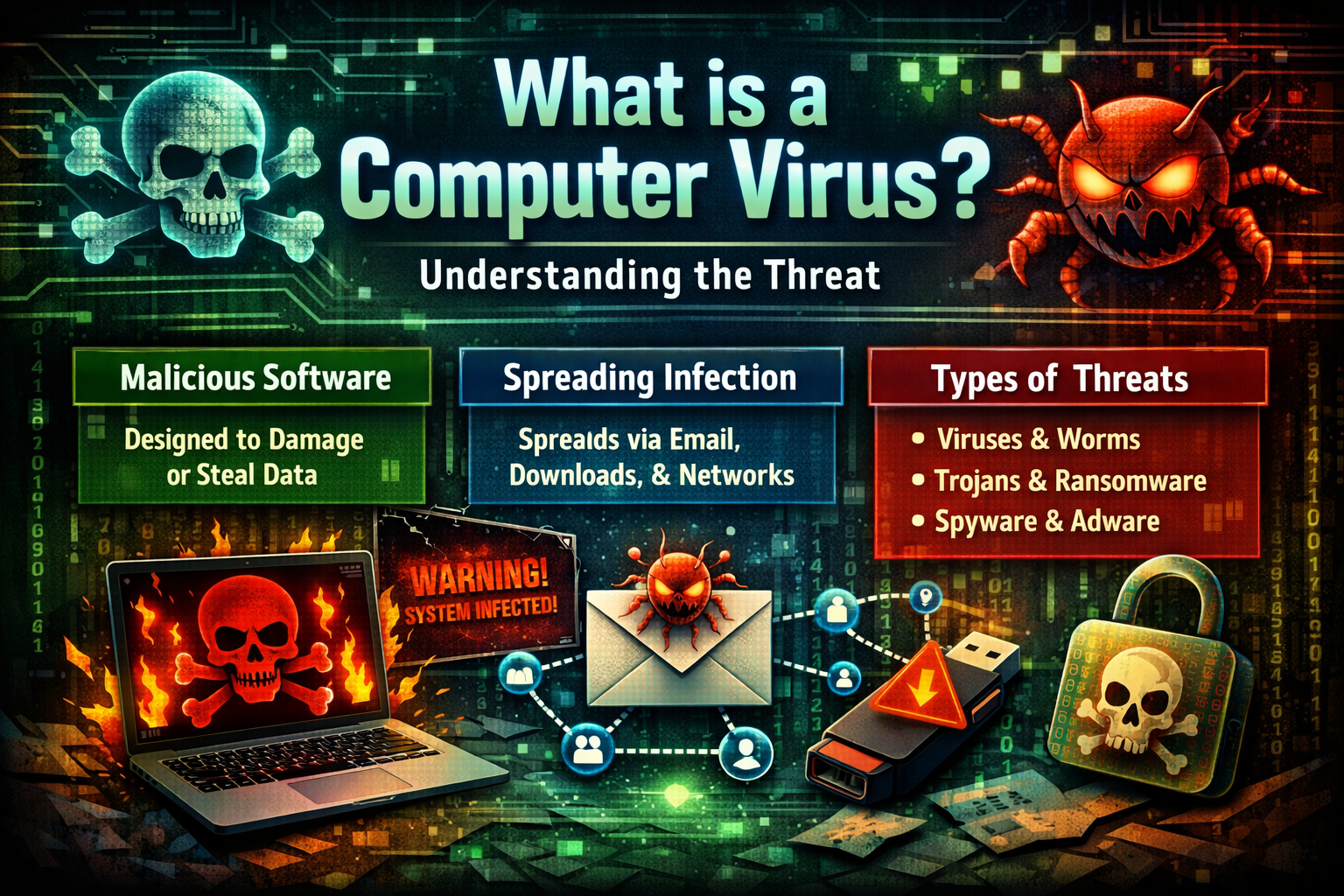
INTERODUCTION:-
Imagine turning on your computer one morning and finding that all your important files have disappeared, your personal photos are gone, and your bank account has been accessed without your permission. Sounds scary, right? This is exactly what a computer virus can do — and it happens to millions of people every single year. The good news is that you can protect your computer from viruses with simple, smart habits and the right tools.
In this complete beginner’s safety guide, you will learn everything you need to know about how to protect your computer from viruses in 2026. We will cover what viruses actually are, how they sneak into your computer, and — most importantly — exactly what you can do to stop them. Whether you are a student, a working professional, a small business owner, or a senior citizen using a computer for the first time, this guide is written for you.
Let us get started.
1. What is a Computer Virus? Understanding the Threat
Before you can protect your computer from viruses, you need to understand what you are dealing with. A computer virus is a type of malicious software (also called malware) that is designed to damage, disrupt, or take control of your computer without your knowledge or permission. Just like a biological virus that spreads from person to person, a computer virus can copy itself and spread from one device to another.
Computer viruses can cause a wide range of problems, including:
- Deleting or corrupting important files and documents.
- Slowing down your computer to a crawl.
- Stealing passwords, credit card numbers, and personal data.
- Locking you out of your own files (this is called ransomware).
- Using your computer to attack other people’s systems.
- Displaying unwanted ads or redirecting your browser to harmful websites.
The most important thing to understand is this: you do not have to be a tech expert to protect your computer from viruses. With the right knowledge and a few simple steps, anyone can build strong digital protection.
2. How Do Viruses Get Into Your Computer? Common Entry Points
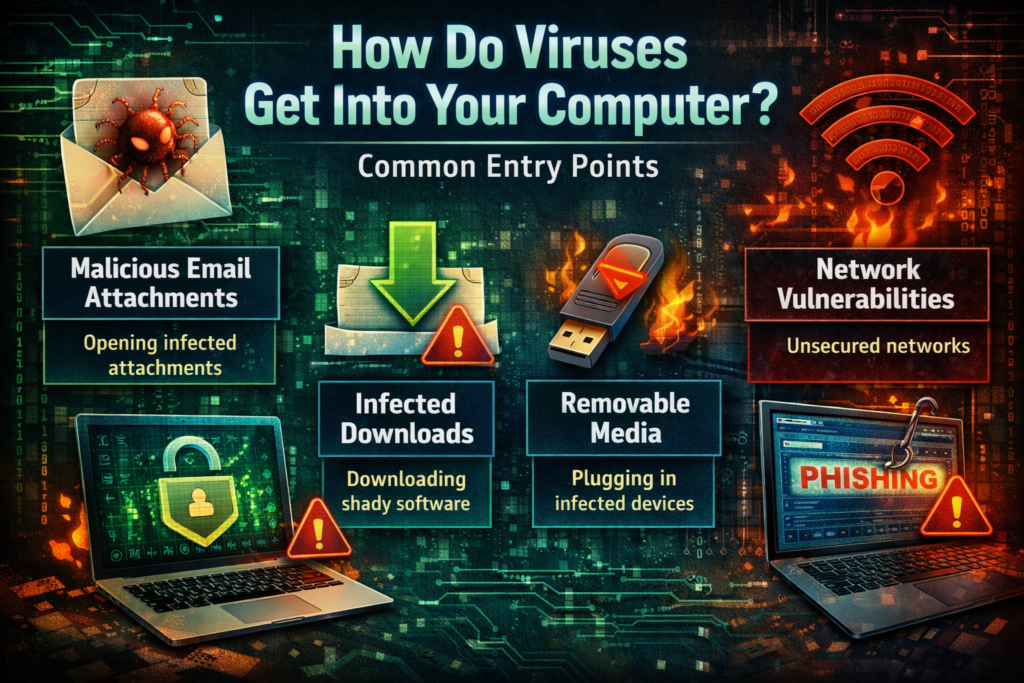
One of the best ways to protect your computer from viruses is to know how they enter in the first place. Hackers and cybercriminals use several sneaky methods to infect computers — and most of them rely on tricking you into making a mistake.
Email Attachments and Phishing Links
The number one way viruses spread is through email. You receive an email that looks like it is from a bank, a delivery company, or even a friend. It asks you to click a link or open an attachment. The moment you do, the virus is downloaded onto your computer. This trick is called phishing, and it is responsible for the majority of virus infections worldwide.
Downloading Software from Untrusted Websites
Many people download free software, games, movies, or music from unofficial websites. These files often contain hidden viruses that install themselves silently in the background. Always download software only from official websites and verified sources.
USB Drives and External Devices
Plugging in an infected USB drive, external hard drive, or even a smartphone can transfer a virus to your computer instantly. Be very careful about which devices you connect to your computer, especially if they belong to someone else.
Visiting Infected Websites
Some websites are designed specifically to infect your computer just by visiting them. This is called a drive-by download — you do not even have to click anything. This is why using a modern, updated browser with security features is so important when you want to protect your computer from viruses.
3. Install a Reliable Antivirus Program: Your First Line of Defense
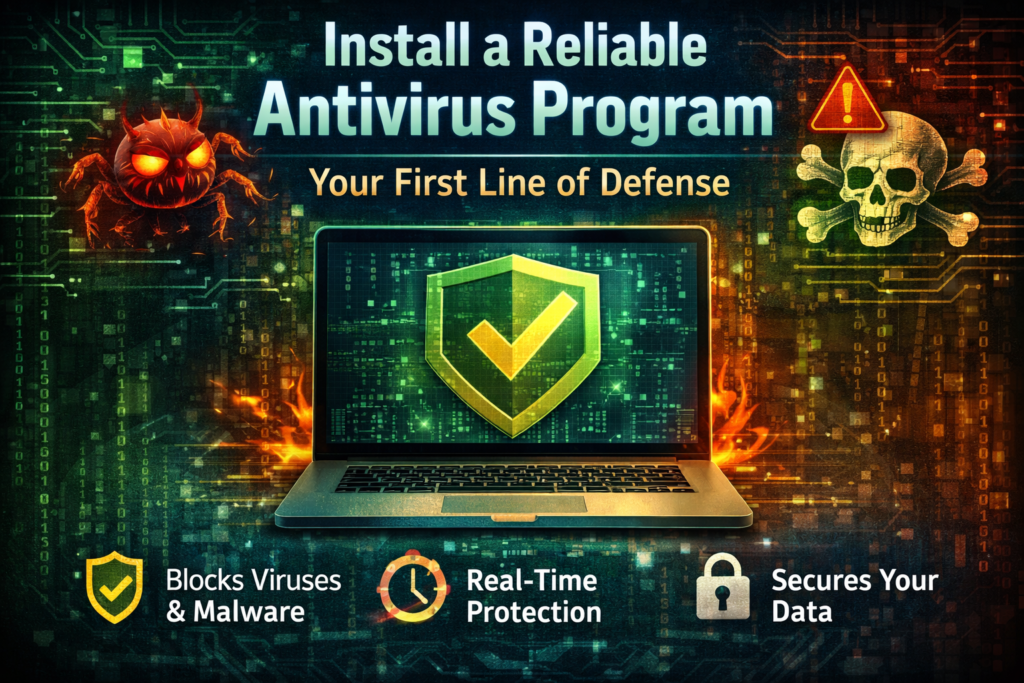
The single most effective tool to protect your computer from viruses is a good antivirus program. An antivirus is a software application designed to detect, block, and remove malicious programs before they can cause damage.
In 2026, here are some of the best antivirus options for beginners:
- Windows Defender (built-in): If you use Windows 10 or 11, you already have Windows Defender installed for free. It is surprisingly good and works quietly in the background without slowing down your computer.
- Avast Free Antivirus: A popular free option with real-time protection, scheduled scans, and a firewall.
- Malwarebytes: Excellent for detecting and removing malware that other antivirus programs sometimes miss.
- Bitdefender: Consistently ranked among the top antivirus programs worldwide for its accuracy and low system impact.
- Norton 360: A comprehensive paid option that includes antivirus, VPN, firewall, and identity theft protection.
Important tip: Never install two antivirus programs at the same time. They can conflict with each other and actually make your computer less safe. Choose one good antivirus and keep it updated at all times.
4. Keep Your Operating System and Software Updated
One of the easiest and most overlooked ways to protect your computer from viruses is to keep everything updated. Many people click “Remind me later” when they see an update notification and then forget about it entirely. This is a serious mistake.
Here is why updates matter: Software companies like Microsoft and Apple constantly discover security weaknesses (called vulnerabilities) in their programs. When they find one, they release an update that patches it before hackers can exploit it. If you delay installing updates, you leave that security hole open — and hackers know exactly how to find it.
What you should always keep updated:
- Your operating system (Windows, macOS, or Linux).
- Your web browser (Chrome, Firefox, Edge, etc.).
- Your antivirus program and its virus definitions.
- All installed apps and software, especially Adobe and Java.
- Your router firmware, if possible.
5. Use a Firewall: The Security Guard of Your Computer
A firewall is a security system that monitors and controls the incoming and outgoing network traffic on your computer. Think of it as a security guard standing at the gate of your computer — it checks everything that tries to enter or leave and blocks anything suspicious.
Windows comes with a built-in firewall that is turned on by default. To check if it is active, go to Control Panel > System and Security > Windows Defender Firewall. Make sure it shows as “On” for both private and public networks.
In addition to your computer’s firewall, your home Wi-Fi router also has its own built-in firewall. Keeping your router’s firmware updated and using a strong Wi-Fi password adds an additional layer of protection that makes it significantly harder for hackers to reach your device.
6. Be Smart About Emails: Avoid Phishing Attacks
Since email is the most common way viruses spread, being smart about emails is one of the most powerful ways to protect your computer from viruses. Phishing emails are designed to look completely legitimate — they copy the logos, fonts, and language of real companies to trick you into trusting them.
Here is how to spot and avoid phishing emails:
- Check the sender’s email address carefully. A fake email might say it is from “support@amazon.com” but the actual address is something like “support@amaz0n-help.net”.
- Never open attachments you were not expecting, even if they appear to come from someone you know. Their account may have been hacked.
- Hover over links before clicking them. The real web address will appear at the bottom of your browser window. If it looks suspicious, do not click it.
- Be suspicious of urgency. Emails that say “Your account will be closed in 24 hours!” or “You have won a prize!” are almost always scams.
- When in doubt, go directly to the website by typing the address into your browser rather than clicking the link in the email.
7. Create Strong Passwords and Use a Password Manager
Weak passwords are like leaving your front door wide open. To properly protect your computer from viruses and hackers, strong passwords are absolutely essential. In 2026, cybercriminals use sophisticated programs that can guess millions of passwords per second — so a simple password like “123456” or “password” will be cracked in less than a second.
Rules for creating a strong password:
- Use at least 12-16 characters.
- Include a mix of uppercase letters, lowercase letters, numbers, and symbols.
- Never use your name, birthday, or any personal information.
- Use a different password for every account you have.
- Change your passwords at least every 6 months.
Since remembering dozens of strong passwords is nearly impossible, use a password manager like LastPass, 1Password, or Bitwarden. These apps store all your passwords securely and can generate super-strong passwords automatically. You only need to remember one master password.
8. Enable Two-Factor Authentication on All Important Accounts
Two-factor authentication (2FA) is one of the most powerful steps you can take to protect your computer from viruses and unauthorized access. Even if a hacker somehow gets your password, 2FA stops them dead in their tracks by requiring a second form of verification before granting access.
Here is how it works: When you try to log into your email, social media, or bank account, the system sends a one-time code to your phone via SMS or an authenticator app. You must enter this code to complete the login. Without your phone, the hacker cannot get in — even with your password.
Enable 2FA on these accounts immediately:
- Email accounts (Gmail, Outlook, Yahoo).
- Social media (Facebook, Instagram, Twitter/X).
- Online banking and payment apps.
- Any cloud storage accounts (Google Drive, OneDrive, Dropbox).
9. Be Careful What You Download and Install
Unsafe downloads are one of the most common ways viruses enter computers. To protect your computer from viruses effectively, you need to develop smart downloading habits. Many people unknowingly install viruses by downloading free software, cracked games, or pirated movies from sketchy websites.
Follow these golden rules for safe downloading:
- Only download software from official websites or verified app stores like the Microsoft Store, Google Play, or Apple App Store.
- Avoid pirated or cracked software at all costs. Free software that normally costs money is almost always bundled with viruses or spyware.
- Read user reviews before installing any new program. If many users report strange behavior or security warnings, stay away.
- Pay attention during installation. Some programs try to install additional software — like toolbars or browser extensions — without clearly telling you. Always choose “Custom Install” and uncheck anything you do not want.
- Scan all downloaded files with your antivirus before opening them, even if they look harmless.
10. Back Up Your Data Regularly: Prepare for the Worst
Even if you do everything right, there is always a small chance that your computer could get infected. A ransomware attack, a hardware failure, or an accidental deletion can wipe out your important files in seconds. The best protection against this kind of loss is a regular backup strategy.
Follow the 3-2-1 backup rule to keep your data truly safe:
- 3 copies of your data (1 original + 2 backups).
- 2 different storage types (for example, your computer’s hard drive + an external USB drive).
- 1 offsite backup (stored in a different location, like cloud storage).
Use free cloud services like Google Drive, OneDrive, or iCloud for automatic backups. Set up Windows Backup (found in Settings > Update & Security > Backup) to automatically back up your files on a schedule. With a proper backup, even if a virus completely destroys your system, you can restore all your data within minutes.
11. Use Safe Browsing Habits to Protect Your Computer from Viruses
Your daily browsing habits play a huge role in whether your computer stays safe or gets infected. To consistently protect your computer from viruses while using the internet, adopt these safe browsing practices:
- Look for HTTPS in the web address. The “S” stands for secure. Never enter personal or financial information on a website that only shows “HTTP” without the S.
- Avoid clicking on pop-up ads. Especially ones that say “Your computer is infected! Click here to fix it.” This is a classic scam — legitimate antivirus programs never communicate this way.
- Use a reputable ad blocker, such as uBlock Origin, to reduce exposure to malicious advertisements.
- Be cautious on public Wi-Fi. Public networks at cafes, airports, and hotels are not secure. Avoid accessing bank accounts or sensitive accounts on public Wi-Fi. Use a VPN (Virtual Private Network) if you must.
- Log out of accounts when you are done, especially on shared or public computers.
12. Recognize Warning Signs: Is Your Computer Already Infected?
Sometimes, despite your best efforts to protect your computer from viruses, an infection may still occur. Knowing the warning signs of a virus infection allows you to act quickly and minimize the damage.
Watch for these red flags:
- Your computer is suddenly very slow, even for simple tasks it used to handle easily.
- Unexpected pop-up ads are appearing constantly, even when you are not browsing the internet.
- Programs are opening or closing on their own without you clicking anything.
- Your browser homepage has changed to an unfamiliar website you never set.
- Files are missing or have been renamed without your knowledge.
- Your antivirus has been disabled and you cannot turn it back on.
- Your internet connection is unusually slow, which could mean your computer is sending data to a hacker.
If you notice any of these signs, do the following immediately:
- Disconnect from the internet to stop the virus from spreading or sending your data.
- Run a full system scan with your antivirus program.
- Use Malwarebytes (free version) to run a second scan for anything your antivirus may have missed.
- Change your important passwords from a different, clean device.
- If the problem is severe, contact a professional computer technician or restore your system from a backup.
Final Thoughts: Your Safety is in Your Hands
Computer viruses are a real and growing threat in 2026, but they are not invincible. The most important thing you can take away from this guide is that your own behavior is your best defense. Hackers do not break through walls — they walk through doors that people accidentally leave open. By building smart digital habits, you can close those doors permanently.
Let us quickly recap what you have learned about how to protect your computer from viruses:
- Install and maintain a reliable antivirus program.
- Keep your operating system, browser, and apps always updated.
- Enable your firewall and use strong, unique passwords.
- Be cautious with emails, links, and downloads.
- Turn on two-factor authentication everywhere possible.
- Back up your data regularly using the 3-2-1 rule.
- Know the warning signs of infection and act fast if something seems wrong.
You do not need to be a cybersecurity expert to stay safe. You just need to be informed, stay alert, and take small, consistent actions every day. Start implementing these tips right now — because the best time to protect your computer from viruses is always before the attack, not after. Stay safe, stay smart, and take control of your digital security today.