vikram@gmail.com
We’ve all been there. You’re working on an important document, editing a photo, designing a presentation, or writing an email — and then it happens. One wrong click. One accidental deletion. One misplaced edit that ruins everything you just spent the last hour carefully building.
Your heart sinks. You think it’s all gone.
But it’s not — because Using Ctrl+Z is about to become your new best friend.
This single keyboard shortcut is arguably the most powerful, most underappreciated tool in all of computing. It works across thousands of applications, it’s available on virtually every Windows computer, and it can reverse mistakes in a fraction of a second. Yet most people only know it exists — they don’t truly understand the depth of its power.
In this complete guide, you’ll learn everything about Using Ctrl+Z — what it does, how it works, where it works, its limitations, pro tips to maximize it, and how to combine it with other shortcuts for an unstoppable productivity workflow.
What Exactly Is Ctrl+Z and What Does It Do?
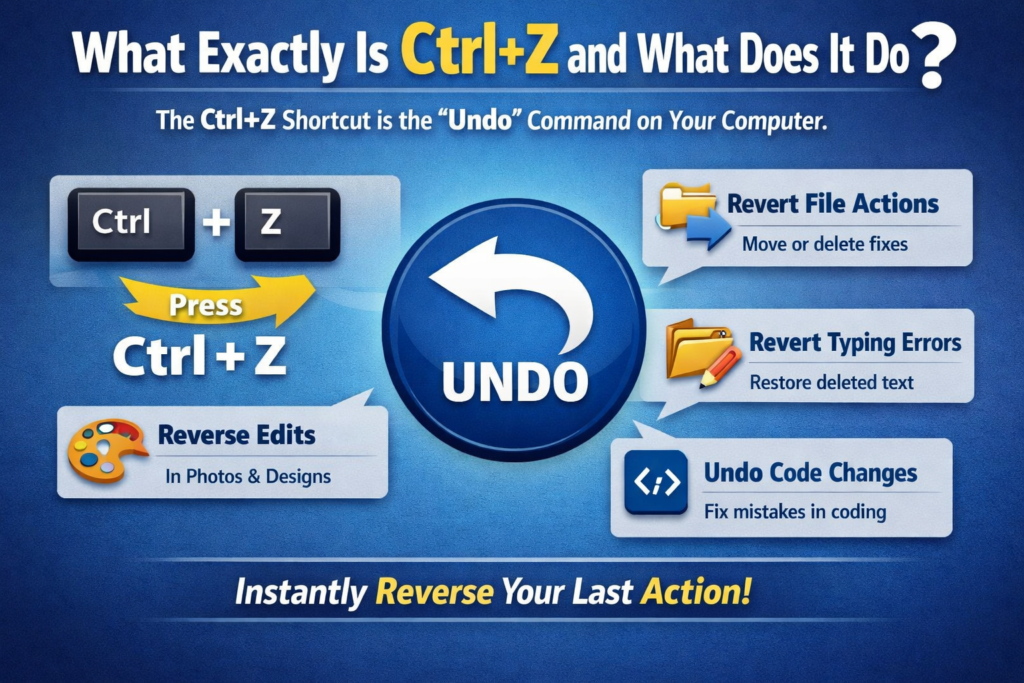
At its core, Using Ctrl+Z is the universal “Undo” command on Windows computers. When you press the Ctrl key and the Z key at the same time, your computer reverses the last action you performed — as if it never happened.
Deleted a paragraph of text? Using Ctrl+Z brings it back instantly. Accidentally moved a file to the wrong folder? Using Ctrl+Z puts it right back. Applied the wrong color to a graphic design element? Using Ctrl+Z removes it immediately. Typed over important text by mistake? Using Ctrl+Z restores every single character.
The beauty of this shortcut is its simplicity. No menus to navigate. No dialog boxes to click through. No complicated recovery steps. Just two keys pressed together, and your mistake disappears.
But here’s what most people don’t realize — Using Ctrl+Z isn’t just a one-time undo. In most modern applications, you can press it repeatedly to travel back through your entire editing history, reversing multiple actions one by one. Some programs allow you to undo dozens, even hundreds of steps back in time.
The History Behind the Undo Command
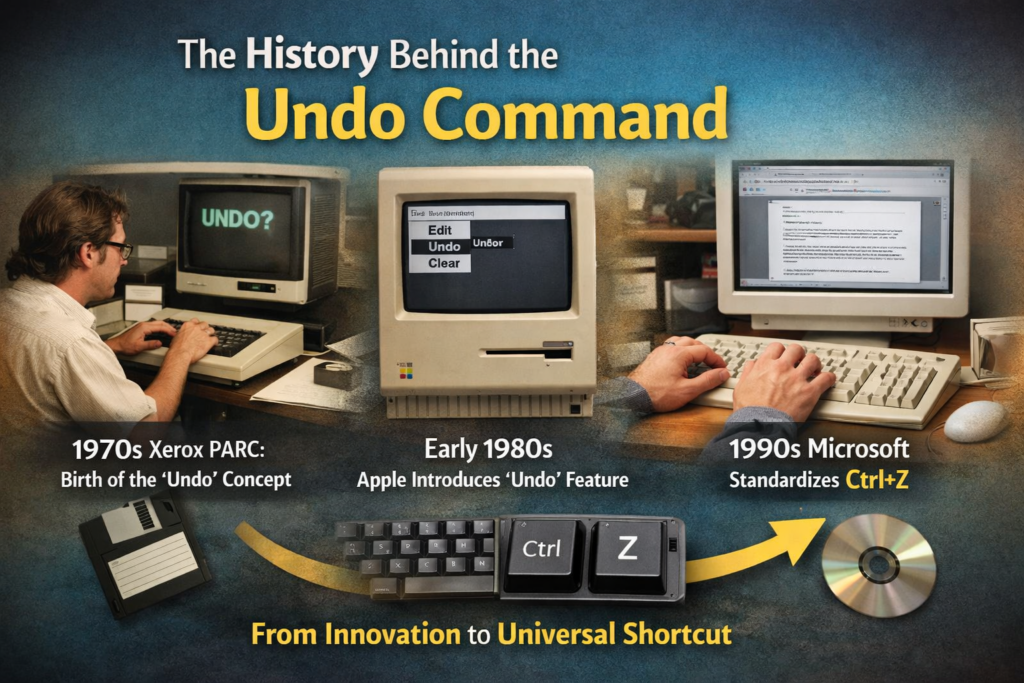
To truly appreciate Using Ctrl+Z, it helps to understand where it came from. The concept of “undo” in computing was first introduced by researchers at Xerox PARC in the 1970s. Early word processors began implementing it in the 1980s, but it was Apple and later Microsoft who standardized the keyboard shortcut that billions of people now use every day.
The reason Z was chosen for the undo shortcut is elegantly practical — on a QWERTY keyboard, Z sits in the bottom-left corner, right next to the Ctrl key. This makes Using Ctrl+Z one of the most ergonomically comfortable shortcuts to press with one hand, without even looking at the keyboard.
Over the decades, this shortcut has become so universally adopted that software developers treat it as a fundamental requirement. If an application doesn’t support Using Ctrl+Z, users consider it incomplete or unprofessional.
Where Does Ctrl+Z Work?
One of the most powerful things about Using Ctrl+Z is how broadly it works across different software categories. Let’s explore the major areas where this shortcut delivers real results.
Microsoft Word and Office Applications
This is where most people first discover Using Ctrl+Z. In Microsoft Word, Excel, PowerPoint, and Outlook, the undo function is extremely powerful. Word famously supports over 100 levels of undo, meaning you can press Ctrl+Z more than 100 times in a single session and keep traveling back through your editing history.
Accidentally deleted three pages of a report? Keep pressing Using Ctrl+Z and watch your text reappear, action by action. Formatted an entire table wrong? Undo it in seconds. Applied the wrong font to a heading? Gone with one shortcut.
In Excel specifically, Using Ctrl+Z is essential for reversing accidental formula deletions, formatting changes, and data entry errors that could otherwise corrupt your entire spreadsheet.
Web Browsers
Most people don’t know this, but Using Ctrl+Z works inside web browsers too. If you’re filling out an online form and accidentally delete something you typed, pressing Ctrl+Z while your cursor is in that text field will restore your deleted text immediately.
This works in Chrome, Firefox, Edge, and Safari. It’s a lifesaver when you’ve spent time carefully writing a long comment, email, or web form entry and accidentally select-all and delete it.
Image and Photo Editing Software
For designers and photographers, Using Ctrl+Z is absolutely indispensable. In Adobe Photoshop, Lightroom, GIMP, and virtually every professional image editor, this shortcut reverses your last edit.
Applied too much brightness? Using Ctrl+Z. Painted over the wrong area with a brush? Using Ctrl+Z. Accidentally merged layers you needed to keep separate? Using Ctrl+Z. The non-destructive editing workflow that creative professionals depend on is built entirely around the undo function.
File Explorer and Desktop
Here’s a powerful trick that most Windows users have never tried — Using Ctrl+Z works directly on your Windows desktop and in File Explorer.
If you accidentally delete a file (and it goes to the Recycle Bin), Using Ctrl+Z immediately restores it to its original location. If you accidentally rename a file, Using Ctrl+Z puts the original name back. If you move a file to the wrong folder, Using Ctrl+Z returns it to where it was.
This is enormously useful for anyone who manages files regularly — and it works even outside of any specific application, just on the Windows desktop itself.
Video Editing Software
Professional video editors rely on Using Ctrl+Z constantly. Whether you’re working in Adobe Premiere Pro, DaVinci Resolve, Final Cut Pro, or any other video editing platform, the undo shortcut lets you reverse cuts, transitions, color grading changes, audio adjustments, and timeline edits without destroying your project.
Given how complex video editing workflows can be, the ability to undo multiple steps quickly is not a luxury — it’s a necessity.
Code Editors and IDEs
Software developers and programmers use Using Ctrl+Z dozens of times every single day. In Visual Studio Code, Sublime Text, IntelliJ, and every major code editor, this shortcut reverses code changes, deletions, and formatting errors.
When you’re working with complex code and a single deletion can break an entire program, Using Ctrl+Z is the safety net that allows developers to experiment freely without fear.
The Right Way to Use Ctrl+Z — Tips Most People Don’t Know
Knowing the shortcut exists is one thing. Using it with maximum effectiveness is another. Here are professional tips for getting the most out of Using Ctrl+Z.
Tip 1 — Press It Multiple Times in Sequence
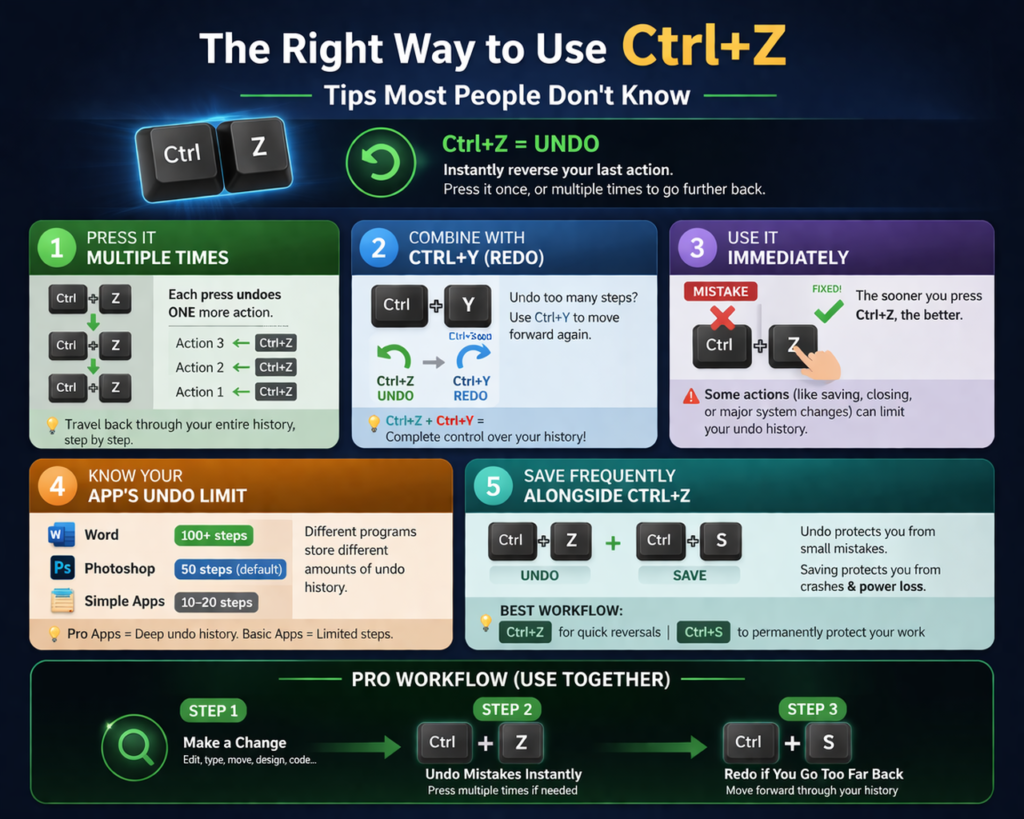
As mentioned earlier, Using Ctrl+Z isn’t limited to one undo. Press it once, twice, five times, ten times. Each press reverses one additional action. This lets you travel back through your work history like rewinding a video, giving you complete control over how far back you want to go.
Tip 2 — Combine With Ctrl+Y to Redo
Here’s where things get really powerful. Ctrl+Y is the “Redo” command — it’s the opposite of Using Ctrl+Z. If you undo too many steps and go back further than you intended, press Ctrl+Y to redo the actions and move forward again through your history.
Together, Ctrl+Z and Ctrl+Y let you travel backward and forward through your entire editing timeline with complete freedom. This combination is one of the most powerful workflows in all of computing.
Tip 3 — Use It Immediately After a Mistake
The sooner you press Using Ctrl+Z after making a mistake, the better. While most applications maintain a long undo history, some actions — like saving a file, closing a document, or certain system-level changes — can clear or limit your undo history. React quickly and the shortcut will always work reliably.
Tip 4 — Know the Application’s Undo Limit
Different applications have different undo limits. Microsoft Word allows over 100 steps. Adobe Photoshop’s default is 50 steps (though you can increase this in settings). Some simpler programs only allow 10-20 steps. Knowing your application’s limit helps you understand how far back you can safely travel.
Tip 5 — Save Frequently Alongside Using Ctrl+Z
Using Ctrl+Z is powerful, but it’s not a replacement for saving your work regularly. Undo history is lost when you close a program or when a crash occurs. The best workflow combines frequent saves (Ctrl+S) with the undo shortcut to create a bulletproof safety net.
When Ctrl+Z Doesn’t Work — And What to Do
As powerful as Using Ctrl+Z is, it has limitations. Understanding these helps you avoid frustrating situations.
After Saving a File: In most applications, saving a file doesn’t clear the undo history — but some programs do reset it. Always check before assuming you can undo past a save point.
After Closing and Reopening: When you close a document and reopen it, the undo history is almost always cleared. Using Ctrl+Z cannot undo changes from a previous editing session.
In Some Web Applications: Certain web-based tools and online platforms have limited or no undo support. Google Docs, for example, has its own undo system that works well, but some specialized web apps may not support the shortcut at all.
For Permanent Deletions: If you empty the Recycle Bin and then try Using Ctrl+Z, you won’t recover those files. The shortcut works for the deletion action itself, but once the Recycle Bin is emptied, the files must be recovered through dedicated file recovery software.
System-Level Actions: Using Ctrl+Z doesn’t work for things like uninstalling software, changing system settings, or modifying the Windows Registry. These actions require their own reversal methods.
Ctrl+Z vs. the Undo Button — Which Is Better?
Most applications that support Using Ctrl+Z also have an “Undo” button in their toolbar or Edit menu. So which should you use?
The answer is almost always the keyboard shortcut. Here’s why:
Speed: Pressing two keys takes less than one second. Moving your mouse to a toolbar button, finding the Undo option, and clicking it takes three to five seconds minimum. Over the course of a long working session, this adds up to significant time saved.
Flow: When you’re in a creative or productive workflow, taking your hands off the keyboard to reach for the mouse breaks your concentration. Using Ctrl+Z keeps your hands in position and your mind focused.
Reliability: The keyboard shortcut works even when menus are loading slowly or when the toolbar is not visible. It’s always available as long as the application itself is responding.
That said, the toolbar Undo button does have one advantage — in some applications, it shows you a dropdown list of your recent actions, allowing you to jump back multiple steps at once rather than pressing Ctrl+Z repeatedly.
Ctrl+Z on Mac — Is It the Same?
For Mac users, the equivalent of Using Ctrl+Z is Command+Z. The functionality is identical — it reverses the last action performed. The Mac version supports multiple undos in the same way, and Command+Shift+Z serves as the Redo shortcut (equivalent to Ctrl+Y on Windows).
If you switch between Windows and Mac computers regularly, muscle memory can sometimes cause you to press the wrong shortcut. Just remember: Ctrl on Windows, Command on Mac.
Advanced Workflows That Rely on Ctrl+Z
Professional users in various industries have built their entire workflows around Using Ctrl+Z as a safety net. This mindset — sometimes called “non-destructive editing” — means you can experiment freely, take creative risks, and try bold ideas without fear, because you always know you can reverse any change instantly.
Graphic designers try five different color schemes, knowing one press of Using Ctrl+Z can revert to the previous version. Writers draft bold rewrites of paragraphs, confident they can undo if the new version isn’t better. Developers refactor code aggressively, protected by the undo history.
This psychological safety — the freedom to experiment without consequences — is one of the most underappreciated benefits of Using Ctrl+Z. It doesn’t just fix mistakes. It changes how confidently and creatively you work.
Quick Reference: Ctrl+Z Across Popular Applications
| Application | Undo Shortcut | Redo Shortcut | Undo Levels |
|---|---|---|---|
| Microsoft Word | Ctrl+Z | Ctrl+Y | 100+ |
| Microsoft Excel | Ctrl+Z | Ctrl+Y | 100 |
| Adobe Photoshop | Ctrl+Z | Ctrl+Y | 50 (default) |
| Google Docs | Ctrl+Z | Ctrl+Y | Unlimited* |
| Windows File Explorer | Ctrl+Z | Ctrl+Y | Limited |
| Visual Studio Code | Ctrl+Z | Ctrl+Y | Unlimited* |
| Adobe Premiere Pro | Ctrl+Z | Ctrl+Shift+Z | 32 (default) |
Conclusion: Two Keys That Changed Computing Forever
It’s remarkable that something so simple — Using Ctrl+Z — can be so transformative. Two keys. One action. Infinite possibilities.
From recovering accidentally deleted text to restoring misplaced files, from reversing design mistakes to undoing code errors, this shortcut quietly powers the daily workflows of billions of people around the world. It reduces stress, saves time, protects work, and gives every computer user the freedom to make mistakes without catastrophic consequences.
The next time you’re working on anything important — a document, a design, a spreadsheet, a piece of code — remember that Using Ctrl+Z is always standing by, ready to reverse whatever goes wrong. It’s not just a keyboard shortcut. It’s a safety net built into every computer, waiting for the moment you need it most.
Master this shortcut completely. Combine it with Ctrl+Y. Use it boldly. And never again fear making a mistake on your computer.