vikram@gmail.com
INTRODUCTION:-
Picture this: You’re sitting in a coffee shop, miles away from home, and suddenly you need that important document you saved on your home computer. Or imagine your laptop crashes completely — and every photo, every project, every important file disappears forever. These situations used to be unavoidable nightmares. Today, they’re completely preventable — thanks to cloud storage.
Cloud storage has quietly transformed the way the entire world handles digital information. From students and freelancers to Fortune 500 companies, everyone is moving their files off physical devices and into the cloud. And the best part? You can start using one of the most powerful cloud storage platforms on the planet — Google Drive — completely free of charge, starting today.
In this comprehensive guide, you’ll learn exactly what cloud storage is, how it works, why millions of people around the world rely on it every day, and a complete step-by-step walkthrough of using Google Drive to protect, organize, and access your files from absolutely anywhere.
What Is Cloud Storage? A Clear, Simple Explanation
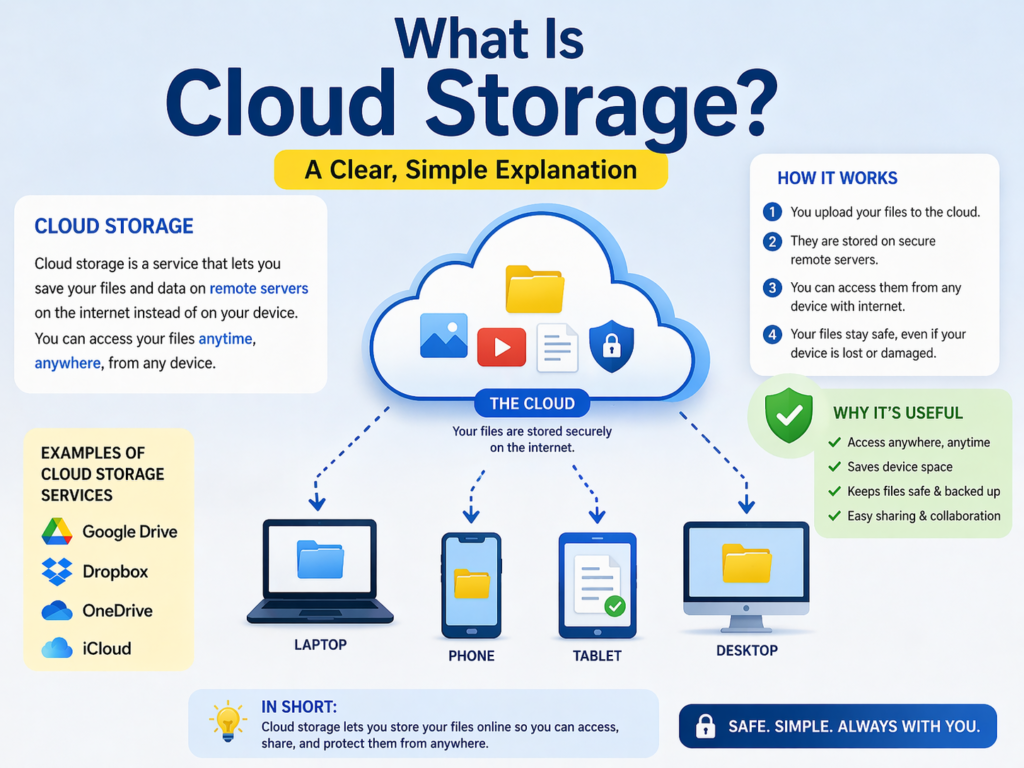
The term “cloud” gets thrown around constantly in the tech world, but what does it actually mean? Let’s strip away the jargon and explain it clearly.
Cloud storage is simply the practice of saving your files — documents, photos, videos, music, spreadsheets, anything digital — on remote servers owned and maintained by a technology company, rather than only on your personal device’s internal storage.
Instead of your files living exclusively on the hard drive inside your laptop or phone, they’re uploaded over the internet to powerful computer systems (called servers) housed in massive, highly secure data centers located around the world. These data centers run 24 hours a day, 7 days a week, with redundant power supplies, advanced security systems, and multiple backup systems to ensure your files are always available and always protected.
When you want to access your files, you simply connect to the internet, log into your cloud storage account, and your files appear — instantly, from any device, anywhere in the world.
The Physical Reality Behind “The Cloud”
The word “cloud” might suggest something ethereal and intangible, but the reality is very physical. Major cloud storage providers like Google, Microsoft, and Amazon operate enormous data centers — buildings the size of football fields, filled floor to ceiling with servers, cooling systems, and networking equipment. Google alone operates dozens of these facilities across multiple continents, ensuring that your files stored in Google Drive are replicated across multiple locations simultaneously.
This physical redundancy is actually one of the key reasons cloud storage is safer than keeping files only on your personal device — your laptop has one hard drive, but Google’s infrastructure copies your data across multiple servers in different geographic locations.
Why Cloud Storage Has Changed Everything
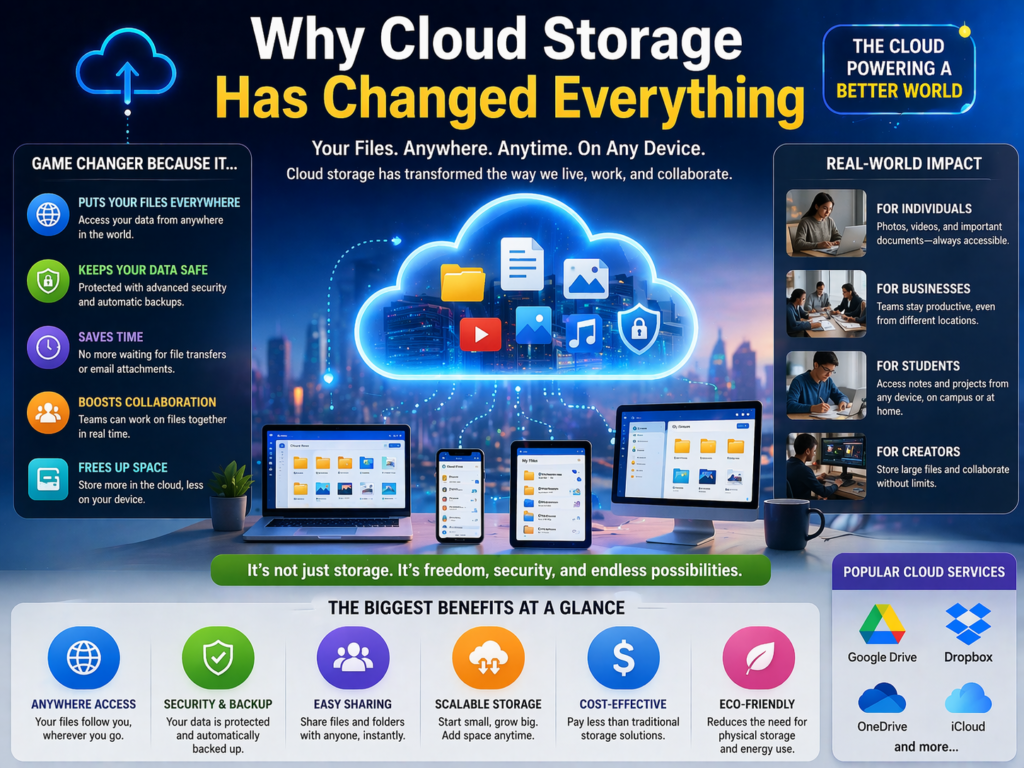
Before cloud storage became mainstream, working with digital files was frustratingly limited. Files lived on one device. Sharing meant emailing attachments. Collaboration required everyone to be in the same room. Losing a hard drive meant losing everything.
Cloud storage eliminated all of these problems simultaneously. Here’s why it has become essential for modern digital life:
Universal Access: Your files are available on every device you own — laptop, desktop, smartphone, tablet — without manually transferring anything. Log in from any computer in the world and access everything instantly.
Automatic Protection: When files are stored in the cloud, they’re protected from hardware failures, theft, accidental damage, and local disasters. Your data survives even if your physical device doesn’t.
Effortless Sharing: Instead of emailing large files (which often hit size limits), you share a simple link. The recipient clicks it and instantly accesses the file — no downloads, no attachments, no complications.
Real-Time Collaboration: Multiple people can work on the same document simultaneously, with changes appearing in real time for everyone. This has transformed how teams, students, and businesses work together.
Automatic Synchronization: Change a file on your phone, and the updated version appears instantly on your laptop. Cloud storage keeps every device perfectly synchronized without any manual effort.
Google Drive: The World’s Most Popular Free Cloud Storage
Among all cloud storage platforms available today, Google Drive stands out as the most accessible, most powerful, and most widely used free option in the world. With over 1 billion active users, it has become the default choice for individuals, students, educators, and businesses across every industry.
What Makes Google Drive Special
Google Drive isn’t just a place to dump files. It’s a complete productivity ecosystem. When you sign up for Google Drive, you get access to an entire suite of powerful applications — all completely free:
Google Docs — A full-featured word processor that rivals Microsoft Word, with real-time collaboration built in from the ground up.
Google Sheets — A powerful spreadsheet application comparable to Microsoft Excel, capable of handling complex formulas, data analysis, and visualizations.
Google Slides — A presentation builder similar to PowerPoint, with beautiful templates and collaboration features.
Google Forms — A tool for creating surveys, quizzes, and data collection forms that automatically feed results into Google Sheets.
Google Photos integration — Seamless connection to your photo library for backing up and organizing every image from your phone or camera.
All of these tools are included free with every Google account, and all files created within them are stored automatically in your cloud storage space on Google Drive.
How Much Free Storage Does Google Drive Offer?
Every Google account comes with 15 gigabytes of free cloud storage. This 15GB is shared across Google Drive, Gmail, and Google Photos. For most casual users, 15GB is more than sufficient to store thousands of documents, photos, and files.
To put it in perspective: a typical text document is only a few kilobytes. A high-quality photo is roughly 3-5 megabytes. With 15GB of free cloud storage, you can store approximately 3,000 to 5,000 high-resolution photos — or hundreds of thousands of text documents — without spending a single rupee.
If you need more space, Google One plans offer expanded storage at very affordable monthly rates — 100GB, 200GB, 2TB, and beyond.
Step-by-Step Guide: How to Set Up and Use Google Drive for Free
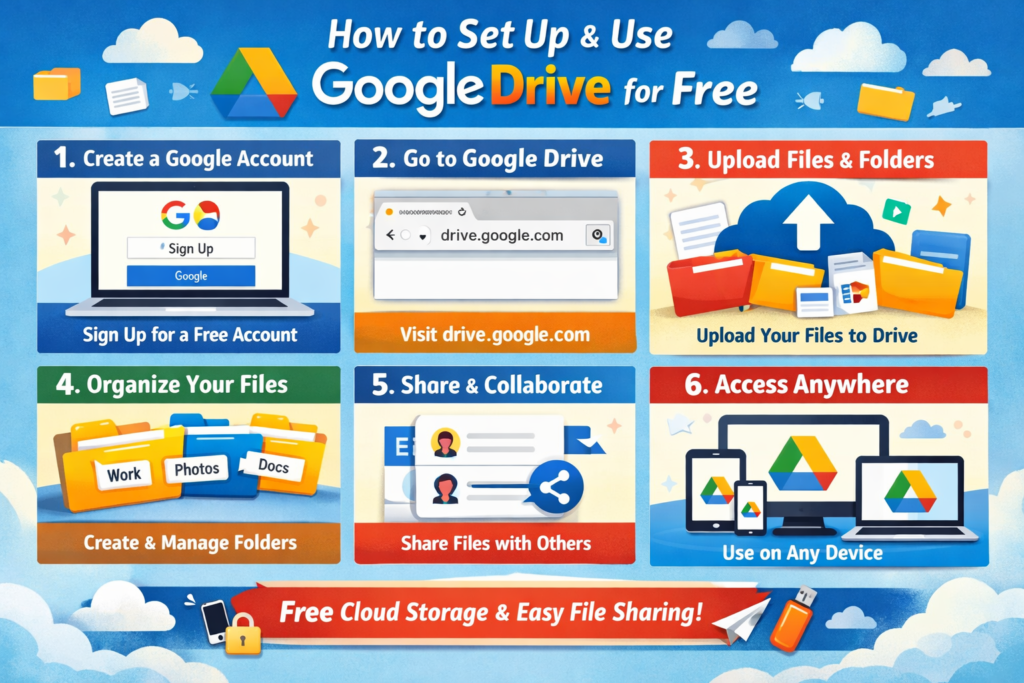
Now let’s walk through everything you need to know to start using Google Drive’s cloud storage effectively, from initial setup to advanced features.
Step 1 — Create Your Free Google Account
If you already have a Gmail address, you already have access to Google Drive. Simply go to drive.google.com and sign in with your existing Gmail credentials.
If you don’t have a Google account yet, go to accounts.google.com/signup and create one for free. You’ll need a name, username (which becomes your Gmail address), and password. The entire process takes less than two minutes.
Step 2 — Navigate the Google Drive Interface
Once logged in, you’ll see the main Google Drive dashboard. Let’s understand the key areas:
My Drive — This is your personal cloud storage space. Everything you upload or create here is private to you unless you choose to share it.
Computers — If you install the Google Drive desktop app, your synced folders appear here.
Shared with me — Files and folders that other people have shared with you appear in this section.
Recent — Quickly access files you’ve opened or modified recently.
Starred — Files you’ve marked as important for quick access.
Storage indicator — At the bottom-left, you’ll see how much of your 15GB cloud storage you’ve used.
Step 3 — Upload Your First Files
Uploading files to your cloud storage on Google Drive couldn’t be simpler.
Method 1 — Drag and Drop: Open Google Drive in your browser, then simply drag files or folders from your computer directly into the browser window. They’ll upload automatically.
Method 2 — Upload Button: Click the “+ New” button in the top-left corner of Google Drive, then select “File upload” or “Folder upload” to browse your computer and select what you want to upload.
Method 3 — Desktop App: Install the Google Drive desktop application (available at drive.google.com/download). Once installed, a Google Drive folder appears on your computer. Any file you put in this folder automatically syncs to your cloud storage — no manual uploading required.
Step 4 — Organize Your Files With Folders
Good organization makes your cloud storage infinitely more useful. Create a logical folder structure from the beginning.
Click “+ New” and select “New folder” to create folders. Consider creating top-level folders for major categories: Work, Personal, Photos, Finance, Projects. Then create subfolders within each as needed.
You can move files between folders by right-clicking them and selecting “Move to” — just like organizing files on your computer’s desktop.
Color-code important folders by right-clicking them and selecting “Change color” — this makes visual navigation much faster when your cloud storage grows larger.
Step 5 — Share Files and Collaborate
Sharing is where Google Drive truly shines as a cloud storage platform. Right-click any file or folder and select “Share.”
You can share in two ways:
Share with specific people: Enter email addresses and choose their permission level — Viewer (can only read), Commenter (can add comments but not edit), or Editor (can make full changes). This is ideal for collaborating with colleagues, classmates, or clients.
Share via link: Click “Copy link” to generate a shareable URL. You can set this link to be accessible to anyone who has it, or restrict it to specific people. This is perfect for sharing large files instead of email attachments.
Step 6 — Access Google Drive From Your Phone
Download the Google Drive app from the Google Play Store (Android) or Apple App Store (iOS) to access your cloud storage from your smartphone.
The mobile app lets you upload photos directly from your phone camera, view and edit documents, share files, and even access files offline. Tap the three dots next to any file and select “Make available offline” to download a copy for access without internet.
Step 7 — Use Google Docs, Sheets, and Slides
To create a new document within your cloud storage, click “+ New” and select Google Docs, Google Sheets, or Google Slides. These applications open directly in your browser — no software installation required.
Every change you make saves automatically in real time. You’ll never lose work because you forgot to save. The entire revision history is stored permanently, allowing you to see every change ever made to the document and restore any previous version with a single click.
Advanced Google Drive Tips That Most Users Don’t Know
Search Your Entire Cloud Storage Instantly
Google Drive’s search function is incredibly powerful — after all, it’s built by the company that invented internet search. Type any keyword in the search bar and Google Drive will find matching files instantly, even searching inside documents for specific words or phrases.
You can filter search results by file type, owner, date modified, and more — making it easy to find any file in your cloud storage even years after you uploaded it.
See Who Has Viewed Your Shared Files
Right-click any shared file, select “View details,” then click the “Activity” tab to see a complete history of who has viewed, edited, commented on, or downloaded the file. This is extremely useful for tracking document activity in collaborative work environments.
Convert Microsoft Office Files Automatically
When you upload Word documents, Excel spreadsheets, or PowerPoint presentations to your cloud storage on Google Drive, you can open them directly in Google Docs, Sheets, or Slides without needing Microsoft Office installed. Google Drive can also convert these files to Google’s format for full editing capability.
Google Drive vs. Other Cloud Storage Platforms
While Google Drive is the most popular free option, it’s worth understanding how it compares to alternatives:
Microsoft OneDrive offers 5GB free (less than Google’s 15GB) but integrates seamlessly with Windows and Microsoft Office. Ideal for heavy Microsoft Office users.
Dropbox offers only 2GB free but is known for extremely reliable syncing and a clean interface. Better suited for professional teams with budget for paid plans.
iCloud offers 5GB free and is deeply integrated with Apple devices — the best choice for users exclusively within the Apple ecosystem.
For the combination of free storage space, integrated productivity tools, cross-platform compatibility, and ease of use, Google Drive remains the strongest choice for most users looking for powerful free cloud storage.
Conclusion: The Cloud Is Waiting for You
Cloud storage is no longer a luxury or a technical concept reserved for tech-savvy professionals. It’s an essential tool for anyone who values their digital files, their time, and their peace of mind.
Google Drive gives every person on the planet access to 15GB of powerful, secure, free cloud storage — along with a complete suite of productivity tools that rival expensive software. Whether you’re a student storing assignments, a professional managing work projects, a parent preserving family photos, or a creative protecting your work — Google Drive has everything you need, right now, at zero cost.
The setup takes less than five minutes. The benefits last a lifetime. Your files will be safe, accessible from anywhere, and always perfectly organized — no matter what happens to your physical devices.
Open your browser, go to drive.google.com, and take the first step toward never losing an important file again. The cloud is waiting — and it’s completely free.