vikram@gmail.com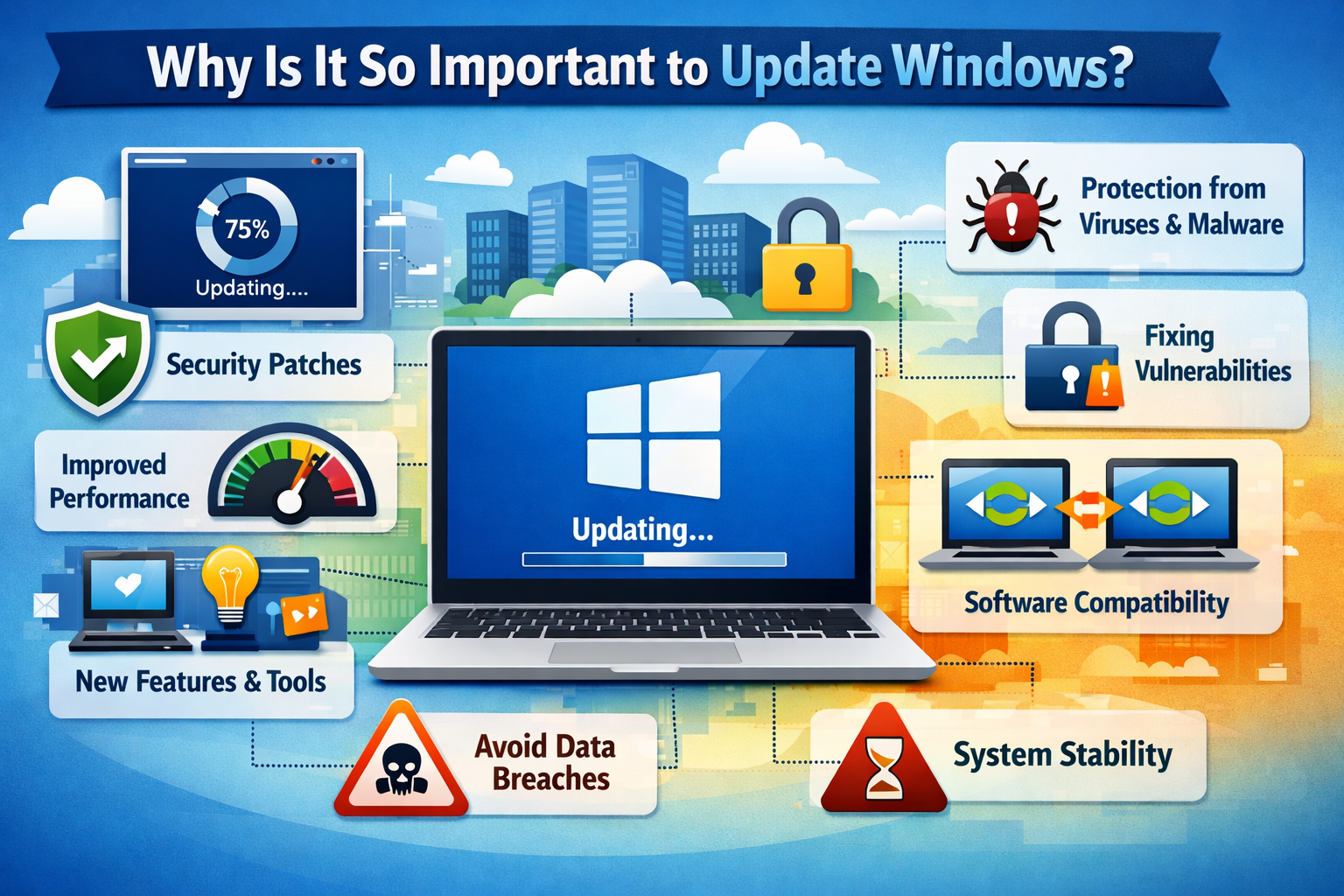
INTERODUCTION:-
In today’s fast-paced digital world, one of the most critical steps every computer user must take is to Update Windows regularly. Whether you are a student, a professional, or a home user, keeping your Windows operating system up to date is not just a recommendation — it is a necessity. When you Update Windows on a consistent basis, you protect your personal data, secure your system against hackers, and ensure your computer runs at peak performance. This comprehensive guide will walk you through everything you need to know about how to Update Windows safely and effectively.
Why Is It So Important to Update Windows?
Every single day, cybercriminals discover new vulnerabilities in software. Microsoft’s dedicated security team works around the clock to patch these vulnerabilities. When you Update Windows, you receive these critical security patches directly from Microsoft. Without these updates, your system remains exposed to viruses, ransomware, spyware, and data theft.
Beyond security, when you Update Windows, you also unlock improved features, better hardware compatibility, and enhanced system stability. Skipping updates is one of the biggest mistakes users make — and it can cost you dearly in terms of lost data and expensive repairs.
Step-by-Step: How to Update Windows 11 and Windows 10
Follow these simple steps to Update Windows on your PC:
- Step 1: Click on the Start Menu (Windows icon) at the bottom-left corner of your screen.
- Step 2: Open Settings by clicking the gear icon.
- Step 3: Navigate to Windows Update (in Windows 11) or Update & Security (in Windows 10).
- Step 4: Click Check for Updates. Windows will begin scanning for available updates.
- Step 5: Click Download & Install to begin the Update Windows process.
- Step 6: Restart your computer when prompted to apply the updates successfully.
Microsoft recommends that users Update Windows at least once a month, or immediately when critical security patches are released. Enabling automatic updates is the safest approach for most users.
How to Enable Automatic Updates in Windows
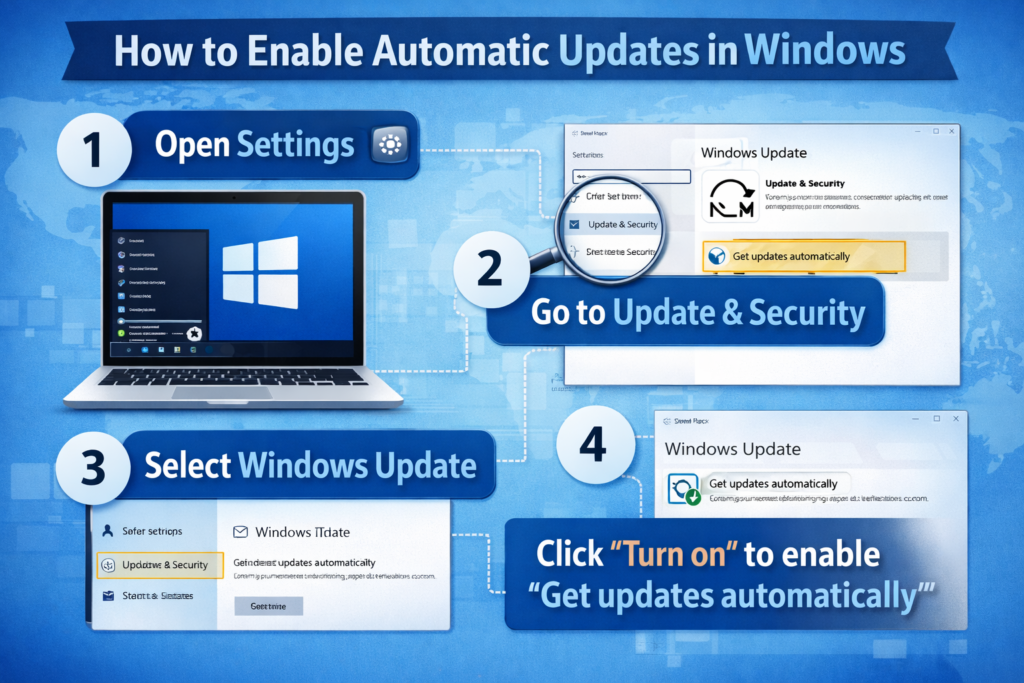
The easiest way to ensure you never miss a critical patch is to enable automatic updates. Here is how to set it up so that Windows will automatically Update Windows in the background without interrupting your workflow:
- Open Settings > Windows Update > Advanced Options.
- Toggle on ‘Receive updates for other Microsoft products’.
- Enable ‘Download updates over metered connections’ if needed.
- Set Active Hours so Windows restarts only when you are not using the PC.
With automatic settings enabled, your system will Update Windows silently in the background, installing security patches and feature enhancements without any action required from you.
Common Problems When You Update Windows (And How to Fix Them)
Sometimes, users experience errors when they try to Update Windows. The most common issues include:
- Error 0x80070002 — This typically means a corrupted update file. Fix: Run the Windows Update Troubleshooter from Settings > System > Troubleshoot.
- Updates Stuck at 0% or 100% — This can happen due to low disk space. Fix: Free up at least 10 GB of storage before you Update Windows.
- PC Won’t Restart After Update — Force a shutdown by holding the power button for 10 seconds, then restart normally.
- Update Reverted Automatically — This usually means the update is incompatible with a driver. Fix: Update all device drivers first, then try again.
If issues persist when trying to Update Windows, Microsoft’s official support page (support.microsoft.com) provides detailed troubleshooting guides for every error code.
How to Update Windows Drivers for Maximum Security
Many users do not realize that when they Update Windows, the process also includes critical driver updates. Outdated drivers can create security vulnerabilities just like outdated software. Here is how to ensure your drivers are always current:
- Open Device Manager by pressing Windows + X and selecting it from the menu.
- Right-click any device and select ‘Update Driver’.
- Choose ‘Search Automatically for Drivers’ to let Windows find the best driver.
- Alternatively, visit your hardware manufacturer’s website for the latest drivers.
Before You Update Windows: Create a System Backup
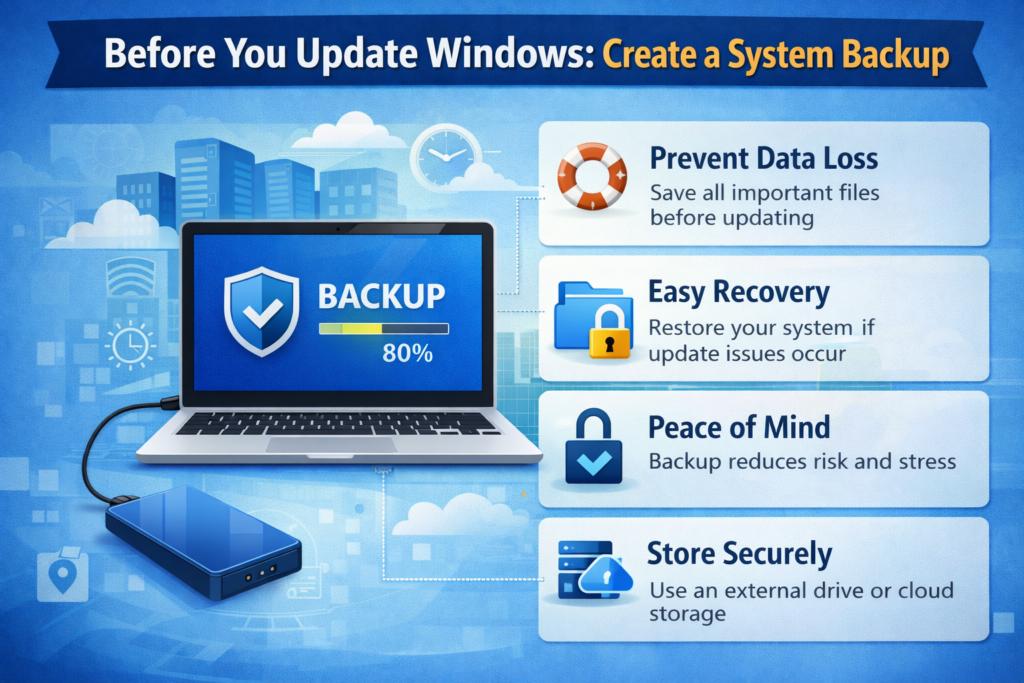
Although it is rare, some updates can cause unexpected issues on certain hardware configurations. Before you Update Windows on any major feature update (like upgrading from Windows 10 to Windows 11), always create a full system backup. Here is how:
- Open Control Panel > Backup and Restore (Windows 7 compatibility tool still works in Windows 10/11).
- Click ‘Create a System Image’ and save it to an external drive.
- Alternatively, use Windows Backup in Settings > Accounts > Windows Backup.
- Verify the backup completed successfully before you Update Windows.
Creating a backup takes less than 30 minutes but can save you days of work if something goes wrong. Always back up before you Update Windows with a major release.
Windows Security Features That Activate When You Update Windows
When you Update Windows, you are not just installing patches — you are activating a powerful suite of security features. Here are the key protections you receive:
- Windows Defender Antivirus Updates — Receives the latest virus definitions to detect brand-new threats.
- Microsoft Defender SmartScreen — Improved website and download filtering to block phishing attempts.
- BitLocker Enhancements — Stronger encryption for laptops and devices containing sensitive data.
- Secure Boot & TPM Improvements — Harder for rootkits to survive a system restart.
- Zero-Day Vulnerability Patches — Fixes for critical flaws exploited in the wild before a fix was publicly announced.
All of these security layers activate only when you Update Windows properly. Users who delay updates miss out on these critical protections and expose their systems unnecessarily.
How Long Does It Take to Update Windows
One of the most common concerns people have is how long it takes to Update Windows. The time varies depending on the type of update:
- Security Patches (Cumulative Updates): Usually 5–15 minutes including restart.
- Feature Updates (twice a year): Can take 30–60 minutes depending on your hardware.
- Major Version Upgrades (e.g., Windows 10 to Windows 11): May take 1–2 hours.
To minimize disruption, schedule the time to Update Windows during off-hours — such as overnight — using the Active Hours feature in Windows Update settings.
Top 5 Security Tips Alongside Updating Windows
Keeping your system updated is the foundation of digital security, but here are five additional steps that complement when you regularly Update Windows:
- Use a Strong, Unique Password — Never reuse passwords across websites. Use a password manager.
- Enable Two-Factor Authentication (2FA) — Add a second layer of protection to your Microsoft account.
- Avoid Suspicious Links and Emails — Phishing attacks are the #1 way hackers access systems.
- Use a VPN on Public Wi-Fi — Always protect your connection when using public hotspots.
- Scan Regularly with Windows Defender — Even after you Update Windows, run weekly scans.
How to Check If Windows Is Fully Updated
After updating your system, it is important to verify that the process completed successfully. Here is how to confirm your system is fully up to date:
- Go to Settings > Windows Update.
- You should see the message: ‘You’re up to date’ with a green checkmark.
- Check the ‘Update History’ option to view a full list of recently installed updates.
- Verify the date of the last successful update — it should be within the last 30 days.
Should You Update Windows on a Metered Connection?
If you are using mobile data or a limited internet plan, you may want to control when you update your PC to avoid large data downloads. Windows 10 and 11 allow you to mark a connection as ‘Metered’. When a connection is set to metered, Windows will pause most automatic updates until you connect to a standard Wi-Fi or wired connection.
To set a metered connection: Go to Settings > Network & Internet > Wi-Fi > select your network > Enable ‘Set as metered connection’. This gives you full control over updates on limited data.
Final Verdict: Make It a Habit to Update Windows Every Month
There is no debate among cybersecurity experts — regularly choosing to Update Windows is the single most effective step the average user can take to stay secure online. Every time you Update Windows, you are closing the door on thousands of potential attack vectors. You are keeping your data safe, your system fast, and your digital life protected. Make it a non-negotiable monthly habit: set a reminder, enable automatic updates, and always check that your system has successfully received the latest patches. The few