vikram@gmail.com
INTRODUCTION:-
Every single time you open a web browser and visit a website, your browser is quietly recording everything. The pages you visited. The searches you made. The videos you watched. The forms you filled out. Even the passwords you typed. All of this information builds up silently in the background — stored in files on your computer that anyone with access to your device can potentially see.
This is why knowing how to delete browser history properly is one of the most important digital skills you can have in today’s privacy-conscious world. Whether you’re protecting sensitive personal information, fixing a slow browser, troubleshooting website errors, or simply maintaining your privacy on a shared computer — the ability to delete browser history and clear your cache gives you complete control over your digital footprint.
In this comprehensive, step-by-step guide, you’ll learn exactly how to delete browser history on every major browser, what cache and cookies actually are, why clearing them matters, and advanced privacy tips that most users never discover.
Why You Should Delete Browser History Regularly

Before diving into the how, let’s understand the why. Many people treat browser history as harmless — just a list of websites visited. But the reality is far more significant.
Privacy Protection on Shared Devices
If you share a computer with family members, roommates, or colleagues, your browser history is visible to everyone who uses that device. Medical searches, financial research, personal communications, job hunting activity — all of it sits exposed in the browser history for anyone curious enough to look. Regularly choosing to delete browser history is the simplest way to maintain your privacy on any shared device.
Improved Browser Performance
Over time, your browser accumulates enormous amounts of cached data — stored copies of website images, scripts, and files designed to make pages load faster. While this sounds helpful, an overfilled cache can actually do the opposite — slowing your browser down, causing pages to load incorrectly, and consuming significant storage space on your hard drive. Clearing the cache regularly keeps your browser running at peak speed.
Fixing Website Errors and Loading Problems
Have you ever visited a website that looked broken, displayed outdated information, or simply refused to load correctly? In many cases, the culprit is corrupted or outdated cache data. When you delete browser history and clear the cache, you force your browser to download fresh, updated versions of websites — fixing these errors instantly.
Security Against Saved Sensitive Information
Browsers store far more than just the list of sites you visited. They also cache form data, login credentials, session cookies, and auto-fill information. If malicious software gains access to your computer, this stored data becomes a serious security vulnerability. Regular clearing significantly reduces this risk.
Understanding What You’re Actually Deleting

When people say they want to delete browser history, they’re often referring to several different types of stored data. Understanding each one helps you make smarter decisions about what to clear and when.
Browsing History
This is the straightforward list of every URL your browser has visited, organized by date and time. It’s what appears when you press Ctrl+H in most browsers. Anyone with access to your browser can scroll through this list and see exactly where you’ve been online.
Cache (Temporary Internet Files)
The cache is a collection of website data — images, HTML files, CSS stylesheets, JavaScript files — that your browser saves locally to make websites load faster on repeat visits. Instead of downloading the same logo image every time you visit a website, your browser loads it from the local cache. While useful, the cache grows very large over time and can cause loading errors when it contains outdated data.
Cookies
Cookies are small text files that websites place on your computer to remember information about you — your login status, shopping cart contents, language preferences, and site settings. While many cookies are harmless and genuinely useful, tracking cookies used by advertising networks follow your activity across multiple websites, building detailed profiles of your browsing behavior.
Saved Passwords
Browsers offer to remember your login credentials for websites. While convenient, saved passwords in a browser can be a security risk, especially on shared or public computers.
Download History
A log of every file you’ve downloaded through the browser, including the original source URL and download date.
Form Data and Auto-fill Information
Names, addresses, phone numbers, and other information you’ve typed into web forms, stored for auto-fill convenience.
When you choose to delete browser history, you can typically select which of these categories to clear — giving you precise control over your privacy cleanup.
How to Delete Browser History in Google Chrome
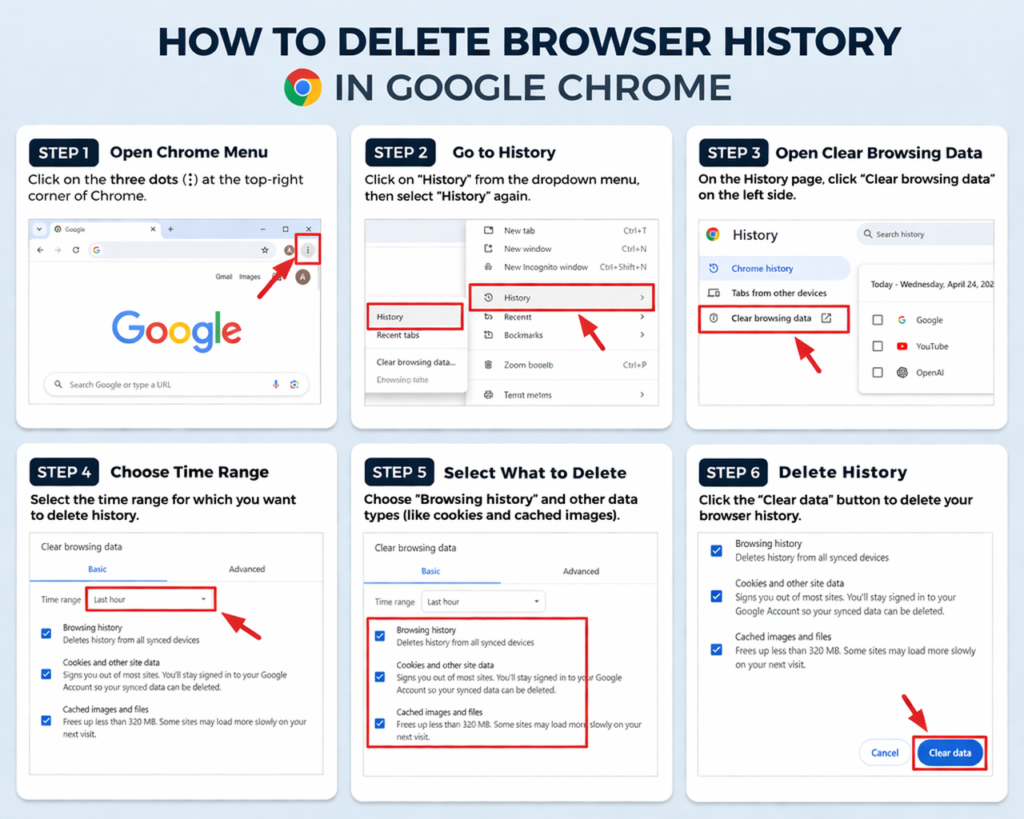
Google Chrome is the world’s most popular browser, used by billions of people daily. Here’s the complete guide to clearing everything in Chrome.
Basic Method — Keyboard Shortcut
The fastest way to delete browser history in Chrome is using the keyboard shortcut Ctrl + Shift + Delete (Windows) or Command + Shift + Delete (Mac). This opens the Clear browsing data dialog immediately, skipping all menu navigation.
Step-by-Step Chrome History Deletion
Step 1: Open Google Chrome on your computer.
Step 2: Click the three vertical dots (⋮) in the top-right corner to open the Chrome menu.
Step 3: Hover over “History” in the dropdown menu, then click “History” again in the submenu that appears, or simply press Ctrl + H.
Step 4: In the History page, click “Clear browsing data” on the left sidebar.
Step 5: The Clear browsing data dialog box opens with two tabs — Basic and Advanced.
Step 6: In the Basic tab, select your time range from the dropdown at the top — Last hour, Last 24 hours, Last 7 days, Last 4 weeks, or All time (recommended for a complete cleanup).
Step 7: Check the boxes for what you want to delete — Browsing history, Cookies and other site data, Cached images and files.
Step 8: For a more thorough cleanup, click the Advanced tab to also clear Download history, Passwords, Auto-fill form data, Site settings, and Hosted app data.
Step 9: Click the blue “Clear data” button. Chrome will process the deletion — this may take a few seconds for large amounts of data.
Your Chrome browser history is now completely cleared.
Chrome’s Quick Delete Option
Chrome also allows you to delete browser history for individual sites without clearing everything. In the History page (Ctrl+H), hover over any entry and check the checkbox that appears. Select multiple entries and click “Delete” at the top to remove only specific visits while keeping the rest of your history intact.
How to Delete Browser History in Mozilla Firefox
Firefox is renowned for its privacy features, and its history clearing options are among the most detailed available.
Step 1: Open Mozilla Firefox.
Step 2: Click the three horizontal lines (☰) menu in the top-right corner.
Step 3: Click “History” then select “Clear Recent History” from the submenu. Alternatively, press Ctrl + Shift + Delete for the direct shortcut.
Step 4: The Clear Recent History dialog opens. From the “Time range to clear” dropdown, select your preferred range — Last Hour, Last Two Hours, Last Four Hours, Today, or Everything for a complete wipe.
Step 5: Click the arrow next to “History” to expand the detailed options. Check all categories you want to clear — Browsing & Download History, Active Logins, Form & Search History, Cookies, Cache, Site Preferences, and Offline Website Data.
Step 6: Click “Clear Now” to complete the process.
Firefox also offers a unique “Forget” button in its toolbar — a special feature that immediately wipes the last 5 minutes, 2 hours, or 24 hours of history with a single click, without opening any dialog boxes. This is ideal for quickly deleting recent activity.
How to Delete Browser History in Microsoft Edge
Microsoft Edge, built on the same Chromium engine as Chrome, has a very similar process for clearing history.
Step 1: Open Microsoft Edge.
Step 2: Press Ctrl + Shift + Delete to open the Clear browsing data panel directly, or click the three dots (···) menu, go to “History,” then click “Clear browsing data.”
Step 3: The Clear browsing data panel appears on the right side of the screen. Select your time range — Last hour, Last 24 hours, Last 7 days, Last 4 weeks, or All time.
Step 4: Check the categories you want to clear. Edge offers the same core options as Chrome, plus additional options like Media foundation data and Site permissions.
Step 5: Click “Clear now” to complete the deletion.
Edge also has a unique feature called “Choose what to clear every time you close the browser” in Settings — a powerful option that automatically deletes selected categories of browsing data every time you close Edge, so you never have to manually delete browser history again.
How to Delete Browser History in Safari (Mac and iPhone)
For Apple users, Safari handles history clearing differently across Mac and iOS devices.
On Mac
Step 1: Open Safari on your Mac.
Step 2: Click “History” in the top menu bar.
Step 3: Select “Clear History” at the bottom of the dropdown menu.
Step 4: Choose your time range — Last hour, Today, Today and yesterday, or All History.
Step 5: Click “Clear History” to confirm.
Note that clearing history in Safari on Mac also removes cookies and cache associated with that time period automatically.
On iPhone or iPad
Step 1: Open the Settings app (not Safari itself).
Step 2: Scroll down and tap “Safari.”
Step 3: Scroll down to find “Clear History and Website Data” and tap it.
Step 4: Confirm by tapping “Clear History and Data” in the popup.
This clears history, cookies, and cache from Safari on your iPhone simultaneously.
Using Private/Incognito Mode to Avoid Building History
One of the smartest ways to protect your privacy is preventing history from being saved in the first place. Every major browser offers a private browsing mode that doesn’t save any browsing history, cookies, or cache after the session ends.
In Chrome, press Ctrl + Shift + N to open an Incognito window. In Firefox, press Ctrl + Shift + P to open a Private window. In Edge, press Ctrl + Shift + N to open an InPrivate window. In Safari, go to File and select New Private Window.
Private browsing mode is perfect for situations where you don’t want any record of your activity saved locally — research on shared computers, surprise gift shopping, or any sensitive browsing you prefer to keep completely private. However, note that private mode doesn’t make you anonymous online — your internet service provider and the websites you visit can still see your activity.
Advanced Privacy Tips Beyond Deleting Browser History
Knowing how to delete browser history is the foundation of browser privacy. These advanced tips take your protection significantly further.
Use a VPN: A Virtual Private Network encrypts your internet connection and masks your IP address from websites and your internet provider. Combined with regularly clearing history, a VPN provides a much stronger privacy shield.
Install Privacy-Focused Extensions: Browser extensions like uBlock Origin (ad and tracker blocker) and Privacy Badger automatically block tracking cookies and advertising scripts from building profiles of your browsing behavior.
Use a Privacy-Focused Browser: Browsers like Brave are built from the ground up with privacy as the priority — blocking trackers, fingerprinting, and ads automatically, with a built-in feature to delete browser history automatically on close.
Review Saved Passwords: Go into your browser’s password manager settings and review what credentials are stored. Remove any you no longer need, especially for sensitive accounts.
Check Site Permissions: In your browser settings, review which websites have been granted permission to access your camera, microphone, location, and notifications. Revoke permissions for any sites that don’t genuinely need them.
How Often Should You Delete Browser History?
The right frequency depends on your usage patterns and privacy needs.
Daily clearing is recommended for anyone using shared computers, public devices, or library computers. Always clear everything before leaving a shared computer.
Weekly clearing is appropriate for personal computers used by privacy-conscious individuals who want to maintain a clean, fast browser without obsessing over it daily.
Monthly clearing is the minimum reasonable schedule for casual users on personal devices who primarily want performance benefits rather than strict privacy protection.
Automatic clearing using browser settings (available in Edge and Firefox) is the most convenient option — configure it once and your browser stays clean forever without any manual effort.
Conclusion: Take Control of Your Digital Privacy Today
Your browser knows more about you than almost any other piece of software on your computer. Every search, every page visited, every form filled, every video watched — it’s all recorded, stored, and potentially accessible to anyone who uses your device.
The ability to delete browser history completely and correctly is not just a technical skill — it’s a fundamental act of digital self-protection. It keeps your personal information private, your browser running fast, your websites loading correctly, and your sensitive data out of the wrong hands.
Whether you use Chrome, Firefox, Edge, or Safari — you now have the complete knowledge to clear every trace of your browsing activity in minutes. Make it a regular habit, combine it with private browsing mode for sensitive sessions, and take the advanced steps to block trackers before they even start collecting data.
Your privacy is worth protecting. And now you have every tool you need to do exactly that.